How To Install Navidrome on Debian 13

Navidrome is an open-source, self-hosted music streaming server that gives you complete control over your digital music collection. Unlike commercial streaming platforms, Navidrome lets you stream your personal music library from anywhere while maintaining privacy and avoiding subscription fees. This comprehensive guide walks you through installing and configuring Navidrome on Debian 13, covering both binary installation and manual setup methods to suit different user preferences and technical skill levels.
Whether you’re building a home media server or creating a personal cloud music library for family sharing, Navidrome provides a lightweight, efficient solution. The software is written in Go, ensuring minimal resource consumption while delivering robust performance. You’ll learn to set up the music streaming server, create a systemd service for automatic startup, implement security best practices, and configure optional reverse proxy access for enhanced functionality.
What is Navidrome?
Navidrome functions as a complete music streaming server solution that transforms your computer into a personal Spotify-like service. The platform provides a modern web-based interface accessible from any browser, plus compatibility with numerous mobile applications through the Subsonic API protocol. This compatibility ensures you can use popular music apps on iOS and Android devices to access your library seamlessly.
The music server excels at audio transcoding, automatically converting high-quality audio files to formats suitable for mobile streaming or bandwidth-limited connections. This feature ensures smooth playback regardless of network conditions or device capabilities. Unlike subscription-based services, you maintain full ownership and control of your music collection without concerns about catalog changes or service discontinuation.
Common use cases include personal home media servers, family music sharing systems, and private cloud libraries accessible during travel. The lightweight architecture means Navidrome runs efficiently even on modest hardware, making it ideal for repurposed computers, mini PCs, or dedicated server environments.
Prerequisites and System Requirements
Before beginning the installation process, ensure your Debian 13 system meets the necessary requirements. Your server should have at least 2GB of RAM for smooth operation, though more memory improves performance with larger libraries or multiple concurrent users. Storage capacity depends entirely on your music collection size, so plan accordingly with sufficient disk space for both the audio files and the application database.
A fresh Debian 13 installation provides the cleanest starting point, though existing systems work equally well. You’ll need sudo or root access to execute administrative commands throughout the installation. Basic command-line knowledge helps navigate the terminal efficiently, though this guide provides detailed explanations for each step.
Essential dependencies include FFmpeg for audio transcoding capabilities, along with standard utilities like wget or curl for downloading files. Navidrome listens on port 4533 by default, so verify this port remains available and not occupied by other services. If you plan external access, consider registering a domain name and configuring DNS records to point to your server.
Prepare a dedicated location for your music library, ensuring the directory has proper read permissions. A wired network connection provides better stability than WiFi for server installations, particularly during initial library scanning of large collections. Organize your music files with consistent naming and folder structures before installation to optimize the scanning and cataloging process.
Method 1: Installing Navidrome Using Pre-built Binary
The binary installation method offers the quickest path to a working Navidrome server. This approach downloads pre-compiled packages specifically built for Debian-based distributions, eliminating manual compilation steps.
Step 1: Update System and Install Dependencies
Start by ensuring your Debian 13 system has current package information and all installed software uses the latest versions. Open a terminal and execute:
sudo apt update && sudo apt upgrade -yThis command refreshes the package repository cache and upgrades existing packages, closing security vulnerabilities and ensuring compatibility. Next, install FFmpeg and essential tools:
sudo apt install ffmpeg wget vim -yFFmpeg handles audio transcoding, converting between different file formats and bitrates for optimal streaming performance. The wget utility downloads files from the internet, while vim provides a text editor for configuration file creation. Verify FFmpeg installation by checking its version:
ffmpeg -versionYou should see version information confirming successful installation. FFmpeg remains critical for Navidrome’s transcoding functionality, enabling on-the-fly conversion of FLAC, WAV, or other high-quality formats to efficient streaming formats like MP3 or AAC.
Step 2: Download Navidrome Package
Navigate to the official Navidrome GitHub releases page to identify the latest stable version. Download the Debian package directly using wget:
wget https://github.com/navidrome/navidrome/releases/download/v0.59.0/navidrome_0.59.0_linux_amd64.debReplace the version number with the current release if a newer version exists. The amd64 architecture package works for most modern Debian installations running on Intel or AMD processors. For systems using different architectures like ARM, select the appropriate package variant.
Step 3: Install the Package
Install the downloaded .deb package using the apt package manager:
sudo apt install ./navidrome_0.59.0_linux_amd64.debThis command automatically resolves dependencies and installs Navidrome to the appropriate system directories. If dependency errors occur, execute:
sudo apt install -fThis fixes broken dependencies by downloading and installing missing packages. Verify successful installation by checking if Navidrome files exist in system directories.
Step 4: Configure Navidrome
Create the configuration file to specify your music library location and operational parameters:
sudo mkdir -p /etc/navidrome
sudo vim /etc/navidrome/navidrome.toml
Add the following configuration, adjusting paths to match your system:
MusicFolder = "/home/username/Music"
DataFolder = "/var/lib/navidrome"
Port = 4533
Address = "0.0.0.0"
LogLevel = "info"
ScanSchedule = "@every 1h"
The MusicFolder parameter points to your music library location. DataFolder stores the database and cache files. Setting Address to “0.0.0.0” allows access from other devices on your network, while “127.0.0.1” restricts access to localhost only. The ScanSchedule parameter automatically updates your library hourly, detecting new additions.
Set proper permissions on the configuration directory:
sudo chmod 750 /etc/navidromeMethod 2: Manual Installation from Source
Manual installation provides greater control over file locations and system integration. This method works universally across different Linux distributions with minimal modifications.
Step 1: Prepare the System
Update your package repositories and install required dependencies:
sudo apt update && sudo apt upgrade -y
sudo apt install ffmpeg wget vim tar -y
These tools enable downloading, extracting, and configuring Navidrome manually.
Step 2: Create User and Directory Structure
Creating a dedicated system user enhances security by limiting Navidrome’s access privileges:
sudo useradd -r -s /bin/false navidromeThe -r flag creates a system user without a home directory, and -s /bin/false prevents direct login. Establish the directory structure:
sudo install -d -o navidrome -g navidrome /opt/navidrome
sudo install -d -o navidrome -g navidrome /var/lib/navidrome
The /opt/navidrome directory holds the executable binary, while /var/lib/navidrome stores data files and the database. Using the install command simultaneously creates directories and sets proper ownership.
Step 3: Download and Extract Navidrome Binary
Navigate to a temporary directory and download the latest release:
cd /tmp
wget https://github.com/navidrome/navidrome/releases/download/v0.59.0/navidrome_0.59.0_linux_amd64.tar.gz
Extract the tarball directly to the installation directory:
sudo tar -xvzf navidrome_0.59.0_linux_amd64.tar.gz -C /opt/navidrome/Set executable permissions on the binary:
sudo chown -R navidrome:navidrome /opt/navidrome
sudo chmod +x /opt/navidrome/navidrome
Verify extraction succeeded by listing the directory contents:
ls -l /opt/navidromeYou should see the navidrome executable file. Clean up the downloaded archive:
rm navidrome_0.59.0_linux_amd64.tar.gzStep 4: Create Configuration File
Generate the configuration file in the data directory:
sudo nano /var/lib/navidrome/navidrome.tomlAdd your configuration parameters:
MusicFolder = "/path/to/your/music"
DataFolder = "/var/lib/navidrome"
Port = 4533
Address = "0.0.0.0"
LogLevel = "info"
SessionTimeout = "24h"
ScanSchedule = "@every 1h"
Replace /path/to/your/music with your actual music directory. The SessionTimeout parameter controls how long users remain logged in. Set ownership to the navidrome user:
sudo chown navidrome:navidrome /var/lib/navidrome/navidrome.tomlCreating a Systemd Service
Systemd integration enables automatic startup on boot and simplified service management. Create the service unit file:
sudo vim /etc/systemd/system/navidrome.serviceAdd the following configuration:
[Unit]
Description=Navidrome Music Server
After=network.target

[Service]
Type=simple
User=navidrome
Group=navidrome
ExecStart=/opt/navidrome/navidrome --configfile=/var/lib/navidrome/navidrome.toml
WorkingDirectory=/var/lib/navidrome
Restart=on-failure
RestartSec=5
StandardOutput=journal
StandardError=journal

[Install]
WantedBy=multi-user.target
The After=network.target directive ensures Navidrome starts after network initialization. The Restart=on-failure policy automatically restarts the service if it crashes, with a 5-second delay between restart attempts. Directing output to the journal facilitates troubleshooting using journalctl.
Reload the systemd daemon to recognize the new service:
sudo systemctl daemon-reloadEnable automatic startup on boot:
sudo systemctl enable navidromeStart the service immediately:
sudo systemctl start navidromeCheck the service status to confirm successful startup:
sudo systemctl status navidromeYou should see “active (running)” status. If issues occur, view detailed logs:
sudo journalctl -u navidrome -fThe -f flag follows the log in real-time, displaying new entries as they occur.
Initial Navidrome Configuration and Setup
Access the Navidrome web interface by opening a browser and navigating to http://localhost:4533 on the server itself, or http://server-ip-address:4533 from another device on your network. Replace server-ip-address with your Debian server’s actual IP address.
The first visit prompts you to create an administrator account. Enter a username and strong password, then click create. This account has full administrative privileges, including user management and system configuration access.
The web interface displays a clean, modern design with navigation sections for Artists, Albums, Songs, Playlists, and more. Access settings by clicking the gear icon in the upper right corner. Configure additional parameters like scan schedules, session timeouts, and log levels according to your preferences.
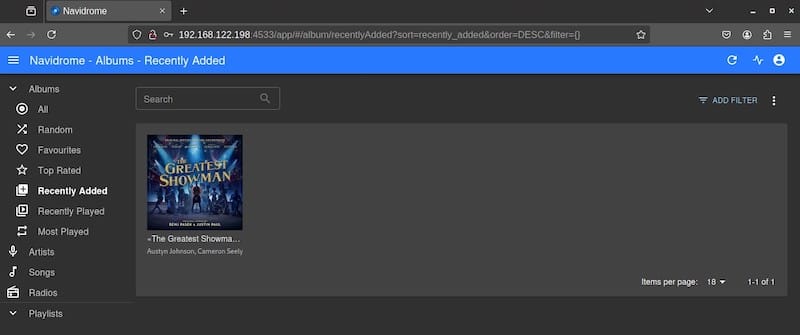
Trigger an initial library scan by clicking “Scan Library” in the settings menu. The first scan takes several minutes depending on collection size, as Navidrome indexes all audio files and extracts metadata like artist names, album titles, and cover artwork. Progress appears in the interface, showing how many tracks have been processed.
Once scanning completes, browse your music collection using the various navigation options. Create playlists, mark favorites, and explore the intuitive interface. For mobile access, install a Subsonic-compatible client like DSub, Ultrasonic, or play:Sub on your smartphone. Configure the app with your server address and login credentials to stream music on the go.
Optional: Setting Up Reverse Proxy with Nginx
A reverse proxy adds professional features like SSL encryption, custom domain access, and additional security layers. Install Nginx on your Debian system:
sudo apt install nginx -yCreate a new Nginx configuration file for Navidrome:
sudo vim /etc/nginx/sites-available/navidromeAdd the following configuration:
server {
    listen 80;
    server_name music.yourdomain.com;

    location / {
        proxy_pass http://localhost:4533;
        proxy_set_header Host $host;
        proxy_set_header X-Real-IP $remote_addr;
        proxy_set_header X-Forwarded-For $proxy_add_x_forwarded_for;
        proxy_set_header X-Forwarded-Proto $scheme;
        proxy_buffering off;
    }
}
Replace music.yourdomain.com with your actual domain name. The proxy_set_header directives ensure Navidrome receives correct client information despite traffic passing through Nginx.
Enable the site by creating a symbolic link:
sudo ln -s /etc/nginx/sites-available/navidrome /etc/nginx/sites-enabled/Test the configuration for syntax errors:
sudo nginx -tIf the test succeeds, reload Nginx:
sudo systemctl reload nginxFor SSL encryption, install Certbot and obtain a free Let’s Encrypt certificate:
sudo apt install certbot python3-certbot-nginx -y
sudo certbot --nginx -d music.yourdomain.com
Certbot automatically configures SSL and redirects HTTP traffic to HTTPS. Certificates renew automatically through a systemd timer.
Security Best Practices
Implement proper security measures to protect your music server. Configure the UFW firewall to restrict access:
sudo apt install ufw -y
sudo ufw allow ssh
sudo ufw allow 80/tcp
sudo ufw allow 443/tcp
sudo ufw enable
This configuration allows SSH access for server management plus HTTP and HTTPS for web traffic. Port 4533 remains closed to external access, with traffic flowing through the Nginx reverse proxy instead.
Use strong, unique passwords for all Navidrome user accounts. Enable two-factor authentication if available in future releases. Keep your system updated with regular security patches:
sudo apt update && sudo apt upgrade -yFor remote access, consider VPN solutions like WireGuard or OpenVPN instead of exposing Navidrome directly to the internet. This approach significantly reduces attack surface while maintaining convenient access.
Implement regular backup procedures for the Navidrome database and configuration files:
sudo tar -czf navidrome-backup-$(date +%Y%m%d).tar.gz /var/lib/navidromeStore backups in a separate location or cloud storage service. Review file permissions periodically to ensure the navidrome user has only necessary access rights. Monitor system logs for unusual activity:
sudo journalctl -u navidrome --since "24 hours ago"Troubleshooting Common Issues
If the service fails to start, check logs for error messages revealing the root cause. Common issues include incorrect configuration file syntax or missing music directories. Verify your configuration file path and format:
cat /var/lib/navidrome/navidrome.tomlWhen music files don’t appear in the interface, confirm the navidrome user has read permissions on your music directory:
sudo chmod -R o+r /path/to/musicTrigger a manual scan from the web interface settings menu. Supported formats include MP3, FLAC, OGG, M4A, and more.
Port conflicts prevent Navidrome from starting if another service already uses port 4533. Identify the conflicting process:
sudo netstat -tulpn | grep 4533Either stop the conflicting service or change Navidrome’s port in the configuration file. Transcoding errors indicate FFmpeg issues. Verify installation:
which ffmpegIf the web interface is inaccessible, verify the service runs correctly and check firewall rules. Test port availability locally:
curl http://localhost:4533High CPU usage during initial scans is normal, especially with large libraries. Adjust concurrent transcoding streams in settings if performance issues persist during regular operation.
Congratulations! You have successfully installed Navidrome. Thanks for using this tutorial for installing Navidrome on Debian 13 “Trixie” system. For additional help or useful information, we recommend you check the official Navidrome website.
