How To Install Navidrome on Fedora 43

Self-hosting your music collection has never been more appealing. Navidrome offers an elegant solution for streaming your personal music library from anywhere, transforming your Fedora 43 server into a powerful media hub. This comprehensive guide walks you through every step of installing and configuring Navidrome, whether you prefer traditional binary installation or containerized deployment with Docker.
Understanding Navidrome
Navidrome stands out as a lightweight, open-source music streaming server that brings your entire music collection to your fingertips. Compatible with the Subsonic API, it works seamlessly with dozens of mobile apps across iOS and Android platforms.
The server excels at delivering modern streaming features without overwhelming your system resources. Real-time transcoding ensures your music plays smoothly on any device, regardless of format. Multi-user support means your entire household can maintain separate libraries, playlists, and listening histories.
What makes Navidrome particularly attractive? Its web interface feels responsive and modern. Last.fm integration tracks your listening habits. The automatic library scanner keeps your collection organized without manual intervention. Best of all, it runs efficiently on modest hardware, making it perfect for home servers and single-board computers alike.
Prerequisites and System Requirements
Before diving into installation, ensure your Fedora 43 system meets the necessary specifications. A dual-core 2 GHz 64-bit processor with 2 GB RAM represents the minimum threshold. For smoother performance, especially with larger music libraries, consider 4 GB RAM and a quad-core processor.
Your system should have at least 15 GB of available storage for the operating system, though 40 GB provides comfortable breathing room. Both x86_64 and ARM64 architectures work perfectly with Navidrome.
You’ll need administrative privileges through sudo access. Basic familiarity with terminal commands helps, though this guide explains each step clearly. An active internet connection is essential for downloading packages and dependencies.
Port 4533 must be available on your system, as Navidrome uses this by default. If you plan on accessing your music library remotely, understanding firewall configuration and port forwarding becomes important.
Preparing Your Fedora 43 System
Start with a clean slate by updating your system packages. Open your terminal and execute:
sudo dnf update -yThis command refreshes your package repositories and applies the latest security patches. Wait for the process to complete before proceeding.
Next, install the dependencies Navidrome requires. FFmpeg handles audio transcoding, while wget and unzip assist with downloading and extracting files:
sudo dnf install -y wget unzip ffmpegThe system prompts you to confirm installation. Press ‘y’ and Enter to continue.
Creating a dedicated directory structure keeps your installation organized. Establish directories for the application and its data:
sudo mkdir -p /opt/navidrome
sudo mkdir -p /var/lib/navidrome
sudo mkdir -p /var/lib/navidrome/music
For enhanced security, create a dedicated user account specifically for running Navidrome:
sudo useradd -r -s /bin/false navidromeSet proper ownership on these directories:
sudo chown -R navidrome:navidrome /opt/navidrome
sudo chown -R navidrome:navidrome /var/lib/navidrome
Binary Installation Method
The binary installation method offers direct control over your Navidrome instance. Navigate to your installation directory:
cd /opt/navidromeDownload the latest Navidrome release. Check the GitHub releases page for the current version number:
sudo wget https://github.com/navidrome/navidrome/releases/download/v0.52.5/navidrome_0.52.5_linux_amd64.tar.gzExtract the downloaded archive:
sudo tar -xvzf navidrome_0.52.5_linux_amd64.tar.gzMove the binary to a system-wide location and make it executable:
sudo mv navidrome /usr/local/bin/
sudo chmod +x /usr/local/bin/navidrome
Verify your installation succeeded by checking the version:
navidrome --versionThe command should display version information confirming successful installation.
Creating the Configuration File
Configuration determines how Navidrome behaves. Create a configuration file in TOML format:
sudo nano /var/lib/navidrome/navidrome.tomlAdd the following essential configuration parameters:
MusicFolder = "/var/lib/navidrome/music"
DataFolder = "/var/lib/navidrome"
LogLevel = "info"
Address = "0.0.0.0"
Port = 4533
ScanSchedule = "@every 1h"
TranscodingCacheSize = "100MB"
The MusicFolder directive points to your music collection location. DataFolder stores Navidrome’s database and cache files. LogLevel controls verbosity in your logs, with “info” providing balanced output.
Binding to “0.0.0.0” allows network access from other devices. The ScanSchedule automatically checks for new music hourly. TranscodingCacheSize limits memory usage for format conversions.
Save the file with Ctrl+O, then exit with Ctrl+X.
Setting Up systemd Service
Running Navidrome as a systemd service ensures it starts automatically on boot. Create a service file:
sudo nano /etc/systemd/system/navidrome.serviceInsert the following configuration:
[Unit]
Description=Navidrome Music Server
After=network.target

[Service]
Type=simple
User=navidrome
Group=navidrome
ExecStart=/usr/local/bin/navidrome --configfile="/var/lib/navidrome/navidrome.toml"
Restart=on-failure
RestartSec=5

[Install]
WantedBy=multi-user.target
This configuration runs Navidrome under your dedicated user account. The Restart directive automatically recovers from failures. RestartSec=5 waits five seconds before attempting restart.
Reload the systemd daemon to recognize your new service:
sudo systemctl daemon-reloadStart Navidrome:
sudo systemctl start navidromeEnable automatic startup at boot:
sudo systemctl enable navidromeCheck the service status:
sudo systemctl status navidromeYou should see “active (running)” in green text. If issues arise, examine the logs:
sudo journalctl -u navidrome -fDocker Installation Alternative
Docker simplifies deployment and updates. First, install Docker on your Fedora 43 system:
sudo dnf install -y docker docker-composeStart the Docker service:
sudo systemctl start docker
sudo systemctl enable docker
Add your user to the docker group to run commands without sudo:
sudo usermod -aG docker $USERLog out and back in for group changes to take effect.
Create a directory for your Docker configuration:
mkdir -p ~/navidrome
cd ~/navidrome
Create a docker-compose.yml file:
nano docker-compose.ymlAdd this configuration:
version: '3'
services:
  navidrome:
    image: deluan/navidrome:latest
    container_name: navidrome
    ports:
      - "4533:4533"
    environment:
      ND_LOGLEVEL: info
      ND_SESSIONTIMEOUT: 24h
    volumes:
      - ./data:/data
      - /path/to/your/music:/music:ro
    restart: unless-stopped
Replace /path/to/your/music with your actual music directory path. The :ro flag mounts it read-only for safety.
Deploy your container:
docker-compose up -dVerify the container runs correctly:
docker psCheck container logs if needed:
docker logs navidromeThe Docker approach offers easier updates. Simply pull the latest image and recreate the container:
docker-compose pull
docker-compose up -d
Configuring Firewall Rules
Fedora 43 uses firewalld by default. Open port 4533 to allow network access:
sudo firewall-cmd --permanent --add-port=4533/tcpReload the firewall configuration:
sudo firewall-cmd --reloadVerify the rule took effect:
sudo firewall-cmd --list-portsYou should see 4533/tcp in the output.
For public-facing servers, consider restricting access to specific IP ranges:
sudo firewall-cmd --permanent --add-rich-rule='rule family="ipv4" source address="192.168.1.0/24" port protocol="tcp" port="4533" accept'This example limits access to your local network. Adjust the IP range according to your needs.
Initial Setup and Web Interface Access
Open your web browser and navigate to your Navidrome instance. For local access, use http://localhost:4533 and from another device on your network, substitute your server’s IP address like http://192.168.1.100:4533
The first visit presents a registration screen. Create your administrator account with a strong username and password. This account controls all system settings and manages other users.
After logging in, the interface displays your music library. If you haven’t added music files yet, the library appears empty. Navigate to Settings to configure your music folder paths.
The automatic scanner runs according to your schedule. You can trigger manual scans immediately from the Settings menu. Watch the progress indicator as Navidrome indexes your collection.
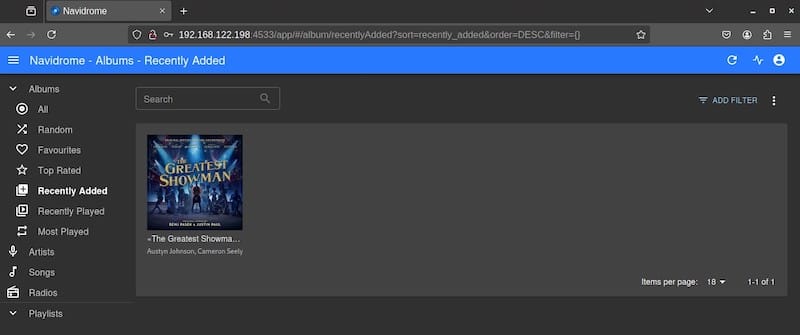
The web interface provides intuitive navigation. Browse by albums, artists, genres, or recently added tracks. Create playlists by dragging songs into custom collections. Star your favorites for quick access later.
Advanced Configuration Options
Fine-tuning Navidrome optimizes performance for your specific setup. Transcoding settings affect audio quality and bandwidth usage. Edit your configuration file to adjust transcoding bitrates:
DefaultDownsamplingFormat = "mp3"
DefaultBitRate = 192
Large music libraries benefit from adjusted cache settings:
TranscodingCacheSize = "200MB"
ImageCacheSize = "100MB"
Customize the scanner schedule based on how frequently you add new music:
ScanSchedule = "@every 24h"For troubleshooting, increase log verbosity:
LogLevel = "debug"Remember to restart the service after configuration changes:
sudo systemctl restart navidromeSetting Up Reverse Proxy with Nginx
A reverse proxy enables HTTPS access and custom domain names. Install Nginx:
sudo dnf install -y nginxCreate a configuration file for Navidrome:
sudo nano /etc/nginx/conf.d/navidrome.confAdd this configuration:
server {
    listen 80;
    server_name music.yourdomain.com;

    location / {
        proxy_pass http://localhost:4533;
        proxy_set_header Host $host;
        proxy_set_header X-Real-IP $remote_addr;
        proxy_set_header X-Forwarded-For $proxy_add_x_forwarded_for;
        proxy_set_header X-Forwarded-Proto $scheme;
    }
}
Replace music.yourdomain.com with your actual domain.
Enable and start Nginx:
sudo systemctl enable nginx
sudo systemctl start nginx
For HTTPS, install Certbot:
sudo dnf install -y certbot python3-certbot-nginxObtain an SSL certificate:
sudo certbot --nginx -d music.yourdomain.comCertbot automatically configures HTTPS and handles certificate renewal.
Mobile Apps and Client Configuration
Navidrome’s Subsonic compatibility opens a world of mobile applications. Popular choices include play:Sub and substreamer for iOS, while Android users enjoy DSub and Ultrasonic.
Configure your mobile app with these details: Server address http://your-server-ip:4533, your Navidrome username, and your Navidrome password.
If using a reverse proxy, specify your domain instead with server address https://music.yourdomain.com
Most apps support offline syncing, downloading your favorite albums for listening without internet access. Test streaming quality and adjust transcoding settings if needed.
Maintenance and Updates
Keep Navidrome current with regular updates. For binary installations, download the latest release and replace the existing binary:
sudo systemctl stop navidrome
cd /opt/navidrome
sudo wget https://github.com/navidrome/navidrome/releases/download/vX.XX.X/navidrome_X.XX.X_linux_amd64.tar.gz
sudo tar -xvzf navidrome_X.XX.X_linux_amd64.tar.gz
sudo mv navidrome /usr/local/bin/
sudo systemctl start navidrome
Docker users enjoy simpler updates:
cd ~/navidrome
docker-compose pull
docker-compose up -d
Back up your configuration and database before major updates:
sudo cp -r /var/lib/navidrome /var/lib/navidrome.backupMonitor log files periodically for errors or warnings. Rotate logs to prevent disk space issues:
sudo journalctl --vacuum-time=30dTroubleshooting Common Issues
Service failures often stem from permission problems. Check file ownership:
ls -la /var/lib/navidromeEnsure the navidrome user owns all files. Correct permissions if necessary:
sudo chown -R navidrome:navidrome /var/lib/navidromeLibrary scanning problems typically involve file permissions or unsupported formats. Verify your music directory permissions allow read access:
sudo chmod -R 755 /var/lib/navidrome/musicConnection issues require systematic checking. Verify the service runs:
sudo systemctl status navidromeTest port accessibility:
sudo ss -tlnp | grep 4533Clear browser cache if the web interface behaves unexpectedly. Check JavaScript console errors in your browser’s developer tools.
For certificate problems with HTTPS, verify Certbot renewed your certificates:
sudo certbot renew --dry-runSecurity Best Practices
Security protects your music library and personal data. Never run Navidrome as root. The dedicated user account we created earlier provides appropriate isolation.
Implement strong passwords for all user accounts. Use HTTPS exclusively for remote access. Configure your firewall conservatively, opening only necessary ports.
Regular updates address security vulnerabilities:
sudo dnf update -yConsider implementing fail2ban to prevent brute force attacks:
sudo dnf install -y fail2banBack up your database regularly. Create automated backup scripts:
#!/bin/bash
tar -czf /backup/navidrome-$(date +%Y%m%d).tar.gz /var/lib/navidrome
Congratulations! You have successfully installed Navidrome. Thanks for using this tutorial for installing Navidrome on Fedora 43 Linux system. For additional help or useful information, we recommend you check the official Navidrome website.
