How To Install Navidrome on Linux Mint 22

Navidrome transforms your Linux Mint 22 system into a powerful, self-hosted music streaming server. This open-source solution lets you access your personal music collection from anywhere, eliminating the need for expensive subscription services while maintaining complete control over your audio library.
In this comprehensive guide, you’ll learn how to install and configure Navidrome on Linux Mint 22 from scratch. We’ll cover everything from system preparation to advanced configuration, ensuring you have a fully functional music streaming server by the end of this tutorial. Whether you’re running a dedicated server or repurposing an old laptop, this step-by-step walkthrough will help you deploy your own Spotify-like service at home.
What is Navidrome?
Navidrome is a lightweight, open-source music server designed for personal streaming. Unlike commercial services, this self-hosted platform gives you complete ownership of your music collection and streaming infrastructure.
The software excels at handling massive music libraries—it’s been tested with collections exceeding 900,000 songs without performance degradation. Despite this capability, Navidrome remains remarkably resource-efficient, capable of running smoothly even on a Raspberry Pi Zero. This makes it perfect for repurposing older hardware or running on network-attached storage devices.
Key features include support for virtually all audio formats (MP3, FLAC, OGG, AAC, M4A, and more), multi-user functionality with granular permissions, and compatibility with various mobile applications. The web-based interface ensures you can manage your library from any device with a browser. Real-time transcoding allows streaming at different bitrates, adapting to your network conditions automatically.
Users choose Navidrome for several compelling reasons: privacy protection, elimination of monthly subscription fees, offline access to music collections, and independence from third-party service disruptions. It represents the perfect balance between functionality and simplicity.
System Requirements and Prerequisites
Before beginning the installation process, ensure your Linux Mint 22 system meets these basic requirements. The minimal hardware specifications are modest—a dual-core processor, 512MB of RAM, and sufficient storage for your music collection will suffice. However, larger libraries benefit from additional RAM for caching and faster processors for transcoding operations.
Your system needs a stable internet connection for downloading packages and accessing the server remotely. You’ll require sudo privileges for installing software and configuring system services. Basic familiarity with terminal commands proves helpful, though this guide explains each step thoroughly.
Essential software dependencies include FFmpeg for audio processing and transcoding, curl or wget for downloading files, and a text editor like vim or nano for configuration file editing. These tools integrate seamlessly with Navidrome’s architecture to provide comprehensive audio format support and streaming capabilities.
Plan your music library location in advance. This directory should have adequate space and proper permissions. Consider using a separate partition or external drive for extensive collections to avoid filling your system drive.
Step 1: Update Your Linux Mint 22 System
System updates ensure compatibility and security before installing new software. Open your terminal application from the application menu or press Ctrl+Alt+T.
Execute the following command to refresh your package repositories:
sudo apt updateThis command contacts Linux Mint’s package servers and downloads the latest package information. You’ll see a list of repositories being processed.
Next, upgrade all installed packages to their latest versions:
sudo apt upgrade -yThe -y flag automatically confirms the upgrade process. Depending on pending updates, this may take several minutes. The system might prompt you about kernel updates or service restarts—accept these recommendations for optimal performance.
After completion, your system is prepared for Navidrome installation with all security patches and compatibility improvements applied.
Step 2: Install Required Dependencies
FFmpeg serves as Navidrome’s audio processing engine, handling format conversion and transcoding operations. Without it, your music server cannot properly stream different audio formats or adjust bitrates for varying network conditions.
Install all necessary dependencies with a single command:
sudo apt install vim ffmpeg curl wget -yThis installs several components: FFmpeg for multimedia handling, curl and wget for file downloads, and vim as a text editor. If you prefer nano over vim, substitute it in the command.
Verify FFmpeg installation by checking its version:
ffmpeg -versionYou should see detailed output showing FFmpeg version information and supported codecs. This confirms successful installation and audio processing capabilities.
These tools form the foundation for Navidrome’s functionality, enabling everything from FLAC playback to on-the-fly MP3 transcoding.
Step 3: Create Navidrome User and Directory Structure
Running services under dedicated user accounts follows Linux security best practices. This isolation prevents potential security vulnerabilities from affecting your entire system.
Create a dedicated system user for Navidrome:
sudo useradd -r -s /bin/false navidromeThe -r flag creates a system user without a home directory, while -s /bin/false prevents direct login access. This configuration enhances security by limiting the account’s capabilities.
Now establish the directory structure Navidrome requires:
sudo install -d -o navidrome -g navidrome /opt/navidrome
sudo install -d -o navidrome -g navidrome /var/lib/navidrome
The /opt/navidrome directory houses the application binary, while /var/lib/navidrome stores the database and working files. The install command with -d creates directories and simultaneously sets ownership to the navidrome user.
Create a dedicated configuration directory:
sudo mkdir -p /etc/navidrome
sudo chown -R navidrome:navidrome /etc/navidrome
This organized structure separates application files, data, and configuration, making maintenance and backups more manageable. Proper ownership ensures Navidrome can access necessary files while maintaining system security boundaries.
Step 4: Download the Latest Navidrome Binary
Navigate to a temporary directory for downloads:
cd /tmpVisit the Navidrome GitHub releases page to identify the current version number, or use the following wget command with the appropriate version (replace X with actual version numbers):
wget https://github.com/navidrome/navidrome/releases/download/v0.59.0/navidrome_0.59.0_linux_amd64.tar.gzFor systems running ARM processors, select the ARM-specific release instead. The download size typically ranges from 15-25MB, completing within seconds on most connections.
Alternatively, Navidrome offers .deb packages for Debian-based distributions like Linux Mint:
wget https://github.com/navidrome/navidrome/releases/download/v0.59.0/navidrome_0.59.0_linux_amd64.debThe .deb package method simplifies dependency management but offers identical functionality. Choose based on your preference and comfort level with different installation methods.
Verify the download completed successfully by checking the file size matches the release page specifications.
Step 5: Extract and Install Navidrome
For tarball installation, extract the archive directly to your installation directory:
sudo tar -xvzf navidrome_0.59.0_linux_amd64.tar.gz -C /opt/navidrome/Let’s break down this command: -x extracts files, -v shows verbose output, -z handles gzip compression, -f specifies the filename, and -C changes to the target directory before extraction.
Ensure the binary has executable permissions:
sudo chmod +x /opt/navidrome/navidromeSet proper ownership for all files:
sudo chown -R navidrome:navidrome /opt/navidromeIf you downloaded the .deb package instead, install it using:
sudo dpkg -i ./navidrome_0.59.0_amd64.deb
sudo apt install -f
The second command resolves any missing dependencies automatically.
Verify installation by checking the Navidrome version:
/opt/navidrome/navidrome --versionThis displays version information confirming successful installation.
Step 6: Create Navidrome Configuration File
Configuration files control Navidrome’s behavior, from music folder locations to network settings. Create the main configuration file:
sudo nano /etc/navidrome/navidrome.tomlAdd the following configuration, adjusting paths to match your environment:
MusicFolder = "/home/youruser/Music"
DataFolder = "/var/lib/navidrome"
CacheFolder = "/var/lib/navidrome/cache"
Address = "0.0.0.0"
Port = 4533
LogLevel = "info"
ScanSchedule = "@every 1h"
TranscodingCacheSize = "100MB"
ImageCacheSize = "100MB"
Replace /home/youruser/Music with your actual music library path. The MusicFolder parameter is mandatory—Navidrome cannot function without it.
Key configuration options explained:
- Address: Setting to
0.0.0.0allows connections from any network interface, enabling remote access - Port: Default 4533 avoids conflicts with common services
- LogLevel: Controls verbosity (trace, debug, info, warn, error)
- ScanSchedule: Automatically rescans your library at specified intervals
- TranscodingCacheSize: Allocates memory for transcoded audio files
- ImageCacheSize: Stores album artwork for faster loading
Navidrome supports TOML, JSON, YAML, and INI formats. Ensure proper syntax—invalid configuration files prevent service startup.
Save the file (Ctrl+O, Enter, then Ctrl+X in nano) and set appropriate permissions:
sudo chown navidrome:navidrome /etc/navidrome/navidrome.toml
sudo chmod 640 /etc/navidrome/navidrome.toml
These permissions allow Navidrome to read the configuration while protecting sensitive information from unauthorized access.
Step 7: Create systemd Service File
Systemd manages service startup, monitoring, and automatic recovery. Create the Navidrome service file:
sudo nano /etc/systemd/system/navidrome.serviceInsert the following service configuration:
[Unit]
Description=Navidrome Music Server
After=network.target
AssertPathExists=/var/lib/navidrome

[Service]
User=navidrome
Group=navidrome
Type=simple
ExecStart=/opt/navidrome/navidrome --configfile="/etc/navidrome/navidrome.toml"
WorkingDirectory=/var/lib/navidrome
TimeoutStopSec=20
KillMode=process
Restart=on-failure
DevicePolicy=closed
NoNewPrivileges=yes
PrivateTmp=yes
PrivateUsers=yes
ProtectControlGroups=yes
ProtectKernelModules=yes
ProtectKernelTunables=yes
RestrictAddressFamilies=AF_UNIX AF_INET AF_INET6
RestrictNamespaces=yes
RestrictRealtime=yes
SystemCallFilter=~@clock @debug @module @mount @obsolete @reboot @setuid @swap
ReadWritePaths=/var/lib/navidrome

[Install]
WantedBy=multi-user.target
This comprehensive configuration includes security hardening directives that restrict Navidrome’s access to only necessary system resources. The Restart=on-failure directive ensures automatic recovery from crashes.
The ExecStart line points to both the binary location and configuration file—verify these paths match your installation. The security options (PrivateTmp, ProtectKernelModules, etc.) implement defense-in-depth principles, limiting potential damage from security vulnerabilities.
Save and close the file. Your systemd service is now configured for secure, reliable operation.
Step 8: Start and Enable Navidrome Service
Inform systemd about the new service configuration:
sudo systemctl daemon-reloadStart Navidrome immediately:
sudo systemctl start navidromeCheck service status to confirm successful startup:
sudo systemctl status navidromeLook for “active (running)” in green text, indicating the service is operating correctly. You’ll also see memory usage, process ID, and recent log entries.
Enable automatic startup at system boot:
sudo systemctl enable navidromeThis creates the necessary symlinks for boot-time activation. Your music server now starts automatically after system restarts, ensuring continuous availability.
If the status shows errors, examine logs for troubleshooting:
journalctl -u navidrome -fThis displays real-time log output, helping identify configuration issues or permission problems.
Step 9: Access Navidrome Web Interface
Open your preferred web browser and navigate to:
http://localhost:4533For remote access from another computer on your network, use:
http://192.168.1.xxx:4533Replace the IP address with your Linux Mint server’s actual address.
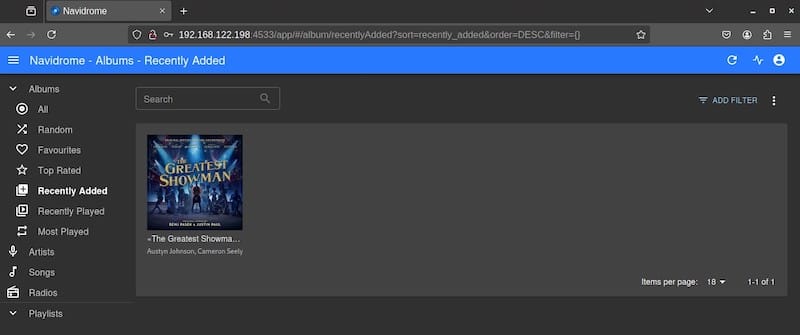
The first-time setup wizard appears, prompting you to create an administrator account. Choose a strong username and password—this account has full control over your music server.
After account creation, Navidrome immediately begins scanning your music folder. Initial scans of large libraries may take considerable time, depending on collection size and metadata complexity. The web interface remains responsive during scanning, allowing you to explore settings and configurations.
The modern, intuitive interface displays your music organized by artists, albums, genres, and playlists. Navigation feels familiar to users of commercial streaming services, with search functionality and playback controls prominently featured.
Step 10: Configure Firewall (Optional but Recommended)
Firewall configuration enables secure remote access while protecting your system from unauthorized connections. Check if UFW (Uncomplicated Firewall) is active:
sudo ufw statusIf inactive, enable it:
sudo ufw enableAllow Navidrome traffic through the firewall:
sudo ufw allow 4533/tcpVerify the rule was added:
sudo ufw status numberedFor enhanced security, restrict access to specific IP addresses or subnets:
sudo ufw allow from 192.168.1.0/24 to any port 4533This permits connections only from your local network range.
For internet access, configure port forwarding on your router, directing external requests to your server’s internal IP address and port 4533. Consider implementing HTTPS through a reverse proxy for encrypted communications when accessing Navidrome over the internet.
Post-Installation Configuration
Optimize your music server by organizing your library with consistent folder structures. Navidrome works best when music is organized in Artist/Album/Track hierarchies with proper ID3 tags.
Add additional music libraries through the web interface by navigating to Settings > Users > Admin, then specifying multiple folder paths. This feature accommodates separated collections across different drives or directories.
Configure additional user accounts for family members or friends. Each user can have custom permissions, playlist isolation, and listening history tracking. Navigate to Settings > Users to create accounts with appropriate access levels.
Mobile applications enhance Navidrome’s utility significantly. Download compatible clients like DSub, Ultrasonic, or Sublime Music for Android, or play:Sub for iOS devices. Configure these apps by entering your server address, port, username, and password.
Customize the web interface appearance through Settings > General, where you can upload custom backgrounds, modify welcome messages, and adjust theme colors to match your preferences.
Enable Last.fm or ListenBrainz scrobbling to track listening habits and discover music recommendations. These integrations maintain your listening statistics across different music platforms.
Troubleshooting Common Issues
Service fails to start: Examine systemd logs with journalctl -u navidrome -f for specific error messages. Common causes include configuration file syntax errors or missing dependencies.
Permission errors: Verify the navidrome user has read access to your music folder:
sudo chmod -R 755 /path/to/musicEnsure configuration and data directories have proper ownership:
sudo chown -R navidrome:navidrome /var/lib/navidromeConfiguration file not loading: Validate TOML syntax using online validators or text editor highlighting. A single misplaced quote or bracket prevents file parsing.
Port already in use: Another application might be using port 4533. Change Navidrome’s port in the configuration file and restart the service.
FFmpeg not found: Reinstall FFmpeg and verify it’s in your system PATH:
which ffmpegMusic library not scanning: Check folder paths for typos and ensure directories exist. Verify the navidrome user can access these locations.
Cannot access remotely: Confirm firewall rules, router port forwarding, and that Address is set to 0.0.0.0 rather than 127.0.0.1 in your configuration.
High CPU usage: Adjust transcoding settings to reduce quality or disable transcoding for devices that support your native formats.
Performance Optimization Tips
Organize large libraries with clear directory hierarchies to accelerate scan times. Consistent metadata improves search functionality and reduces database overhead.
Configure transcoding settings based on typical streaming scenarios. If you primarily stream over high-bandwidth connections, disable transcoding to reduce CPU usage. For mobile access over cellular networks, enable lower bitrate transcoding.
Cache management significantly impacts performance. Increase cache sizes if you have available RAM:
TranscodingCacheSize = "500MB"
ImageCacheSize = "500MB"
Schedule library scans during low-usage periods to minimize performance impact. Adjust the ScanSchedule parameter accordingly.
For resource-constrained hardware like Raspberry Pi, reduce simultaneous transcoding streams and lower image quality settings to maintain responsive performance.
Security Best Practices
Implement HTTPS using reverse proxies like Nginx or Apache to encrypt traffic between clients and your server. This prevents password interception on untrusted networks.
Enforce strong password policies for all user accounts. Require minimum lengths and complexity standards to prevent unauthorized access.
Regularly update both Linux Mint and Navidrome to receive security patches. Enable automatic security updates:
sudo apt install unattended-upgrades
sudo dpkg-reconfigure --priority=low unattended-upgrades
Backup your Navidrome database and configuration regularly:
sudo tar -czf navidrome-backup-$(date +%Y%m%d).tar.gz /var/lib/navidrome /etc/navidromeConsider VPN access instead of exposing Navidrome directly to the internet. This adds an additional security layer and simplifies configuration.
Audit file permissions periodically to ensure no unauthorized access points exist in your music directory or Navidrome installation.
Congratulations! You have successfully installed Navidrome. Thanks for using this tutorial for installing Navidrome on Linux Mint 22 system. For additional help or useful information, we recommend you check the official Navidrome website.
