How To Install Neovim on Fedora 43

Neovim represents the next evolution of the legendary Vim text editor, bringing modern features and enhanced functionality to developers worldwide. As a hyperextensible, fork of Vim, Neovim offers asynchronous plugin support, improved stability, and a more user-friendly plugin architecture that makes it an essential tool for programmers working with Python, Rust, Go, TypeScript, and countless other languages.
This comprehensive guide walks you through multiple installation methods for Neovim on Fedora 43, from the straightforward DNF package manager approach to building from source. Whether you’re a seasoned Linux administrator or a developer transitioning from traditional IDEs, you’ll discover step-by-step instructions, configuration tips, and troubleshooting solutions to get Neovim running optimally on your system.
Why Choose Neovim for Development
Neovim distinguishes itself from both traditional Vim and modern IDEs through several compelling advantages. The editor runs on minimal system resources while maintaining lightning-fast performance, even with hundreds of files open simultaneously. This efficiency makes it ideal for developers working on older hardware or those who prefer lean system configurations.
The modal editing system at Neovim’s core separates text insertion from text manipulation, enabling highly efficient editing workflows. Users can perform complex editing tasks with just a few keystrokes, significantly reducing mouse dependency and improving coding speed. Additionally, Neovim’s support for asynchronous operations means that tasks like linting, syntax checking, and file indexing occur in the background without blocking the editor, leading to a smoother user experience.
Understanding System Prerequisites
Before installing Neovim on your Fedora 43 system, ensure you have the necessary access and resources. You’ll need a Fedora 43 installation with sudo or root privileges to execute installation commands. Basic terminal knowledge proves helpful, though this guide provides explicit commands for each step.
An active internet connection is essential for downloading packages from repositories. Most Neovim installations require minimal disk space, typically under 50 MB for the base installation. Additional space may be needed for plugins and configuration files as you customize your setup.
Method 1: Installing Neovim Using DNF Package Manager
The DNF (Dandified YUM) package manager provides the most straightforward and recommended method for installing Neovim on Fedora 43. This approach offers automatic dependency resolution, seamless updates, and integration with Fedora’s software ecosystem.
Updating Your System Packages
Start by updating your system packages to ensure compatibility and access to the latest software versions. Open your terminal and execute the following command:
sudo dnf upgrade --refreshThis command refreshes the package metadata and upgrades all installed packages to their newest versions. The process may take several minutes depending on your internet connection speed and the number of packages requiring updates. Enter your sudo password when prompted.
Installing Neovim from Official Repositories
Once your system is updated, install Neovim using the DNF package manager. Execute this command in your terminal:
sudo dnf install neovimThe system will automatically resolve dependencies and display a list of packages to be installed. Type ‘y’ and press Enter to confirm the installation.
For enhanced Python support, which many plugins require, use this alternative command:
sudo dnf install -y neovim python3-neovimThe -y flag automatically confirms the installation without prompting. This approach installs both the Neovim editor and Python provider support, enabling Python-based plugins to function correctly.
Verifying Your Installation
After installation completes, verify that Neovim installed correctly by checking its version. Run this command:
nvim --versionYou should see output displaying the Neovim version number, build information, and compilation details. The version number indicates successful installation and helps troubleshoot compatibility issues with plugins later.
Method 2: Installing Neovim via Flatpak
Flatpak offers an alternative installation method that provides containerized applications with isolated environments. This approach often delivers newer versions than distribution repositories and maintains separation from your base system.
Enabling the Flathub Repository
Fedora 43 typically includes Flatpak support by default. Enable the Flathub repository to access Neovim and other applications:
flatpak remote-add --if-not-exists flathub https://flathub.org/repo/flathub.flatpakrepoThis command adds Flathub as a software source without creating duplicates if it already exists. Flathub serves as the primary repository for Flatpak applications.
Installing Neovim Through Flatpak
Install Neovim from Flathub using this command:
flatpak install flathub io.neovim.nvimConfirm the installation when prompted. Flatpak handles dependencies automatically and creates an isolated environment for Neovim.
Launching the Flatpak Version
To run the Flatpak version of Neovim, use this command:
flatpak run io.neovim.nvimYou can create an alias in your shell configuration file for easier access. The Flatpak version maintains separate configuration files from system-installed versions.
Method 3: Installing Neovim via Snap
Snap packages provide another universal packaging format supported on Fedora systems. This method offers automatic updates and simple installation.
Setting Up Snapd
First, install the Snap daemon on your Fedora 43 system:
sudo dnf install snapdAfter installation, create the classic snap support symbolic link:
sudo ln -s /var/lib/snapd/snap /snapThis link enables classic snap confinement, which some applications require. Restart your system or log out and back in for the changes to take effect.
Installing Neovim Snap Package
Install Neovim using the Snap package manager:
sudo snap install nvim --classicThe --classic flag grants Neovim full system access, necessary for its functionality. Snap automatically handles updates, keeping your Neovim installation current.
Method 4: Building Neovim from Source
Compiling Neovim from source provides access to the latest development features and customization options. This advanced method suits developers who need cutting-edge functionality or want to understand the build process.
Installing Build Dependencies
Source compilation requires several development tools and libraries. Install all necessary dependencies with this command:
sudo dnf -y install ninja-build cmake gcc make unzip gettext curl glibc-gconv-extraThese packages include the build system (ninja-build), compiler toolchain (gcc, make, cmake), and utilities needed for downloading and processing source code. The installation may require several hundred megabytes of disk space.
Cloning the Repository and Building
Clone the official Neovim repository from GitHub:
git clone https://github.com/neovim/neovim
cd neovim
For a stable release rather than the development version, checkout the stable branch:
git checkout stableBuild Neovim with optimizations enabled:
make CMAKE_BUILD_TYPE=ReleaseThe compilation process takes several minutes depending on your system’s processing power. Once complete, install Neovim system-wide:
sudo make installPost-Build Considerations
Building from source may not create application menu entries automatically. You might need to launch Neovim from the terminal until you create a desktop file manually. Additionally, source-built versions don’t receive automatic updates through the package manager, requiring manual updates by pulling the latest code and rebuilding.
Launching Neovim on Your System
After installation, you have multiple options for starting Neovim. The most direct method opens a terminal and runs:
nvimTo open a specific file, provide the filename as an argument:
nvim filename.txtFor graphical access, press the Super key to open Activities, search for “Neovim” in Show Applications, and click the icon. The specific launch method depends on your installation approach.
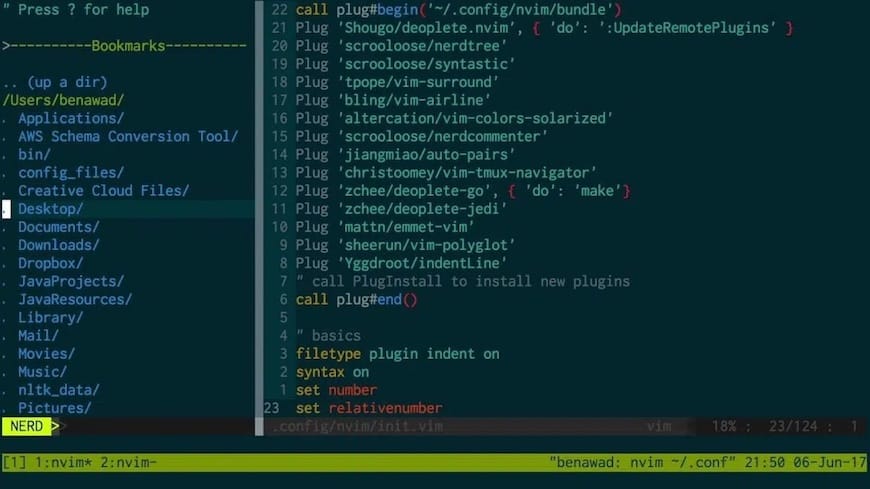
Configuring Neovim for Optimal Performance
Neovim’s true power emerges through proper configuration. Unlike traditional editors, Neovim uses Lua for configuration, offering better performance and more intuitive syntax than Vimscript.
Creating the Configuration Directory
Neovim expects configuration files in a specific location following the XDG Base Directory specification. Create the necessary directory structure:
mkdir -p ~/.config/nvim/lua/config
mkdir -p ~/.config/nvim/after/plugin
These directories organize your configuration logically, with lua/config containing Lua modules and after/plugin holding plugin-specific settings that load after plugins initialize.
Building Your init.lua File
The init.lua file serves as Neovim’s primary configuration file. Create and edit it:
nvim ~/.config/nvim/init.luaWithin Neovim, press i to enter insert mode. Start with basic settings:
-- Basic editor settings
vim.opt.number = true
vim.opt.relativenumber = true
vim.opt.expandtab = true
vim.opt.shiftwidth = 2
vim.opt.tabstop = 2
vim.opt.smartindent = true
These options enable line numbers, configure indentation, and improve editing behavior. Press Escape, then type :w and press Enter to save.
Setting Up Lazy Plugin Manager
Lazy.nvim represents the modern standard for Neovim plugin management, offering fast startup times through automatic caching and lazy-loading capabilities. Add the Lazy setup to your init.lua file:
-- Bootstrap lazy.nvim
local lazypath = vim.fn.stdpath("data") .. "/lazy/lazy.nvim"
if not vim.loop.fs_stat(lazypath) then
  vim.fn.system({
    "git",
    "clone",
    "--filter=blob:none",
    "https://github.com/folke/lazy.nvim.git",
    "--branch=stable",
    lazypath,
  })
end
vim.opt.rtp:prepend(lazypath)

-- Configure plugins
require("lazy").setup("plugins")
This code automatically installs Lazy if not present and configures it to load plugins from the plugins directory.
Installing Essential Plugins and Extensions
Plugins transform Neovim from a simple text editor into a powerful development environment. Create a plugins directory and configuration file:
mkdir -p ~/.config/nvim/lua/plugins
nvim ~/.config/nvim/lua/plugins/init.lua
Add essential plugins for modern development:
return {
  -- Telescope for fuzzy finding
  {
    'nvim-telescope/telescope.nvim',
    dependencies = { 'nvim-lua/plenary.nvim' }
  },

  -- Treesitter for syntax highlighting
  {
    'nvim-treesitter/nvim-treesitter',
    build = ':TSUpdate'
  },

  -- LSP configuration
  {
    'neovim/nvim-lspconfig',
  },

  -- File explorer
  {
    'nvim-tree/nvim-tree.lua',
    dependencies = { 'nvim-tree/nvim-web-devicons' },
  }
}
After saving this configuration, restart Neovim. Lazy automatically installs all specified plugins on first launch. You can also manually trigger installation by running :Lazy and pressing Shift+I.
Enhancing Your Setup with Language Support
Modern development requires Language Server Protocol (LSP) support for features like autocomplete, go-to-definition, and inline diagnostics. Install language servers for your preferred programming languages.
For Python development, install the Python provider and language server:
pip3 install --user pynvim
sudo dnf install python3-lsp-server
Configure basic LSP settings in a new file at ~/.config/nvim/lua/config/lsp.lua:
local lspconfig = require('lspconfig')
lspconfig.pylsp.setup{}
Then require this file from your init.lua:
require('config.lsp')This configuration enables Python language server features automatically when editing Python files.
Verifying Configuration Health
Neovim includes a powerful diagnostic tool for checking your setup. Run the health check command:
:checkhealthThis command runs comprehensive diagnostics for all providers and plugins. Review the output for any warnings or errors. The health check typically examines clipboard support, Python provider status, Ruby provider status, and plugin configurations.
Common issues appear with clear explanations and suggested fixes. For example, missing Python support shows instructions for installing the pynvim package.
Troubleshooting Common Installation Issues
Even straightforward installations occasionally encounter problems. Understanding common issues helps resolve them quickly.
Plugin Installation Failures
If plugins fail to install, verify your internet connection and Git installation. Run :Lazy sync to retry failed installations. Check the Lazy log by opening the Lazy interface with :Lazy and reviewing error messages.
Python Provider Errors
Python provider issues often stem from missing the pynvim package. Install it with:
pip3 install --user pynvimVerify installation by running :checkhealth provider within Neovim.
Display and Terminal Issues
Character display problems typically indicate missing font support. Install a nerd font for proper icon rendering:
sudo dnf install google-noto-fonts-commonTerminal cursor issues may require adjusting your terminal emulator settings.
Stale Build Errors
When building from source, stale builds sometimes cause problems. Clean the build directory and rebuild:
make distclean
make CMAKE_BUILD_TYPE=Release
sudo make install
This removes old build artifacts and creates a fresh compilation.
Advanced Configuration Tips
As you become comfortable with Neovim, explore advanced configuration options. Create custom keybindings in your init.lua file:
-- Custom keymaps
vim.g.mapleader = " "
vim.keymap.set("n", "<leader>pv", vim.cmd.Ex)
This sets the space bar as the leader key and creates a shortcut for file exploration. Build your configuration incrementally, testing each addition to ensure it works correctly.
Consider exploring popular plugin distributions like LazyVim or NvChad, which provide pre-configured setups with sensible defaults. These distributions serve as excellent learning resources and starting points for customization.
Maintaining Your Neovim Installation
Regular maintenance keeps Neovim running smoothly. For DNF installations, update Neovim alongside system packages:
sudo dnf upgradeFlatpak and Snap installations update automatically, though you can trigger manual updates. Update plugins regularly through the Lazy interface with :Lazy sync.
Review your configuration periodically, removing unused plugins and optimizing settings. Run :checkhealth after major updates to verify compatibility.
Congratulations! You have successfully installed Neovim. Thanks for using this tutorial for installing the Neovim text editor on your Fedora 43 Linux system. For additional help or useful information, we recommend you check the official Neovim website.
