How To Install NetBox on Linux Mint 22

Managing modern network infrastructure requires robust tools that can handle complex inventories, IP addresses, and data center equipment. NetBox stands out as a leading open-source solution for this challenge. Originally developed by DigitalOcean’s network engineering team, this powerful web application has become the industry standard for network documentation and infrastructure resource modeling. Linux Mint 22, being a stable Debian-based distribution, provides an excellent foundation for hosting NetBox. This comprehensive guide walks through every step needed to successfully install and configure NetBox on a Linux Mint 22 system, from initial system preparation to accessing the web interface.
What is NetBox?
NetBox serves as an Infrastructure Resource Modeling (IRM) application that combines multiple critical network management functions into a single platform. At its core, NetBox provides IP Address Management (IPAM) capabilities that allow network administrators to track and manage IPv4 and IPv6 address allocations across their entire infrastructure. The application also includes comprehensive Data Center Infrastructure Management (DCIM) features for documenting physical network assets, including device inventory, rack layouts, and cable connections.
Beyond basic inventory tracking, NetBox functions as the authoritative “source of truth” for network automation workflows. The platform offers extensive API support, enabling integration with configuration management tools, monitoring systems, and custom automation scripts. Additional capabilities include virtual machine management, circuit tracking, wireless connection documentation, and customizable fields that adapt to specific organizational requirements. The plugin architecture allows administrators to extend functionality based on unique operational needs.
Prerequisites and System Requirements
Hardware Requirements
A successful NetBox installation requires adequate system resources to ensure optimal performance. For testing and development environments, allocate a minimum of 2GB RAM, 2 CPU cores, and 20GB of storage space. Production deployments demand more robust specifications: 4GB RAM, 4 CPU cores, and at least 50GB storage to accommodate growing data sets and concurrent user access. Organizations with extensive network infrastructures should consider additional resources based on anticipated database size and user load.
Software Requirements
Linux Mint 22 serves as the operating system foundation, leveraging its Debian/Ubuntu heritage for package compatibility. The system requires Python 3.10 or later, as NetBox is built using the Django web framework. PostgreSQL database server (version 12 or higher) provides data persistence, while Redis handles caching and background task queuing. Administrative access through sudo or root privileges is essential for installing system packages and configuring services.
Network Requirements
Ensure the system has an active internet connection for downloading packages and dependencies. Initial testing uses port 8000 for the development server, which should be accessible through the firewall. Production deployments typically require additional configuration, including domain name resolution and SSL/TLS certificate setup.
Knowledge Requirements
Basic familiarity with Linux command-line operations helps navigate the installation process smoothly. Understanding terminal navigation, file editing, and service management concepts proves beneficial. Network administrators without extensive Linux experience can still complete the installation by following each step carefully.
Step 1: Update System Packages
Begin by refreshing the package repository index and upgrading existing packages to their latest versions. This critical first step prevents dependency conflicts and ensures compatibility with newly installed software. Open the terminal application and execute:
sudo apt updateThis command contacts configured package repositories and downloads updated package lists. Follow with:
sudo apt upgrade -yThe system downloads and installs available updates. The -y flag automatically confirms installation prompts, streamlining the process. If kernel updates are applied, consider rebooting the system before proceeding to ensure all changes take effect.
Step 2: Install Required Dependencies
NetBox requires numerous system libraries and development tools for proper operation. Install all necessary dependencies with a single comprehensive command:
sudo apt install -y python3 python3-pip python3-venv python3-dev build-essential libxml2-dev libxslt1-dev zlib1g-dev libffi-dev libssl-dev libpq-dev git graphvizThis command installs several critical components. Python3 and pip provide the core language runtime and package manager. The python3-venv package enables creation of isolated Python environments. Development headers (python3-dev) allow compilation of Python extensions. Build-essential includes gcc and other compilation tools required for building packages from source.
XML processing libraries (libxml2-dev, libxslt1-dev) support data transformation features. The zlib1g-dev compression library optimizes data storage. Foreign Function Interface library (libffi-dev) enables Python to call C libraries. OpenSSL development files (libssl-dev) provide cryptographic functions. PostgreSQL development headers (libpq-dev) allow Python database connectivity. Git enables repository cloning, while Graphviz generates network topology visualizations.
Wait for package installation to complete, then verify success by checking for error messages in the terminal output.
Step 3: Install and Configure PostgreSQL
PostgreSQL Installation
NetBox relies on PostgreSQL as its database backend for storing all network documentation data. Install PostgreSQL server and associated tools:
sudo apt install -y postgresql postgresql-contrib libpq-devThe postgresql package provides the database server. The postgresql-contrib package adds additional modules and extensions. After installation completes, verify the PostgreSQL service is running:
sudo systemctl status postgresqlEnsure the service shows as “active (running)” in the output. Enable PostgreSQL to start automatically on system boot:
sudo systemctl enable postgresqlDatabase Creation
Access the PostgreSQL command-line interface as the default postgres superuser:
sudo -u postgres psqlThe prompt changes to postgres=#, indicating successful connection to the database server. Create a dedicated database for NetBox:
CREATE DATABASE netbox;PostgreSQL responds with CREATE DATABASE to confirm successful creation.
User Configuration
Create a dedicated database user with authentication credentials:
CREATE USER netbox WITH PASSWORD 'your_strong_password';Replace your_strong_password with a complex password combining uppercase and lowercase letters, numbers, and special characters. Grant full privileges on the NetBox database to the newly created user:
GRANT ALL PRIVILEGES ON DATABASE netbox TO netbox;This command allows the netbox user complete control over the netbox database. Exit the PostgreSQL shell:
\qSecurity Considerations
Strong database passwords form the first line of defense against unauthorized access. Never use default or dictionary words in production environments. Document credentials securely for future reference. PostgreSQL’s default configuration restricts network connections, limiting access to local system processes.
Step 4: Install and Configure Redis
Redis Installation
Redis provides caching and message queue functionality that improves NetBox performance. Install the Redis server:
sudo apt install -y redis-serverThe package manager downloads and installs Redis along with its dependencies.
Redis Configuration
Start the Redis service immediately:
sudo systemctl start redis-serverConfigure Redis to launch automatically during system startup:
sudo systemctl enable redis-serverVerify Redis is running correctly:
sudo systemctl status redis-serverThe output should display “active (running)” status.
Testing Redis Connection
Test Redis functionality using the command-line client:
redis-cli pingA successful response returns PONG, confirming Redis is accepting connections and processing commands. NetBox uses Redis default configuration without requiring additional customization for standard installations.
Step 5: Create NetBox System User (Optional but Recommended)
Running NetBox as a dedicated system user enhances security by isolating the application from other system processes. Create a system user account:
sudo useradd -r -d /opt/netbox -s /usr/sbin/nologin netboxThe -r flag creates a system account without a home directory in /home. The -d /opt/netbox parameter sets the account’s home directory to the NetBox installation location. The -s /usr/sbin/nologin option prevents interactive login, restricting the account to service operation only. This configuration limits potential security exposure if the NetBox application is compromised.
Step 6: Download NetBox Source Code
Clone NetBox Repository
Navigate to the standard location for optional software packages:
cd /optClone the official NetBox repository from GitHub:
sudo git clone -b master --depth 1 https://github.com/netbox-community/netbox.gitThe -b master flag specifies the main development branch. The --depth 1 option creates a shallow clone, downloading only the latest commit without full repository history, which reduces download size and time. The cloning process may take several minutes depending on connection speed.
Alternative: Download Release Archive
For specific version installations, download release archives directly from GitHub:
sudo wget https://github.com/netbox-community/netbox/archive/refs/tags/v4.4.2.tar.gz
sudo tar -xzf v4.4.2.tar.gz
sudo mv netbox-4.4.2 netbox
Replace version number with the desired release.
Set Proper Permissions
If the netbox system user was created, assign ownership of the installation directory:
sudo chown -R netbox:netbox /opt/netboxThis command recursively changes ownership of all files and subdirectories. Verify the directory structure was created correctly:
ls -la /opt/netboxThe output displays the NetBox directory contents.
Step 7: Create Python Virtual Environment
Change to the NetBox installation directory:
cd /opt/netboxPython virtual environments isolate application dependencies from system-wide Python packages, preventing version conflicts. Create a virtual environment:
sudo python3 -m venv venvThis command creates a new directory named venv containing a self-contained Python installation. Activate the virtual environment:
source venv/bin/activateThe command prompt changes to display (venv) prefix, indicating the virtual environment is active. Install NetBox’s Python package dependencies:
pip install -r requirements.txtThe pip package manager reads the requirements.txt file and installs all specified packages. This process typically takes 5-10 minutes as numerous packages are downloaded and installed. Watch for any error messages during installation. If compilation errors occur, verify all development libraries from Step 2 were installed correctly.
Step 8: Configure NetBox Settings
Copy Configuration Template
Navigate to the NetBox configuration directory:
cd /opt/netbox/netbox/netboxCopy the example configuration file to create the active configuration:
sudo cp configuration.example.py configuration.pyEdit Configuration File
Open the configuration file with a text editor:
sudo nano configuration.pyNano is user-friendly for beginners, though vim or other editors work equally well.
Database Configuration
Locate the DATABASE dictionary and modify it to match the PostgreSQL credentials created earlier:
DATABASE = {
    'NAME': 'netbox',
    'USER': 'netbox',
    'PASSWORD': 'your_strong_password',
    'HOST': 'localhost',
    'PORT': '',
}
Replace your_strong_password with the actual password set during PostgreSQL configuration. The HOST parameter specifies the database server location; ‘localhost’ indicates the database runs on the same machine. Leave PORT empty to use PostgreSQL’s default port 5432.
ALLOWED_HOSTS Setting
Find the ALLOWED_HOSTS list and add the server’s IP address and hostname:
ALLOWED_HOSTS = ['192.168.1.100', 'localhost', '127.0.0.1']Replace 192.168.1.100 with your server’s actual IP address. This security feature prevents HTTP Host header attacks by restricting which hostnames can access NetBox. Add domain names if configured for production use.
SECRET_KEY Generation
The SECRET_KEY provides cryptographic signing for Django framework security features. Generate a random secret key by running Python:
python3 -c 'from django.core.management.utils import get_random_secret_key; print(get_random_secret_key())'Copy the generated output and add it to the configuration file:
SECRET_KEY = 'your-generated-secret-key-here'Never share or commit this key to version control systems. Each NetBox installation should use a unique SECRET_KEY.
Redis Configuration
The default Redis configuration typically requires no modification:
REDIS = {
    'tasks': {
        'HOST': 'localhost',
        'PORT': 6379,
        'PASSWORD': '',
        'DATABASE': 0,
    },
    'caching': {
        'HOST': 'localhost',
        'PORT': 6379,
        'PASSWORD': '',
        'DATABASE': 1,
    }
}
Additional Settings
Set the TIME_ZONE parameter to match your geographic location for accurate timestamp recording:
TIME_ZONE = 'Asia/Jakarta'Save changes and exit the editor (Ctrl+X, then Y, then Enter in nano).
Step 9: Run Database Migrations
Database migrations create the necessary table structure in PostgreSQL. Ensure the virtual environment remains active and navigate to the NetBox application directory:
cd /opt/netbox/netboxGenerate any pending migrations:
python manage.py makemigrationsApply migrations to create database tables:
python manage.py migrateDjango displays each migration as it executes, showing OK status for successful operations. The process creates dozens of tables storing devices, IP addresses, circuits, and other network data. Completion typically takes 1-2 minutes.
Step 10: Create Administrative User
Create a superuser account for accessing NetBox’s administrative interface:
python manage.py createsuperuserThe command prompts for username, email address, and password. Enter a memorable username like “admin”:
Username: admin
Email address: admin@example.com
Password:
Password (again):
Django enforces password complexity requirements, rejecting weak passwords. Strong passwords should exceed 8 characters and include mixed case, numbers, and symbols. This account provides unrestricted access to all NetBox features. Store credentials securely.
Step 11: Collect Static Files
NetBox serves CSS stylesheets, JavaScript files, and images separately from dynamic content. Collect these static assets:
python manage.py collectstaticDjango prompts for confirmation:
You have requested to collect static files at the destination location.
This will overwrite existing files!
Are you sure you want to do this?

Type 'yes' to continue, or 'no' to cancel:
Type yes and press Enter. The command copies files from various application directories into a single location, optimizing web server delivery. Proper static file collection ensures the web interface renders correctly with styling and interactive elements.
Step 12: Test NetBox Development Server
Start Development Server
Launch NetBox’s built-in development server to verify the installation:
python manage.py runserver 0.0.0.0:8000The 0.0.0.0 address binds the server to all network interfaces, allowing remote access. Port 8000 is Django’s default development port. The server outputs startup messages:
Performing system checks...
System check identified no issues (0 silenced).
Django version 4.x, using settings 'netbox.settings'
Starting development server at http://0.0.0.0:8000/
Quit the server with CONTROL-C.
Access NetBox Web Interface
Open a web browser and navigate to the server address:
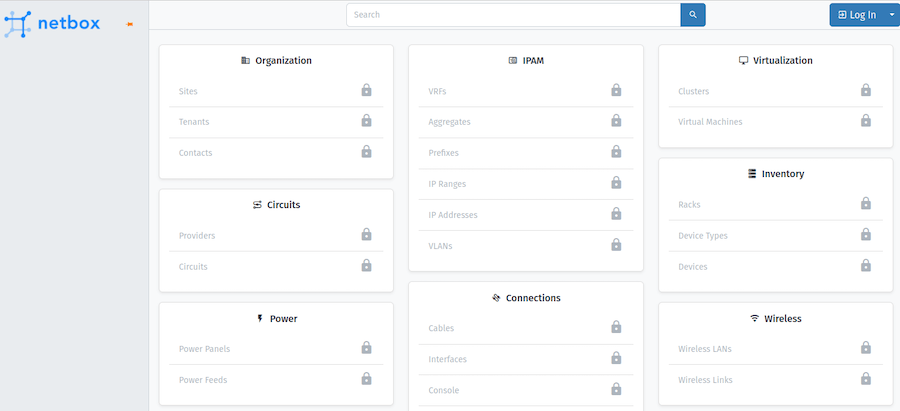
http://192.168.1.100:8000Replace 192.168.1.100 with your server’s IP address. The NetBox login page appears, displaying the logo and authentication form. Enter the superuser credentials created in Step 10.
Verify Installation
After successful login, the NetBox dashboard displays with navigation menu, search bar, and summary statistics. Explore the interface by clicking through sections like Sites, Devices, and IP Management. Test basic functionality by creating a sample site or device to confirm database connectivity. The development server logs each HTTP request to the terminal, showing page access and response codes.
Development Server Limitations
The built-in development server serves testing purposes only and should never host production NetBox instances. It lacks security hardening, performance optimization, and concurrent request handling required for operational use. Production deployments require application servers like Gunicorn and reverse proxies like Nginx.
Step 13: Install and Configure Gunicorn (Optional Production Setup)
Install Gunicorn WSGI Server
Gunicorn (Green Unicorn) provides a production-grade Python WSGI HTTP server that efficiently handles concurrent requests. With the virtual environment activated, install Gunicorn:
pip install gunicornThe package manager downloads and installs Gunicorn and its dependencies.
Create Gunicorn Configuration
Navigate to the NetBox installation directory:
cd /opt/netboxNetBox typically includes a sample Gunicorn configuration file. Copy and customize it according to system resources:
sudo cp contrib/gunicorn.py gunicorn.pyEdit the configuration to adjust worker processes based on available CPU cores:
bind = '127.0.0.1:8001'
workers = 4
threads = 3
timeout = 120
Workers should equal (2 × CPU cores) + 1 for optimal performance. The bind address restricts Gunicorn to localhost when using a reverse proxy.
Test Gunicorn
Start NetBox with Gunicorn from the netbox directory:
gunicorn -c /opt/netbox/gunicorn.py netbox.wsgiAccess the web interface to verify NetBox loads correctly. Gunicorn provides better performance and stability than the development server.
Step 14: Set Up Systemd Service (Optional Production Setup)
Systemd service files enable automatic NetBox startup during system boot and simplified service management. Create the NetBox service file:
sudo nano /etc/systemd/system/netbox.serviceAdd the following configuration:
[Unit]
Description=NetBox WSGI Service
Documentation=https://netbox.readthedocs.io/
After=network-online.target
Wants=network-online.target

[Service]
Type=simple
User=netbox
Group=netbox
WorkingDirectory=/opt/netbox/netbox
ExecStart=/opt/netbox/venv/bin/gunicorn -c /opt/netbox/gunicorn.py netbox.wsgi
Restart=on-failure

[Install]
WantedBy=multi-user.target
Save and exit. Reload systemd to recognize the new service:
sudo systemctl daemon-reloadEnable automatic startup:
sudo systemctl enable netboxStart the NetBox service:
sudo systemctl start netboxCheck service status:
sudo systemctl status netboxThe output should show “active (running)” status. Similarly, configure NetBox RQ worker service for background task processing following the same pattern.
Troubleshooting Common Issues
Database Connection Errors
If NetBox displays database connection errors, verify PostgreSQL is running:
sudo systemctl status postgresqlCheck database credentials in configuration.py match those created in PostgreSQL. Test database connectivity manually:
psql -U netbox -d netbox -h localhostEnter the database password when prompted. Successful connection confirms credentials are correct. Common error messages include “connection refused” (PostgreSQL not running) or “authentication failed” (incorrect credentials).
Python Package Installation Failures
Update pip to the latest version before installing requirements:
pip install --upgrade pipVerify Python version meets minimum requirements (3.10+):
python3 --versionMissing system dependencies cause compilation errors during pip installation. Review Step 2 to ensure all development libraries are installed. Check for specific error messages indicating which package failed and search for resolution guidance. Virtual environment activation issues prevent package installation in the correct location; always verify the (venv) prompt prefix appears.
Permission Denied Errors
File ownership and permissions frequently cause access issues. Verify the netbox user owns the installation directory:
ls -la /opt/netboxCorrect ownership if necessary:
sudo chown -R netbox:netbox /opt/netboxWhen running commands as the netbox user, prefix with sudo:
sudo -u netbox commandSELinux on some systems enforces additional security policies; check SELinux status if permission errors persist.
Web Interface Not Loading
Verify the NetBox service or development server is running:
sudo systemctl status netboxCheck firewall rules allow traffic on port 8000:
sudo ufw statusAllow the port if blocked:
sudo ufw allow 8000Review NetBox logs for error messages:
sudo journalctl -u netbox -n 100Browser caching sometimes displays old content; clear browser cache or test with a different browser.
Migration Errors
Database user permissions must include schema modification rights. Reconnect to PostgreSQL and grant full privileges:
GRANT ALL PRIVILEGES ON DATABASE netbox TO netbox;Verify PostgreSQL version compatibility (12 or higher required). Incomplete migrations can be re-run after fixing underlying issues:
python manage.py migrateDjango tracks applied migrations in the database, skipping successful operations and reattempting failed ones.
Security Best Practices
Secure Passwords
Use strong, unique passwords for all NetBox accounts including the database user and superuser account. Password managers help generate and store complex credentials securely. Implement password rotation policies requiring periodic updates. Never reuse passwords across different services or systems.
SECRET_KEY Protection
The Django SECRET_KEY must remain confidential. Never commit configuration files containing SECRET_KEY to version control repositories like GitHub. Generate unique keys for each NetBox installation rather than copying from examples. Compromised SECRET_KEYs allow attackers to forge session cookies and bypass authentication.
Firewall Configuration
Restrict network access to NetBox ports using firewall rules. Production deployments should block direct access to application servers, exposing only reverse proxy ports. Configure ufw or iptables to limit connections to specific IP ranges:
sudo ufw allow from 192.168.1.0/24 to any port 8000Implement SSL/TLS certificates for encrypted HTTPS communication. Let’s Encrypt provides free certificates for domain-verified installations.
Regular Updates
Keep NetBox updated to the latest stable version for security patches and bug fixes. Subscribe to NetBox security announcements and release notifications. Follow upgrade procedures carefully, testing in non-production environments first. Update underlying system packages regularly:
sudo apt update && sudo apt upgradeDatabase Security
Limit PostgreSQL network exposure by binding only to localhost unless remote access is specifically required. Implement regular automated backups of the NetBox database:
pg_dump -U netbox netbox > netbox_backup.sqlStore backups on separate systems or external storage. Apply proper user privilege separation, granting database accounts only necessary permissions.
Next Steps and Additional Configuration
Production Deployment Enhancements
Configure Nginx or Apache as a reverse proxy to handle SSL termination, static file serving, and load balancing. Nginx installation and configuration:
sudo apt install nginxCreate a server block configuration directing traffic to Gunicorn. Implement SSL/TLS certificates using certbot:
sudo apt install certbot python3-certbot-nginx
sudo certbot --nginx -d netbox.example.com
Establish proper logging and monitoring to track system health and usage patterns. Configure log rotation to prevent disk space exhaustion.
NetBox Customization
Explore custom fields for adding organization-specific attributes to objects. Tags provide flexible categorization across different object types. Install community plugins to extend NetBox functionality with features like topology visualization, device lifecycle management, and CMDB integration. Configure webhooks to trigger external automation when NetBox data changes.
Data Population
Import existing network documentation using NetBox’s REST API or CSV import features. Begin by establishing organizational hierarchy: create regions, sites, and locations representing physical infrastructure. Define rack layouts and populate device inventory, documenting make, model, and hardware specifications. Configure IPAM structures including VRFs, aggregates, and prefix allocations. Document cable connections between devices for physical topology tracking.
Integration with Network Tools
Leverage NetBox’s comprehensive REST API for network automation workflows. Integration possibilities include configuration management with Ansible, monitoring with Prometheus or Zabbix, and orchestration with StackStorm. NetBox serves as a dynamic inventory source for automation tools, ensuring playbooks reference current infrastructure state. Connect to network monitoring systems to correlate documentation with operational data.
Congratulations! You have successfully installed NetBox. Thanks for using this tutorial for installing NetBox IRM on your Linux Mint 22 system. For additional help or useful information, we recommend you check the official NetBox website.
