How To Install Netdata on Debian 13

Monitoring your Debian 13 server’s performance doesn’t have to be complicated. Netdata transforms system monitoring into an effortless experience with real-time metrics, stunning visualizations, and zero-configuration dashboards. This comprehensive guide walks you through every step of installing and configuring Netdata on Debian 13, from initial setup to advanced security configurations.
What is Netdata?
Netdata stands out as a powerful, open-source distributed monitoring application designed for real-time performance tracking. Unlike traditional monitoring solutions that require extensive configuration, Netdata delivers instant insights the moment you install it.
This remarkable tool monitors everything from CPU utilization and RAM consumption to disk I/O, network traffic, and individual process behavior. The interactive dashboard updates in real-time, displaying metrics with millisecond precision. System administrators appreciate its ability to monitor physical servers, virtual machines, containers, and even IoT devices without breaking a sweat.
Why Choose Netdata for Debian 13?
Netdata requires virtually zero maintenance after installation. Updates happen automatically, and the system adapts to your infrastructure without manual intervention. The application consumes minimal resources—typically between 100-200MB of RAM—making it perfect for resource-constrained environments.
The Debian ecosystem benefits from Netdata’s excellent compatibility. Strong community support and active development ensure you’ll find solutions to challenges quickly. Plus, the software remains completely free and open-source, with no hidden costs or premium tiers for basic monitoring functionality.
Prerequisites and System Requirements
Before diving into installation, ensure your system meets the necessary requirements. Your Debian 13 (Trixie) installation should have at least 100-200MB of available RAM for basic monitoring operations. Plan for approximately 3GB of storage capacity to accommodate metrics data and retention.
You’ll need root access or sudo privileges to complete the installation. An active internet connection is essential for downloading packages and dependencies. Basic familiarity with Linux command-line operations will make the process smoother, though beginners can follow along with the detailed instructions provided.
Check your available disk space using the df -h command. Verify network connectivity by pinging a reliable external server. Confirm your Debian version matches release 13 before proceeding.
Preparing Your Debian 13 System
Proper system preparation prevents installation headaches. Start by updating your package repositories to ensure you’re working with the latest software versions.
Open your terminal and execute the following command to refresh package lists:
sudo apt updateNext, upgrade existing packages to their latest versions:
sudo apt upgrade -yThe -y flag automatically confirms the upgrade process. This step typically takes a few minutes depending on how many packages require updates. Installing prerequisite dependencies comes next. These build tools and libraries enable Netdata to compile and function correctly:
sudo apt install curl wget git -yVerify your Debian version using this command:
lsb_release -aThe output should confirm you’re running Debian 13 (Trixie). With your system prepared, you’re ready to proceed with installation.
Installation Methods for Netdata on Debian 13
Netdata offers multiple installation pathways, each suited to different scenarios and skill levels. The kickstart script method provides the quickest route for most users. Native DEB package installation integrates seamlessly with Debian’s package management system. Docker containers offer isolated deployment, while building from source grants maximum customization.
Beginners should start with the kickstart script—it handles dependency resolution, compilation, and configuration automatically. Advanced users who need specific compilation flags or bleeding-edge features might prefer building from source. Organizations with strict package management policies benefit from the native DEB approach.
Method 1: Installing Netdata Using Kickstart Script
The official kickstart script represents the most straightforward installation method. This intelligent installer detects your operating system, downloads necessary components, and configures everything automatically.
Understanding the Kickstart Script
The one-liner installation script performs comprehensive system analysis before proceeding. It identifies your distribution, checks for required dependencies, and selects optimal compilation settings. The script builds Netdata from source while handling all complexity behind the scenes.
Running the Installation Command
Execute this command in your terminal to begin installation:
wget -O /tmp/netdata-kickstart.sh https://get.netdata.cloud/kickstart.sh && sh /tmp/netdata-kickstart.sh --stable-channelAlternatively, if you prefer curl:
bash <(curl -Ss https://get.netdata.cloud/kickstart.sh) --stable-channelThe --stable-channel flag ensures you receive thoroughly tested stable releases rather than development builds. This flag is crucial for production environments where reliability matters most.
Installation Process Walkthrough
The script prompts you to confirm installation. Type “YES” in capital letters when asked. Watch as the installer downloads dependencies, compiles Netdata, and configures services. This process typically completes within a few minutes, though compile time varies based on your CPU performance.
You’ll see extensive output scrolling through your terminal. Green checkmarks indicate successful completion of each stage. The final message confirms successful installation and displays the dashboard access URL.
The installer automatically creates a dedicated netdata user for running the service. It also configures systemd service files for automatic startup management.
Method 2: Installing via Native DEB Packages
Native package installation offers tight integration with Debian’s APT package manager. This method simplifies future updates and uninstallation procedures.
Installing Repository Package
First, download and install the Netdata repository configuration:
curl https://repo.netdata.cloud/repos/repoconfig/debian/bookworm/netdata-repo.list | sudo tee /etc/apt/sources.list.d/netdata.listImport the repository GPG key for package verification:
wget -O /tmp/netdata.gpg.key https://repo.netdata.cloud/netdatabot.gpg.key
sudo apt-key add /tmp/netdata.gpg.key
Update your package lists to include the new repository:
sudo apt updateInstall Netdata using APT:
sudo apt install netdata -yAdvantages of DEB Package Method
This approach integrates Netdata into your system’s package management workflow. Updates arrive through normal apt upgrade operations alongside other system packages. Removal becomes straightforward using apt remove netdata. Dependencies are managed automatically, preventing version conflicts.
Method 3: Building from Source
Power users who need cutting-edge features or custom compilation options should consider building from source.
Cloning the GitHub Repository
Download the Netdata source code repository:
git clone https://github.com/netdata/netdata.git --depth=100 --recursive
cd netdata
The --depth=100 flag limits history to recent commits, reducing download time and disk usage.
Running the Installation Script
Execute the installation script with appropriate permissions:
sudo ./netdata-installer.shThe installer asks several questions about installation preferences. Accept defaults unless you have specific customization requirements. Building from source provides access to experimental features before they reach stable channels. Development builds may contain bugs, so reserve this method for testing environments or when you specifically need unreleased functionality.
Configuring Netdata
Post-installation configuration tailors Netdata to your specific requirements and security posture.
Understanding the Configuration File
Netdata’s main configuration resides at /etc/netdata/netdata.conf. This file controls fundamental behavior including network binding, port selection, data retention, and resource allocation. The configuration uses a straightforward INI-style format organized into logical sections.
Never edit configuration files directly. Instead, use Netdata’s built-in configuration editor:
sudo /etc/netdata/edit-config netdata.confThis script creates local overrides while preserving default values for reference.
Essential Configuration Settings
By default, Netdata binds to all network interfaces, which poses security risks. Restrict access to localhost only by modifying the [web] section:
[web]
    bind to = 127.0.0.1
This configuration prevents direct external access, requiring a reverse proxy for remote monitoring. The default port 19999 works well for most installations, but you can change it if conflicts arise:
[web]
    default port = 19999
Adjust page cache size based on available system memory:
[global]
    page cache size = 32
Control data retention periods to balance historical analysis against storage capacity:
[db]
    mode = dbengine
    storage tiers = 3
    dbengine multihost disk space = 256
Security Considerations
Never expose Netdata directly to hostile networks. The web interface lacks authentication by default, allowing anyone with network access to view your metrics. Always bind to localhost and implement a reverse proxy with proper authentication for remote access.
Managing the Netdata Service
Systemd controls the Netdata service lifecycle on Debian 13. Mastering basic service management commands ensures smooth operation.
Systemd Service Commands
Start the Netdata service immediately:
sudo systemctl start netdataConfigure automatic startup during system boot:
sudo systemctl enable netdataCombine both operations efficiently:
sudo systemctl enable --now netdataCheck current service status:
sudo systemctl status netdataRestart Netdata after configuration changes:
sudo systemctl restart netdataStop the service when needed:
sudo systemctl stop netdataVerifying Service Status
The status command output reveals critical information. Look for “active (running)” in green text, indicating healthy operation. The process ID (PID) and memory consumption appear below the status line. Recent log entries help diagnose problems when they occur.
Restart Netdata whenever you modify configuration files. Some changes take effect immediately, but restarting ensures consistency. Monitor service logs using journalctl if startup fails:
sudo journalctl -u netdata -n 50Accessing the Netdata Dashboard
With Netdata running, accessing the dashboard reveals your system’s performance metrics in stunning detail.
Default Access Method
Open your web browser and navigate to the default address:
http://localhost:19999For remote access through SSH tunneling:
http://your_server_ip:19999Remember that remote access only works if you haven’t restricted binding to localhost.
Dashboard Overview
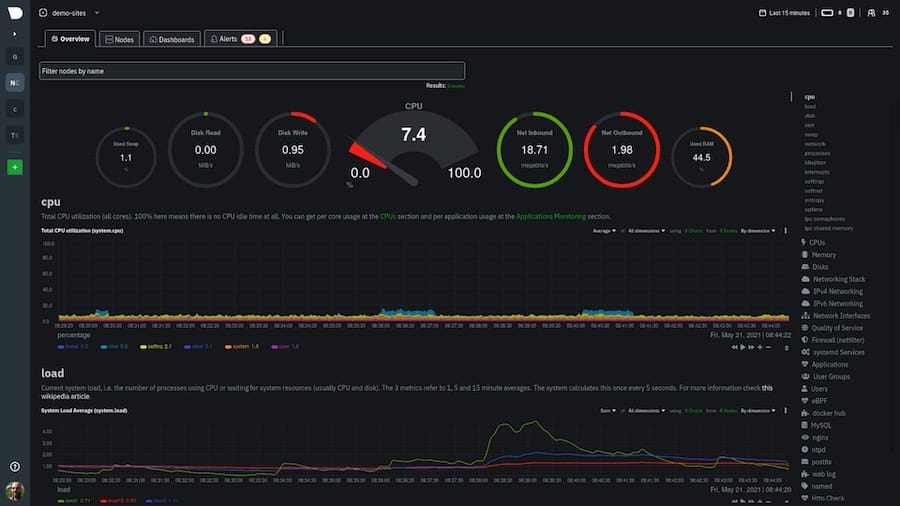
The Netdata dashboard loads instantly, presenting real-time metrics without delay. Navigation menus on the left organize monitoring categories: System Overview, CPU, Memory, Disks, Network, and Applications. Each category expands to reveal granular metrics.
Graphs update smoothly as new data arrives. Hover over charts to see precise values at specific timestamps. Click and drag to zoom into time ranges. Right-click for additional options including snapshot generation and data export.
Key Dashboard Features
CPU monitoring displays utilization per core, idle time, I/O wait, and system versus user CPU consumption. Memory metrics track used RAM, cached data, buffers, and swap utilization. Disk monitoring reveals read/write operations, I/O latency, and space consumption across all mounted filesystems.
Network interface statistics show bandwidth utilization, packet rates, and error conditions for each network adapter. Process monitoring lists resource-hungry applications, allowing you to identify performance bottlenecks quickly.
Securing Your Netdata Installation
Security deserves serious attention when deploying monitoring tools. Netdata exposes detailed system information that malicious actors could exploit.
Configuring Firewall Rules
Debian 13 supports UFW (Uncomplicated Firewall) for straightforward firewall management. Restrict Netdata access to specific IP addresses:
sudo ufw allow from 192.168.1.100 to any port 19999Allow access from an entire subnet:
sudo ufw allow from 192.168.1.0/24 to any port 19999Block all other traffic to port 19999:
sudo ufw deny 19999Enable UFW if not already active:
sudo ufw enableThese rules persist across reboots, maintaining your security posture.
Setting Up Reverse Proxy
Professional deployments use reverse proxies like NGINX or Apache to add authentication and HTTPS encryption. This approach keeps Netdata bound to localhost while exposing it securely through a hardened web server.
Install NGINX:
sudo apt install nginx -yCreate a reverse proxy configuration that includes basic authentication. This setup encrypts traffic and requires credentials for access.
Authentication Configuration
While Netdata lacks built-in authentication, the localhost-only binding strategy forces users through your reverse proxy’s authentication layer. This architecture separates concerns—Netdata focuses on monitoring while your web server handles security.
Security Best Practices
Keep Netdata updated through regular system maintenance. Monitor access logs for suspicious activity. Disable unnecessary monitoring plugins to reduce attack surface. Implement network segmentation to isolate monitoring infrastructure from production services.
Troubleshooting Common Issues
Even smooth installations occasionally encounter problems. These troubleshooting strategies resolve the most frequent issues.
Installation Failures
Dependency errors typically indicate outdated package repositories. Run sudo apt update and retry installation. Network connectivity issues during download manifest as timeout errors—verify your internet connection and DNS resolution.
Permission problems occur when running installation scripts without sudo. Always use elevated privileges for system-level installations.
Service Won’t Start
Check the systemd journal for error messages:
sudo journalctl -u netdata --no-pager -n 100Port conflicts arise when another service uses port 19999. Identify the conflicting process:
sudo lsof -i :19999Configuration file syntax errors prevent startup. Validate your configuration by reverting to defaults and gradually reapplying changes.
Data Collection Problems
Plugins might fail due to missing dependencies or permission issues. Test individual plugins manually to isolate problems:
sudo su -s /bin/bash netdata
/usr/libexec/netdata/plugins.d/python.d.plugin 1 debug
Configuration errors in plugin files cause collection failures. Review plugin configurations in /etc/netdata/python.d/ and other plugin directories. Permission issues prevent Netdata from accessing data sources—ensure the netdata user has appropriate permissions.
Dashboard Access Issues
Firewall rules blocking port 19999 prevent browser access. Verify firewall configuration and temporarily disable it for testing. Incorrect IP binding configuration causes connection refusal—confirm the bind address matches your access method. Browser compatibility rarely causes problems, but clearing cache resolves occasional JavaScript issues.
Optimizing Netdata Performance
Fine-tuning resource allocation ensures efficient monitoring without impacting system performance.
Resource Management
Adjust page cache size for systems with limited memory. Smaller values reduce RAM consumption at the cost of historical data retention. Configure retention periods based on your analysis requirements:
[global]
    history = 3600
This setting maintains one hour of per-second metrics. Longer retention requires more storage and memory. Manage storage throughput for dbengine to prevent I/O bottlenecks. Balance retention against available disk space—longer retention periods consume more storage.
Systems with tight memory constraints benefit from aggressive optimization. Disable unnecessary plugins and reduce collection frequency.
Plugin Management
Enable only plugins relevant to your monitoring needs. Disable unused plugins in /etc/netdata/python.d.conf and similar configuration files. This reduces CPU overhead and memory consumption.
Customize collection intervals for expensive plugins:
[plugin:proc]
    update every = 2
Database Configuration
The dbengine multihost disk space setting controls storage allocation:
[db]
    dbengine multihost disk space = 512
Higher values enable longer retention periods across multiple monitored systems. Balance this against available storage capacity. Three storage tiers provide optimal balance between granularity and retention for most deployments.
Advanced Configuration Options
Power users can extend Netdata’s capabilities through advanced features and integrations.
Netdata Cloud Integration
Netdata Cloud offers optional centralization for monitoring multiple servers. Connect your agent by claiming it through the web interface. This enables unified dashboards, cross-server correlations, and extended data retention.
Cloud integration remains completely optional—Netdata functions perfectly standalone. Organizations with numerous servers appreciate centralized management capabilities.
Setting Up Parent Nodes
Configure parent-child relationships for hierarchical monitoring architectures. Parent nodes aggregate metrics from multiple children, enabling high-availability setups and longer retention strategies without burdening individual systems.
Child nodes stream metrics to parents in real-time. This architecture supports complex monitoring topologies spanning data centers and geographic regions.
Customizing Alerts
Netdata includes hundreds of pre-configured alerts for common issues. Customize notification thresholds by editing alarm configuration files in /etc/netdata/health.d/. Add email notifications, webhook integrations, or custom alert handlers.
Create custom alerts for application-specific metrics. The alarm syntax supports complex conditions, hysteresis, and multiple severity levels.
Congratulations! You have successfully installed Netdata. Thanks for using this tutorial for installing the latest version of the Netdata monitoring tool on Debian 13 “Trixie” system. For additional help or useful information, we recommend you check the official Netdata website.
