How To Install Netdata on openSUSE

System monitoring forms the backbone of efficient Linux server management. Netdata emerges as a powerful real-time monitoring solution that transforms how administrators track system performance on openSUSE distributions. This comprehensive guide demonstrates multiple installation methods, configuration strategies, and optimization techniques for implementing Netdata on openSUSE Leap and Tumbleweed systems.
Understanding Netdata and openSUSE Compatibility
What is Netdata
Netdata represents a revolutionary approach to real-time system monitoring. This open-source solution delivers comprehensive visibility into Linux systems, applications, and network performance without compromising system resources. The monitoring tool tracks thousands of metrics per second, including CPU utilization, memory consumption, disk I/O operations, network traffic, and application-specific performance indicators.
The software’s zero-configuration design eliminates complex setup procedures. Upon installation, Netdata automatically discovers and monitors system components, generating interactive dashboards that update in real-time. This immediate visibility enables administrators to identify performance bottlenecks, resource contention, and potential system failures before they impact operations.
openSUSE System Requirements
Netdata demonstrates excellent compatibility across openSUSE variants, supporting both Leap and Tumbleweed distributions. The monitoring solution requires minimal system resources, making it suitable for deployment on diverse hardware configurations from resource-constrained virtual machines to enterprise-grade servers.
System requirements include Linux kernel version 2.6 or newer, which all modern openSUSE installations satisfy. Hardware specifications vary based on monitoring scope, but typical installations consume less than 1% CPU usage and approximately 20-40 MB RAM for basic monitoring tasks. Storage requirements remain minimal, with data retention policies configurable to balance historical data preservation with disk space utilization.
Pre-Installation Preparation
System Updates
Maintaining current system packages ensures compatibility and security. Execute comprehensive system updates using openSUSE’s zypper package manager:
sudo zypper update
sudo zypper refresh
These commands synchronize package repositories and install available security patches, creating a stable foundation for Netdata installation. Regular system maintenance prevents dependency conflicts and ensures optimal performance.
Required Dependencies
Netdata installation requires specific development tools and libraries. Install essential packages using zypper:
sudo zypper install curl gcc make zlib-devel libuuid-devel libmnl-devel git wgetAdditional dependencies may include:
sudo zypper install autoconf automake pkg-config libuuid-devel zlib-devel libuv-devel liblz4-devel libJudy-devel openssl-devel libmnl-devel libnetfilter_acct-develThese packages provide compilation tools, networking libraries, and development headers necessary for building Netdata from source or supporting advanced features.
User Permissions and Security Considerations
Netdata operates under a dedicated system user account for security isolation. The installation process automatically creates the netdata user and configures appropriate permissions. Understanding user management helps troubleshoot permission-related issues during installation or operation.
Security planning includes firewall configuration, access control implementation, and authentication setup. Consider network topology and access requirements before installation to ensure appropriate security measures.
Installation Method 1: Using Kickstart Script (Recommended)
Downloading and Running Kickstart Script
The kickstart script represents the most streamlined installation approach, automatically detecting system configuration and selecting optimal installation methods. This one-line installer handles dependency resolution, compilation, and initial configuration:
wget -O /tmp/netdata-kickstart.sh https://get.netdata.cloud/kickstart.sh && sh /tmp/netdata-kickstart.shAlternative using curl:
curl https://get.netdata.cloud/kickstart.sh > /tmp/netdata-kickstart.sh && sh /tmp/netdata-kickstart.shThe kickstart script performs several automated tasks:
- System detection and environment analysis
- Existing installation verification
- Installation method selection (native packages preferred, static build fallback, source compilation last resort)
- Automatic update mechanism configuration
- Optional Netdata Cloud connectivity setup
Installation Process Walkthrough
During installation, the script presents license agreement prompts requiring user acceptance. Type y to proceed through each confirmation step. The installation process displays real-time progress indicators, dependency resolution status, and compilation output.
Monitor installation output for error messages or warnings. Common issues include missing dependencies, insufficient disk space, or network connectivity problems. The script provides detailed logging to facilitate troubleshooting.
Verification and Initial Setup
Post-installation verification ensures successful deployment. Check service status using systemctl:
sudo systemctl status netdata
sudo systemctl enable netdata
sudo systemctl start netdata
Access the web interface at http://localhost:19999 to confirm proper operation. The dashboard should display real-time system metrics within seconds of accessing the URL.
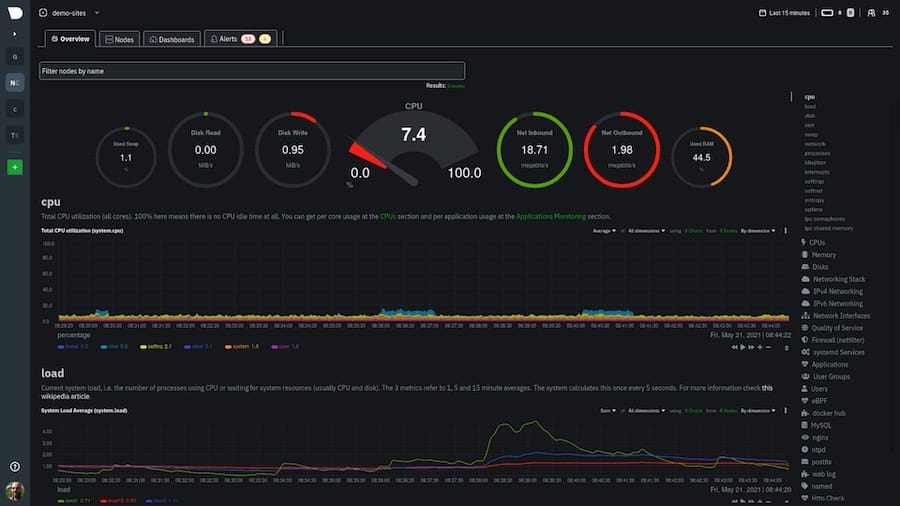
Installation Method 2: Using openSUSE Package Repositories
Adding Netdata Repositories
Manual repository configuration provides greater control over package sources and versions. Add official openSUSE repositories for Netdata installation:
For openSUSE Leap:
sudo zypper addrepo https://download.opensuse.org/repositories/openSUSE:Leap:15.2:Update/standard/openSUSE:Leap:15.2:Update.repo
sudo zypper refresh
For openSUSE Tumbleweed:
sudo zypper addrepo https://download.opensuse.org/repositories/network/openSUSE_Factory/network.repo
sudo zypper refresh
Repository addition enables access to pre-compiled Netdata packages optimized for specific openSUSE versions.
Package Installation
Install Netdata using zypper package manager:
sudo zypper install netdataPackage installation automatically resolves dependencies and configures system integration. This method provides stable, tested versions suitable for production environments.
Monitor installation progress and resolve any dependency conflicts. The package manager displays detailed information about installed components and configuration changes.
Service Configuration
Enable Netdata service for automatic startup:
sudo systemctl enable netdata
sudo systemctl start netdata
sudo systemctl status netdata
Service configuration ensures Netdata starts automatically during system boot, maintaining continuous monitoring coverage.
Installation Method 3: Building from Source
When to Choose Source Installation
Source compilation provides access to latest features, custom configuration options, and development builds. Advanced users requiring specific functionality, custom plugins, or bleeding-edge capabilities benefit from source installation.
Consider source installation for environments requiring strict security controls, custom compilation flags, or integration with proprietary monitoring systems.
Cloning and Building Process
Clone the official Netdata repository:
sudo git clone https://github.com/netdata/netdata.git --depth=1
cd netdata
Execute the installation script:
sudo ./netdata-installer.shThe compilation process downloads additional dependencies, compiles source code, and installs binaries. Monitor output for compilation errors, missing dependencies, or configuration issues.
Post-Compilation Configuration
Source installations require manual service configuration. Create systemd service files and configure automatic startup:
sudo systemctl daemon-reload
sudo systemctl enable netdata
sudo systemctl start netdata
Verify installation success and configure monitoring parameters according to specific requirements.
Initial Configuration and Setup
Configuration File Location and Structure
Netdata configuration resides in /etc/netdata/netdata.conf, containing comprehensive settings for monitoring behavior, performance optimization, and security controls. The configuration file uses INI format with sectioned parameters.
Create configuration backup before modifications:
sudo cp /etc/netdata/netdata.conf /etc/netdata/netdata.conf.backupPrimary configuration sections include global settings, web interface parameters, plugin configurations, and data retention policies.
Network and Access Configuration
Default installation restricts access to localhost for security. Enable remote access by modifying the bind address:
sudo nano /etc/netdata/netdata.confLocate the [web] section and modify:
[web]
    bind to = 0.0.0.0:19999
Alternative configurations include specific IP addresses or interface bindings for enhanced security:
[web]
    bind to = 192.168.1.100:19999
Restart Netdata after configuration changes:
sudo systemctl restart netdataPerformance Optimization
Optimize Netdata performance through configuration tuning. Adjust memory usage, CPU allocation, and data retention settings:
[global]
    memory mode = dbengine
    page cache size = 32
    dbengine disk space = 256
Configuration parameters control resource utilization and monitoring granularity. Balance performance requirements with system resource availability.
Firewall Configuration and Security
openSUSE Firewall Setup
Configure firewalld to allow Netdata access through port 19999:
sudo firewall-cmd --permanent --add-port=19999/tcp
sudo firewall-cmd --reload
Verify firewall configuration:
sudo firewall-cmd --list-portsFor enhanced security, restrict access to specific IP ranges:
sudo firewall-cmd --permanent --add-rich-rule="rule family='ipv4' source address='192.168.1.0/24' port protocol='tcp' port='19999' accept"
sudo firewall-cmd --reload
Security Hardening
Implement authentication mechanisms for production deployments. Configure basic authentication by creating password files:
sudo htpasswd -c /etc/netdata/netdata.passwd adminUpdate configuration to enable authentication:
[web]
    bind to = *:19999
    allow from = *
    allow authentication = yes
SSL/TLS certificate configuration enhances security for remote access. Generate self-signed certificates or integrate with existing PKI infrastructure.
Network Security Considerations
Implement network-level security controls including VPN access, IP whitelisting, and intrusion detection systems. Monitor access logs for unauthorized connection attempts:
sudo journalctl -u netdata -fRegular security audits ensure continued protection against emerging threats.
Advanced Configuration Options
Plugin Configuration
Netdata supports extensive plugin ecosystem for specialized monitoring requirements. Enable or disable specific plugins through configuration:
[plugins]
    apps = yes
    cgroups = yes
    cups = no
    diskspace = yes
Custom plugin development extends monitoring capabilities for proprietary applications or specialized hardware. Third-party plugins integrate with external systems and databases.
Data Retention and Storage
Configure data retention policies balancing historical data preservation with storage constraints:
[global]
    history = 3600
    memory mode = dbengine
    dbengine disk space = 1024
Database backend options include memory-based storage for temporary monitoring and persistent storage for long-term trend analysis.
Integration with External Systems
Netdata Cloud connectivity enables centralized monitoring across multiple nodes. Configure cloud integration during installation or post-deployment:
sudo netdata-claim.sh -token=CLAIM_TOKEN -rooms=ROOM_ID -url=https://app.netdata.cloudAlert notification systems integrate with email, Slack, webhook endpoints, and monitoring platforms. Configure notification rules for critical system events and performance thresholds.
Troubleshooting Common Issues
Installation Problems
Repository connection failures often result from network configuration or proxy settings. Verify internet connectivity and DNS resolution:
ping download.opensuse.org
nslookup download.opensuse.org
Permission errors during installation indicate insufficient user privileges or SELinux policies. Execute installation commands with appropriate sudo privileges and review system logs.
Service and Runtime Issues
Service startup failures commonly stem from configuration errors, port conflicts, or missing dependencies. Examine systemctl status output and system logs:
sudo systemctl status netdata
sudo journalctl -u netdata -n 50
Performance problems may indicate resource constraints or suboptimal configuration. Monitor system resource usage during Netdata operation and adjust configuration parameters accordingly.
Configuration and Access Problems
Web interface accessibility issues often result from firewall restrictions, network configuration, or service binding problems. Verify service status, port availability, and network connectivity:
sudo netstat -tlnp | grep 19999
curl http://localhost:19999
Authentication failures indicate misconfigured access controls or credential problems. Review authentication configuration and password files for accuracy.
Diagnostic Commands and Solutions
Comprehensive diagnostic procedures identify root causes of operational issues:
# Service status and logs
sudo systemctl status netdata
sudo journalctl -u netdata --since="1 hour ago"

# Configuration validation
sudo netdata -W buildinfo
sudo netdata -W set health "SILENCERS=*" -W set health "HEALTH_CMD=/dev/null"

# Network connectivity testing
sudo netstat -tlnp | grep netdata
sudo ss -tlnp | grep 19999
Configuration validation ensures proper syntax and parameter values. Systematic troubleshooting approaches resolve complex deployment issues efficiently.
Performance Optimization and Best Practices
System Resource Management
Optimize Netdata resource utilization for different system configurations. Lightweight deployments benefit from reduced monitoring granularity and selective plugin activation:
[global]
    update every = 2
    memory mode = ram
    history = 1800
Enterprise deployments require comprehensive monitoring with enhanced data retention and advanced analytics. Balance monitoring coverage with system resource availability.
Monitoring Best Practices
Establish effective alerting strategies preventing notification fatigue while ensuring critical issue visibility. Configure threshold-based alerts for key performance indicators:
[health]
    enabled = yes
    default repeat warning = never
    default repeat critical = 60
Dashboard customization improves operational efficiency by highlighting relevant metrics and minimizing information overload. Create role-specific views for different administrative responsibilities.
Scalability Considerations
Multi-node monitoring architectures enable centralized visibility across distributed infrastructure. Implement hierarchical monitoring with central collection points and distributed agents.
Load balancing and high availability configurations ensure continuous monitoring during system maintenance or failures. Deploy redundant monitoring infrastructure for critical environments.
Maintenance and Updates
Keeping Netdata Updated
Automatic update configuration maintains current software versions with minimal administrative overhead. The kickstart script installs update mechanisms by default:
# Check current version
netdata -W buildinfo

# Manual update execution
sudo /usr/libexec/netdata/netdata-updater.sh
Version compatibility considerations prevent disruption during update procedures. Test updates in development environments before production deployment.
Regular Maintenance Tasks
Implement routine maintenance procedures ensuring optimal performance and reliability. Log rotation prevents excessive disk usage:
# Configure log rotation
sudo nano /etc/logrotate.d/netdata
Performance monitoring identifies degradation trends requiring configuration adjustments. Regular system audits ensure continued security and compliance.
Backup and Recovery
Configuration backup strategies preserve custom settings and prevent configuration loss:
# Backup configuration directory
sudo tar czf netdata-config-backup.tar.gz /etc/netdata/

# Backup data directory
sudo tar czf netdata-data-backup.tar.gz /var/lib/netdata/
Data backup and restoration procedures enable rapid recovery from system failures. Test backup integrity regularly to ensure reliable recovery capabilities.
Congratulations! You have successfully installed Netdata. Thanks for using this tutorial for installing the Netdata performance and health monitoring tool on openSUSE Linux system. For additional help or useful information, we recommend you check the official Netdata website.
