How To Install Nextcloud on Fedora 43

Storing files on Google Drive or Dropbox means handing your data to a third party. If privacy matters — for personal use or your business — self-hosting is the smarter choice. Nextcloud is a powerful, open-source cloud platform that puts you in complete control of your data. Running it on Fedora 43 pairs a modern, security-hardened Linux distribution with one of the most feature-rich self-hosted cloud solutions available today.
In this guide, you will learn how to install Nextcloud on Fedora 43 from scratch. Every step is covered: setting up PHP 8.3, MariaDB, Apache, configuring SELinux, securing the server with a free SSL certificate, and completing the web-based setup wizard. By the end, you will have a production-ready Nextcloud instance running securely on Fedora 43.
What Is Nextcloud and Why Run It on Fedora 43?
Nextcloud is an open-source, self-hosted platform for file synchronization and team collaboration. It lets you sync files, share documents, manage calendars and contacts, host video calls, and edit documents collaboratively — all on a server you control. Unlike Dropbox or Google Drive, Nextcloud gives you complete ownership of your data with no monthly fees and no third-party access to your files.
Fedora 43 is an excellent hosting platform for Nextcloud for several reasons. It ships with up-to-date upstream packages including PHP 8.3 and MariaDB 10.11. Its package manager, dnf5, delivers significantly faster dependency resolution than its predecessor. Most importantly, Fedora 43 ships with SELinux enabled by default, providing a mandatory access control layer that adds a strong additional line of defense against unauthorized server access.
There are multiple ways to install Nextcloud: via a tarball, Snap, or Docker. This guide uses the manual tarball method, which offers maximum control over configuration, performance tuning, and security hardening — ideal for production deployments.
Prerequisites
Before starting, make sure the following are in place:
- A server or VPS running a fresh installation of Fedora 43
- Minimum hardware: 2 GB RAM, 2 CPU cores, and 20 GB of available disk space
- Root access or a user account with full sudo privileges
- A registered domain name pointed to your server’s IP address (required for SSL)
- Basic familiarity with the Linux terminal and command-line operations
- An active internet connection on the server
- SSH access configured if you are managing a remote VPS
Throughout this guide, commands are run as a sudo-enabled user. Commands run inside a database shell are shown without a prefix.
Step 1: Update Fedora 43 and Install Essential Packages
Start by updating all installed packages to their latest versions. This prevents dependency conflicts and ensures security patches are applied before adding new software.
sudo dnf update -yNext, install the essential utilities needed throughout this guide:
sudo dnf install wget curl bzip2 nano unzip policycoreutils-python-utils -yHere is what each package does:
- wget — downloads the Nextcloud archive from the official server
- curl — used for API calls and file downloads
- bzip2 — extracts the Nextcloud .tar.bz2 archive
- policycoreutils-python-utils — provides the semanage command for SELinux context management
If a new kernel was installed during the update, reboot the server before continuing:
sudo rebootStep 2: Configure Firewalld
Fedora 43 uses firewalld to manage network traffic rules. You need to open ports 80 (HTTP) and 443 (HTTPS) so users can reach Nextcloud through a browser. First, confirm that firewalld is active:
sudo firewall-cmd --stateThen open the required service ports and reload the rules to apply them immediately:
sudo firewall-cmd --permanent --add-service=http
sudo firewall-cmd --permanent --add-service=https
sudo systemctl reload firewalld
Do not disable SELinux or firewalld for convenience. Both services work together to harden your Fedora server and must remain active throughout this entire installation.
Step 3: Install PHP 8.3 and Required Extensions
Nextcloud requires PHP 8.0 or higher. Use the REMI repository to install PHP 8.3 with full version control. Add the REMI repository for Fedora 43:
sudo dnf install https://rpms.remirepo.net/fedora/remi-release-43.rpm -yReset the current PHP module stream and enable PHP 8.3 from REMI:
sudo dnf module reset php -y
sudo dnf module enable php:remi-8.3 -y
Now install PHP core along with all extensions required by Nextcloud:
sudo dnf install php php-fpm php-cli php-gd php-mbstring php-intl \
php-mysqlnd php-imagick php-zip php-json php-process php-xml \
php-bcmath php-gmp php-opcache php-pecl-apcu -y
Here is what the key extensions do:
- php-gd — handles image processing and thumbnail generation
- php-mysqlnd — native PHP driver for MySQL/MariaDB connections
- php-opcache — caches compiled PHP scripts to improve performance
- php-pecl-apcu — in-memory caching for user data and active sessions
- php-imagick — advanced image manipulation for file previews
- php-intl — enables internationalization and locale support
Enable and start PHP-FPM, then verify the PHP version:
sudo systemctl enable --now php-fpm
php --version
Step 4: Configure PHP Settings for Nextcloud
The default PHP configuration is not optimized for Nextcloud. Before editing, always back up the original configuration file:
sudo cp /etc/php.ini /etc/php.ini.bakOpen /etc/php.ini and update the following resource limits:
memory_limit = 512M
upload_max_filesize = 100M
post_max_size = 100M
max_execution_time = 360
Next, configure OPcache for better runtime performance by editing /etc/php.d/10-opcache.ini:
opcache.enable=1
opcache.memory_consumption=128
opcache.interned_strings_buffer=8
opcache.max_accelerated_files=10000
opcache.revalidate_freq=1
opcache.save_comments=1
Restart PHP-FPM to apply all changes immediately:
sudo systemctl restart php-fpmStep 5: Install and Configure MariaDB
Nextcloud uses MariaDB to store all metadata, user accounts, and application settings. Install the MariaDB server package and start the service:
sudo dnf install mariadb-server -y
sudo systemctl enable --now mariadb
Run the security hardening script to remove default vulnerabilities:
sudo mysql_secure_installationFollow the prompts to set a strong root password, remove anonymous users, disallow remote root login, and remove the test database. Then log into the MariaDB shell and create the Nextcloud database with the recommended utf8mb4 character set for full Unicode support:
sudo mysql -u root -p

CREATE DATABASE nextcloud CHARACTER SET utf8mb4 COLLATE utf8mb4_general_ci;
CREATE USER 'nextclouduser'@'localhost' IDENTIFIED BY 'StrongP@ssw0rd';
GRANT ALL PRIVILEGES ON nextcloud.* TO 'nextclouduser'@'localhost';
FLUSH PRIVILEGES;
EXIT;
Never use the MariaDB root user for Nextcloud. The principle of least privilege requires the database user to have access only to the Nextcloud database and nothing else on the server.
Step 6: Install Apache Web Server
Apache (httpd) is the web server that will serve Nextcloud to users. Install it, enable it at boot, and start the service:
sudo dnf install httpd -y
sudo systemctl enable --now httpd
sudo systemctl status httpd
Test by navigating to http://your-server-ip in a browser. The Fedora Apache test page confirms the service is working. Apache is used in this guide instead of Nginx because it natively supports Nextcloud’s .htaccess rewrite rules via mod_rewrite, simplifying setup and reducing the risk of misconfiguration on a first install.
Step 7: Download and Deploy Nextcloud
Download the latest Nextcloud release directly from the official download server:
wget https://download.nextcloud.com/server/releases/latest.tar.bz2Before extracting, verify the file integrity using the official MD5 checksum to confirm the archive has not been tampered with during download:
wget https://download.nextcloud.com/server/releases/latest.tar.bz2.md5
md5sum -c latest.tar.bz2.md5
The output must return: latest.tar.bz2: OK. Then extract, move, and set the correct ownership:
tar -xjf latest.tar.bz2
sudo mv nextcloud /var/www/html/
sudo mkdir /var/www/html/nextcloud/data
sudo chown -R apache:apache /var/www/html/nextcloud
Step 8: Configure SELinux Permissions
SELinux is Fedora’s mandatory access control system. Without the correct SELinux file contexts, Apache will be blocked from writing to Nextcloud directories — even when standard Linux file permissions appear correct. Never disable SELinux as a workaround.
Apply the httpd_sys_rw_content_t context to Nextcloud’s writable directories:
sudo semanage fcontext -a -t httpd_sys_rw_content_t '/var/www/html/nextcloud/data(/.*)?'
sudo semanage fcontext -a -t httpd_sys_rw_content_t '/var/www/html/nextcloud/config(/.*)?'
sudo semanage fcontext -a -t httpd_sys_rw_content_t '/var/www/html/nextcloud/apps(/.*)?'
Restore the applied contexts to make them active, then enable the SELinux boolean for web-based file operations:
sudo restorecon -Rv /var/www/html/nextcloud/
sudo setsebool -P httpd_unified on
This step is unique to Fedora and is frequently omitted from generic Nextcloud installation guides, which is why permission errors during setup are so common.
Step 9: Configure Apache Virtual Host
Create a dedicated Apache virtual host configuration file for Nextcloud:
sudo nano /etc/httpd/conf.d/nextcloud.confPaste the following configuration block, replacing nextcloud.yourdomain.com with your actual domain name:
<VirtualHost *:80>
    ServerName nextcloud.yourdomain.com
    DocumentRoot /var/www/html/nextcloud
    ErrorLog /var/log/httpd/nextcloud_error.log
    CustomLog /var/log/httpd/nextcloud_access.log combined

    <Directory /var/www/html/nextcloud>
        Options +FollowSymlinks
        AllowOverride All
        Dav off
        SetEnv HOME /var/www/html/nextcloud
        SetEnv HTTP_HOME /var/www/html/nextcloud
    </Directory>
</VirtualHost>
Always test the Apache configuration for syntax errors before restarting the service:
sudo apachectl configtest
sudo systemctl restart httpd
Step 10: Secure Nextcloud with Let’s Encrypt SSL
Running Nextcloud over plain HTTP exposes login credentials and files to interception. Install Certbot and the Apache plugin to obtain a free, trusted SSL certificate from Let’s Encrypt:
sudo dnf install certbot python3-certbot-apache -yRequest and install the certificate for your domain. Certbot automatically configures your Apache virtual host to redirect all HTTP traffic to HTTPS:
sudo certbot --apache -d nextcloud.yourdomain.comSet up automatic certificate renewal via a cron job and validate that renewal works:
echo "0 2 * * * /usr/bin/certbot renew --quiet" | sudo crontab -e
sudo certbot renew --dry-run
After SSL is active, update the trusted_domains entry in /var/www/html/nextcloud/config/config.php to use https://.
Step 11: Complete Setup via the Web Interface
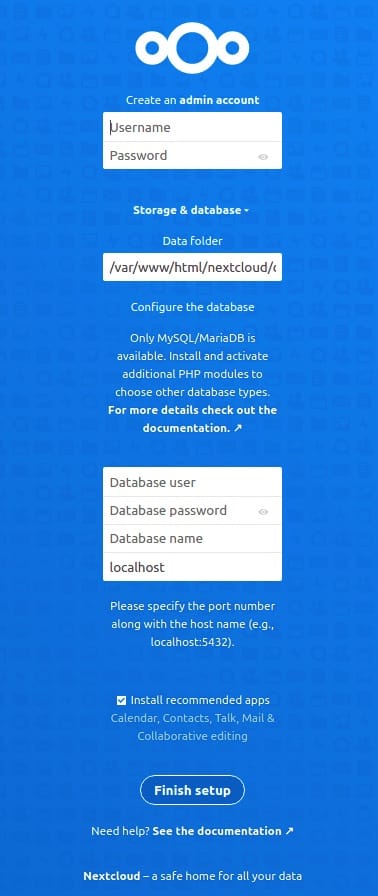
Open a browser and navigate to https://nextcloud.yourdomain.com. The Nextcloud installation wizard loads automatically. Fill in every required field carefully:
- Admin username — choose a unique name; avoid using “admin”
- Admin password — use a strong, memorable password
- Data folder — /var/www/html/nextcloud/data (auto-detected)
- Database type — MySQL/MariaDB
- Database user — nextclouduser
- Database password — the password you set in Step 5
- Database name — nextcloud
- Database host — localhost
Click Install. The process takes one to three minutes. After completion, a welcome screen appears offering to install recommended apps such as Calendar, Contacts, and Nextcloud Talk. Log out and log back in to confirm your admin account and database connection work correctly.
Congratulations! You have successfully installed Nextcloud. Thanks for using this tutorial for installing the Nextcloud open-source file hosting on your Fedora 43 Linux system. For additional or useful information, we recommend you check the official Nextcloud website.
