How To Install Nginx Proxy Manager on Linux Mint 22
Managing multiple web services, SSL certificates, and reverse proxy configurations can quickly become overwhelming. Nginx Proxy Manager simplifies this complexity with an intuitive web interface that transforms tedious command-line operations into straightforward point-and-click management. This comprehensive guide walks you through installing Nginx Proxy Manager on Linux Mint 22, enabling you to manage reverse proxies, secure connections, and multiple domains from a single dashboard.
Whether you’re running a home lab, managing small business applications, or hosting multiple websites, Nginx Proxy Manager provides a centralized solution for proxy management with free SSL certificates through Let’s Encrypt integration. The Docker-based installation ensures portability and easy maintenance across systems.
Understanding Nginx Proxy Manager
Nginx Proxy Manager is a web application that provides a user-friendly interface for managing Nginx reverse proxies. Instead of manually editing configuration files, you can create proxy hosts, manage SSL certificates, and configure redirections through an accessible web dashboard.
The tool excels at several key functions. It allows you to route multiple domain names to different services running on various ports. SSL certificate management becomes effortless with automatic Let’s Encrypt integration. The web interface, accessible via port 81, eliminates the need for command-line configuration editing.
Common use cases include exposing Docker containers to the internet, securing self-hosted applications with HTTPS, managing multiple websites from one server, and creating custom access control lists for protected services.
System Requirements and Prerequisites
Before installation, ensure your system meets the necessary requirements. Your Linux Mint 22 installation should have at least 1GB of RAM, though 512MB can work for smaller deployments. Allocate at least 2GB of free disk space for Docker images and data storage.
You’ll need root or sudo privileges on your Linux Mint system. An active internet connection is essential for downloading packages and Docker images. Three specific ports must be available: port 80 for HTTP traffic, port 443 for HTTPS traffic, and port 81 for the Nginx Proxy Manager admin interface.
Basic familiarity with Linux terminal commands helps, though this guide provides complete instructions. If you plan to expose services externally, having a domain name with DNS access proves beneficial.
Preparing Your Linux Mint 22 System
Start by updating your system packages. Open the terminal and run:
sudo apt update
sudo apt upgrade -y
This ensures all existing packages have the latest security patches and compatibility updates. The process typically takes a few minutes depending on your internet connection and pending updates.
Next, install essential dependencies required for Docker installation:
sudo apt install ca-certificates curl gnupg lsb-release apt-transport-https software-properties-common -yThese packages enable secure package downloads and repository management.
Configuring Firewall Rules
Linux Mint typically uses UFW (Uncomplicated Firewall) for network security. Check your firewall status:
sudo ufw statusIf UFW is active, configure it to allow necessary traffic:
sudo ufw allow 80/tcp
sudo ufw allow 443/tcp
sudo ufw allow 81/tcp
sudo ufw reload
These rules permit HTTP, HTTPS, and admin panel access respectively. The reload command applies changes immediately without disrupting existing connections.
Verify no conflicting services occupy these ports:
sudo netstat -tulpn | grep -E ':(80|81|443)'If Apache or another web server uses port 80 or 443, stop it:
sudo systemctl stop apache2
sudo systemctl disable apache2
Installing Docker Engine
Nginx Proxy Manager runs as a Docker container, providing isolation, portability, and simplified management. Docker containerization ensures the application doesn’t interfere with your host system.
Add Docker’s official GPG key for package verification:
curl -fsSL https://download.docker.com/linux/ubuntu/gpg | sudo gpg --dearmor -o /usr/share/keyrings/docker-archive-keyring.gpgSet up the Docker repository. Linux Mint 22 is based on Ubuntu 24.04 (Noble), so configure accordingly:
echo "deb [arch=$(dpkg --print-architecture) signed-by=/usr/share/keyrings/docker-archive-keyring.gpg] https://download.docker.com/linux/ubuntu noble stable" | sudo tee /etc/apt/sources.list.d/docker.list > /dev/nullUpdate the package index and install Docker:
sudo apt update
sudo apt install docker-ce docker-ce-cli containerd.io docker-buildx-plugin docker-compose-plugin -y
Verify Docker installation:
docker --versionYou should see output displaying the Docker version number.
Configuring Docker Permissions
By default, Docker requires sudo privileges. Add your user account to the docker group for convenience:
sudo usermod -aG docker $USERLog out and log back in for group membership changes to take effect. Alternatively, use:
newgrp dockerTest Docker runs without sudo:
docker psThis command should display an empty container list without permission errors.
Setting Up Nginx Proxy Manager
Create a dedicated directory for Nginx Proxy Manager:
mkdir -p ~/nginx-proxy-manager
cd ~/nginx-proxy-manager
This organizational structure keeps configuration files and data volumes together.
Create a docker-compose.yml file:
nano docker-compose.ymlAdd this configuration based on official documentation:
version: '3.8'
services:
  app:
    image: 'jc21/nginx-proxy-manager:latest'
    restart: unless-stopped
    container_name: nginx-proxy-manager
    ports:
      - '80:80'
      - '81:81'
      - '443:443'
    volumes:
      - ./data:/data
      - ./letsencrypt:/etc/letsencrypt
Understanding this configuration helps troubleshooting. The image specifies the official Nginx Proxy Manager container. The restart: unless-stopped policy ensures automatic container startup after system reboots. Port mappings connect container ports to host system ports. Volume mounts persist data between container recreations, storing configuration in ./data and SSL certificates in ./letsencrypt.
Save the file (Ctrl+O, Enter, Ctrl+X in nano).
Deploy Nginx Proxy Manager:
docker compose up -dThe -d flag runs containers in detached mode, returning control to your terminal. Docker downloads the image on first run, which takes a few minutes.
Monitor deployment progress:
docker compose logs -fPress Ctrl+C to exit log viewing. Successful deployment shows the application starting without error messages.
Verify the container is running:
docker psYou should see a container named nginx-proxy-manager with status “Up” and ports 80, 81, and 443 mapped.
Accessing the Admin Interface
Open your web browser and navigate to:
http://localhost:81If accessing from another computer on your network, use:
http://your-server-ip:81Replace your-server-ip with your Linux Mint machine’s IP address.
The login screen appears with a clean, modern interface. Use these default credentials:
- Email: admin@example.com
- Password: changeme
Critical security note: Change these defaults immediately upon first login.
Initial Configuration
After logging in, you’re prompted to update your credentials. Enter a strong password combining uppercase letters, lowercase letters, numbers, and special characters. Replace the default email with your actual email address for SSL certificate notifications.
Update your user profile with your name and preferred nickname. Click “Save” to apply changes.
The main dashboard displays with navigation options for Proxy Hosts, Redirection Hosts, Streams, 404 Hosts, Users, and SSL Certificates. The interface is intuitive, with clear icons and descriptions for each section.
Creating Your First Proxy Host
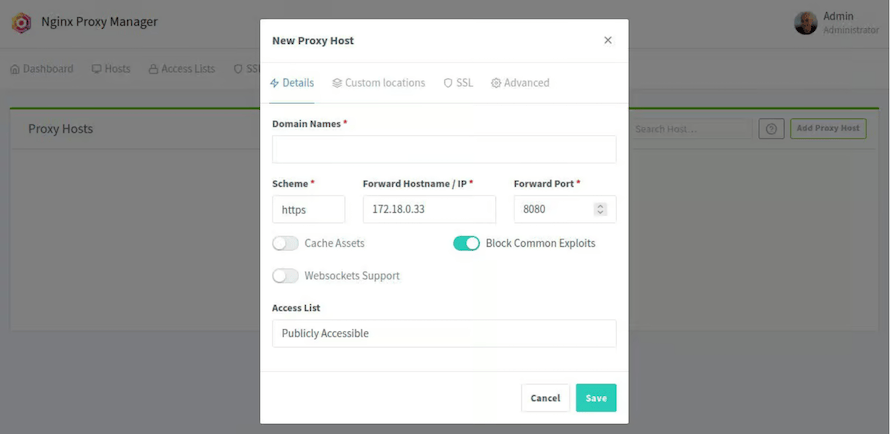
Click “Proxy Hosts” from the main menu, then “Add Proxy Host”. This is where reverse proxy magic happens.
In the Details tab, configure:
- Domain Names: Enter your domain (e.g., app.example.com)
- Scheme: Select http or https depending on your backend service
- Forward Hostname/IP: Enter the IP address or hostname of your backend service
- Forward Port: Specify the port your service runs on
Enable “Block Common Exploits” for automatic protection against common attack vectors. Enable “Websockets Support” if your application uses WebSocket connections. The “Cache Assets” option improves performance by caching static content.
Adding SSL Certificates
Navigate to the SSL tab for HTTPS configuration. Click “Request a new SSL Certificate” and select “Let’s Encrypt.”
Enter your email address for certificate expiration notifications. Check “Agree to the Let’s Encrypt Terms of Service.” Enable “Force SSL” to automatically redirect HTTP to HTTPS. Enable “HTTP/2 Support” for improved performance. Enable “HSTS Enabled” with “HSTS Subdomains” for enhanced security.
Click “Save.” Nginx Proxy Manager automatically requests and installs the SSL certificate. This process takes 30-60 seconds.
Important: Your domain’s DNS must point to your server’s IP address for Let’s Encrypt verification to succeed. If verification fails, check DNS propagation using tools like dig or online DNS checkers.
Troubleshooting Common Issues
Port Already in Use: If you receive port conflict errors, identify the conflicting service:
sudo lsof -i :80
sudo lsof -i :443
Stop the conflicting service or modify your docker-compose.yml to use alternative ports.
Cannot Access Admin Interface: Verify the container is running with docker ps. Check firewall rules allow port 81 traffic. Clear browser cache or try a different browser. Ensure you’re using the correct IP address or hostname.
SSL Certificate Errors: DNS must resolve correctly before Let’s Encrypt validation. Split-horizon DNS configurations can cause validation failures. Port 80 must be accessible from the internet for HTTP-01 validation. Consider DNS-01 challenge methods if port 80 access is restricted. Let’s Encrypt rate limits allow 5 duplicate certificate requests per week; wait if you hit limits.
Database Corruption: If proxy hosts disappear or the interface behaves erratically, restart the container:
docker compose restartFor persistent issues, recreate containers:
docker compose down
docker compose up -d
Security Best Practices
Secure your admin interface by changing the default port 81 to a custom, non-standard port. Add an SSL certificate to the admin interface itself for encrypted management access.
Implement access lists for sensitive applications requiring authentication. Regular security updates keep your installation protected:
cd ~/nginx-proxy-manager
docker compose pull
docker compose up -d
This pulls the latest image and recreates containers with updates.
Always force HTTPS for all proxy hosts. Enable HSTS headers to instruct browsers to only use secure connections. Configure proper backup procedures for the data directory containing all configurations.
Maintenance and Updates
Regular maintenance ensures optimal performance. Check container status periodically:
docker psMonitor logs for errors or unusual activity:
docker logs nginx-proxy-managerLet’s Encrypt certificates renew automatically 30 days before expiration. However, verify renewal success by checking certificate expiration dates in the SSL Certificates section.
Backup your configuration regularly:
cd ~
tar -czf npm-backup-$(date +%Y%m%d).tar.gz nginx-proxy-manager/data
This creates a timestamped backup archive. Store backups off-site or on separate storage for disaster recovery.
Advanced Configuration Tips
For advanced users, Nginx Proxy Manager supports custom Nginx configurations in the Advanced tab of each proxy host. Add custom headers, modify proxy behavior, or implement specific security policies using standard Nginx directives.
Create Docker networks for service isolation:
docker network create reverse_proxyModify your docker-compose.yml to use this network, improving security by segmenting container communications.
Congratulations! You have successfully installed Nginx Proxy Manager. Thanks for using this tutorial for installing Nginx Proxy Manager on Linux Mint 22 system. For additional help or useful information, we recommend you check the official Nginx website.
