How To Install Nginx Proxy Manager on Manjaro

Setting up a reverse proxy doesn’t have to be complicated. Nginx Proxy Manager transforms the traditionally complex task of managing Nginx configurations into a straightforward process with an intuitive web interface. If you’re running Manjaro Linux and need to manage multiple web services, create secure SSL connections, or simply want better control over your network traffic, this guide will walk you through the complete installation process.
Manjaro, being an Arch-based distribution, offers rolling release updates and access to the powerful AUR repository. This makes it an excellent platform for running containerized applications like Nginx Proxy Manager. Whether you’re managing a homelab, deploying self-hosted services, or developing web applications, having a robust reverse proxy solution is essential for modern infrastructure management.
This comprehensive tutorial covers everything from installing Docker on Manjaro to configuring your first proxy host with automatic SSL certificates. By the end, you’ll have a fully functional Nginx Proxy Manager instance ready to handle your web traffic with professional-grade security and performance.
Understanding Nginx Proxy Manager
Before diving into installation commands, let’s clarify what Nginx Proxy Manager actually does. At its core, it’s a web-based interface that sits on top of Nginx, one of the world’s most popular web servers and reverse proxy solutions. Instead of manually editing configuration files and reloading services, you get a clean dashboard where you can add proxy hosts, manage SSL certificates, and configure access controls with just a few clicks.
The real power comes from its integration with Let’s Encrypt. Obtaining and renewing SSL certificates becomes automatic, eliminating the tedious manual process that typically involves command-line certificate challenges. You can secure your services with HTTPS in minutes rather than hours.
For Manjaro users specifically, Nginx Proxy Manager solves several common challenges. It provides a unified entry point for multiple services running on different ports, manages domain routing efficiently, and handles SSL termination so your backend applications don’t need to worry about encryption. This is particularly valuable when running Docker containers, virtual machines, or various self-hosted applications that each need their own subdomain or access path.
Prerequisites and System Requirements
Your Manjaro system needs to meet several basic requirements before proceeding. You’ll need at least 1GB of RAM, though 2GB or more is recommended for production environments. A single CPU core suffices for basic installations, but multi-core processors handle concurrent connections better. Reserve at least 2GB of storage space for Docker images and persistent data.
Make sure you have root or sudo access to your Manjaro installation. You’ll also need three ports available: port 80 for HTTP traffic, port 443 for HTTPS connections, and port 81 for the Nginx Proxy Manager admin interface. If you’re running other web servers like Apache or Nginx natively, you’ll need to stop them or modify port mappings to avoid conflicts.
A stable internet connection is crucial during installation since Docker will download several hundred megabytes of container images. If you plan to use Let’s Encrypt SSL certificates, your Manjaro server must be accessible from the internet with proper DNS records pointing to your IP address. For local testing, you can skip SSL initially and add it later.
Having a text editor ready is essential. Nano works perfectly for beginners, while vim or emacs users can stick with their preferences. You’ll also need a web browser to access the admin interface once installation completes.
Installing Docker on Manjaro
Docker forms the foundation of this entire setup. Manjaro makes Docker installation remarkably simple through its package manager. Start by updating your system to ensure all packages are current and compatible.
Open your terminal and run:
sudo pacman -SyuThis command synchronizes package databases and upgrades all installed packages to their latest versions. The process might take several minutes depending on how recently you’ve updated. If you encounter mirror issues or slow download speeds, use the mirror selection tool to find faster servers in your region.
Once your system is fully updated, install Docker with a single command:
sudo pacman -S dockerPacman will display the packages to be installed and ask for confirmation. Press Y to proceed. The installation includes the Docker engine, command-line tools, and necessary dependencies. This typically takes just a minute or two on modern hardware with decent internet speeds.
After installation completes, Docker won’t start automatically. You need to enable and start the Docker service using systemd:
sudo systemctl enable docker.service
sudo systemctl start docker.service
The first command ensures Docker starts automatically when your system boots. The second command starts Docker immediately. Verify the service is running correctly:
sudo systemctl status dockerYou should see green text indicating “active (running)” along with recent log entries. If you see any errors, double-check that no other container runtimes are installed and conflicting with Docker.
By default, Docker requires root privileges for every command. This becomes tedious quickly. Add your user account to the docker group:
sudo usermod -aG docker $USERThis grants your user permission to interact with the Docker daemon without sudo. The change won’t take effect until you log out and back in. For immediate effect without logging out, use:
newgrp dockerTest your Docker installation:
docker --versionYou should see the installed Docker version number displayed.
Installing Docker Compose on Manjaro
Docker Compose orchestrates multi-container applications using simple YAML configuration files. While Nginx Proxy Manager technically runs as a single container, Docker Compose makes management significantly easier.
Install Docker Compose directly from Manjaro repositories:
sudo pacman -S docker-composeConfirm installation when prompted. Manjaro provides Docker Compose version 2.x, which uses the docker-compose command syntax. Some newer systems use the docker compose (without hyphen) plugin syntax, but both work identically.
Verify successful installation:
docker-compose --versionThe output displays your installed version. As of early 2026, version 2.20 or higher is standard. If you need a different version for compatibility reasons, you can download specific releases from the Docker Compose GitHub repository, but the package manager version works perfectly for Nginx Proxy Manager.
Installing Nginx Proxy Manager
Now comes the exciting part—actually deploying Nginx Proxy Manager. Organization matters when managing Docker applications. Create a dedicated directory:
mkdir -p ~/nginx-proxy-manager
cd ~/nginx-proxy-manager
This creates the directory and immediately moves into it. Some administrators prefer system-wide locations like /opt/nginx-proxy-manager or /srv/nginx-proxy-manager. Choose whatever fits your organizational preferences, just ensure your user has appropriate permissions.
Create the Docker Compose configuration file:
nano docker-compose.ymlPaste the following configuration:
version: '3.8'
services:
  app:
    image: 'jc21/nginx-proxy-manager:latest'
    container_name: nginx-proxy-manager
    restart: unless-stopped
    ports:
      - '80:80'
      - '81:81'
      - '443:443'
    volumes:
      - ./data:/data
      - ./letsencrypt:/etc/letsencrypt
Let me explain each section. The version specifies Docker Compose file format. Version 3.8 provides modern features while maintaining broad compatibility. The services section defines our application components—in this case, just one service named “app.”
The image line pulls the official Nginx Proxy Manager container from Docker Hub. The latest tag always fetches the newest stable release. For production environments, you might prefer specific version tags for consistency.
Container name simplifies management by providing a memorable identifier instead of random Docker-generated names. The restart: unless-stopped policy ensures the container automatically restarts after crashes or system reboots, unless you explicitly stop it.
Port mappings are crucial. The format is host:container. Port 80 handles HTTP traffic, port 443 manages HTTPS connections, and port 81 serves the admin web interface. If these ports conflict with existing services, modify the left side only—changing the right side breaks Nginx Proxy Manager’s internal configuration.
Volumes persist data between container restarts and updates. The ./data directory stores configurations, database files, and application state. The ./letsencrypt directory holds SSL certificates. Both use relative paths, creating subdirectories within your project folder.
Save the file (Ctrl+X, then Y, then Enter in nano). Deploy the container:
docker-compose up -dThe -d flag runs the container in detached mode, returning you to your command prompt while the container runs in the background. On first run, Docker downloads the Nginx Proxy Manager image, which is approximately 200-300MB. Download time varies based on your internet speed.
Watch the progress—you’ll see Docker pulling layers, extracting them, and finally creating the container. When complete, verify the container is running:
docker psYou should see an entry for nginx-proxy-manager with “Up” status and the three port mappings listed. If the container isn’t running, check logs:
docker-compose logsCommon issues include port conflicts (another service already using 80, 443, or 81) or permission problems with volume directories. The logs usually indicate the specific problem clearly.
Initial Configuration and Setup
With the container running, open your web browser and navigate to:
http://localhost:81If you’re accessing remotely, replace localhost with your server’s IP address. The Nginx Proxy Manager login screen appears—a clean, modern interface with email and password fields.
Use these default credentials for first login:
- Email: admin@example.com
- Password: changeme
Security Warning: These credentials are publicly documented and identical on every fresh installation. Change them immediately.
After clicking “Sign In,” Nginx Proxy Manager forces you to update the admin credentials. You’ll see a popup requiring a new email address and password. Choose a strong password combining uppercase and lowercase letters, numbers, and special characters. Use a password manager to generate and store complex credentials.
Update both the email and password, then click “Save.” You’re now logged into the dashboard with secure credentials. The interface shows several sections in the navigation menu: Dashboard, Hosts, SSL Certificates, Access Lists, and Users.
The dashboard displays statistics about proxy hosts, SSL certificates, and access control rules. When you first login, everything shows zero since you haven’t configured anything yet. Take a moment to explore the interface—the design is intuitive and self-explanatory.
Configuring Your First Proxy Host
Let’s create a practical example. Suppose you’re running a web application on your Manjaro system at http://localhost:3000 and want to access it via a domain name with HTTPS.
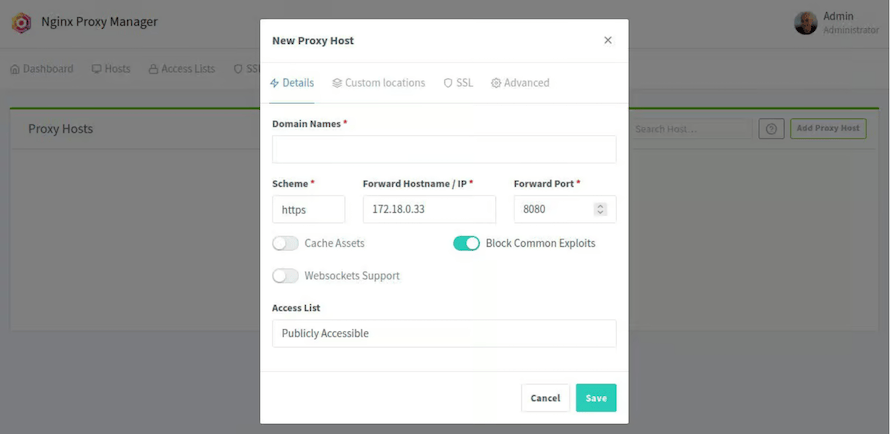
Click “Hosts” in the navigation menu, then select “Proxy Hosts” from the dropdown. Click the blue “Add Proxy Host” button. A dialog appears with three tabs: Details, SSL, and Advanced.
In the Details tab, enter your domain name in the “Domain Names” field—for example, myapp.example.com. You can add multiple domains separated by commas if you want several domains pointing to the same service.
Select the scheme—typically http for backend services since Nginx Proxy Manager handles SSL termination at the proxy level. Your backend application doesn’t need to support HTTPS directly.
In “Forward Hostname / IP,” enter where your application actually runs. For services on the same host, use localhost or the Docker container name if both are in the same Docker network. For separate machines, enter the IP address.
Set “Forward Port” to your application’s port—in our example, 3000. This tells Nginx Proxy Manager to forward incoming requests to port 3000 on the specified host.
Enable “Block Common Exploits” to protect against known attack patterns. This adds Nginx rules that reject malicious requests before they reach your backend application.
Toggle “Websockets Support” if your application uses websocket connections for real-time features like chat applications or live updates. Most applications don’t need this, but enabling it when unnecessary causes no harm.
Click the “SSL” tab. This is where Nginx Proxy Manager truly shines. Select “Request a new SSL Certificate” from the dropdown. Choose “Let’s Encrypt” as the certificate provider.
Check “Force SSL”—this redirects all HTTP requests to HTTPS automatically. Enable “HTTP/2 Support” for better performance with modern browsers. The “HSTS Enabled” option adds security headers telling browsers to always use HTTPS for your domain.
Enter an email address for certificate expiration notifications. Although Nginx Proxy Manager renews certificates automatically, this email serves as a backup alert if renewal fails.
Check “I Agree to the Let’s Encrypt Terms of Service”—you can review these terms on the Let’s Encrypt website if desired.
Click “Save.” Nginx Proxy Manager now does several things automatically: validates domain ownership via HTTP challenge, requests the SSL certificate from Let’s Encrypt, configures Nginx with the certificate, and sets up automatic renewal. The entire process takes 30-60 seconds.
If successful, you’ll see your new proxy host in the list with a green SSL indicator. Visit https://myapp.example.com in your browser—you should see a valid SSL certificate and your application loading normally.
Advanced Configuration Options
The “Advanced” tab provides custom Nginx configuration injection. This is powerful for specific requirements not covered by the standard interface. For example, you might add custom headers:
proxy_set_header X-Real-IP $remote_addr;
proxy_set_header X-Forwarded-Proto $scheme;
add_header Strict-Transport-Security "max-age=31536000" always;
These directives pass the visitor’s real IP address to your backend application and enforce HSTS security headers. Only add custom configurations if you understand Nginx syntax—incorrect directives can break your proxy host.
Access Lists provide another layer of security. Create an access list by navigating to “Access Lists” in the main menu. You can define IP-based restrictions or require username/password authentication. Then apply this access list to any proxy host, restricting who can access that particular service.
This proves valuable for admin panels, development servers, or sensitive applications that shouldn’t be publicly accessible despite having SSL certificates.
Managing and Maintaining Nginx Proxy Manager
Container updates are straightforward. When a new version releases, pull the latest image:
cd ~/nginx-proxy-manager
docker-compose pull
Then recreate the container with the new image:
docker-compose up -dDocker automatically stops the old container, creates a new one with the updated image, and migrates your volumes. Your configuration, SSL certificates, and proxy hosts remain intact. The entire process takes 10-20 seconds with minimal downtime.
Always backup before major updates. Copy your data directory:
cp -r ~/nginx-proxy-manager/data ~/nginx-proxy-manager-backupThis creates a complete backup of your configuration database. If something goes wrong, restore by stopping the container, replacing the data directory, and restarting.
Monitor logs regularly:
docker-compose logs -fThe -f flag follows logs in real-time, showing new entries as they occur. This helps diagnose issues, monitor traffic patterns, and verify SSL renewals happen automatically.
Troubleshooting Common Issues
Port conflicts are the most frequent installation problem. If another service uses ports 80, 443, or 81, Docker can’t bind to them. Identify what’s using these ports:
sudo netstat -tulpn | grep -E ':(80|443|81)'This shows processes listening on those ports. Stop conflicting services or modify your docker-compose.yml to use alternative ports. For example, changing 81:81 to 8081:81 makes the admin interface accessible on port 8081 instead.
Docker permission errors usually mean your user isn’t in the docker group. Verify membership:
groups $USERIf “docker” doesn’t appear in the list, re-run the usermod command from the installation section and ensure you’ve logged out and back in.
SSL certificate failures typically occur due to DNS issues or firewall restrictions. Let’s Encrypt must reach your server on port 80 to verify domain ownership. Ensure your domain’s DNS A record points to your public IP address and your router forwards port 80 to your Manjaro machine.
Use external DNS checkers to verify propagation:
nslookup myapp.example.com 8.8.8.8This queries Google’s DNS server for your domain. The returned IP should match your public address. If not, wait for DNS propagation or check your domain registrar’s settings.
Congratulations! You have successfully installed Nginx Proxy Manager. Thanks for using this tutorial for installing Nginx Proxy Manager on Manjaro Linux system. For additional help or useful information, we recommend you check the official Nginx website.
