How To Install Nomacs on Fedora 43

Finding a reliable, lightweight image viewer for Linux can transform your daily workflow. Nomacs stands out as an exceptional choice for Fedora 43 users who need a powerful yet resource-efficient solution for viewing and managing images. This free, open-source application combines speed with versatility, offering features that rival commercial alternatives while maintaining the flexibility Linux users expect.
This comprehensive guide walks you through everything needed to install Nomacs on Fedora 43. You’ll discover two proven installation methods, learn how to launch and configure the application, and gain troubleshooting insights that ensure smooth operation from day one.
What is Nomacs Image Viewer?
Nomacs represents a modern approach to image viewing on Linux systems. This cross-platform application delivers professional-grade functionality without the bloat that plagues many image viewers. The software runs efficiently on Windows, Linux, Mac, and FreeBSD, making it perfect for users who work across multiple operating systems.
The viewer handles an impressive array of image formats. RAW files from digital cameras open effortlessly, as do PSD files from Photoshop, along with standard formats like JPEG, PNG, TIFF, and BMP. This broad format support eliminates the need for multiple viewing applications cluttering your system.
What truly distinguishes Nomacs is its unique synchronization feature. Multiple Nomacs windows can display different images simultaneously while maintaining synchronized zoom levels, panning positions, and viewing settings. Photographers comparing shots or designers reviewing variations find this capability invaluable.
The interface employs semi-transparent widgets that appear when needed and fade away during focused viewing. Thumbnail previews, metadata displays, and histogram information remain accessible without permanently consuming screen real estate. You can even browse images contained within ZIP archives and Microsoft Office documents.
Released under the GNU GPL v3 license, Nomacs remains completely free for both personal and commercial use. The active development community ensures regular updates and responsive bug fixes through the project’s GitHub repository.
System Requirements and Prerequisites
Fedora 43 requires specific hardware capabilities to run smoothly. Your system should have at minimum a 2 GHz dual-core 64-bit processor paired with 2 GB of RAM and 15 GB of available storage. However, optimal performance emerges with a 2 GHz quad-core processor, 4 GB of RAM, and 40 GB of disk space.
Display resolution matters for image viewing applications. The absolute minimum is 800×600 pixels, though 1024×768 or higher provides a much better experience. Higher resolutions allow you to view more image detail and take full advantage of Nomacs’ multi-panel interface.
Before beginning installation, ensure your Fedora 43 system is up-to-date. An active internet connection is essential for downloading packages and resolving dependencies. You’ll need terminal access, either directly or through SSH if managing a remote system.
Working with a non-root sudo user account provides the best security posture. While you can install software as root, using sudo with a regular account creates an audit trail and prevents accidental system-wide changes. Basic command-line familiarity helps, though the instructions below explain each command in detail.
Installing Nomacs Using DNF Package Manager
The DNF method represents the recommended approach for installing Nomacs on Fedora 43. This package manager integrates seamlessly with Fedora’s ecosystem, automatically handles dependencies, and ensures you receive updates through the standard system update process.
Update Your System Packages
Always refresh your system before installing new software. This practice prevents compatibility issues and ensures all dependencies resolve correctly. Open your terminal and execute:
sudo dnf upgrade --refreshThe --refresh flag forces DNF to update its package metadata from repositories. This ensures you’re working with the latest package information rather than stale cached data. The upgrade process may take several minutes depending on how many packages need updates and your internet connection speed.
You’ll see a list of packages requiring updates. DNF calculates the download size and asks for confirmation before proceeding. Type ‘y’ and press Enter to continue. The system downloads, verifies, and installs updates systematically.
Install Nomacs Package
Once your system is current, installing Nomacs requires a single command:
sudo dnf install nomacsDNF queries the Fedora repositories for the Nomacs package and its dependencies. Fedora’s biannual release cycle means repositories contain reasonably current software versions. The package manager automatically identifies required libraries and components, presenting them for your approval.
The installation typically downloads between 5-10 MB of data, though this varies based on already-installed dependencies. Nomacs and its plugins are available directly in Fedora’s default repositories, which means no third-party repository configuration is necessary.
The installation completes within 1-2 minutes on most systems. You’ll see progress indicators as DNF downloads packages, verifies signatures, and installs files to appropriate system locations.
Verify Successful Installation
Confirm Nomacs installed correctly by checking the package list:
dnf list installed | grep nomacsThis command filters installed packages for anything matching “nomacs.” You should see output showing the installed version number and repository origin. Alternatively, check the application version directly:
nomacs --versionThis displays version information and confirms the executable is properly configured in your system path. Successful output indicates Nomacs is ready to use.
Installing Nomacs Using Flatpak
Flatpak offers an alternative installation method with distinct advantages. This universal packaging system provides sandboxed applications with enhanced security isolation. Flatpak also often delivers more recent application versions than traditional package managers, since developers can publish updates directly to Flathub.
Install and Configure Flatpak
Fedora 43 ships with Flatpak support built-in. Verify its presence with:
flatpak --versionIf Flatpak isn’t installed or needs reinstallation, execute:
sudo dnf install flatpak -yThe -y flag automatically confirms the installation without prompting. This saves time when you’re certain about the installation but shouldn’t be used carelessly for packages you’re unfamiliar with.
Enable the Flathub Repository
Flathub serves as the primary repository for Flatpak applications. Add it to your system with:
sudo flatpak remote-add --if-not-exists flathub https://flathub.org/repo/flathub.flatpakrepoThe --if-not-exists parameter prevents errors if Flathub is already configured. This command downloads repository metadata and configures your system to access Flathub’s application catalog.
Install Nomacs from Flathub
With Flathub enabled, install Nomacs using its application ID:
flatpak install flathub org.nomacs.ImageLoungeFlatpak applications use reverse-domain notation for identification. The system downloads the Nomacs Flatpak bundle along with any required runtime components. First-time Flatpak installations may download substantial runtime libraries that benefit all Flatpak applications.
You’ll see permission requests detailing what system resources Nomacs can access. Review these carefully, though the defaults are generally appropriate for image viewing applications. Confirm the installation when prompted.
Flatpak installations consume more disk space than native packages due to bundled dependencies and runtime environments. However, this approach ensures consistent behavior across different Linux distributions.
Launching Nomacs on Your System
Command Line Launch
Terminal users appreciate the simplicity of launching applications directly. For DNF installations, simply type:
nomacsThe application opens immediately, ready to view images. You can specify a file to open at launch:
nomacs /path/to/image.jpgFlatpak installations require the full application identifier:
flatpak run org.nomacs.ImageLoungeThis longer command ensures the system launches the correct Flatpak application. Consider creating a shell alias to shorten this command for frequent use.
GUI Launch Methods
Most users prefer graphical launching. In GNOME, Fedora’s default desktop environment, click the “Activities” button in the top-left corner. Select “Show Applications” from the dash, typically represented by a grid icon. Type “nomacs” into the search field that appears.
The Nomacs icon displays in the search results. Click it once to launch the application. You can right-click the icon to add Nomacs to your favorites for quick access from the dash.
KDE Plasma users find Nomacs in the Application Launcher menu under Graphics or Utilities. The exact location depends on your menu organization settings. You can also use KRunner (Alt+Space) to search and launch applications quickly.
Create custom keyboard shortcuts through your desktop environment’s settings for even faster access. GNOME Settings under Keyboard → View and Customize Shortcuts allows you to bind Nomacs to any key combination you prefer.
Essential Usage and Configuration
Opening and Navigating Images
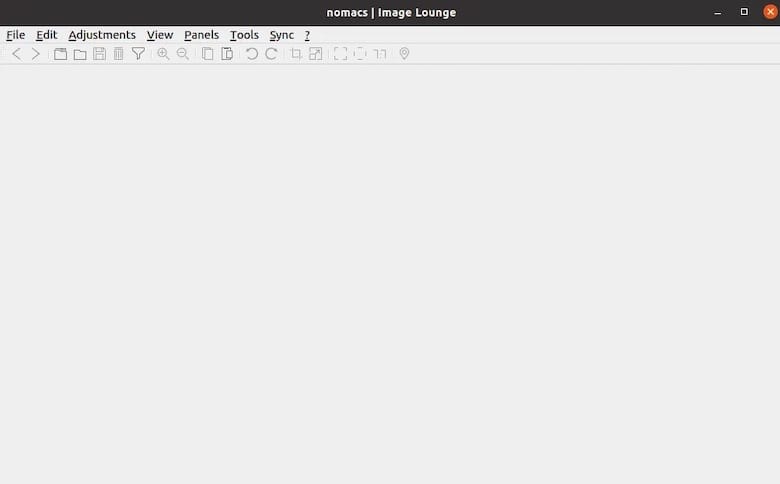
Nomacs launches with a clean interface ready to display images. Use File → Open or press Ctrl+O to browse for images. The application can also open files by dragging them from your file manager directly onto the Nomacs window.
Once an image loads, navigate through other images in the same directory using arrow keys. Left and right arrows move to previous and next images, while up and down arrows scroll within large images. The mouse wheel zooms in and out, and middle-click dragging pans around zoomed images.
Press F11 to toggle fullscreen mode for distraction-free viewing. The Esc key returns to windowed mode. These intuitive controls make browsing large photo collections effortless.
Exploring Metadata and Panels
Press Ctrl+I to display comprehensive EXIF metadata for photographs. This panel shows camera settings, capture date, GPS coordinates (if available), and other technical information. Photographers find this invaluable for analyzing shooting parameters.
The thumbnail panel appears by default but can be toggled with Ctrl+T. This provides visual navigation through directories containing many images. File filtering options let you display only specific image types, useful in folders with mixed file formats.
Enable caching through Edit → Preferences → File for faster switching between images. This preloads adjacent images into memory, eliminating brief loading pauses during navigation.
Synchronizing Multiple Windows
Nomacs’ synchronization feature shines when comparing images. Open a second Nomacs window using File → New Instance. Load different images in each window. From the Sync menu, select “Sync with all instances” or press Alt+S.
Both windows now maintain identical zoom levels and pan positions. Zooming in one window automatically zooms the other to the same degree. This allows precise comparison of details across multiple images, perfect for evaluating photo edits or comparing product shots.
LAN synchronization extends this capability across networked computers. Multiple users can review and discuss images simultaneously, with everyone seeing identical views.
Basic Image Adjustments
Access adjustment tools through Edit → Image Adjustments or press Ctrl+U. Sliders control brightness, contrast, saturation, hue, gamma, and exposure. These real-time adjustments help evaluate whether images need further editing in dedicated software.
The crop tool (Edit → Crop or Ctrl+Shift+X) lets you define and extract regions of interest. Resize functions scale images to specific dimensions or percentages.
Convert images between formats using File → Save As. Nomacs handles format conversion cleanly, preserving as much quality and metadata as the target format supports.
Keeping Nomacs Updated
DNF Update Process
Regular updates deliver security patches, bug fixes, and new features. Update your entire system, including Nomacs:
sudo dnf update --refreshThis command checks all repositories for package updates. DNF presents a list of available updates and asks for confirmation. The process mirrors the initial installation workflow.
Check specifically for Nomacs updates:
sudo dnf check-update nomacsThis queries only the Nomacs package without initiating a full system update. Fedora’s release cycle typically provides updates within a few weeks of upstream releases.
Flatpak Update Process
Update all Flatpak applications with:
flatpak updateThis command checks Flathub for updated versions of installed applications. Flatpak maintains independent update schedules from system packages, often providing newer versions more quickly than distribution repositories.
Update only Nomacs:
flatpak update org.nomacs.ImageLoungeConfigure automatic Flatpak updates through GNOME Software or KDE Discover if you prefer hands-off maintenance. These graphical tools handle update checking and installation in the background.
Troubleshooting Common Issues
Installation Problems
Repository cache corruption occasionally causes installation failures. Clear and rebuild the cache:
sudo dnf clean all && sudo dnf makecacheThis removes cached metadata and downloads fresh repository information. Retry the installation afterward.
Dependency conflicts arise when packages require incompatible library versions. DNF usually resolves these automatically, but manual intervention sometimes becomes necessary. Read error messages carefully—they often suggest specific resolution commands.
Network timeouts during package downloads often result from slow connections or repository server issues. Wait a few minutes and retry, or switch to a different mirror using sudo dnf config-manager.
Insufficient disk space prevents installation. Check available space with df -h and remove unnecessary files if needed. DNF shows required space before downloading, allowing you to plan accordingly.
Launch Issues
“Command not found” errors typically indicate PATH problems or incomplete installation. Verify installation status with which nomacs for DNF installations or flatpak list for Flatpak versions.
Missing Flatpak runtimes prevent application launch. Install the required runtime manually:
flatpak install flathub org.kde.PlatformGraphics driver issues rarely affect Nomacs, but outdated or missing drivers can cause rendering problems. Update graphics drivers through your system’s driver manager.
Permission errors suggest corrupted file permissions. For DNF installations, reinstalling usually resolves this. For Flatpak, reset permissions with flatpak permission-reset org.nomacs.ImageLounge.
Performance Optimization
Slow image loading benefits from increased cache size. Adjust this in Preferences → File → Cache. Allocate more memory for caching if your system has RAM to spare.
High memory usage sometimes occurs with very large images or extensive plugin use. Disable unnecessary plugins through Preferences → Plugins. Close other applications to free system resources.
Removing Nomacs
DNF Uninstallation
Remove the DNF installation with:
sudo dnf remove nomacsThis uninstalls the application but preserves personal configuration files in your home directory. Remove configuration files manually:
rm -rf ~/.config/nomacsClean up orphaned dependencies:
sudo dnf autoremoveThis removes packages that were installed as dependencies but are no longer needed.
Flatpak Uninstallation
Remove the Flatpak installation:
flatpak uninstall org.nomacs.ImageLoungeClean unused runtimes:
flatpak uninstall --unusedThis reclaims disk space by removing runtime libraries no longer required by any installed application.
Congratulations! You have successfully installed Nomacs. Thanks for using this tutorial for installing the Nomacs image viewer on your Fedora 43 Linux system. For additional help or useful information, we recommend you check the official Nomacs website.
