How To Install Notepad++ on Debian 13

If you recently switched from Windows to Debian 13 (Trixie), one of the first things you probably noticed is that Notepad++ is missing. It is one of the most popular code and text editors on Windows, known for its speed, syntax highlighting, and plugin ecosystem, and many developers and sysadmins rely on it as part of their daily workflow.
The problem is straightforward: Notepad++ has no official Linux build. The developers have stated that a native Linux version is not planned. However, that does not mean you are stuck. You can install Notepad++ on Debian 13 using Wine or the Snap package manager, both of which deliver a fully functional Notepad++ experience without needing a Windows machine.
This guide walks you through how to install Notepad++ on Debian 13 (Trixie) using three tested methods. You will also find a troubleshooting section covering the most common errors and a short list of native Linux alternatives. All commands in this guide target Debian 13 Trixie, released on August 9, 2025, running the Linux 6.12 LTS kernel and currently on point release 13.3 as of January 10, 2026.
What Is Notepad++ and Why Linux Users Want It
Notepad++ is a free, open-source source code editor originally built for Windows, powered by the Scintilla editing component. It supports syntax highlighting for over 80 programming languages, multi-document tabbed editing, macro recording, column selection, and a plugin manager that extends its functionality significantly.
Developers who migrated from Windows often keep reaching for it out of habit and muscle memory. The plugin ecosystem alone, which includes tools for XML formatting, FTP syncing, and code comparison, makes it hard to replace with a generic text editor. Because it is a 32-bit Windows executable, running it on Debian 13 requires either a Windows compatibility layer (Wine) or a pre-packaged Snap that bundles Wine internally.
Prerequisites Before You Start
Before you run a single command, make sure your system meets these requirements:
- Operating system: Debian 13 (Trixie), 64-bit (amd64). Verify by running
lsb_release -ain a terminal. - User privileges: A non-root user account with
sudoaccess. All commands below require it. - Internet connection: Required to download Snapd, Wine packages, or the Notepad++ installer.
- Terminal access: Press
Ctrl + Alt + Ton GNOME 48 (the default Debian 13 desktop) to open a terminal. - Free disk space: At least 500 MB. The Snap method bundles Wine and all dependencies into one large package.
- Architecture awareness: Debian 13 dropped i386 as a standalone install target, but i386 multiarch library support remains available for 64-bit systems running 32-bit applications like Wine.
Run this command first to update your package index and apply any pending upgrades before you begin:
sudo apt update && sudo apt upgrade -yThis keeps your system consistent and prevents dependency conflicts during installation.
Method 1: Install Notepad++ on Debian 13 Using Snap (Recommended for Beginners)
The Snap method is the fastest and simplest path to a working Notepad++ install on Debian 13. The Snap package, maintained by community developer Taqi Raza (mmtrt) on the Snap Store, bundles Wine along with a pre-configured Wine environment so you do not need to install or configure Wine yourself.
Step 1: Install Snapd on Debian 13
Unlike Ubuntu, Debian 13 does not ship with Snap pre-installed. You need to install the snapd daemon first.
sudo apt update
sudo apt install snapd
After snapd installs from the Debian repository, install the snapd snap itself to pull in the latest version of the daemon directly from Canonical:
sudo snap install snapdWhy this step matters: Installing only the Debian repository version of snapd can leave you with an outdated build that lacks features required by newer Snap packages. The second command upgrades the daemon via Snap’s own update channel.
After both commands complete, reboot your system or log out and back in. This ensures that /snap/bin is added to your PATH and shell profiles are refreshed:
sudo rebootSkipping the reboot is a common cause of the snap: command not found error that many users encounter after installation.
Step 2: Install the Notepad++ Snap Package
Once Snapd is running, install Notepad++ with a single command:
sudo snap install notepad-plus-plusExpect to wait. The download is large because it includes Wine and all its dependencies packaged inside the Snap container. On most connections this takes 10 to 15 minutes. Do not interrupt the process.
Expected output:
notepad-plus-plus 8.7.9 from Taqi Raza (mmtrt) installedThe version number will differ based on the latest release available on the Snap Store.
Step 3: Launch Notepad++ on Debian 13
Once installed, launch Notepad++ from the application grid by searching “Notepad” in the GNOME Activities overview, or run it directly from the terminal:
notepad-plus-plusOn the first launch, Wine will initialize its own configuration directory. A small dialog box labeled “Wine Mono” or “Wine Gecko” may appear asking to install optional components. You can click Install or Cancel depending on your needs. This is a one-time setup.
After Wine finishes its initialization, the familiar Notepad++ interface loads inside a Wine window on your Debian 13 desktop.
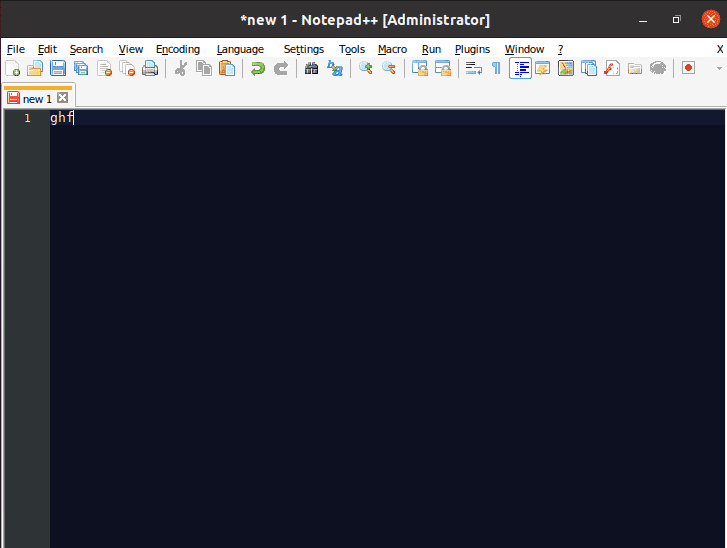
Step 4: Update or Remove Notepad++ (Snap)
To check for and apply updates manually:
sudo snap refresh notepad-plus-plusTo remove it completely:
sudo snap remove notepad-plus-plusSnap handles background updates automatically, but the refresh command forces an immediate check against the Snap Store.
Method 2: Install Notepad++ on Debian 13 Using Wine and the WineHQ Repository
This method gives you direct control over the Wine version and lets you install Notepad++ using the official Windows installer from the Notepad++ website. It is the preferred approach for power users who already run other Windows software through Wine or want the latest stable Wine build from WineHQ rather than the version packaged by Debian.
Debian 13’s built-in repositories include Wine 10.x. The WineHQ repository provides more recent stable releases with additional fixes.
Step 1: Enable 32-Bit Architecture Support
Notepad++ is a 32-bit Windows application. Even on a 64-bit Debian 13 system, Wine needs 32-bit libraries to run it. Enable i386 multiarch support:
sudo dpkg --add-architecture i386
sudo apt update
What this does: It tells dpkg and apt to also resolve and install packages built for the i386 architecture alongside your 64-bit system packages. This is not the same as running a 32-bit OS. Your system remains fully 64-bit.
Step 2: Add the WineHQ Repository for Debian 13 Trixie
Install the tools needed to fetch and trust the WineHQ signing key:
sudo apt install -y wget ca-certificates
sudo mkdir -pm755 /etc/apt/keyrings
Download the WineHQ GPG key:
sudo wget -O /etc/apt/keyrings/winehq-archive.key \
  https://dl.winehq.org/wine-builds/winehq.key
Add the official Trixie-specific WineHQ source file:
sudo wget -NP /etc/apt/sources.list.d/ \
  https://dl.winehq.org/wine-builds/debian/dists/trixie/winehq-trixie.sources
sudo apt update
Why use the official WineHQ key? Adding an unsigned repository opens your system to tampered packages. The signed key ensures every package you pull from WineHQ is verified.
Step 3: Install Wine Stable
Install the WineHQ stable branch with all recommended dependencies:
sudo apt install --install-recommends winehq-stableVerify that Wine installed correctly:
wine --versionExpected output:
wine-10.x.xStep 4: Configure Wine with Winecfg
Before installing any Windows application, initialize Wine’s virtual environment:
winecfgA graphical dialog opens. In the Applications tab, set the Windows version to Windows 10. Click Apply, then OK.
Why Windows 10? Notepad++ targets modern Windows builds. Setting Wine to emulate Windows 10 avoids compatibility errors that appear when Wine defaults to an older Windows version.
Step 5: Download and Run the Notepad++ Installer
Go to notepad-plus-plus.org/downloads and download the latest Windows installer. The file will be named something like npp.8.x.x.Installer.exe. Save it to your ~/Downloads directory.
Run it through Wine:
cd ~/Downloads
wine npp.*.Installer.exe
The familiar Notepad++ Windows setup wizard launches inside Wine. Follow these steps:
- Click Next on the welcome screen.
- Accept the license agreement and click I Agree.
- Keep the default installation path (
C:\Program Files (x86)\Notepad++). - Select Minimalist for a clean install or Custom to include specific components and plugins.
- Click Install and wait for it to finish.
- Click Finish.
Step 6: Launch Notepad++ via Wine
After the installer completes, Wine adds a Notepad++ entry to your application menu. You can also launch it from the terminal:
wine "C:\\Program Files (x86)\\Notepad++\\notepad++.exe"Method 3: Install Notepad++ Using Wine from Debian’s Own Repositories
If you prefer not to add any third-party repositories to your system, Debian 13 Trixie’s own package repositories include Wine 10.x. This method trades cutting-edge Wine features for simplicity and full Debian integration.
Install Wine from Debian Repos
Enable i386 multiarch support first, then install Wine and its dependencies:
sudo dpkg --add-architecture i386
sudo apt update
sudo apt install wine wine32 wine64 libwine libwine:i386 fonts-wine
The fonts-wine package prevents font rendering issues inside Wine applications, which can cause blurry or missing text in Notepad++.
Initialize Wine:
winecfgFollow the same steps from Method 2, Step 5 onward to download and run the Notepad++ installer. The process is identical from that point.
One important rule: Do not mix packages from Debian’s Wine repositories and WineHQ’s repositories on the same system. They conflict with each other and can break your Wine installation. Choose one source and stick with it.
Troubleshooting Common Errors When You Install Notepad++ on Debian 13
Error: “snap: command not found” After Installing Snapd
This happens when /snap/bin is not yet in your shell’s PATH.
Fix: Log out and back in, or add the path manually to your shell config:
echo 'export PATH=$PATH:/snap/bin' >> ~/.bashrc
source ~/.bashrc
If you use Zsh instead of Bash, replace .bashrc with .zshrc.
Error: Notepad++ Takes Over 15 Minutes to Open (Snap Method)
This is expected behavior on the first launch. Wine initializes its configuration files inside the Snap’s sandboxed environment, which takes time.
Fix: Wait it out. Subsequent launches are significantly faster because Wine skips the initialization phase.
Error: Wine Application Crashes or Fails to Launch
This usually happens when 32-bit library support is missing.
Fix: Confirm i386 multiarch is enabled and reinstall Wine libraries:
sudo dpkg --add-architecture i386
sudo apt update
sudo apt install --reinstall wine32
If crashes persist, reset your Wine prefix and start fresh:
rm -rf ~/.wine
winecfg
Then re-run the Notepad++ installer.
Error: Missing or Garbled Fonts Inside Notepad++
This occurs when Wine cannot locate the correct system fonts.
Fix: Install the fonts-wine package from the Debian repositories:
sudo apt install fonts-wineAlso consider running winetricks corefonts if you have Winetricks installed, which adds common Microsoft fonts to your Wine environment.
Error: “wine-platform snap is required” When Running the Snap
Older Snapd builds on Debian occasionally fail to auto-connect the wine-platform content interface.
Fix: Connect it manually:
sudo snap connect notepad-plus-plus:wine-platform-plug \
  wine-platform-runtime:wine-platform
If that does not resolve it, remove and reinstall the Snap:
sudo snap remove notepad-plus-plus
sudo snap install notepad-plus-plus
Congratulations! You have successfully installed Notepad++. Thanks for using this tutorial for installing the latest version of the Notepad++ text editor on Debian 13 “Trixie” system. For additional help or useful information, we recommend you check the official Notepad++ website.
