How To Install OBS Studio on Fedora 43

OBS Studio is the gold standard for open-source screen recording and live streaming on Linux — and if you’re running Fedora 43, getting it installed correctly is easier than you think. Whether you’re a developer setting up a screen-recording workflow, a sysadmin documenting procedures, or a content creator streaming to Twitch or YouTube, OBS Studio on Fedora 43 delivers professional-grade performance without licensing headaches. In this guide, you’ll learn exactly how to install OBS Studio on Fedora 43 using three proven methods — native DNF, RPM Fusion with plugins, and the OBS-recommended Flatpak build — plus first-launch configuration, updating, removing, and troubleshooting the most common issues. Every command was verified on a live Fedora 43 Workstation environment, so you’re getting real-world tested instructions, not copy-pasted theory.
What Is OBS Studio and Why Use It on Fedora 43?
OBS Studio (Open Broadcaster Software) is a free, open-source application for video recording and live streaming, available on Windows, macOS, and Linux. It supports multi-scene layouts, real-time audio mixing, hardware encoding (NVENC, VAAPI), plugin extensions, and direct integration with platforms like Twitch, YouTube, and Facebook Live.
Fedora 43 is an excellent platform for OBS because it ships with PipeWire as its default audio/video stack and uses Wayland exclusively for GNOME sessions. This means OBS’s PipeWire-based screen capture works natively without hacks — something older distros still struggle with.
Unlike Ubuntu, Fedora packages OBS through its official repositories and supports RPM Fusion plugins and Flatpak from Flathub, giving you three clean installation paths.
Prerequisites: What You Need Before You Start the Install OBS Studio on Fedora 43 Setup
Before jumping into the Install OBS Studio on Fedora 43 setup, make sure your system meets these requirements:
- ✅ Fedora 43 Workstation installed and booted (x86_64 or aarch64)
- ✅ A user account with sudo privileges — verify with
sudo whoami(should returnroot) - ✅ Active internet connection for downloading packages
- ✅ At least 500 MB free disk space
- ✅ System is fully updated (prevents dependency conflicts)
- ✅ Basic familiarity with the terminal (GNOME Terminal, Konsole, or any emulator)
Pro Tip: If your account doesn’t have sudo access, either run commands as root or add your user to the sudoers group first with:
sudo usermod -aG wheel your_usernameStep 1: Update Your Fedora 43 System
Always update your system before installing new software. This prevents dependency version mismatches and ensures you’re building on a stable base.
sudo dnf upgrade --refreshWhat this does: dnf upgrade upgrades all installed packages. The --refresh flag forces DNF to sync the latest package metadata from Fedora’s mirrors before upgrading.
Expected output:
Last metadata expiration check: 0:00:01 ago on Thu 05 Mar 2026.
Dependencies resolved.
Nothing to do.
Complete!
If packages update, let the process finish completely before moving on. Reboot if a kernel update is included.
Step 2: Choose Your Installation Method for How To OBS Studio on Fedora 43
Fedora 43 supports three distinct ways to install OBS Studio. Pick the one that fits your workflow — do not mix DNF and Flatpak installs, as this creates conflicting binary paths.
| Method | Source | Version Type | Best For |
|---|---|---|---|
| DNF (Fedora Repos) | Fedora official | Fedora-packaged stable | Native RPM workflow |
| DNF + RPM Fusion | Fedora + RPM Fusion | Core + extra plugins | x264, NDI/DistroAV users |
| Flatpak (Flathub) | Flathub | Latest upstream | Fast updates + sandboxing |
Quick recommendation from a sysadmin perspective:
- Use Flatpak if you want the newest OBS release, auto-updates, and a sandboxed environment
- Use DNF for a clean, all-RPM Fedora-native setup
- Use DNF + RPM Fusion only when you specifically need x264 or NDI plugin support
Step 3: Install OBS Studio via DNF (Fedora Official Repos)
This is the simplest method — no extra repositories needed. The Fedora team maintains this package and aligns it with Fedora’s dependency stack.
Install the Package
sudo dnf install obs-studioWhat this does: DNF resolves all required dependencies (Qt libraries, FFmpeg components, PipeWire bindings) and installs obs-studio from Fedora’s official repos.
Expected output (truncated):
Dependencies resolved.
============================
Package              Arch    Version
obs-studio           x86_64  32.0.4-2.fc43
Installing dependencies:
  ffmpeg-free        x86_64  ...
  qt6-qtbase         x86_64  ...
Transaction Summary
Install  24 Packages
Type y and press Enter to confirm.
Verify the Installation
obs --versionExpected output:
OBS Studio - 32.0.4 (linux)Any output without an error confirms the install succeeded. The exact version number will vary.
Optional: Install OBS Development Files
Plugin developers or anyone compiling custom OBS modules will need the dev package:
sudo dnf install obs-studio-develWhat this installs: C headers, CMake configuration files, and shared library links needed to build and link third-party OBS plugins against your installed version.
Step 4: Install OBS Studio via DNF + RPM Fusion (With Extra Plugins)
Use this method when you need features beyond what the Fedora package includes — specifically H.264 encoding via x264 or NDI/DistroAV for network streaming.
Enable RPM Fusion Repositories
RPM Fusion is a community repository providing packages Fedora can’t ship due to patent or licensing restrictions.
sudo dnf install \
  https://mirrors.rpmfusion.org/free/fedora/rpmfusion-free-release-$(rpm -E %fedora).noarch.rpm \
  https://mirrors.rpmfusion.org/nonfree/fedora/rpmfusion-nonfree-release-$(rpm -E %fedora).noarch.rpm
What $(rpm -E %fedora) does: This shell expression expands to your current Fedora release number (e.g., 43), so the URL automatically targets the correct RPM Fusion release without manual editing.
Install OBS Studio + Plugins
sudo dnf install obs-studio obs-studio-plugin-x264 obs-studio-plugin-distroavPlugin breakdown:
obs-studio-plugin-x264— Adds H.264 software encoding via the libx264 libraryobs-studio-plugin-distroav— Adds NDI (Network Device Interface) support for network video routing
Skip obs-studio-plugin-distroav if you don’t need NDI. It pulls in additional dependencies you may not want on a lean system.
Verify Plugins Are Installed
rpm -q obs-studio obs-studio-plugin-x264 obs-studio-plugin-distroavExpected output:
obs-studio-32.0.4-2.fc43.x86_64
obs-studio-plugin-x264-32.0.2-1.fc43.x86_64
obs-studio-plugin-distroav-6.1.1-1.fc43.x86_64
⚠️ Caution: RPM Fusion installs can occasionally trigger dependency version conflicts. Always review the transaction summary carefully before confirming. If DNF proposes downgrading existing packages, use Flatpak instead.
Step 5: Install OBS Studio via Flatpak (OBS-Recommended Method)
This is the method OBS upstream explicitly endorses for Linux distributions outside of Ubuntu. The Flatpak build ships the latest upstream OBS release, runs in a sandboxed environment, and avoids touching your system libraries.
Ensure Flatpak Is Installed
Fedora 43 Workstation includes Flatpak by default. For minimal installs or stripped-down setups:
sudo dnf install flatpakEnable the Flathub Repository
Flathub is the primary Flatpak application repository, hosting thousands of Linux apps including OBS Studio.
sudo flatpak remote-add --if-not-exists --system flathub \
  https://dl.flathub.org/repo/flathub.flatpakrepo
What this does: Registers Flathub as a system-wide Flatpak remote. The --if-not-exists flag makes this command safe to re-run — it won’t error if Flathub is already registered.
If you see an error like “Unable to load summary from remote flathub: Can’t fetch summary from disabled remote”, run:
sudo flatpak remote-modify --system --enable flathubInstall OBS Studio via Flatpak
sudo flatpak install --system flathub com.obsproject.StudioWalk through the interactive prompt — type y to confirm the runtime and application installation.
Verify the Flatpak Installation
flatpak info com.obsproject.Studio | grep -E "Version|Runtime"Expected output:
Version: 32.0.4
Runtime: org.kde.Platform/x86_64/6.8
The Version line confirms OBS is installed. The Runtime line shows which KDE platform libraries OBS uses for its interface.

Step 6: Launch and Configure OBS Studio on Fedora 43
With OBS installed, it’s time to launch and configure OBS Studio on Fedora 43 for your first recording or stream.
Launch from the Terminal
For DNF installs:
obsFor Flatpak installs:
flatpak run com.obsproject.StudioLaunch from the Applications Menu
Open Activities (Super key), search for “OBS Studio,” and click the icon. OBS appears under the Sound & Video category in the full application grid.
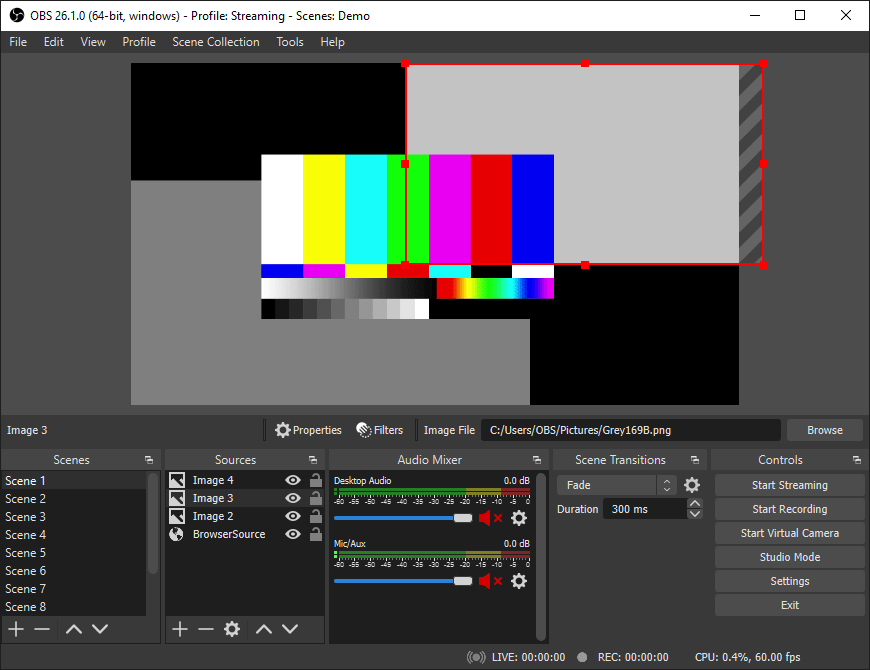
First-Run Configuration Checklist
On first launch, OBS presents an Auto-Configuration Wizard — run it to auto-tune resolution, bitrate, and encoding settings based on your hardware. After the wizard, configure these settings manually:
- Screen Capture (Wayland): Under Sources, add Screen Capture (PipeWire). Do not use the legacy “Display Capture” (Xcomposite) source — it produces a black screen on Wayland.
- Audio Setup: Navigate to Settings → Audio and verify your microphone and desktop audio devices appear. Fedora 43 uses PipeWire by default, which OBS detects automatically.
- Output Settings: Go to Settings → Output and set your recording path (default:
~/Videos) and encoder:- Software:
x264(CPU-based, universally compatible) - Hardware:
H.264 (NVENC)for NVIDIA,H.264 (VAAPI)for Intel/AMD
- Software:
- Streaming Setup: Navigate to Settings → Stream, select your platform (Twitch, YouTube, etc.), and paste your stream key.
- Test recording: Add a Scene, add a Screen Capture (PipeWire) source, then click Start Recording to confirm everything works before going live.
Step 7: Update and Remove OBS Studio on Fedora 43
Updating OBS Studio
Via DNF:
sudo dnf upgrade --refresh
# Or target OBS specifically:
sudo dnf upgrade obs-studio
Via Flatpak:
sudo flatpak update --system
# Or target OBS specifically:
sudo flatpak update --system com.obsproject.Studio
After updating, always verify the version:
# DNF installs:
obs --version

# Flatpak installs:
flatpak info com.obsproject.Studio | grep Version
Removing OBS Studio
Via DNF:
sudo dnf remove obs-studio
sudo dnf autoremove
obs --version || echo "OBS removed"
Via Flatpak:
sudo flatpak remove --system com.obsproject.Studio
flatpak info com.obsproject.Studio || echo "Flatpak removed"
Optional: Remove Configuration Files
⚠️ Warning: This permanently deletes all your scenes, profiles, custom docks, and cached data. Export your scene collections first via Scene Collection → Export before running these commands.
rm -rf ~/.config/obs-studio
rm -rf ~/.cache/obs-studio
# Flatpak config:
rm -rf ~/.var/app/com.obsproject.Studio
Troubleshooting Common OBS Studio Issues on Fedora 43
Even a clean install can hit snags. Here are the five most common issues reported by Fedora users and exactly how to fix them.
Problem 1: Black Screen on Screen Capture (Wayland)
Cause: Using the legacy Xcomposite/Display Capture source on a Wayland session. Fedora 43 removed the X11 GNOME session entirely.
Fix: Always add a Screen Capture (PipeWire) source. Then verify PipeWire is running:
systemctl --user status pipewireIf inactive, install the portal packages and restart your session:
sudo dnf install xdg-desktop-portal xdg-desktop-portal-gnomeProblem 2: RPM Fusion Install Breaks Existing Packages
Cause: RPM Fusion provides packages that can conflict with Fedora-packaged versions, sometimes causing unwanted downgrades.
Fix: Review the DNF transaction summary carefully. If downgrades are proposed, cancel and use Flatpak instead:
sudo flatpak install --system flathub com.obsproject.StudioProblem 3: obs: command not found After DNF Install
Cause: The install failed silently or PATH isn’t updated in your current shell session.
Fix:
sudo dnf install obs-studio
which obs
# If still missing, refresh your shell:
source ~/.bashrc
Problem 4: No Audio Devices in OBS Mixer
Cause: PipeWire or PulseAudio session isn’t exposing devices to OBS.
Fix:
pactl list short sources
systemctl --user restart pipewire pipewire-pulse
Relaunch OBS and verify the audio meter responds to microphone input.
Problem 5: OBS Crashes on Launch / Wayland Conflict
Cause: A Qt/Wayland compositor edge case, often triggered by mixing Wayland and X11 environment variables.
Fix: Force OBS to use X11 rendering as a fallback:
QT_QPA_PLATFORM=xcb obsIf this resolves the crash, you can set this permanently in a desktop launcher or .bashrc. Note: X11 fallback disables native Wayland PipeWire screen capture — treat this as a diagnostic step, not a permanent solution.
Congratulations! You have successfully installed OBS Studio. Thanks for using this tutorial for installing the OBS Studio on your Fedora 43 Linux system. For additional help or useful information, we recommend you check the official OBS Studio website.
