How To Install Obsidian on Linux Mint 22

If you want a powerful, offline-first note-taking app that stores your data as plain Markdown files, Obsidian is one of the best tools available for Linux users today. Getting it running on Linux Mint 22 “Wilma” is straightforward, but the process differs depending on which packaging format you choose. This guide covers all four installation methods, including Flatpak, the .deb package, AppImage, and Snap, so you can pick the one that fits your workflow. By the end, you will have Obsidian installed, a vault created, and the app ready to use.
What Is Obsidian and Why Linux Mint Users Should Use It
Obsidian is a free, closed-source personal knowledge management (PKM) app built on the Electron framework. It stores every note as a plain .md (Markdown) file inside a local folder called a vault, which means you own your data completely and can open your notes in any text editor, even without Obsidian installed.
Linux Mint 22, codenamed “Wilma”, is a long-term support release built on Ubuntu 24.04 LTS (Noble Numbat) with kernel version 6.8. It will receive security updates until 2029, making it a rock-solid base for a daily-driver setup that includes productivity tools like Obsidian.
Here is why Obsidian stands out compared to other note-taking apps on Linux:
- Bidirectional linking: Connect notes using
[[wiki-style links]]and visualize the connections in a Graph View. - Works 100% offline: No account is required for core features. Your notes never leave your machine unless you choose Obsidian Sync.
- Plugin ecosystem: Hundreds of community plugins extend functionality, from calendar views to Kanban boards and database tables.
- Plain Markdown files: No proprietary format, no lock-in.
- Themes and CSS snippets: Full UI customization without touching any source code.
Obsidian is free for personal use. A commercial license is required for business use. A paid Obsidian Sync add-on is available for cross-device syncing, but it is completely optional.
Prerequisites Before You Begin
Before you run any commands, confirm the following:
- Operating system: Linux Mint 22 “Wilma” (Cinnamon, MATE, or Xfce edition).
- User privileges: A non-root user account with
sudoaccess. - Internet connection: Required to download packages.
- Terminal access: Open the terminal from the taskbar or press Ctrl + Alt + T.
- RAM: At least 4 GB recommended. Obsidian runs on Chromium/Electron, so it consumes more RAM than a native GTK app.
- Flatpak: Already installed by default on Linux Mint 22 with Flathub enabled, which makes Method 1 the path of least resistance.
Step 1: Update Your System Before Installing Obsidian on Linux Mint 22
Always start with a system update. This ensures your package lists are current and avoids dependency conflicts during installation.
Open a terminal and run:
sudo apt update && sudo apt upgrade -yWhat this does: apt update refreshes the local package index from all enabled repositories. apt upgrade -y installs all available upgrades for currently installed packages. The -y flag auto-confirms the prompt so the command runs without interruption.
Expected output: You will see a list of packages being updated, followed by 0 newly installed, 0 to remove and 0 not upgraded if the system is already current, or a progress bar as upgrades download and install.
After the update completes, reboot if a kernel upgrade was applied:
sudo rebootThis step takes two minutes but prevents a frustrating debugging session later.
Step 2: Choose Your Installation Method
Linux Mint 22 supports four ways to install Obsidian. Each has tradeoffs:
| Method | Auto-Updates | System Integration | Recommended For |
|---|---|---|---|
| Flatpak | Yes | Excellent | Most users on Linux Mint 22 |
| .deb Package | No (manual) | Native | Users who prefer apt-managed packages |
| AppImage | No (manual) | Poor (unless AppImageLauncher used) | Testing without system changes |
| Snap | Yes | Good | Users already in the Snap ecosystem |
The Flatpak method is recommended for Linux Mint 22 because Flathub is pre-configured in the Software Manager, the app sandboxes cleanly, and updates happen automatically. The Snap method works but Linux Mint’s development team officially discourages Snap use on their distribution.
Method 1: Install Obsidian via Flatpak (Recommended for Linux Mint 22 Setup)
Flatpak is the native packaging format for Linux Mint 22 and the most seamless way to install Obsidian. The Software Manager ships with Flathub pre-configured, so you can install Obsidian in two ways: through the GUI or through the terminal.
Option A: Install via the Software Manager (GUI)
- Click the Software Manager icon in the taskbar.
- In the search bar, type Obsidian.
- Locate the entry published by obsidianmd from Flathub.
- Click Install and enter your sudo password when prompted.
- After installation finishes, find Obsidian in the application menu.
This is the easiest route for users who prefer not to use a terminal.
Option B: Install via Terminal (Flatpak)
Step 2.1: Confirm Flatpak is installed
flatpak --versionExpected output: Something like Flatpak 1.14.x. If the command is not found, install Flatpak manually:
sudo apt install flatpak -yStep 2.2: Add the Flathub repository
sudo flatpak remote-add --if-not-exists flathub https://flathub.org/repo/flathub.flatpakrepoWhat this does: Registers the Flathub repository as a source for Flatpak packages. The --if-not-exists flag prevents the command from throwing an error if Flathub is already configured, making the command safe to run more than once.
Step 2.3: Install Obsidian from Flathub
sudo flatpak install flathub md.obsidian.ObsidianWhen prompted, type Y and press Enter to confirm the installation. Flatpak will download the Obsidian runtime and the application itself.
Expected output:
Installing 1/1 md.obsidian.Obsidian...
[####################] Installing
Step 2.4: Launch Obsidian
flatpak run md.obsidian.ObsidianOr find the Obsidian icon in the application menu. The first launch opens the vault selection screen.
Method 2: Configure Obsidian on Linux Mint 22 via .deb Package
The .deb package installs Obsidian like any other system application through dpkg. The tradeoff is that this method does not auto-update. You must manually download and reinstall each new version.
Step 2.1: Download the .deb package
Go to https://obsidian.md/download in your browser. Under the Linux section, click .deb (x86_64) to download the file (for example, obsidian_1.x.x_amd64.deb).
Step 2.2: Install via GDebi (GUI method)
Right-click the downloaded .deb file in your file manager, select Open With GDebi Package Installer, and click Install Package. Enter your sudo password when prompted.
Step 2.3: Install via terminal (dpkg method)
Navigate to your Downloads folder and install the package:
cd ~/Downloads
sudo dpkg -i obsidian_*.deb
What this does: dpkg -i installs a local .deb file directly. The * wildcard matches any version number in the filename so you do not need to type the exact filename.
If you see dependency errors, resolve them with:
sudo apt install -fWhat -f does: The -f flag stands for “fix broken”. It tells apt to find and install any missing dependencies that the dpkg command could not resolve on its own.
Step 2.4: Launch Obsidian
obsidianOr find it in the application menu under the Office or Accessories category.
Method 3: Install Obsidian on Linux Mint 22 via AppImage
An AppImage is a portable, self-contained executable that requires no installation. You download one file, make it executable, and run it. Deleting the file removes the app completely. This method is ideal for users who want to test Obsidian without modifying system files.
Step 3.1: Download the AppImage
Go to https://obsidian.md/download. Under Linux, click AppImage to download the file (for example, Obsidian-1.x.x.AppImage).
Step 3.2: Make the file executable
GUI method: Right-click the file, select Properties, go to the Permissions tab, and check Allow executing file as program.
Terminal method:
chmod +x ~/Downloads/Obsidian-*.AppImageWhat chmod +x does: Adds the executable bit to the file. Without this step, Linux treats the file as plain data and refuses to run it.
Step 3.3: Run Obsidian
~/Downloads/Obsidian-*.AppImageOr double-click the file in the file manager.
Step 3.4: Add Obsidian to the application menu (optional)
AppImages do not create a desktop entry by default, so the icon will not appear in your application menu. Install AppImageLauncher to fix this:
sudo add-apt-repository ppa:appimagelauncher-team/stable
sudo apt update
sudo apt install appimagelauncher -y
After installing AppImageLauncher, double-clicking the .AppImage file will show a prompt: Integrate and run or Run once. Select Integrate and run to add Obsidian permanently to the application menu.
Method 4: Install Obsidian via Snap
The Snap package format is maintained by Canonical. Linux Mint 22 ships with Snap blocked by default because the Linux Mint team officially opposes Snap’s design. This method is documented for completeness, but Flatpak is the strongly preferred choice on Linux Mint.
Step 4.1: Remove the Snap block
sudo rm /etc/apt/preferences.d/nosnap.pref
sudo apt update
What this does: Linux Mint creates a file called nosnap.pref in the apt preferences directory to block Snap installation. Removing this file lifts the restriction.
Step 4.2: Install the snapd daemon
sudo apt install snapd -yStep 4.3: Install Obsidian
sudo snap install obsidian --classicWhy --classic is required: Obsidian needs access to files outside the default Snap sandbox to read vault files stored in your home directory. The --classic confinement flag grants that access. Without it, the installation will fail.
Step 4.4: Launch Obsidian
obsidianKnown issue: Some users on the Obsidian community forum have reported that the Snap version intermittently fails to launch after install. If that happens, removing the Snap version and switching to Flatpak resolves the problem in most cases.
Step 3: Create Your First Vault
When Obsidian launches for the first time, it shows the vault selection screen. A vault is simply a folder on your filesystem. Obsidian reads and writes .md files directly into that folder and nothing else.
You will see three options:
- Create new vault: Name the vault and choose a location on your machine.
- Open folder as vault: Point Obsidian to an existing folder of Markdown files.
- Open vault from Obsidian Sync: For users with an active Obsidian Sync subscription (paid).
For a first-time setup:
- Click Create new vault.
- Name it something clear, such as
MyNotesorWorkKB. - Set the location to
~/Documents/MyNotes. - Click Create.
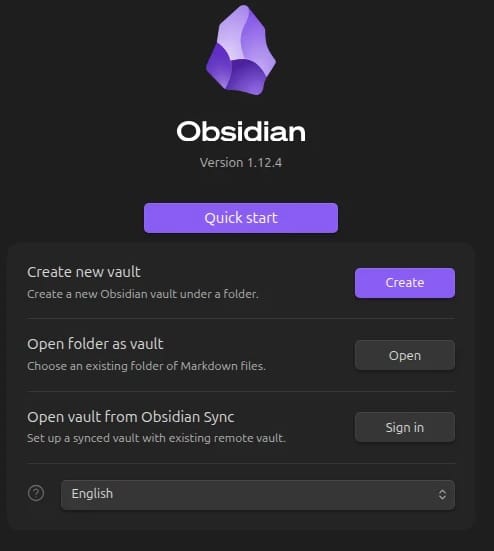
Obsidian will create the folder and add a hidden .obsidian subdirectory inside it. That subfolder stores all your plugin configurations, theme settings, and hotkeys. You can safely track it with git if you want version control over your settings.
Step 4: How to Update Obsidian on Linux Mint 22
The update process depends on which installation method you used.
Flatpak update:
flatpak update md.obsidian.ObsidianOr open the Software Manager, go to the Updates tab, and click Install Updates. Flatpak handles this automatically in the background on most Linux Mint setups.
.deb package update:
Go to https://obsidian.md/download, download the new .deb file, and reinstall it:
cd ~/Downloads
sudo dpkg -i obsidian_*.deb
Running dpkg -i on a newer version over an existing install upgrades the package in place.
AppImage update:
Download the new .AppImage from obsidian.md/download, make it executable with chmod +x, and replace the old file. If you used AppImageLauncher, right-click the old entry in the menu and remove it first, then run the new AppImage and select Integrate and run.
Snap update:
Snap updates automatically in the background. To trigger a manual update:
sudo snap refresh obsidianStep 5: How to Uninstall Obsidian from Linux Mint 22
Flatpak:
flatpak uninstall md.obsidian.ObsidianTo also remove cached data and settings stored by the Flatpak sandbox:
flatpak uninstall --delete-data md.obsidian.Obsidian.deb package:
sudo apt remove obsidian
sudo apt autoremove
AppImage:
Delete the .AppImage file. If you used AppImageLauncher, right-click Obsidian in the application menu and select Remove AppImage from system.
Snap:
sudo snap remove obsidianImportant: Uninstalling Obsidian through any of these methods does not delete your vault. Notes stored in ~/Documents/MyNotes (or wherever you set the vault) remain completely untouched.
Troubleshooting Common Issues on Linux Mint 22
Issue 1: Obsidian Won’t Launch After Flatpak Install
Symptom: The app icon appears in the menu but nothing opens when you click it.
Fix: Run the app from the terminal to see the error output:
flatpak run md.obsidian.ObsidianIf the terminal shows permission errors, reboot the system first:
sudo rebootIssue 2: Snap Version Fails to Open
Symptom: The Snap install finishes successfully but Obsidian does not launch when called from the terminal or menu.
Fix: This is a documented issue in the Obsidian community forum. Remove the Snap version and switch to Flatpak:
sudo snap remove obsidian
flatpak install flathub md.obsidian.Obsidian
Issue 3: AppImage Has No Icon or Application Menu Entry
Symptom: Obsidian runs but does not appear in the application menu, and has no icon in the taskbar.
Fix: Install AppImageLauncher as shown in Method 3, Step 3.4. It creates a proper .desktop entry and registers the application with the system.
Issue 4: dpkg Dependency Errors During .deb Install
Symptom: The dpkg -i command exits with errors about missing dependencies.
Fix:
sudo apt install -fRun this immediately after the failed dpkg command. apt will identify and install all missing dependencies, then complete the Obsidian installation.
Issue 5: UI Lag or Slow Performance
Symptom: Obsidian loads slowly, scrolling feels choppy, or the graph view stutters.
Fix: Obsidian uses Electron (Chromium under the hood), which can lag on older hardware or certain GPU drivers. Disable hardware acceleration inside Obsidian:
- Go to Settings (gear icon at the bottom left).
- Open the Appearance section.
- Toggle off Hardware Acceleration.
- Restart Obsidian.
Also consider disabling heavy community plugins like Dataview or Tasks when not actively using them.
Congratulations! You have successfully installed Obsidian. Thanks for using this tutorial to install the latest version of the Obsidian on Linux Mint 22. For additional help or useful information, we recommend you check the official Obsidian website.
