How To Install Odoo on Debian 13

Odoo stands as one of the most powerful open-source ERP systems available today, offering everything from customer relationship management to inventory control, accounting, and e-commerce capabilities. Installing Odoo on Debian 13 gives you the advantage of a stable, secure Linux distribution that’s designed for long-term support and reliability. This comprehensive guide walks you through every step of the installation process, from preparing your system to accessing your fully functional Odoo instance.
Whether you’re setting up Odoo for a small business or preparing a robust production environment, Debian 13 provides the perfect foundation. The entire installation typically takes 15-20 minutes, and by the end of this tutorial, you’ll have a working Odoo 19 installation ready to customize for your needs.
Prerequisites and System Requirements
Before diving into the installation, ensure your system meets the necessary requirements.
Hardware Requirements
Your server should have at least 2GB of RAM, 10GB of storage space, and one CPU core for basic operation. However, for production environments, we recommend 4GB or more of RAM, 40GB of storage, and at least two CPU cores. Keep in mind that as your database grows with business data, you’ll need additional storage capacity.
Software Requirements
You’ll need a fresh Debian 13 installation with root or sudo user privileges. A stable internet connection is essential for downloading packages. If you’re setting up a production server, having a domain name ready is advisable, though it’s optional for testing environments.
Required Knowledge
Basic familiarity with Linux command-line operations will make this process smoother. You should know how to access your server via SSH and use text editors like nano or vim.
Step 1: Update and Prepare the System
Starting with a fully updated system ensures compatibility and security. Log into your Debian 13 server and run the following commands:
sudo apt update
sudo apt upgrade -y
This updates your package lists and upgrades all installed packages to their latest versions. The process might take a few minutes depending on your internet speed and the number of packages requiring updates.
Step 2: Install Python and Dependencies
Odoo 19 requires Python 3.13, which fortunately comes with Debian 13’s native repositories. Earlier versions like Odoo 17 and 18 work with Python 3.12, but we’ll focus on the latest release.
Installing Python
Install Python along with pip and essential build tools:
sudo apt install python3 python3-pip python3-dev python3-venv -yInstalling System Dependencies
Odoo requires numerous system libraries for XML processing, image manipulation, LDAP integration, and PostgreSQL connectivity. Install all required dependencies with this single command:
sudo apt install build-essential wget git libxml2-dev libxslt1-dev libevent-dev libsasl2-dev libldap2-dev libpq-dev libpng-dev libjpeg-dev node-less npm -yEach package serves a specific purpose. The build tools compile Python packages, while the development libraries enable features like LDAP authentication and image processing for product catalogs.
Step 3: Install and Configure PostgreSQL Database
PostgreSQL serves as Odoo’s database backend, handling all your business data efficiently.
Installing PostgreSQL
Install PostgreSQL with this command:
sudo apt install postgresql postgresql-contrib -yStart and enable the PostgreSQL service to run automatically on boot:
sudo systemctl start postgresql
sudo systemctl enable postgresql
Creating Odoo Database User
Create a dedicated PostgreSQL user for Odoo. Switch to the postgres user and create the new database user:
sudo su - postgres -c "createuser -s odoo19"The -s flag grants superuser privileges, which Odoo needs to create and manage databases through its web interface. For enhanced security in production environments, consider creating a user without superuser rights and manually creating databases instead.
PostgreSQL Configuration
For basic installations, the default PostgreSQL configuration works well. However, if you plan to allow remote database connections, you’ll need to edit /etc/postgresql/15/main/pg_hba.conf and add appropriate access rules.
Step 4: Install wkhtmltopdf
The wkhtmltopdf package converts HTML to PDF, enabling Odoo to generate reports, invoices, and other documents.
Download and install the recommended version:
cd /tmp
wget https://github.com/wkhtmltopdf/packaging/releases/download/0.12.6.1-2/wkhtmltox_0.12.6.1-2.bookworm_amd64.deb
sudo apt install ./wkhtmltox_0.12.6.1-2.bookworm_amd64.deb -y
If you encounter missing dependencies, install them first:
sudo apt install xfonts-75dpi xfonts-base -yVerify the installation:
wkhtmltopdf --versionStep 5: Create Odoo System User
Running Odoo as a non-root user follows Linux security best practices. Create a dedicated system user:
sudo useradd -m -U -r -d /opt/odoo19 -s /bin/bash odoo19This command creates a user named “odoo19” with a home directory at /opt/odoo19. The /opt directory is conventionally used for optional software installations, keeping your system organized.
Step 6: Download and Install Odoo from GitHub
Now we’ll download Odoo’s source code directly from the official GitHub repository.
Cloning Odoo Repository
Switch to the Odoo user and clone the repository:
sudo su - odoo19
git clone https://www.github.com/odoo/odoo --depth 1 --branch 19.0 /opt/odoo19/odoo19
The –depth 1 flag performs a shallow clone, downloading only the latest commit instead of the entire repository history. This saves considerable time and disk space.
Creating Python Virtual Environment
Virtual environments isolate Python dependencies, preventing conflicts with system packages:
python3 -m venv /opt/odoo19/odoo19-venv
source /opt/odoo19/odoo19-venv/bin/activate
Your command prompt will change, showing the active virtual environment name.
Installing Python Dependencies
Upgrade pip and install all required Python packages:
pip install --upgrade pip
pip install wheel
pip install -r /opt/odoo19/odoo19/requirements.txt
This process typically takes 5-10 minutes as it downloads and compiles numerous packages. Once complete, deactivate the virtual environment:
deactivateCreating Additional Directories
Set up directories for custom modules and log files:
mkdir /opt/odoo19/custom-addons
mkdir /opt/odoo19/log
touch /opt/odoo19/log/odoo19.log
exit
Set proper ownership:
sudo chown -R odoo19:odoo19 /opt/odoo19Step 7: Create Odoo Configuration File
The configuration file controls Odoo’s behavior and connection parameters.
Create the configuration file:
sudo nano /etc/odoo19.confAdd the following configuration:
[options]
admin_passwd = YourStrongMasterPassword
db_host = False
db_port = False
db_user = odoo19
db_password = False
xmlrpc_port = 8069
logfile = /opt/odoo19/log/odoo19.log
addons_path = /opt/odoo19/odoo19/addons,/opt/odoo19/custom-addons
Replace YourStrongMasterPassword with a secure password. This master password protects database management operations. The db_host = False setting uses Unix sockets for local PostgreSQL connections, which is faster and more secure than TCP connections.
Save and close the file, then set appropriate permissions:
sudo chown odoo19:odoo19 /etc/odoo19.conf
sudo chmod 640 /etc/odoo19.conf
Step 8: Create Systemd Service File
Systemd manages Odoo as a system service, ensuring it starts automatically and restarts if it crashes.
Create the service file:
sudo nano /etc/systemd/system/odoo19.serviceAdd this configuration:
[Unit]
Description=Odoo 19
Documentation=https://www.odoo.com
After=network.target postgresql.service

[Service]
Type=simple
SyslogIdentifier=odoo19
PermissionsStartOnly=true
User=odoo19
Group=odoo19
ExecStart=/opt/odoo19/odoo19-venv/bin/python3 /opt/odoo19/odoo19/odoo-bin -c /etc/odoo19.conf
StandardOutput=journal+console
Restart=on-failure
RestartSec=10

[Install]
WantedBy=multi-user.target
The After=network.target postgresql.service line ensures Odoo starts only after the network and PostgreSQL are ready.
Starting and Enabling Odoo Service
Reload systemd to recognize the new service:
sudo systemctl daemon-reload
sudo systemctl start odoo19
sudo systemctl enable odoo19
Check the service status:
sudo systemctl status odoo19You should see “active (running)” in green text. If not, check the logs for errors.
Step 9: Configure Firewall
Protect your server while allowing necessary access.
Install and configure UFW:
sudo apt install ufw -y
sudo ufw allow 22/tcp
sudo ufw allow 8069/tcp
sudo ufw enable
Always allow SSH (port 22) before enabling the firewall to prevent lockouts. Port 8069 allows direct access to Odoo’s web interface. For production environments, consider using a reverse proxy like Nginx and keeping port 8069 closed to external traffic.
Step 10: Access Odoo Web Interface
Open your web browser and navigate to:
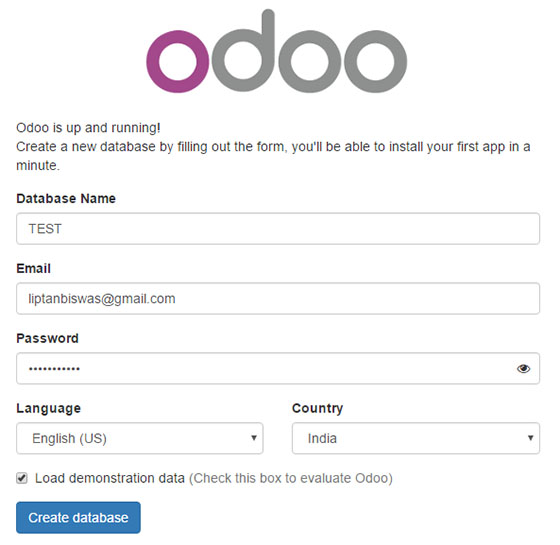
http://your-server-ip:8069Replace your-server-ip with your server’s actual IP address. You’ll see Odoo’s database creation wizard. Fill in the required information:
- Master password (the one from your configuration file)
- Database name
- Email address
- Password for the admin account
- Language and country settings
Select the apps you want to install initially. You can always add more later. Click “Create Database” and wait while Odoo sets up your instance.
Troubleshooting Connection Issues
If you can’t access Odoo, verify the service is running:
sudo systemctl status odoo19Check the logs for errors:
sudo tail -f /opt/odoo19/log/odoo19.logEnsure port 8069 isn’t blocked by your firewall and that no other service is using that port.
Post-Installation Configuration
Setting Up Nginx as Reverse Proxy
Using Nginx adds security, SSL support, and improved performance.
Install Nginx:
sudo apt install nginx -yCreate a server block configuration:
sudo nano /etc/nginx/sites-available/odoo19Add this configuration:
upstream odoo19 {
    server 127.0.0.1:8069;
}

upstream odoo19-chat {
    server 127.0.0.1:8072;
}

server {
    listen 80;
    server_name your-domain.com www.your-domain.com;

    access_log /var/log/nginx/odoo_access.log;
    error_log /var/log/nginx/odoo_error.log;

    proxy_read_timeout 720s;
    proxy_connect_timeout 720s;
    proxy_send_timeout 720s;

    proxy_set_header X-Forwarded-Host $host;
    proxy_set_header X-Forwarded-For $proxy_add_x_forwarded_for;
    proxy_set_header X-Forwarded-Proto $scheme;
    proxy_set_header X-Real-IP $remote_addr;

    location / {
        proxy_redirect off;
        proxy_pass http://odoo19;
    }

    location /longpolling {
        proxy_pass http://odoo19-chat;
    }

    gzip on;
    gzip_types text/css text/less text/plain text/xml application/xml application/json application/javascript;
}
Enable the site:
sudo ln -s /etc/nginx/sites-available/odoo19 /etc/nginx/sites-enabled/
sudo nginx -t
sudo systemctl restart nginx
SSL Certificate Configuration
Secure your Odoo installation with Let’s Encrypt:
sudo apt install certbot python3-certbot-nginx -y
sudo certbot --nginx -d your-domain.com -d www.your-domain.com
Certbot automatically configures SSL and sets up automatic renewal.
Update your Odoo configuration to enable proxy mode:
sudo nano /etc/odoo19.confAdd these lines:
proxy_mode = True
xmlrpc_interface = 127.0.0.1
Restart Odoo:
sudo systemctl restart odoo19Setting Up Automated Backups
Regular backups protect your business data. Create a backup script:
sudo nano /usr/local/bin/odoo-backup.shAdd this content:
#!/bin/bash
BACKUP_DIR="/opt/odoo19/backups"
TIMESTAMP=$(date +%Y%m%d_%H%M%S)

mkdir -p $BACKUP_DIR

sudo -u postgres pg_dumpall > $BACKUP_DIR/odoo_backup_$TIMESTAMP.sql

find $BACKUP_DIR -type f -mtime +7 -delete
Make it executable:
sudo chmod +x /usr/local/bin/odoo-backup.shAdd a cron job to run daily backups:
sudo crontab -eAdd this line:
0 2 * * * /usr/local/bin/odoo-backup.shThis runs the backup script daily at 2 AM, keeping backups for seven days.
Troubleshooting Common Issues
Service Won’t Start
Check systemd journal logs for detailed error messages:
sudo journalctl -u odoo19 -n 50Common issues include incorrect file paths in the service file, permission problems on directories, or configuration file syntax errors. Verify all paths exist and have correct ownership.
Database Connection Errors
Ensure PostgreSQL is running:
sudo systemctl status postgresqlIf you see authentication errors, check that your db_user in the configuration file matches the PostgreSQL user you created. Verify PostgreSQL’s pg_hba.conf allows peer authentication for local connections.
PDF Generation Issues
If PDF reports fail to generate, confirm wkhtmltopdf is properly installed:
which wkhtmltopdf
wkhtmltopdf --version
Some systems require additional font packages. Install them with:
sudo apt install fonts-liberation fonts-dejavu -yPerformance Issues
If Odoo runs slowly, consider increasing worker processes. Edit your configuration file:
sudo nano /etc/odoo19.confAdd these lines:
workers = 4
max_cron_threads = 2
The number of workers should typically equal the number of CPU cores. Restart Odoo after making changes.
Security Best Practices
Keep your Debian 13 system updated with automatic security patches:
sudo apt install unattended-upgrades -y
sudo dpkg-reconfigure -plow unattended-upgrades
Change Odoo’s master password to something strong and unique. Restrict database manager access by setting list_db = False in your configuration file, which hides the database selector.
Consider implementing fail2ban to prevent brute force attacks:
sudo apt install fail2ban -yConfigure a jail specifically for Odoo by creating custom rules that monitor failed login attempts.
Updating and Maintaining Odoo
Keep your Odoo installation current with security patches and new features. Before updating, always create a backup:
/usr/local/bin/odoo-backup.shUpdate Odoo by pulling the latest changes:
sudo su - odoo19
cd /opt/odoo19/odoo19
git pull origin 19.0
source /opt/odoo19/odoo19-venv/bin/activate
pip install --upgrade -r requirements.txt
deactivate
exit
sudo systemctl restart odoo19
Test thoroughly after updates to ensure everything works correctly.
Congratulations! You have successfully installed Odoo. Thanks for using this tutorial to install the latest version of the Odoo ERP on Debian 13 “Trixie” system. For additional help or useful information, we recommend you check the official Odoo website.
