How To Install OnlyOffice on Fedora 43

OnlyOffice Desktop Editors stands as a compelling alternative to Microsoft Office for Linux users seeking robust document editing capabilities. This comprehensive office suite delivers full compatibility with Microsoft Office formats while providing a native Linux experience on Fedora 43. Whether you’re editing documents, creating spreadsheets, or designing presentations, OnlyOffice offers professional-grade tools without the licensing costs associated with proprietary software.
Fedora 43 users have multiple installation paths available, each with distinct advantages. The platform supports traditional RPM packages, modern containerized formats like Flatpak and Snap, and even Docker-based deployments for server editions. This guide focuses primarily on installing OnlyOffice Desktop Editors—the standalone application designed for individual users who need offline editing capabilities with Microsoft Office format support.
Understanding the difference between OnlyOffice Desktop Editors and Document Server proves crucial before proceeding. Desktop Editors functions as a local application similar to Microsoft Office or LibreOffice, while Document Server operates as a web-based collaborative platform comparable to Office 365. This tutorial concentrates on Desktop Editors installation, though we’ll briefly explore Document Server alternatives for those interested in collaborative environments.
The following instructions have been tested on Fedora 43 and incorporate troubleshooting solutions drawn from real-world installation scenarios. You’ll discover three proven installation methods, each suited to different use cases and preferences.
Understanding OnlyOffice Desktop Editors
OnlyOffice Desktop Editors bundles three primary applications: a word processor, spreadsheet editor, and presentation designer. The suite excels at maintaining formatting fidelity when working with .docx, .xlsx, and .pptx files created in Microsoft Office. Unlike some open-source alternatives that struggle with complex formatting, OnlyOffice preserves fonts, layouts, and advanced features reliably.
The interface adopts a tabbed design allowing simultaneous work across multiple documents. This approach mirrors modern web browsers and enhances productivity when juggling several files. Beyond basic editing, OnlyOffice includes plugin support, macro functionality, and PDF editing capabilities. The software operates entirely offline once installed, eliminating cloud dependency concerns.
Desktop Editors distinguishes itself from Document Server in fundamental ways. The desktop version installs locally on your Fedora workstation and doesn’t require web servers or databases. Document Server, conversely, runs as a collaborative platform requiring PostgreSQL, NGINX, and other server components. Individual users and small teams typically benefit most from Desktop Editors, while organizations needing web-based collaboration should explore Document Server options.
System Requirements
Before downloading OnlyOffice, verify your Fedora 43 system meets the necessary specifications. The application requires a dual-core processor running at 2 GHz or faster, with 2 GB RAM as the absolute minimum. However, 4 GB RAM delivers noticeably smoother performance, especially when editing large documents with embedded images or complex formatting.
Storage requirements remain modest at approximately 2 GB of free disk space for the application and its dependencies. OnlyOffice exclusively supports 64-bit architectures (x86_64), so 32-bit systems cannot run current versions. Fedora 43 ships with kernel 6.x, far exceeding the minimum kernel 3.8 requirement, ensuring compatibility.
Check your system architecture with this command:
uname -mThe output should display x86_64. Verify available disk space using:
df -h /homeEnsure several gigabytes remain free in your home partition for optimal performance and future updates.
Prerequisites Before Installation
Preparation prevents installation complications. Start by updating your Fedora 43 system to incorporate the latest security patches and package versions:
sudo dnf upgrade --refreshThis command refreshes repository metadata and upgrades all installed packages. The process may take several minutes depending on your internet connection and the number of pending updates. Reboot if kernel updates were applied.
Confirm sudo privileges by running:
sudo whoamiThe output should return root, confirming administrative access. Without sudo permissions, you cannot install system-level packages or modify system directories.
Method 1: Install OnlyOffice via Official RPM Package
The RPM installation method offers the most straightforward approach for Fedora users, providing excellent system integration and dependency management through DNF.
Step 1: Download the RPM Package
Navigate to your Downloads directory and fetch the latest RPM package directly from OnlyOffice servers:
cd ~/Downloads
wget https://download.onlyoffice.com/install/desktop/editors/linux/onlyoffice-desktopeditors.x86_64.rpm
The wget utility downloads files from URLs via command line. If wget isn’t installed, add it with:
sudo dnf install wget -yAlternatively, visit the OnlyOffice website through Firefox and download the RPM package manually. Downloading from official sources ensures authenticity and reduces security risks associated with third-party repositories.
Step 2: Install OnlyOffice Using DNF
DNF, Fedora’s package manager, handles RPM installation and automatic dependency resolution. Execute the installation command:
sudo dnf install ./onlyoffice-desktopeditors.x86_64.rpmThe leading ./ tells DNF to install from the current directory rather than searching online repositories. DNF analyzes the package, identifies required dependencies, and prompts for confirmation. Type y and press Enter to proceed.
During installation, DNF downloads necessary libraries, extracts package contents to system directories, and creates desktop menu entries. The process typically completes within two to five minutes on modern hardware with decent internet speeds.
Step 3: Launch OnlyOffice
Access OnlyOffice through the GNOME Activities overview. Press the Super key (Windows key), type “onlyoffice,” and click the application icon. First launch may take slightly longer as the application initializes its environment and creates configuration files in ~/.config/onlyoffice/.
Command-line enthusiasts can launch OnlyOffice from any terminal:
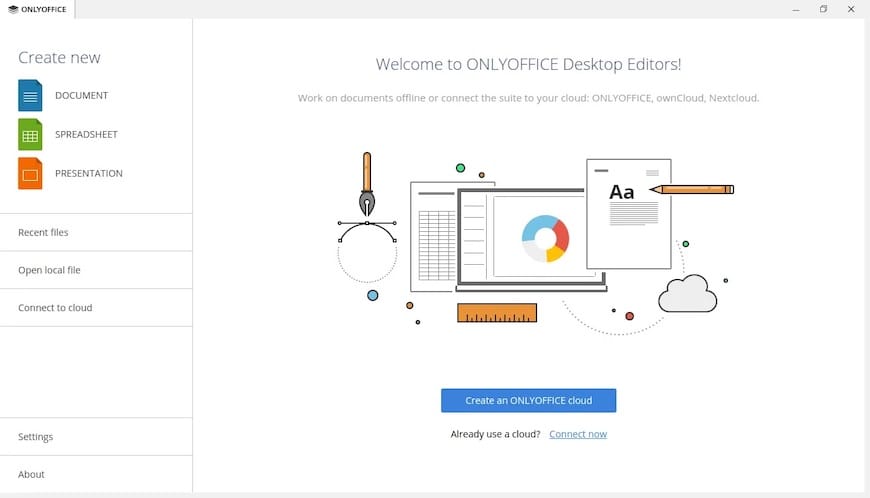
desktopeditorsThe initial interface displays options to create new documents, open existing files, or configure preferences. The clean, ribbon-based design resembles Microsoft Office, minimizing the learning curve for users transitioning from Windows environments.
Advantages of RPM Method
RPM installation integrates seamlessly with Fedora’s package management ecosystem. DNF tracks the installation, enabling straightforward updates and removal. The method respects system file hierarchies and properly registers MIME types for automatic file association. System administrators managing multiple Fedora workstations can automate RPM deployments using Ansible or similar configuration management tools.
Method 2: Install OnlyOffice via Flatpak
Flatpak provides sandboxed application environments with universal cross-distribution compatibility. This approach suits users prioritizing security isolation or needing the absolute latest upstream releases.
Step 1: Verify Flatpak Installation
Fedora 43 includes Flatpak by default. Confirm its presence:
flatpak --versionIf the command returns a version number, Flatpak is operational. Otherwise, install it:
sudo dnf install flatpak -yVerify the Flathub repository connection:
flatpak remotesLook for flathub in the output. If absent, add Flathub manually:
flatpak remote-add --if-not-exists flathub https://flathub.org/repo/flathub.flatpakrepoFlathub serves as the primary Flatpak application repository, hosting thousands of applications including OnlyOffice.
Step 2: Install OnlyOffice from Flathub
Execute the Flatpak installation command:
flatpak install flathub org.onlyoffice.desktopeditorsFlatpak displays the application size and runtime dependencies. Runtimes provide shared libraries reducing individual application sizes. Confirm the installation when prompted.
The download size varies but typically ranges between 150-300 MB depending on whether required runtimes are already installed. Flatpak downloads and caches runtimes for reuse across multiple applications, making subsequent Flatpak installations faster.
Step 3: Launch Flatpak Version
Launch from the application menu as before, or use the Flatpak run command:
flatpak run org.onlyoffice.desktopeditorsFlatpak applications run within sandboxes with restricted system access. This enhances security but occasionally limits functionality like accessing network drives or system-wide fonts.
Advantages and Considerations of Flatpak
Flatpak installations receive updates directly from upstream developers, often providing newer versions than distribution repositories. The sandbox security model isolates applications from system components, preventing potential malware from compromising the entire system.
However, sandboxing introduces complexity when OnlyOffice needs to access files outside standard directories like Documents, Downloads, and Desktop. You can grant additional permissions using Flatseal, a graphical permission manager for Flatpak applications:
flatpak install flathub com.github.tchx84.FlatsealFlatpak applications consume slightly more disk space due to bundled dependencies and runtime environments. This trade-off buys distribution independence and improved security boundaries.
Method 3: Install OnlyOffice via Snap
Snap packages offer another universal Linux application format with automatic background updates. While not native to Fedora, Snap integration functions reliably once properly configured.
Step 1: Enable Snap Support
Fedora doesn’t include Snap support by default. Install the snapd daemon:
sudo dnf install snapdActivate the snapd socket:
sudo systemctl enable --now snapd.socketCreate the traditional snap directory symlink:
sudo ln -s /var/lib/snapd/snap /snapLog out and back in, or reboot Fedora to ensure environment variables update correctly. This step allows your shell to recognize snap-installed applications in the system PATH.
Step 2: Install OnlyOffice Snap Package
With Snap configured, install OnlyOffice:
sudo snap install onlyoffice-desktopeditorsSnap handles the download and installation automatically. Unlike DNF, Snap doesn’t prompt for confirmation—it proceeds immediately. Monitor the progress bar as Snap fetches the application and mounts it to the system.
Step 3: Launch and Configure
The application appears in your desktop menu after a logout/login cycle. Snap applications sometimes take longer to appear in menus due to desktop environment cache refresh delays.
Launch via command line:
snap run onlyoffice-desktopeditorsOr simply:
onlyoffice-desktopeditorsSnap Method Pros and Cons
Snap’s primary advantage lies in automatic updates. The snapd daemon checks for updates multiple times daily and installs them in the background without user intervention. This ensures security patches arrive promptly.
Snap’s confinement model, similar to Flatpak, restricts file system access. However, Snap provides more granular permission controls through interfaces. The main disadvantage involves Snap’s centralized architecture requiring connection to Canonical’s Snap Store, raising concerns for privacy-focused users.
Post-Installation Configuration
After installation, customize OnlyOffice to match your workflow preferences. Access settings by clicking the gear icon in the top-right corner or navigating to File > Preferences.
Configure file associations so double-clicking .docx files automatically opens OnlyOffice. Right-click any .docx file, select Properties, then choose OnlyOffice as the default application under the “Open With” tab. Repeat for .xlsx and .pptx formats.
Theme selection impacts visual comfort during extended editing sessions. OnlyOffice supports light and dark interface themes. Dark mode reduces eye strain in low-light environments, accessible through the interface theme dropdown in preferences.
Language settings accommodate international users. OnlyOffice includes numerous interface languages and spell-check dictionaries. Download additional dictionaries through the settings panel if your preferred language doesn’t appear initially.
Enable auto-save to prevent data loss from unexpected crashes or power failures. Auto-save settings allow configuration of save intervals from one to thirty minutes. Shorter intervals provide better protection at the cost of slightly higher disk write activity.
Cloud storage integration connects OnlyOffice to services like Nextcloud, ownCloud, and commercial providers. This feature syncs documents across devices while maintaining local editing capabilities. Configure cloud connections through the Connect to Cloud menu option.
Performance optimization becomes relevant on older hardware. Disable hardware acceleration if experiencing graphical glitches, or enable it for smoother rendering on modern GPUs. These options reside in the advanced settings section.
Common Installation Issues and Troubleshooting
Despite straightforward installation procedures, problems occasionally arise. Understanding common issues accelerates resolution.
Dependency Conflicts
Error messages about missing dependencies typically indicate outdated system packages. Resolve by updating Fedora completely before attempting installation:
sudo dnf clean all
sudo dnf upgrade --refresh
If specific library conflicts persist, check if third-party repositories are interfering. Temporarily disable them:
sudo dnf install --disablerepo="*" --enablerepo="fedora,updates" ./onlyoffice-desktopeditors.x86_64.rpmApplication Won’t Launch
Desktop menu entries sometimes fail to register immediately. Log out and back in to refresh the desktop environment cache. Test launching from terminal:
desktopeditorsTerminal output reveals error messages invisible when launching from graphical menus. Common culprits include missing libraries or permission issues.
SELinux, Fedora’s security framework, occasionally blocks application execution. Check SELinux denials:
sudo ausearch -m avc -ts recentIf OnlyOffice-related denials appear, create a local policy allowing the necessary operations or temporarily set SELinux to permissive mode for testing:
sudo setenforce 0Remember to re-enable enforcing mode after troubleshooting:
sudo setenforce 1Permission and File Access Issues
Flatpak and Snap installations restrict file system access by design. If OnlyOffice cannot open files in unusual locations, grant broader permissions.
For Flatpak, use Flatseal or the command line:
flatpak override org.onlyoffice.desktopeditors --filesystem=/mnt/dataThis example grants access to /mnt/data. Adjust paths according to your needs.
Snap permissions adjust through interface connections:
snap connect onlyoffice-desktopeditors:removable-mediaPerformance Problems
Slow startup or sluggish performance despite adequate hardware may stem from insufficient memory or competing processes. Monitor resource usage:
topClose unnecessary applications and browser tabs. OnlyOffice performs best with at least 4 GB RAM and multiple CPU cores available.
Disable plugins temporarily to determine if they cause performance degradation. Corrupted cache files sometimes slow operations. Clear the cache:
rm -rf ~/.config/onlyoffice/DesktopEditors/cacheOnlyOffice recreates cache directories automatically on next launch.
Updating OnlyOffice on Fedora 43
Keeping OnlyOffice current ensures access to bug fixes, security patches, and new features. Update procedures vary by installation method.
RPM installations update through DNF:
sudo dnf upgrade onlyoffice-desktopeditorsDNF checks configured repositories for newer versions. If installed manually via downloaded RPM, you must download and install newer RPMs manually following the same procedure.
Flatpak updates through the Flatpak command:
flatpak update org.onlyoffice.desktopeditorsOr update all Flatpak applications simultaneously:
flatpak updateSnap handles updates automatically, but manual updates are possible:
sudo snap refresh onlyoffice-desktopeditorsCheck your current OnlyOffice version through Help > About within the application. Compare against the latest release announced on the OnlyOffice website to determine if updates are available.
Major version updates occasionally introduce interface changes or deprecated features. Review release notes before updating production systems to avoid workflow disruptions.
Uninstalling OnlyOffice (If Needed)
Removal procedures mirror installation methods. For RPM installations:
sudo dnf remove onlyoffice-desktopeditorsFlatpak removal:
flatpak uninstall org.onlyoffice.desktopeditorsAdd --delete-data to remove application data:
flatpak uninstall --delete-data org.onlyoffice.desktopeditorsSnap removal:
sudo snap remove onlyoffice-desktopeditorsConfiguration files persist in ~/.config/onlyoffice/ after uninstallation. Remove manually if desired:
rm -rf ~/.config/onlyoffice/Cache files reside in ~/.cache/onlyoffice/ and can be deleted similarly.
Congratulations! You have successfully installed OnlyOffice. Thanks for using this tutorial for installing OnlyOffice on Fedora 43 Linux system. For additional help or useful information, we recommend you check the OnlyOffice website.
