How To Install OpenMRS on Debian 13

Managing patient records efficiently is one of the most critical challenges in modern healthcare. For hospitals, clinics, and community health centers—particularly in developing regions—proprietary Electronic Medical Record (EMR) systems often carry licensing fees that are simply unaffordable. OpenMRS changes that entirely.
OpenMRS, short for Open Medical Record System, is a free, open-source, Java-based EMR platform designed to give any healthcare facility the tools to collect, manage, and analyze patient data without a prohibitive price tag. It is web-based, modular, and actively maintained by a large global open-source community—making it one of the most trusted open-source health informatics platforms in the world.
In this guide, you will learn exactly how to install OpenMRS on Debian 13 (“Trixie”), step by step. The full stack covered includes OpenJDK 11, MariaDB, and Apache Tomcat 9. Follow every step carefully and you will have a fully operational OpenMRS instance running on your server by the end.
What Is OpenMRS?
OpenMRS was originally developed as a collaborative response to the global shortage of affordable health informatics tools. Today, it powers patient record systems across dozens of countries, deployed in settings ranging from small rural clinics to large urban hospital networks. Because it is entirely browser-based, clinicians and administrators can access it from any device—no client software required.
Debian 13, codenamed “Trixie,” is an outstanding server environment for OpenMRS. It delivers long-term stability, a minimal attack surface, and excellent compatibility with the Java ecosystem. Enterprise and healthcare server administrators choose Debian consistently for exactly these reasons.
Key Features of OpenMRS
- Modular architecture — Install only the modules your facility needs and extend later as requirements grow
- Customizable patient forms — Tailor data entry workflows to match your clinical processes exactly
- Multi-language and multi-location support — Ideal for international or multi-site deployments
- Built-in concept dictionary — Standardizes medical terminology across the entire platform
- RESTful API — Enables seamless integration with third-party health IT systems
- Robust reporting tools — Generate clinical and administrative reports on demand
- Active global community — Hundreds of contributors support the platform, with ongoing releases
System Requirements and Prerequisites
Before starting the OpenMRS installation on Debian 13, confirm your server meets these minimum requirements:
- Operating System: Debian 13 (Trixie) — a clean, minimal server install is strongly recommended
- RAM: Minimum 2 GB; 4 GB or more is preferred for any production workload
- Disk Space: At least 20 GB of free storage available
- User Privileges: Root access or a user with full
sudorights - Network: An active internet connection for downloading packages
- Open Port: TCP port 8080 must be accessible — Apache Tomcat listens on this port
The software stack installed during this guide:
- OpenJDK 11 — The Java runtime required by the OpenMRS platform
- MariaDB — A robust open-source relational database, fully compatible with MySQL
- Apache Tomcat 9 — The Java Servlet container that serves the OpenMRS web application
Step 1: Update and Upgrade Your Debian 13 System
Every server configuration should begin with a full system update. This step ensures your package index is current, all existing software is up to date, and you have no conflicting library versions before new packages are added.
Run these commands:
sudo apt update && sudo apt upgrade -y
The apt update command refreshes the local package list from Debian’s repositories. The apt upgrade command applies all available updates to installed packages. Once complete, reboot your server to apply any kernel-level changes:
sudo reboot
Reconnect via SSH after the reboot and proceed.
Step 2: Install Java (OpenJDK 11)
OpenMRS is a Java application, which makes a working Java Development Kit (JDK) the single most critical prerequisite. OpenMRS supports Java 8 and higher. OpenJDK 11 is a stable, widely used version for OpenMRS Platform deployments on Linux servers.
Install it with:
sudo apt install openjdk-11-jdk -y
Verify the installation:
java -version
Expected output:
openjdk version "11.0.x" 2024-xx-xx
OpenJDK Runtime Environment (build 11.0.x+xx-Debian...)
OpenJDK 64-Bit Server VM (build 11.0.x, mixed mode)
Next, set the JAVA_HOME environment variable. This tells Apache Tomcat where Java is installed. Open the global environment file:
sudo nano /etc/environment
Add this line:
JAVA_HOME="/usr/lib/jvm/java-11-openjdk-amd64"
Apply the change immediately:
source /etc/environment
echo $JAVA_HOME
If the output displays the correct path, you are good to go. An incorrectly set or missing JAVA_HOME is one of the most frequent causes of Tomcat startup failures—so do not skip this verification.
Step 3: Install MariaDB Database Server
OpenMRS stores all patient records, configuration data, and system settings in a relational database. MariaDB is a strong database choice on Debian systems. It is MySQL-compatible and available in Debian’s official repositories.
sudo apt install mariadb-server -y
Start the service and configure it to launch automatically at boot:
sudo systemctl start mariadb
sudo systemctl enable mariadb
Confirm the service is running:
sudo systemctl status mariadb
You should see active (running). If MariaDB is not running, check /var/log/syslog for diagnostic output.
Step 4: Secure the MariaDB Installation
A fresh MariaDB installation ships with default settings that are not suitable for a production environment. Run the built-in security hardening script immediately:
sudo mysql_secure_installation
Answer each interactive prompt as follows:
- Set root password — Choose a strong, unique password and store it securely
- Remove anonymous users — Answer
Y - Disallow remote root login — Answer
Y - Remove the test database — Answer
Y - Reload privilege tables now — Answer
Y
Skipping this step leaves well-known default vulnerabilities exposed. On any server accessible over a network, this hardening is mandatory.
Step 5: Create the OpenMRS Database and User
With MariaDB secured, create a dedicated database and a dedicated user account for OpenMRS. Using a separate database user—rather than the root account—limits the potential damage if your application is ever compromised.
Log into the MariaDB shell:
sudo mysql -u root -p
Run the following SQL commands one at a time:
CREATE DATABASE openmrs DEFAULT CHARACTER SET utf8;
CREATE USER 'openmrs'@'localhost' IDENTIFIED BY 'YourStrongPasswordHere';
GRANT ALL PRIVILEGES ON openmrs.* TO 'openmrs'@'localhost';
FLUSH PRIVILEGES;
EXIT;
Record the database name (openmrs), username (openmrs), and password. You will need all three when the OpenMRS setup wizard runs later.
Step 6: Install Apache Tomcat 9
Apache Tomcat is a lightweight Java Servlet container that hosts and serves the OpenMRS .war (Web Application Archive) file. OpenMRS depends on Tomcat to process HTTP requests and deliver the web interface to users’ browsers.
First, create a dedicated system user and group for Tomcat. Running Tomcat as a non-privileged user is a critical security measure:
sudo groupadd tomcat
sudo useradd -s /bin/false -g tomcat -d /opt/tomcat tomcat
Create the installation directory:
sudo mkdir /opt/tomcat
Download the latest Apache Tomcat 9 release directly from the official Apache website. Always verify the version number at tomcat.apache.org before running the command:
cd /tmp
wget https://dlcdn.apache.org/tomcat/tomcat-9/v9.0.xx/bin/apache-tomcat-9.0.xx.tar.gz
Extract the archive into the installation directory:
sudo tar xzvf apache-tomcat-9*.tar.gz -C /opt/tomcat --strip-components=1
Set ownership and make the shell scripts executable:
sudo chown -R tomcat: /opt/tomcat
sudo sh -c 'chmod +x /opt/tomcat/bin/*.sh'
Step 7: Configure Tomcat as a Systemd Service
Registering Apache Tomcat as a systemd service means it starts automatically on every server boot and can be managed cleanly with systemctl commands. Create the service unit file:
sudo nano /etc/systemd/system/tomcat.service
Paste the following configuration:
[Unit]
Description=Apache Tomcat 9 Web Application Container
After=network.target

[Service]
Type=forking
User=tomcat
Group=tomcat
Environment="JAVA_HOME=/usr/lib/jvm/java-11-openjdk-amd64"
Environment="CATALINA_HOME=/opt/tomcat"
Environment="CATALINA_BASE=/opt/tomcat"
Environment="CATALINA_OPTS=-Xms512M -Xmx1024M -server -XX:+UseParallelGC"
Environment="JAVA_OPTS=-Djava.awt.headless=true -Djava.security.egd=file:/dev/./urandom"
ExecStart=/opt/tomcat/bin/startup.sh
ExecStop=/opt/tomcat/bin/shutdown.sh
Restart=on-failure

[Install]
WantedBy=multi-user.target
Save the file. Reload systemd, then start and enable the service:
sudo systemctl daemon-reload
sudo systemctl start tomcat
sudo systemctl enable tomcat
Verify Tomcat is active:
sudo systemctl status tomcat
At this point, you should be able to reach the Tomcat welcome page in a browser at http://your-server-ip:8080.
Step 8: Download and Deploy the OpenMRS WAR File
With Tomcat running, it is time to deploy OpenMRS. Create the application data directory and assign it to the Tomcat user:
sudo mkdir /var/lib/OpenMRS
sudo chown -R tomcat:tomcat /var/lib/OpenMRS
Download the OpenMRS Platform WAR file from the official download page, then deploy it to Tomcat. Example:
cd /tmp
wget https://sourceforge.net/projects/openmrs/files/releases/OpenMRS_Platform_2.8.0/openmrs.war
Copy the WAR file into Tomcat’s webapps directory and set proper ownership:
sudo cp openmrs.war /opt/tomcat/webapps/
sudo chown -R tomcat:tomcat /opt/tomcat/webapps/openmrs.war
Restart Tomcat to trigger the automatic deployment:
sudo systemctl restart tomcat
Tomcat will detect the new WAR file, extract it, and register it as a running web application. Monitor the Tomcat logs in real time if needed:
sudo tail -f /opt/tomcat/logs/catalina.out
Step 9: Configure the UFW Firewall
A properly configured firewall is non-negotiable for any server exposed to a network. UFW (Uncomplicated Firewall) provides a straightforward interface for managing firewall rules on Debian systems.
Install UFW if it is not already present:
sudo apt install ufw -y
Always allow SSH before enabling the firewall—this prevents locking yourself out:
sudo ufw allow OpenSSH
Allow inbound traffic on port 8080 for the OpenMRS web interface:
sudo ufw allow 8080/tcp
Enable the firewall:
sudo ufw enable
Confirm the active rules:
sudo ufw status
Both SSH and port 8080 should appear as ALLOW.
Step 10: Run the OpenMRS Web Setup Wizard
Open a browser and navigate to:
http://your-server-ip:8080/openmrs
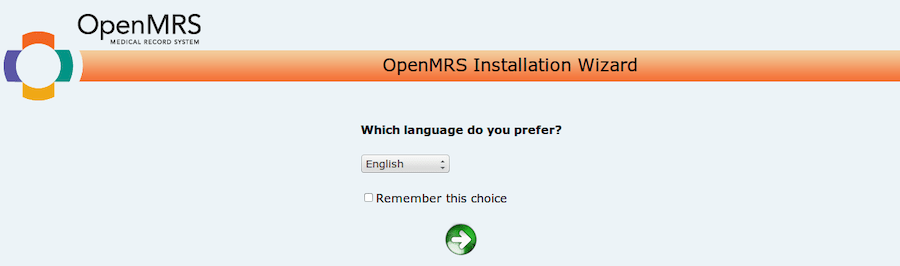
The OpenMRS Installation Wizard loads automatically. If it does not appear, verify Tomcat is running and that the WAR deployment completed without errors (see troubleshooting below).
Work through the wizard as follows:
- Language Selection — Choose your preferred language and click the forward arrow (
=>) - Installation Type — Select one of two options:
- Simple Install — Recommended for testing; OpenMRS configures the database automatically
- Advanced Install — Recommended for production; allows manual entry of the exact database credentials created in Step 5
- Database Configuration — For Advanced Install, enter the database name (
openmrs), username (openmrs), and your chosen password - Final Confirmation — Review all settings and click
=>to begin setup
OpenMRS will connect to MariaDB, build the entire database schema, and populate the built-in concept dictionary. This process typically takes 5 to 15 minutes depending on your server hardware. Do not close the browser or interrupt the process during this stage.
Step 11: First Login and Initial Configuration
When the setup wizard finishes, the OpenMRS login screen appears.
Default login credentials:
- Username:
admin - Password:
Admin123
Log in, then navigate immediately to Administration → Manage Users → Change Password and set a strong, unique password for the admin account. Leaving default credentials active is one of the most serious security oversights in any application deployment.
Spend a few minutes exploring the interface. The main dashboard provides access to patient registration, appointment scheduling, clinical form entry, reporting, and full system administration. From the Module Repository (accessible via Administration → Manage Modules), you can install community-built add-ons such as the Reference Application UI, Reporting Framework, or ID Generation tools to extend the platform as your facility’s needs grow.
Troubleshooting Common OpenMRS Issues on Debian 13
Even with careful execution, problems can surface. Here are the most common issues and how to resolve them quickly:
- Tomcat fails to start: Often caused by an incorrect or missing
JAVA_HOME. Runecho $JAVA_HOMEand compare the output to the path set in yourtomcat.servicefile. They must match exactly. - Port 8080 already in use: Another process may be occupying the port. Identify it with
sudo ss -tlnp | grep 8080, then stop or reconfigure the conflicting service. - MariaDB connection refused: Confirm the service is active with
sudo systemctl status mariadb. Restart it withsudo systemctl restart mariadbif it has stopped. - OpenMRS WAR file not deploying: Inspect the Tomcat logs at
/opt/tomcat/logs/catalina.out. Search for anySEVEREorERRORlines that indicate what failed during unpacking or initialization. - Setup wizard shows a blank or broken page: Clear your browser cache, try a different browser, and confirm that the
webapps/openmrsfolder was created after the WAR file was copied. If the folder is missing, the deployment did not complete. - Java OutOfMemoryError: Increase the JVM heap allocation in your
tomcat.servicefile. Raise-Xmx1024Mto-Xmx2048M, then apply the change:sudo systemctl daemon-reload && sudo systemctl restart tomcat. - Cannot reach the server on port 8080: Confirm UFW is configured correctly. If your server is hosted on a cloud provider, also check the platform’s external firewall rules to ensure inbound traffic on port 8080 is permitted.
Congratulations! You have successfully installed OpenMRS. Thanks for using this tutorial for installing OpenMRS (Open Medical Record System) on Debian 13 “Trixie” system. For additional help or useful information, we recommend you check the OpenMRS website.
