How To Install OpenRGB on AlmaLinux 10

RGB lighting has become ubiquitous in modern PC hardware, from motherboards and RAM to keyboards and cooling fans. If you’re running AlmaLinux 10 and want unified control over your RGB ecosystem without proprietary software, OpenRGB is your solution. This comprehensive guide walks you through installing and configuring OpenRGB on AlmaLinux 10, ensuring you can manage all your lighting from a single, powerful interface.
Understanding OpenRGB and AlmaLinux 10
What is OpenRGB?
OpenRGB is an open-source RGB lighting management application that breaks free from manufacturer-specific software limitations. Unlike proprietary Windows-only tools from ASUS, Gigabyte, Corsair, or Razer, OpenRGB provides unified control across multiple brands simultaneously. The software supports an extensive range of devices including motherboards, graphics cards, RAM modules, peripherals, and case fans.
Key features include static color control, dynamic effects like breathing and spectrum cycling, profile saving for quick switching, and SDK support for third-party integration. The application operates cross-platform on Windows, Linux, and MacOS, with client/server architecture enabling networked RGB synchronization across multiple machines.
Why AlmaLinux 10?
AlmaLinux 10 is an enterprise-grade Linux distribution built from Red Hat Enterprise Linux 10 sources. It uses the DNF package manager for software installation and offers a 10-year support lifecycle, making it ideal for stable desktop and server environments. Since AlmaLinux maintains binary compatibility with RHEL and Fedora, installation instructions for these distributions generally apply with minimal modification.
Prerequisites and System Requirements
Before installing OpenRGB, ensure your system meets these requirements:
Hardware needs: Compatible RGB devices connected to your system. Most modern motherboards with RGB headers, RGB-enabled RAM modules, and USB-connected peripherals work with OpenRGB. Your motherboard needs an accessible I2C controller for onboard RGB control.
Software requirements: A functioning AlmaLinux 10 installation with root or sudo privileges. You’ll need an active internet connection for downloading packages and source code. Basic command-line familiarity helps, though this guide provides complete commands.
Repository access: The EPEL (Extra Packages for Enterprise Linux) and CRB (CodeReady Builder) repositories must be accessible for installing development dependencies.
Pre-Installation System Preparation
Proper preparation prevents installation headaches later.
Update Your System
Start by updating all existing packages. Open your terminal and execute:
sudo dnf update -yThis command refreshes package metadata and upgrades installed software to the latest versions. System updates ensure dependency resolution works smoothly and prevent conflicts with outdated libraries.
Enable Required Repositories
AlmaLinux 10 needs additional repositories for development tools. Enable EPEL first:
sudo dnf install epel-release -yNext, activate the CRB repository which contains development packages:
sudo dnf config-manager --set-enabled crbVerify repository enablement by listing active repos:
sudo dnf repolistYou should see both EPEL and CRB in the output. These repositories provide essential build tools and libraries not included in base AlmaLinux repositories.
Install Development Tools
OpenRGB requires compilation from source for optimal AlmaLinux 10 compatibility. Install the necessary build dependencies:
sudo dnf groupinstall "Development Tools" -y
sudo dnf install automake gcc-c++ qt5-qtbase-devel qt5-linguist hidapi-devel libusbx-devel mbedtls-devel git -y
These packages serve specific purposes:
- automake and gcc-c++: Core compilation tools
- qt5-qtbase-devel: Qt5 framework for the graphical interface
- qt5-linguist: Translation support
- hidapi-devel: HID device communication
- libusbx-devel: USB device access
- mbedtls-devel: Cryptographic library support
- git: Version control for downloading source code
Installation takes several minutes depending on your internet speed and system performance.
Installing OpenRGB from Source (Recommended Method)
Compiling from source provides the latest features, bug fixes, and best compatibility with RHEL-based distributions like AlmaLinux.
Clone the OpenRGB Repository
Download the official OpenRGB source code from GitLab:
cd ~/
git clone https://gitlab.com/CalcProgrammer1/OpenRGB.git
cd OpenRGB
Alternatively, use the GitHub mirror if GitLab is inaccessible:
git clone https://github.com/CalcProgrammer1/OpenRGB.gitCompile the Application
Generate the Makefile using Qt’s qmake utility:
qmake-qt5 OpenRGB.proThis command configures the build process for your system. Now compile the source code:
make -j$(nproc)The -j$(nproc) flag enables parallel compilation using all available CPU cores, significantly reducing build time. Compilation typically takes 5-15 minutes depending on your processor.
Watch for errors during compilation. If you encounter missing dependency messages, install the required package and run make clean followed by make -j$(nproc) again.
Install OpenRGB System-Wide
Install the compiled binary to your system:
sudo make installThis places the OpenRGB executable in /usr/local/bin/ making it accessible from anywhere in your terminal.
Install UDEV Rules for Hardware Access
UDEV rules grant OpenRGB permission to access RGB hardware without requiring root privileges. Copy the rules file:
sudo cp 60-openrgb.rules /usr/lib/udev/rules.d/Reload UDEV to activate the new rules:
sudo udevadm control --reload-rules
sudo udevadm trigger
Without these rules, you’ll encounter “permission denied” errors when OpenRGB attempts to communicate with your RGB devices.
Alternative Installation: Using Flatpak
Flatpak offers a containerized installation approach. First, install Flatpak on AlmaLinux 10:
sudo dnf install flatpak -yAdd the Flathub repository:
flatpak remote-add --if-not-exists flathub https://flathub.org/repo/flathub.flatpakrepoInstall OpenRGB:
flatpak install flathub org.openrgb.OpenRGB -yImportant note: Even with Flatpak, you must manually install UDEV rules from the OpenRGB repository as described above. Flatpak’s sandboxing can complicate hardware access, making source compilation the preferred method for AlmaLinux systems.
Post-Installation Configuration
OpenRGB needs additional system configuration for full functionality.
Load I2C Kernel Modules
Motherboard RGB control requires I2C (Inter-Integrated Circuit) kernel modules. For Intel systems, load these modules:
sudo modprobe i2c-dev
sudo modprobe i2c-i801
For AMD systems, use:
sudo modprobe i2c-dev
sudo modprobe i2c-piix4
Make these modules load automatically at boot. Create a configuration file:
sudo nano /etc/modules-load.d/openrgb.confAdd the appropriate module names (one per line):
i2c-dev
i2c-i801
Save and exit. Your modules will load on every boot.
Configure I2C Permissions
Grant user access to I2C devices:
sudo chmod 666 /dev/i2c-*For persistent permissions across reboots, create a UDEV rule:
sudo nano /etc/udev/rules.d/99-i2c.rulesAdd this content:
KERNEL=="i2c-[0-9]*", MODE="0666"Reload UDEV rules as shown earlier.
Handle Special Hardware Requirements
Certain motherboards, particularly Gigabyte and Aorus models, require a kernel parameter to allow I2C access. Edit your GRUB configuration:
sudo nano /etc/default/grubFind the line starting with GRUB_CMDLINE_LINUX and add acpi_enforce_resources=lax to the existing parameters:
GRUB_CMDLINE_LINUX="... acpi_enforce_resources=lax"Update GRUB and reboot:
sudo grub2-mkconfig -o /boot/grub2/grub.cfg
sudo reboot
This parameter relaxes ACPI resource checking, enabling I2C communication with these motherboards.
Launching and Using OpenRGB
Start OpenRGB from your terminal:
openrgbOr find it in your application menu under “Utilities” or “Accessories.”
Understanding the Interface
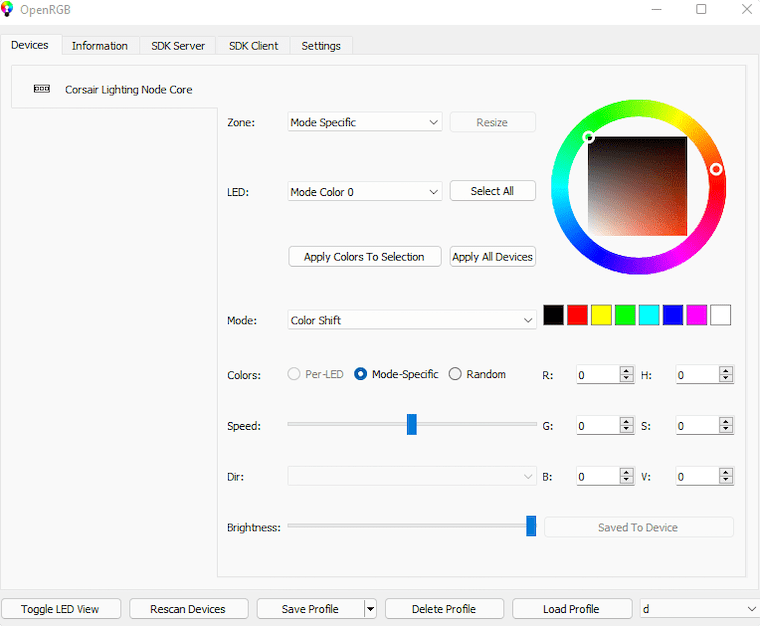
The OpenRGB interface divides into two main sections. The left panel lists all detected RGB hardware—your motherboard, RAM modules, peripherals, and other compatible devices. Click any device to view its controls in the right panel, where you’ll find color pickers, effect selectors, and LED configuration options.
Detecting Your RGB Devices
OpenRGB automatically scans for connected hardware on launch. If a device isn’t detected immediately, check connections and verify UDEV rules are installed correctly. Some devices require manual LED count configuration in the Settings tab.
Setting Colors and Effects
Select a device from the left panel. Choose a mode from the dropdown—common options include Direct, Static, Breathing, Spectrum Cycle, and Rainbow. In Direct or Static modes, use the color picker to select your desired color. Apply changes by clicking the appropriate button.
For synchronized lighting across multiple devices, select all devices (Ctrl+click) and apply settings simultaneously. This creates cohesive lighting themes across your entire system.
Saving and Managing Profiles
Create profiles to save your lighting configurations. Click “Save Profile” and give it a descriptive name. OpenRGB stores profiles as .orp files in your home directory. Load profiles quickly by selecting them from the Profiles menu, enabling instant theme switching between gaming, productivity, or ambient lighting setups.
Advanced Configuration Options
Running OpenRGB as a Server
Server mode enables network-based RGB control and synchronization across multiple computers. Start the server:
openrgb --serverOther machines running OpenRGB can connect to this server, allowing centralized control of RGB lighting across your entire network.
Auto-Starting OpenRGB
Create a systemd service for automatic startup. Create the service file:
sudo nano /etc/systemd/system/openrgb.serviceAdd this configuration:
[Unit]
Description=OpenRGB Service
After=multi-user.target

[Service]
Type=simple
ExecStart=/usr/local/bin/openrgb --server --profile YourProfile.orp
User=yourusername
Restart=on-failure

[Install]
WantedBy=multi-user.target
Replace yourusername and YourProfile.orp with your actual username and desired profile name. Enable the service:
sudo systemctl enable openrgb.service
sudo systemctl start openrgb.service
Your RGB lighting now loads automatically on boot with your chosen profile.
Command-Line Interface
OpenRGB supports headless operation through CLI arguments. List all devices:
openrgb --list-devicesSet a specific color via command line:
openrgb --device 0 --mode static --color FF0000This capability enables scripting and integration with other automation tools, letting you tie RGB lighting to system events or time-of-day schedules.
Troubleshooting Common Issues
Devices Not Appearing
If OpenRGB doesn’t detect your hardware, verify UDEV rules installation. Check if rules exist:
ls -l /usr/lib/udev/rules.d/60-openrgb.rulesConfirm I2C modules loaded correctly:
lsmod | grep i2cReview system logs for hardware errors:
sudo dmesg | grep -i i2cFor USB devices, ensure proper permissions were granted by UDEV rules.
Permission Denied Errors
If you see permission errors despite installing UDEV rules, reload them:
sudo udevadm control --reload-rules
sudo udevadm trigger
Unplug and replug USB RGB devices after reloading rules. For I2C devices, verify permissions on /dev/i2c-* files and confirm your user belongs to necessary groups.
Compilation Failures
Missing dependency errors halt compilation. Install any reported missing packages using DNF. Qt5 version mismatches sometimes occur—ensure you have qt5-qtbase-devel version 5.12 or newer installed.
If compilation fails mysteriously, clean the build directory and restart:
make clean
qmake-qt5 OpenRGB.pro
make -j$(nproc)
Motherboard RGB Not Working
Motherboard RGB proves most temperamental. Double-check I2C module loading matches your CPU manufacturer (Intel or AMD). For Gigabyte, ASUS, or MSI boards experiencing issues, add the acpi_enforce_resources=lax kernel parameter as described earlier.
Check your BIOS/UEFI settings—some boards disable RGB control when “RGB Fusion” or similar manufacturer software control is enabled. Disable these BIOS RGB options to grant OpenRGB access.
Application Crashes
Crashes often result from conflicting RGB software. Remove any manufacturer RGB tools you may have installed. Check OpenRGB logs in ~/.config/OpenRGB/ for error messages. Report persistent crashes on the official GitLab repository with your log files and hardware details.
Congratulations! You have successfully installed OpenRGB. Thanks for using this tutorial for installing OpenRGB open-source software enabling RGB lighting control on AlmaLinux OS 10 system. For additional help or useful information, we recommend you check the official OpenRGB website.
