How To Install OpenRGB on Fedora 43

Managing RGB lighting on Linux has always been a fragmented experience. Corsair has iCUE, ASUS has Aura Sync, MSI has Mystic Light, and none of them ship a Linux client. If you want to install OpenRGB on Fedora 43, you get one unified open-source tool that replaces all of them, controls your hardware directly through USB and I2C interfaces, and runs without any manufacturer software at all.
This guide walks you through the complete OpenRGB on Fedora 43 setup from start to finish. You will install the package, configure the udev rules, load the correct kernel modules for your chipset, and have a saved lighting profile working before you close the terminal.
Whether you are a desktop user with an RGB-heavy rig, a developer who wants automated lighting via the OpenRGB SDK, or a sysadmin setting up a headless server configuration, this guide covers your use case.
What Is OpenRGB and Why Use It on Fedora?
OpenRGB is a free, cross-platform RGB lighting controller maintained by Adam Honse (CalcProgrammer1) and an active open-source community. It supports hundreds of devices across motherboards, GPUs, DDR4/DDR5 RAM, USB keyboards, mice, headsets, and fan controllers, all from a single application.
On Fedora specifically, OpenRGB is available directly in the official Fedora 43 repository. The current build is openrgb-0.9-18.20250311git28e97cf.fc43, rebuilt as part of the Fedora 43 Mass Rebuild. You do not need any third-party COPR repositories or source compilation to get started.
Here is why OpenRGB is the right choice for Fedora users:
- Works without proprietary manufacturer software or Windows compatibility layers
- Supports both GUI and CLI/headless server modes
- Allows RGB control by third-party apps through the OpenRGB SDK
- Profiles are saved locally and reload at login automatically
- Active upstream development with frequent device support additions
- The Fedora package includes udev rules in a dedicated subpackage
Prerequisites
Before you start, confirm the following on your system:
- OS: Fedora 43 (Workstation, Spin, or Server edition)
- User privileges: A user account with
sudoaccess - Internet connection: Required for DNF package downloads
- Chipset knowledge: Know whether your CPU is AMD or Intel, because the I2C driver you load depends on this
- Secure Boot: If enabled, you may need to enroll a Machine Owner Key (MOK) or temporarily disable it in BIOS
- System update: Run a full system update before starting to avoid dependency conflicts
To check your CPU vendor quickly, run:
grep -m1 "vendor_id" /proc/cpuinfoYou will see either AuthenticAMD or GenuineIntel.
Step 1: Update Your System Before Installing
Always update your Fedora system before installing new packages. Stale package metadata can cause dependency resolution failures, especially on a rolling-adjacent distribution like Fedora.
Run this command:
sudo dnf upgrade --refreshThe --refresh flag forces DNF to pull the latest metadata from all enabled repositories instead of using a cached version. Once it completes and your system is current, you are ready to install.
If the update includes a kernel upgrade, reboot before continuing:
sudo rebootStep 2: Install OpenRGB on Fedora 43 via DNF
This is the recommended path for most users. OpenRGB is available directly from the official Fedora 43 repository, so no COPR or third-party source is needed.
Install the Main Package
Run the following command to install OpenRGB:
sudo dnf install openrgbDNF will resolve and install all required dependencies automatically. Once complete, confirm the installation by checking the version:
openrgb --versionYou should see output similar to:
OpenRGB 0.9Install the udev Rules Package
The udev rules are packaged separately in Fedora as openrgb-udev-rules. This is a step that many guides skip, and it is one of the most common reasons OpenRGB refuses to detect devices or demands root access every time you launch it.
udev rules tell the Linux kernel to grant your user account direct access to the USB and I2C hardware interfaces that OpenRGB uses. Without them, OpenRGB either needs to run as root or silently fails to see your devices.
Install the subpackage:
sudo dnf install openrgb-udev-rulesVerify the rules file was placed correctly:
ls /usr/lib/udev/rules.d/60-openrgb.rulesYou should see the file path returned without any error.
Reload udev Rules
After installing the rules package, reload udev so the kernel picks up the new permissions:
sudo udevadm control --reload-rules && sudo udevadm triggerFor a first-time install, a full reboot is cleaner and more reliable:
sudo rebootStep 3: Configure OpenRGB on Fedora 43 Using I2C Kernel Modules
This is the section that separates a working OpenRGB installation from a broken one. If you skip this, you will launch OpenRGB and see this warning:
WARNING: One or more I2C/SMBus interfaces failed to initialize.
RGB DRAM modules and some motherboards' onboard RGB lighting will not be available without I2C/SMBus.
On Linux, this is usually because the i2c-dev module is not loaded.
I2C (Inter-Integrated Circuit) is a communication protocol used by OpenRGB to talk to RGB controllers on RAM modules, motherboard headers, and some GPUs. Fedora does not load the required I2C kernel modules by default, so you have to load them manually and configure them to load on every boot.
Install I2C Tools
First, install the i2c-tools package. This gives you utilities to inspect and verify I2C devices on your system:
sudo dnf install i2c-toolsLoad the Core I2C Module
Load the i2c-dev module, which is required regardless of your CPU type:
sudo modprobe i2c-devLoad the Chipset-Specific I2C Driver
Now load the driver that matches your CPU:
For AMD systems:
sudo modprobe i2c-piix4For Intel systems:
sudo modprobe i2c-i801Verify both modules loaded successfully:
lsmod | grep i2cYou should see i2c_dev and either i2c_piix4 or i2c_i801 listed in the results.
Make I2C Modules Persist Across Reboots
The modprobe commands above load modules for the current session only. After a reboot, they will be gone. Create a configuration file in /etc/modules-load.d/ to make them persistent:
sudo tee /etc/modules-load.d/i2c.conf <<EOF
i2c-dev
i2c-piix4
EOF
If you are on an Intel system, replace i2c-piix4 with i2c-i801 in that file. Confirm the file was written correctly:
cat /etc/modules-load.d/i2c.confExpected output:
i2c-dev
i2c-piix4
Add Your User to the i2c Group
Some hardware interfaces require your user to be in the i2c system group to access them without root:
sudo groupadd --system i2c
sudo usermod $USER -aG i2c
Log out and back in for the group membership to take effect, or run newgrp i2c to apply it to your current shell session immediately.
Step 4: Install OpenRGB via Flatpak (Alternative Method)
If you are running an immutable Fedora variant such as Fedora Silverblue or Fedora Kinoite, Flatpak is the right installation path.
Enable Flathub
Flathub is likely already enabled on Fedora 43 Workstation. If it is not, add it with:
flatpak remote-add --if-not-exists flathub https://flathub.org/repo/flathub.flatpakrepoInstall OpenRGB from Flathub
flatpak install flathub org.openrgb.OpenRGBLaunch it with:
flatpak run org.openrgb.OpenRGBCritical Note for Flatpak Users
The Flatpak sandbox restricts access to hardware interfaces by default. You must still install the udev rules on the host system. On Silverblue, layer the package:
rpm-ostree install openrgb-udev-rulesThen reboot. Use Flatseal to grant the OpenRGB Flatpak access to device buses and /dev. Without this, the application may launch but detect zero RGB devices.
For users on a standard Fedora Workstation install, the DNF method from Step 2 is always the better option. Flatpak sandboxing adds friction to hardware access that you simply do not have with a native package.
Step 5: Launch and Configure OpenRGB on Fedora 43
After rebooting to apply your udev rules and I2C module configuration, launch OpenRGB.
Launch from Terminal or App Menu
From the terminal:
openrgbOr search for “OpenRGB” in your desktop application menu. On GNOME, it appears under the full application grid.
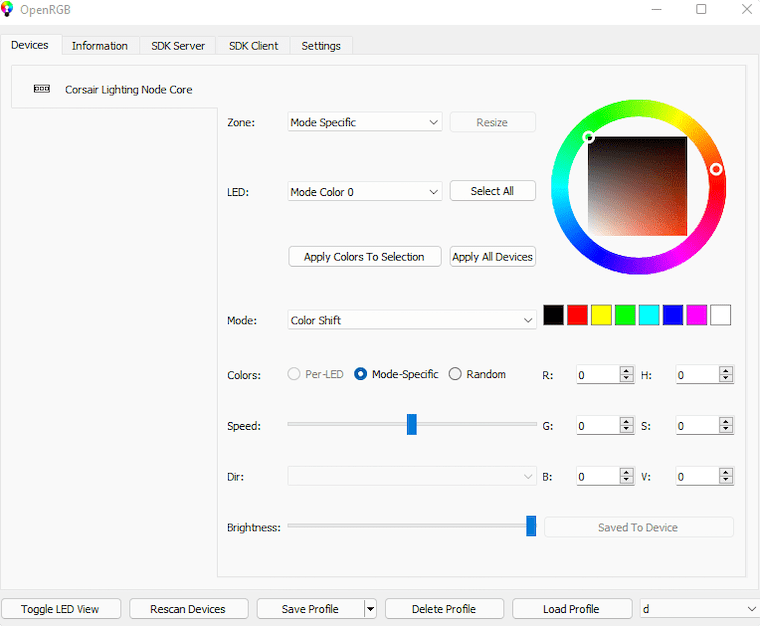
Navigate the Interface
When OpenRGB opens, it immediately scans USB, I2C, and HID interfaces. The main tabs are:
- Devices: Lists every detected RGB device. Click a device to expand its LED zone map.
- Profiles: Save and load named lighting configurations.
- Settings: Configure startup behavior, SDK server, and plugin management.
- SDK Server: Enable remote control via the OpenRGB network protocol.
Assign Colors and Effects
- Click a device in the Devices tab.
- Select a zone such as “All LEDs,” “Logo,” or “Fan.”
- Pick a color using the color picker or type a hex value directly.
- Choose an effect mode from the Mode dropdown: Static, Breathing, Rainbow Wave, Color Pulse, etc.
- Click Apply to push the change to your hardware immediately.
Save a Lighting Profile
- Go to the Profiles tab.
- Click Save Profile and give it a name such as
gaming-blueoridle-minimal. - To auto-apply on login, open Settings and enable “Load profile on startup,” then select your saved profile from the dropdown.
Your RGB configuration will now apply automatically every time you log in to Fedora 43.
Step 6: Run OpenRGB in Server or Headless Mode
OpenRGB includes a built-in network server mode, which is useful for developers integrating RGB with applications, or sysadmins who want to control lighting remotely without opening a GUI.
Start the Server
openrgb --serverThe server listens on port 6742 by default. To change the port:
openrgb --server --port 6800To run it without auto-connecting to devices:
openrgb --server --noautoconnectCreate a Systemd User Service
To have the OpenRGB server start automatically at login, create a systemd user unit:
mkdir -p ~/.config/systemd/user/
nano ~/.config/systemd/user/openrgb.service
Paste the following into the file:
[Unit]
Description=OpenRGB Server
After=graphical-session.target

[Service]
ExecStart=/usr/bin/openrgb --server --noautoconnect
Restart=on-failure

[Install]
WantedBy=default.target
Enable and start it:
systemctl --user enable openrgb.service
systemctl --user start openrgb.service
Check the status:
systemctl --user status openrgb.serviceTroubleshooting Common OpenRGB Issues on Fedora
Even with a clean install, a few issues come up regularly in the Fedora community. Here are the five most common ones and how to fix them.
Issue 1: Devices Not Detected at All
Cause: The udev rules package is not installed or has not been activated yet.
Fix: Confirm the package is installed and the rules file exists:
sudo dnf install openrgb-udev-rules
ls /usr/lib/udev/rules.d/60-openrgb.rules
Then reload rules and reboot:
sudo udevadm control --reload-rules && sudo udevadm trigger
sudo reboot
Issue 2: I2C/SMBus Initialization Warning on Launch
Cause: The i2c-dev module is not loaded, or the chipset-specific module is missing.
Fix: Load the modules manually to confirm they work:
sudo modprobe i2c-dev
sudo modprobe i2c-piix4   # AMD
# OR
sudo modprobe i2c-i801    # Intel
Then relaunch OpenRGB. If the warning disappears, the modules are not persisting across reboots. Follow the /etc/modules-load.d/i2c.conf steps in Step 3 above.
Issue 3: OpenRGB Requires Root to Run
Cause: Your user account does not have permission to access /dev/i2c-* or USB HID devices.
Fix: Check group membership:
groups $USERIf i2c is not listed, run:
sudo usermod $USER -aG i2cLog out and log back in, then relaunch OpenRGB without sudo.
Issue 4: Devices Disappear After a Reboot
Cause: The I2C modules loaded in the session but /etc/modules-load.d/i2c.conf was not created or contains a typo.
Fix: Inspect the file:
cat /etc/modules-load.d/i2c.confIt should contain exactly i2c-dev on one line and i2c-piix4 (or i2c-i801) on the next. If the file is empty or missing, recreate it using the tee command from Step 3.
Issue 5: Flatpak Version Detects No Hardware
Cause: Flatpak sandboxing restricts access to hardware device buses by default.
Fix: Install openrgb-udev-rules on the host system via DNF or rpm-ostree, reboot, then open Flatseal, select OpenRGB, and enable device access permissions. If the issue persists, switch to the native DNF install, which has no sandbox restrictions.
Congratulations! You have successfully installed OpenRGB. Thanks for using this tutorial for installing OpenRGB open-source software enabling RGB lighting control on Fedora 43 Linux system. For additional help or useful information, we recommend you check the official OpenRGB website.
