
OpenShot Video Editor stands as one of the most popular open-source video editing solutions available for Linux users today. This powerful, feature-rich application provides professional-grade editing capabilities without the hefty price tag of commercial alternatives. Whether you’re creating content for YouTube, editing educational videos, or producing business presentations, OpenShot delivers the tools you need with an intuitive interface that welcomes both beginners and experienced editors.
Installing OpenShot on Debian 13 is straightforward when you follow the right approach. This comprehensive guide walks you through three proven installation methods: using the default Debian repository, adding the official PPA for the latest version, and running OpenShot as a portable AppImage. Each method has distinct advantages depending on your specific needs and system configuration. By the end of this tutorial, you’ll have OpenShot running smoothly on your Debian 13 system and understand how to configure it for optimal performance.
What is OpenShot Video Editor?
OpenShot is an award-winning, cross-platform video editor designed with simplicity and power in mind. The software has gained tremendous popularity in the Linux community for delivering professional features without the learning curve typically associated with advanced editing tools.
The editor supports unlimited video and audio tracks, allowing you to create complex, multi-layered projects with ease. Its timeline-based interface feels familiar to anyone who has worked with video editing software before. You can trim clips, arrange sequences, and apply transitions with simple drag-and-drop operations.
OpenShot includes an impressive collection of built-in effects and transitions. The software supports keyframe animation, giving you precise control over how effects change over time. You can create 3D animated titles, add picture-in-picture overlays, and adjust audio levels with visual waveform displays. Perhaps most importantly, OpenShot exports videos without watermarks, making it genuinely free for commercial and personal projects alike.
The software runs on Linux, Windows, and macOS, making it an excellent choice for users who work across different platforms. Content creators appreciate its ability to handle various video formats and codecs, eliminating the need for constant file conversions before editing.
System Requirements for OpenShot on Debian 13
Before beginning the installation process, verify that your system meets the necessary specifications. OpenShot can run on modest hardware, but better specifications ensure smoother editing experiences, especially with high-resolution footage.
Minimum Requirements:
Your Debian 13 installation should be running the 64-bit version of the operating system. A dual-core processor running at 2.7 GHz or higher provides acceptable performance for basic editing tasks. At least 4GB of RAM is necessary to run the application, though this amount may struggle with larger projects. You’ll need approximately 1GB of free storage space for the software installation itself, plus additional space for your video projects and rendered output files.
Recommended Specifications:
For a significantly better experience, especially when working with 1080p or 4K footage, consider these enhanced specifications. A six-core processor running at 3.4 GHz or faster handles rendering and preview generation much more efficiently. Upgrading to 16GB of RAM or more prevents slowdowns when working with multiple video tracks and effects. An SSD with 500GB or more of storage dramatically improves project loading times and export speeds.
While hardware acceleration through NVIDIA graphics cards remains experimental on Linux, it can provide performance benefits for certain operations. Most users find that meeting the CPU and RAM recommendations provides excellent performance without requiring specialized GPU configurations.
Prerequisites Before Installation
Ensuring your system is properly prepared prevents common installation issues. You’ll need a Debian 13 system with sudo or root privileges to install packages. An active internet connection is required for downloading OpenShot and its dependencies.
Basic familiarity with terminal commands helps, though the instructions provided are detailed enough for newcomers to follow. Open a terminal window and verify your Debian version by running lsb_release -a to confirm you’re using Debian 13.
Updating your system packages before installing new software prevents potential dependency conflicts. This step ensures that all existing packages are current and compatible with new installations.
Method 1: Installing OpenShot from Debian Official Repository
The simplest installation method uses Debian’s built-in package management system. This approach integrates OpenShot seamlessly with your system’s update mechanism.
Step 1: Update System Packages
Begin by refreshing your package list and upgrading installed packages. Open your terminal and execute these commands:
sudo apt update
sudo apt upgrade
The first command downloads the latest package information from configured repositories. The second command upgrades any outdated packages to their newest versions. This process may take several minutes depending on how many packages need updating.
Step 2: Install OpenShot from Repository
Once your system is current, install OpenShot with a single command:
sudo apt install openshot-qtThe package manager automatically resolves and installs all required dependencies. You may be prompted to confirm the installation and the amount of disk space that will be used. Type ‘Y’ and press Enter to proceed.
For users who want the complete package including documentation, use this alternative command:
sudo apt install openshot openshot-docThe installation process typically completes within a few minutes, depending on your internet connection speed.
Step 3: Verify Installation
Confirm that OpenShot installed correctly by checking its version:
openshot-qt --versionThis command displays the installed version number. You can now launch the application from your application menu or by typing openshot-qt in the terminal.
Advantages: This method is straightforward, stable, and integrates perfectly with system updates. OpenShot receives updates through your normal system update process.
Limitations: Repository versions may lag behind the latest releases, meaning you might not have access to the newest features immediately.
Method 2: Installing OpenShot via PPA (Recommended)
Personal Package Archives (PPAs) provide more recent software versions than default repositories. The official OpenShot PPA delivers the latest stable releases with regular updates.
Step 1: Update System Packages
Start with a system update to ensure compatibility:
sudo apt update && sudo apt upgradeThis combined command updates package lists and upgrades installed software in one operation.
Step 2: Install Required Dependencies
PPAs require specific software to function properly. Install the necessary tools:
sudo apt install software-properties-commonThis package provides scripts for managing software repositories, including the ability to add and remove PPAs.
Step 3: Add OpenShot Official PPA
Add the official OpenShot developers’ PPA to your system:
sudo add-apt-repository ppa:openshot.developers/ppaWhen prompted, press Enter to confirm adding the repository. The system automatically imports the repository’s GPG key for package verification.
Advanced users seeking bleeding-edge features can optionally add the daily development PPA instead:
sudo add-apt-repository ppa:openshot.developers/libopenshot-dailyNote that development versions may contain bugs and are recommended only for testing purposes.
Step 4: Update Package List
Refresh your package information to include the newly added PPA:
sudo apt updateThis command fetches package information from the OpenShot PPA, making the latest version available for installation.
Step 5: Install OpenShot with Python Dependencies
Install OpenShot along with its Python components:
sudo apt install openshot-qt python3-openshotIncluding python3-openshot ensures all Python-based features function correctly. The installation automatically handles dependencies and may download several hundred megabytes of packages.
Step 6: Verify Successful Installation
Launch OpenShot from your terminal:
openshot-qtThe application should start normally. Navigate to Help → About within the application to confirm you’re running the latest version from the PPA.
Troubleshooting PPA Issues
If you encounter errors during PPA installation, remove and re-add the repository:
sudo add-apt-repository --remove ppa:openshot.developers/ppa
sudo add-apt-repository ppa:openshot.developers/ppa
sudo apt update
This process clears potential configuration issues.
Benefits: The PPA method provides the latest stable features with automatic updates through your system’s package manager. Most users find this approach offers the best balance between current features and stability.
Method 3: Installing OpenShot Using AppImage
AppImage offers a portable, self-contained application format that runs without traditional installation. This method suits users who prefer not to modify system repositories or need to test different versions.
Understanding AppImage
AppImage bundles an application with all its dependencies into a single executable file. You can run it on any compatible Linux distribution without root privileges or system modifications. This portability makes AppImage ideal for testing software or running applications on systems where you lack administrative access.
Step 1: Install Required Dependencies
While AppImage is self-contained, it requires FUSE (Filesystem in Userspace) to function:
sudo apt install libfuse2This package enables AppImage files to mount their internal filesystem.
Step 2: Download OpenShot AppImage
Visit the official OpenShot download page at https://www.openshot.org/download/ to obtain the latest AppImage. Alternatively, download directly using wget:
wget https://github.com/OpenShot/openshot-qt/releases/download/v3.1.1/OpenShot-v3.1.1-x86_64.AppImageReplace the version number with the current release if newer versions are available. Always download from official sources to ensure authenticity and security.
Step 3: Make AppImage Executable
Downloaded files aren’t executable by default. Grant execute permissions:
chmod +x OpenShot-v3.1.1-x86_64.AppImageAlternatively, right-click the file in your file manager, select Properties, navigate to the Permissions tab, and enable “Allow executing file as program”.
Step 4: Run OpenShot AppImage
Execute the AppImage from your terminal:
./OpenShot-v3.1.1-x86_64.AppImageOr simply double-click the file in your file manager. The application launches directly without installation.
Step 5 (Optional): Desktop Integration
For better system integration, install AppImageLauncher:
sudo add-apt-repository ppa:appimagelauncher-team/stable
sudo apt update
sudo apt install appimagelauncher
AppImageLauncher automatically integrates AppImage files into your application menu and manages updates.
Advantages: AppImage requires no root privileges after installing libfuse2. You can easily test multiple versions simultaneously and remove the application by simply deleting the file.
Launching OpenShot on Debian 13
Once installed, accessing OpenShot is simple through multiple methods.
Application Menu: Navigate to your applications menu, locate the Audio & Video category, and click on OpenShot Video Editor. Alternatively, use your desktop environment’s search function to find “OpenShot.”
Terminal Launch: Open a terminal and type:
openshot-qtFor AppImage installations, navigate to the directory containing the AppImage file and execute it.
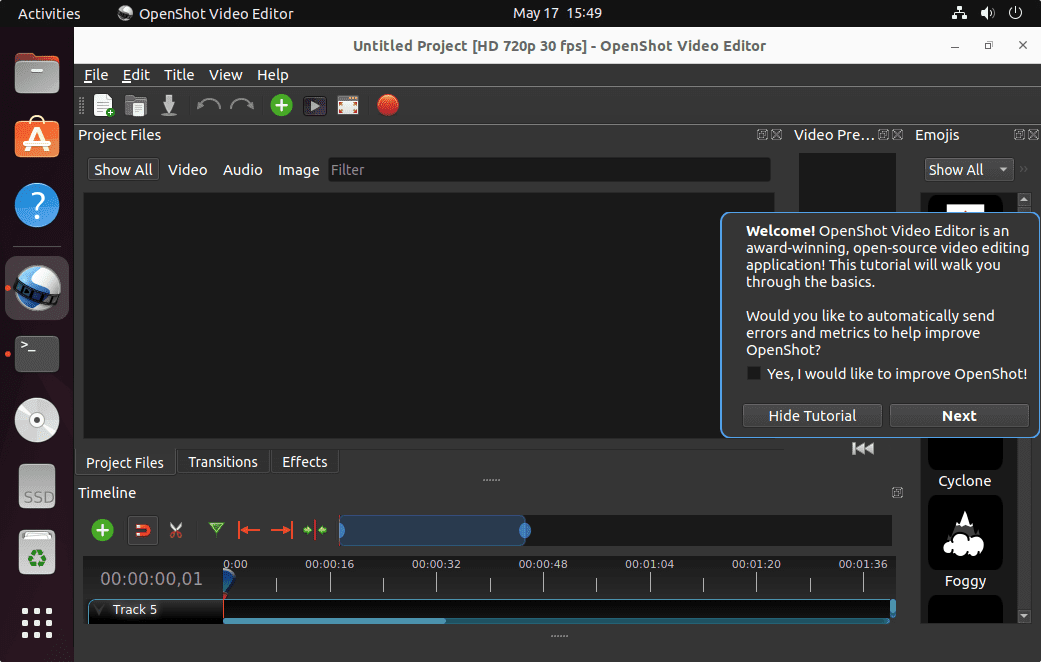
First Launch: OpenShot displays a welcome screen on first startup. The main interface consists of three primary areas: the timeline at the bottom for arranging clips, the preview window on the right for viewing your work, and the media library on the left for imported files. Take a moment to familiarize yourself with these sections before starting your first project.
Basic Configuration and First Steps
Optimizing OpenShot’s settings enhances your editing experience and prevents common issues.
Setting Default Project Profile
Access Edit → Preferences from the menu bar. The Profile section controls default video settings including resolution, frame rate, and aspect ratio. For YouTube content, select 1920×1080 at 30 fps. Social media videos often work better at 1080×1080 (square format) or 1080×1920 (vertical format). Professional projects may require 4K resolution at 60 fps.
Optimizing Performance Settings
Navigate to the Performance section within Preferences. Adjust cache settings to allocate sufficient memory for smooth playback. If your system supports hardware acceleration, enable it here for faster rendering. Lower preview quality reduces system load during editing, particularly helpful on older hardware.
Configuring Auto-Save
Enable auto-save in the General preferences to protect against data loss. Set the interval between 3-5 minutes for optimal balance between protection and performance. OpenShot saves project files automatically at your specified interval, preventing loss of work from unexpected crashes or power failures.
Setting Default Paths
Configure default directories for exports, project saves, and media imports. Using consistent locations helps organize your video projects and makes file management easier. Consider creating dedicated folders for different project types or clients.
Common Issues and Troubleshooting
Even with proper installation, you may encounter occasional issues. These solutions address the most frequent problems.
OpenShot Won’t Launch
If the application fails to start, check for broken dependencies:
sudo apt install --fix-brokenLaunch from terminal to view error messages:
openshot-qtError output helps identify specific problems. For AppImage files, verify execute permissions are set correctly.
Missing Libraries or Dependencies
Error messages mentioning missing libraries typically indicate incomplete installations. Reinstall the python3-openshot package:
sudo apt install --reinstall python3-openshotThis command replaces any corrupted or missing Python components.
AppImage Shows “Cannot Execute Binary File”
This error suggests a corrupted download or incorrect architecture. Delete the file and re-download from the official website. Verify you’re downloading the x86_64 version for standard Debian 13 installations. Check file integrity using SHA256 checksums provided on the download page.
Performance Issues or Lag
Sluggish performance often relates to insufficient system resources. Verify your system meets minimum requirements. Lower preview quality in preferences to reduce processing demands. Enable disk caching, ensuring adequate storage space remains available. Close background applications to free RAM for OpenShot.
Crashes During Export
Update to the latest OpenShot version first, as many export issues are resolved in newer releases. Try different export formats—H.264 MP4 offers excellent compatibility. Temporarily reduce output resolution to diagnose whether crashes are resource-related. Verify adequate free disk space exists for the exported file.
Getting Additional Help
The OpenShot community forums provide support from experienced users. Report bugs through the GitHub issues page with detailed information about your problem. Official documentation at openshot.org covers advanced features and techniques.
Updating OpenShot on Debian 13
Keeping OpenShot current ensures access to new features, bug fixes, and security patches.
Repository and PPA Installations: Updates occur automatically through your system’s normal update process:
sudo apt update && sudo apt upgradeThis command updates all installed packages, including OpenShot. Check specifically for OpenShot updates:
apt list --upgradable | grep openshotAppImage Installations: Check the official OpenShot website periodically for new releases. Download the latest AppImage and replace your existing file. Keep the previous version until confirming the new one works properly.
Version Verification: Within OpenShot, navigate to Help → About to view the current version. From terminal:
openshot-qt --versionBefore major version upgrades, backup your project files. Review release notes for breaking changes or new features that might affect your workflow.
Uninstalling OpenShot from Debian 13
Should you need to remove OpenShot, the process varies by installation method.
Repository Installation Removal:
sudo apt remove openshot-qtFor complete removal including configuration files:
sudo apt purge openshot-qt
sudo apt autoremove
The autoremove command cleans up dependencies no longer needed by other applications.
PPA Installation Removal:
sudo apt remove openshot-qt python3-openshot
sudo add-apt-repository --remove ppa:openshot.developers/ppa
sudo apt update
This process removes both the application and the PPA source.
AppImage Removal:
Simply delete the AppImage file. If you installed AppImageLauncher:
sudo apt remove appimagelauncherRemove user configuration data by deleting the ~/.openshot_qt folder in your home directory.
Congratulations! You have successfully installed OpenShot. Thanks for using this tutorial to install the latest version of the OpenShot Video Editor on Debian 13 “Trixie” system. For additional help or useful information, we recommend you check the official OpenShot website.
