How To Install OpenShot on Fedora 43

If you run Fedora 43 and need a capable, free, open-source video editor without switching distros or paying for proprietary software, OpenShot Video Editor is one of the strongest options available on Linux today. It supports H.264, H.265, WebM/VP9, and AAC out of the box, runs a full timeline-based editing workflow, and ships with keyframe animations, transitions, and multi-track audio all at no cost.
This guide covers how to install OpenShot on Fedora 43 using three verified methods: the DNF package manager with RPM Fusion, Flatpak from Flathub, and the official AppImage from openshot.org. You will find exact terminal commands, what each command does, expected output examples, and a troubleshooting section drawn from real Fedora community bug reports.
Whether you are setting up a desktop workstation or configuring a light editing environment for a developer machine, this OpenShot on Fedora 43 setup guide has you covered.
What Is OpenShot and Why Install It on Fedora 43?
OpenShot is a cross-platform, non-linear video editor developed and maintained by OpenShot Studios. As of early 2026, the latest stable release is version 3.4.0. It is available for Linux, Windows, macOS, and ChromeOS.
On Fedora 43, the RPM-packaged version available through RPM Fusion is openshot-3.3.0-5.fc43.noarch, confirmed in the Fedora package tracker. The Flatpak and AppImage routes both deliver the newer 3.4.0 release directly from the upstream developers.
Key features that make OpenShot worth installing on Fedora 43:
- Timeline-based non-linear editing with unlimited tracks
- FFmpeg-powered codec support: H.264, H.265, WebM/VP9, AVCHD, AAC, MP3
- Built-in transitions, effects, title overlays, and slow-motion controls
- Keyframe animation editor for position, scale, rotation, and opacity
- Export profiles for Web, HD, 4K, DVD, and custom resolutions
- Active GitHub development with community-reported bugs addressed regularly
System Requirements for OpenShot on Fedora 43
Before running a single command, check your hardware against OpenShot’s official minimum specifications.
Minimum hardware requirements:
- 64-bit operating system (Fedora 43 qualifies on all architectures)
- Multi-core processor with 64-bit support; minimum 2 cores (6+ cores recommended)
- At least 4 threads; minimum turbo clock of 2.7 GHz (3.4 GHz or faster recommended)
- 4 GB RAM minimum (16 GB recommended for 1080p or 4K editing)
- 1 GB free disk space for installation; 50+ GB recommended for media storage
- Optional: SSD with 10+ GB free if you plan to enable OpenShot’s disk caching feature
Most computers built after 2017 with a standard Intel or AMD x86_64 processor will satisfy all minimum requirements without issue.
Prerequisites Before You Begin
Do not skip this section. Missing any of these items will cause the installation to fail or behave unexpectedly.
Checklist:
- Fedora 43 Workstation or Server installed and booted
- sudo privileges on your user account
- Active internet connection for all three methods
- Terminal access (GNOME Terminal, Konsole, or any terminal emulator)
- Flatpak pre-installed (Fedora 43 Workstation ships with Flatpak by default)
- At least 1 GB free disk space for the core installation
- DNF5 as the default package manager (Fedora 41 and later use DNF5 by default)
Verify your Fedora version before proceeding:
cat /etc/fedora-releaseExpected output:
Fedora release 43 (Forty Three)Step 1: Update Your Fedora 43 System
Always update your system before installing new software. This pulls in the latest kernel updates, dependency versions, and security patches that OpenShot’s dependencies may require.
sudo dnf update -yThe sudo dnf update -y command tells DNF5 to refresh all repository metadata and upgrade every installed package to the latest available version. The -y flag auto-confirms all prompts so you do not have to type “yes” for each package.
Expected output (excerpt):
Updating and loading repositories:
Fedora 43 - x86_64                         100%
Running transaction check
Transaction Summary
Upgrade  142 Packages
...
Complete!
After the update finishes, reboot if the kernel was updated:
sudo rebootStep 2: Choose Your Installation Method
Fedora 43 gives you three clean paths to install OpenShot. Each one fits a different workflow. Here is a quick comparison before diving into the steps:
| Method | Version Installed | Requires Root | Auto-Updates | Best For |
|---|---|---|---|---|
| DNF + RPM Fusion | 3.3.0 (fc43 RPM) | Yes | Yes (dnf update) | Sysadmins preferring system packages |
| Flatpak (Flathub) | 3.4.0 (latest) | No | Semi (flatpak update) | Most desktop users |
| AppImage | 3.4.0 (latest) | No | Manual re-download | Portable or offline setups |
Pick the method that matches your workflow and jump to that section.
Step 3: Install OpenShot via DNF (RPM Fusion Method)
This is the traditional, system-native approach. It integrates OpenShot directly into your Fedora package management system and enables automatic updates with every dnf update run.
Step 3.1: Enable RPM Fusion Repositories
Fedora’s default repositories do not include OpenShot to keep the base installation lean and license-safe. RPM Fusion is the most trusted third-party repository for Fedora, hosting both Free (open-source) and Nonfree (proprietary codecs) packages.
Run this single command to enable both repositories:
sudo dnf install \
  https://mirrors.rpmfusion.org/free/fedora/rpmfusion-free-release-$(rpm -E %fedora).noarch.rpm \
  https://mirrors.rpmfusion.org/nonfree/fedora/rpmfusion-nonfree-release-$(rpm -E %fedora).noarch.rpm
The $(rpm -E %fedora) shell expansion automatically detects your current Fedora version number (43) and inserts it into the URL. You do not need to manually edit the command for future Fedora releases.
When prompted to confirm the GPG signature for each repository, type y and press Enter.
For Fedora 41 and later (which includes Fedora 43), also enable the OpenH264 codec repository:
sudo dnf config-manager setopt fedora-cisco-openh264.enabled=1Step 3.2: Install RPM Fusion AppStream Metadata
Since Fedora 43 uses DNF5, RPM Fusion groups cannot be extended automatically. Install the AppStream metadata package separately so GNOME Software can discover RPM Fusion packages:
sudo dnf install rpmfusion-free-appstream-data rpmfusion-nonfree-appstream-dataStep 3.3: Install OpenShot with DNF
Now install OpenShot directly:
sudo dnf install openshot -yDNF will resolve all dependencies (libopenshot, python3-openshot-qt, FFmpeg libraries) and display a transaction summary. Type y to confirm if you did not include the -y flag.
Expected output (excerpt):
Installing:
 openshot              noarch  3.3.0-5.fc43   rpmfusion-free   2.1 MB
Installing dependencies:
 libopenshot           x86_64  ...
...
Installed:
  openshot-3.3.0-5.fc43.noarch
Complete!
Step 3.4: Launch OpenShot
Open it from the GNOME Activities menu by searching “OpenShot”, or launch it directly from the terminal:
openshot-qtStep 4: Install OpenShot via Flatpak (Flathub Method)
For most Fedora 43 desktop users, this is the recommended path. You get OpenShot 3.4.0 (the latest stable release), it runs in a sandboxed environment with no system library conflicts, and GNOME integrates it cleanly into the app grid.
Step 4.1: Confirm Flatpak Is Installed
Fedora 43 Workstation ships with Flatpak pre-installed. Verify it:
flatpak --versionExpected output:
Flatpak 1.15.xIf Flatpak is missing (rare on Fedora 43 Workstation), install it:
sudo dnf install flatpak -yStep 4.2: Add the Flathub Remote Repository
Flatpak is pre-installed, but the Flathub remote is not always enabled by default after a fresh Fedora 43 install. Add it explicitly:
flatpak remote-add --if-not-exists flathub https://dl.flathub.org/repo/flathub.flatpakrepoThe --if-not-exists flag prevents errors if Flathub is already configured. This command registers Flathub as a trusted remote repository for your Flatpak client.
Step 4.3: Install OpenShot from Flathub
flatpak install flathub org.openshot.OpenShot -yFlatpak downloads OpenShot and any required runtimes such as org.freedesktop.Platform. The first install may take a few minutes depending on your internet speed because it pulls shared runtimes.
Expected output (excerpt):
Looking for matches...
org.openshot.OpenShot/x86_64/stable
  org.freedesktop.Platform/x86_64/23.08

Is this ok [y/N]: y
Installing: org.openshot.OpenShot/x86_64/stable from flathub
[####################] Installing
Installation complete.
Step 4.4: Launch OpenShot via Flatpak
From the terminal:
flatpak run org.openshot.OpenShotOr search for “OpenShot” in the GNOME Activities overview. The app appears in your launcher automatically after installation.
Step 4.5: Keep OpenShot Updated
flatpak update org.openshot.OpenShotRun this periodically to pull in the latest version from Flathub.
Step 5: Install OpenShot via AppImage (Portable Method)
The AppImage method gives you maximum control. You always get the latest release directly from the OpenShot developers, no package manager involvement, and zero permanent changes to your system.
Step 5.1: Download the AppImage
Go to the official download page at https://www.openshot.org/download/ and download the Linux 64-bit AppImage.
Or download it directly from the terminal using wget:
wget https://github.com/OpenShot/openshot-qt/releases/download/v3.4.0/OpenShot-v3.4.0-x86_64.AppImage -P ~/Downloads/wget downloads the AppImage file to your ~/Downloads/ folder. Replace v3.4.0 with the latest version number from the GitHub releases page if a newer release has shipped.
Step 5.2: Make the AppImage Executable
Downloaded files from the internet are not executable by default on Linux. Grant execute permissions:
chmod +x ~/Downloads/OpenShot-v3.4.0-x86_64.AppImagechmod +x adds the execute permission bit to the file, allowing your system to run it as a program rather than treating it as plain data.
Step 5.3: Run OpenShot
~/Downloads/OpenShot-v3.4.0-x86_64.AppImageOr double-click the file from the Nautilus file manager after marking it executable. OpenShot will launch without installing anything to your system.
Step 5.4: Integrate the AppImage Into GNOME (Optional)
The AppImage does not add itself to the GNOME app grid automatically. Use Gear Lever (a Flatpak app from Flathub) to register it with a proper icon and desktop launcher:
flatpak install flathub it.mijorus.gearlever -yOpen Gear Lever, drag the AppImage file into it, and click “Integrate”. OpenShot will then appear in your GNOME Activities search like any native app.
Step 6: Verify the Installation
After using any of the three methods, confirm OpenShot installed correctly before you start editing.
Step 6.1: Check the Version From the Terminal
For the DNF method:
openshot-qt --versionFor Flatpak:
flatpak info org.openshot.OpenShotExpected output (Flatpak):
        ID: org.openshot.OpenShot
       Ref: app/org.openshot.OpenShot/x86_64/stable
      Arch: x86_64
    Branch: stable
   Version: 3.4.0
...
Step 6.2: Confirm the UI Loads Correctly
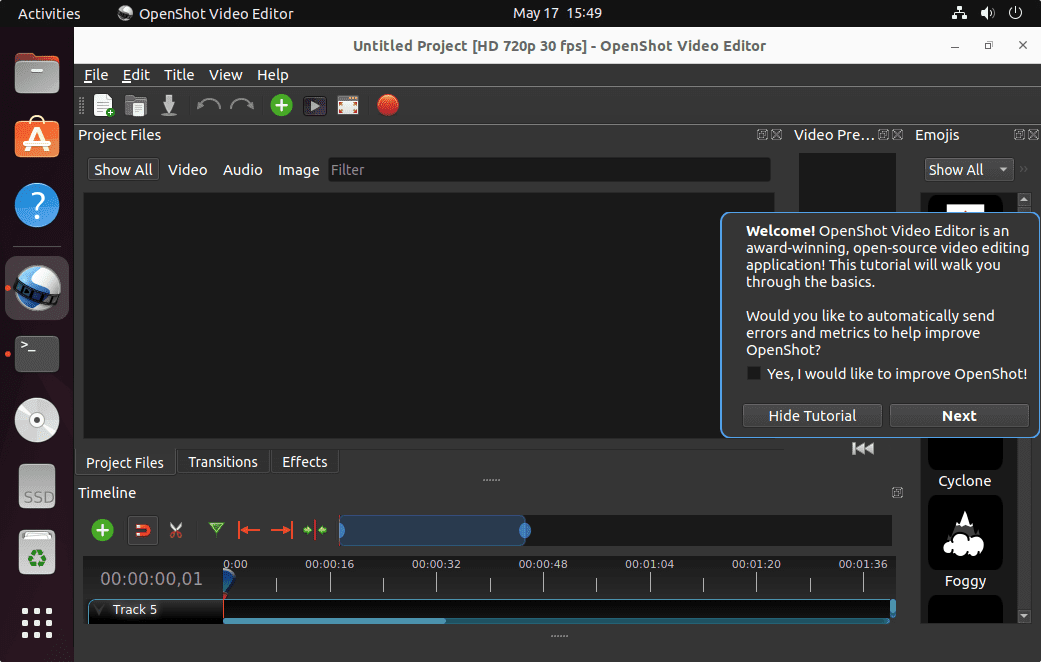
Launch OpenShot and verify the following three panels are visible:
- Project Files panel (top left) for importing media
- Preview Window (top right) for playback
- Timeline (bottom) for arranging clips
Navigate to Help > About OpenShot to see the exact build version and confirm it matches what you installed.
Step 6.3: Import a Test Video
Drag a short MP4 or MKV file into the Project Files panel. This step confirms FFmpeg decoding works correctly on your system. If OpenShot crashes at this point, see the troubleshooting section below.
Troubleshooting Common OpenShot Issues on Fedora 43
Real-world Fedora users have reported these specific issues in community forums and GitHub. Here are the problems and working fixes.
Issue 1: OpenShot Flatpak Crashes When Importing an MP4 File
This is a confirmed bug affecting older Flatpak builds of OpenShot on Fedora 42 and Fedora 43.
Fix: Update to the latest Flatpak version:
flatpak update org.openshot.OpenShotIf the crash persists after updating, switch to the AppImage method instead, which has no sandbox-related codec restrictions.
Issue 2: dnf install openshot Returns “No Match for Argument”
This error means RPM Fusion is not enabled on your system.
Fix: Return to Step 3.1 and run the RPM Fusion repository enablement command. Then retry:
sudo dnf install openshot -yIssue 3: OpenShot Locks at 100% CPU After Adding a Second Video Clip
This is a known performance bug reported on Fedora 43 with certain video formats.
Fix: Reduce the preview render quality in Edit > Preferences > Preview to “Low” or “Medium”. For large projects, split long clips into shorter segments before adding them to the timeline. Using proxies during editing and only rendering full quality on export is the standard workaround.
Issue 4: Flatpak Apps Will Not Launch After Upgrading to Fedora 43
Some users upgrading from Fedora 42 to Fedora 43 found that Flatpak applications stopped launching entirely.
Fix:
flatpak repair
sudo reboot
If Flatpak apps still fail after a reboot, reinstall the affected application:
flatpak uninstall org.openshot.OpenShot
flatpak install flathub org.openshot.OpenShot -y
Issue 5: The RPM Fusion Package Conflicts With Another Package
The openshot-3.3.0-5.fc43.noarch RPM can be removed from a system during a GNOME desktop group update due to a dependency conflict with libopenshot.
Fix: Force-reinstall the package:
sudo dnf install openshot --allowerasing -yThe --allowerasing flag tells DNF to remove conflicting packages if necessary to complete the transaction.
How to Uninstall OpenShot on Fedora 43
Each installation method has its own clean removal process.
DNF method:
sudo dnf remove openshot -yFlatpak method:
flatpak uninstall org.openshot.OpenShot -yAppImage method: Simply delete the .AppImage file:
rm ~/Downloads/OpenShot-v3.4.0-x86_64.AppImageTo remove all OpenShot configuration files and saved project data from any method, delete these directories:
rm -rf ~/.config/openshot-qt/
rm -rf ~/.local/share/openshot-qt/
Getting Started With OpenShot After Installation
Once OpenShot is running, here is a quick orientation to start your first project.
Create a new project:
- Go to File > New Project
- Set your resolution (1920×1080 for standard HD)
- Set the frame rate to 30 fps for web video, or 24 fps for a cinematic look
- Click Create Project
Import and arrange media:
- Drag video, audio, or image files into the Project Files panel on the top left
- Drag clips from the Project Files panel down onto a track in the timeline
- Right-click between clips to insert a Transition
- Drag any item from the Effects panel onto a clip to apply filters like Blur, Brightness, or Saturation
Export your finished video:
- Go to File > Export Video
- Choose a preset profile (Web, HD, DVD, or Custom)
- Set your output filename and target folder
- Click Export Video to start rendering
Congratulations! You have successfully installed OpenShot. Thanks for using this tutorial to install the latest version of the OpenShot Video Editor on Fedora 43 Linux. For additional help or useful information, we recommend you check the official OpenShot website.
