How To Install OpenVAS on Ubuntu 24.04 LTS
Network security is not optional — it is a responsibility. Whether you manage a single Ubuntu server or an entire enterprise infrastructure, knowing what vulnerabilities exist in your environment is the first step toward defending it. OpenVAS, now officially part of the Greenbone Vulnerability Management (GVM) framework, gives you that visibility. It is one of the most powerful open-source vulnerability scanners available today, trusted by security professionals worldwide for its comprehensive detection capabilities and regularly updated threat database.
This guide walks you through every step required to install, configure, and launch OpenVAS on Ubuntu 24.04 LTS (Noble Numbat). From building GVM components from source to accessing the web interface and running your first scan, this tutorial covers it all. By the end, you will have a fully operational vulnerability scanning platform running on your Ubuntu system.
What Is OpenVAS and the GVM Framework?
OpenVAS (Open Vulnerability Assessment System) is the scanning engine at the heart of the Greenbone Vulnerability Management (GVM) suite. Greenbone rebranded OpenVAS under the broader GVM umbrella, which now includes multiple interconnected components that handle everything from scan execution to report generation.
The GVM framework consists of several key services: gvmd (the central management daemon), gsad (the web interface HTTP server), ospd-openvas (the OSP wrapper for the scanner), notus-scanner (package-based local vulnerability detection), and gvm-libs (shared libraries used across all components). Together, these components form a complete vulnerability management platform. The Greenbone Community Feed delivers over 50,000 Network Vulnerability Tests (NVTs) — updated daily and freely available without a license.
Key Features of OpenVAS on Ubuntu
- Continuous NVT Updates: The Greenbone Community Feed pushes new vulnerability checks daily, keeping your scanner current with the latest CVEs
- Web-Based Dashboard: The Greenbone Security Assistant (GSA) provides a clean, browser-based interface for managing targets, scans, and reports
- Multiple Scan Policies: Choose from “Full and Fast,” “Full and Very Deep,” and other built-in policies suited for different risk profiles
- Credentialed Scanning: Authenticate against targets for deeper inspection of installed packages and configuration weaknesses
- Exportable Reports: Generate and download scan results in PDF or XML format for compliance and auditing
- Automated Feed Sync: Schedule daily cron jobs to pull the latest SCAP, CERT, and NVT data automatically
- MQTT-Powered Messaging: Internal components communicate via the Mosquitto MQTT broker for efficient, real-time scan coordination
System Requirements and Prerequisites
Before proceeding, ensure your system meets the recommended hardware and software requirements. Running GVM on underpowered hardware leads to slow scans and memory errors.
Recommended Hardware:
- CPU: 4 virtual CPUs (minimum 2 cores)
- RAM: 8 GB (minimum 4 GB)
- Disk: 40 GB free space (minimum 20 GB)
- OS: Ubuntu 24.04 LTS (Noble Numbat)
Software Prerequisites:
- A non-root user with
sudoprivileges - Active internet connection for package downloads and feed synchronization
- Basic familiarity with the Linux command line and systemd
Step 1: Update Your System and Install Build Dependencies
Start by refreshing your package index and upgrading installed packages to avoid version conflicts during the build process.
sudo apt update && sudo apt upgrade -yNext, install all required build tools, libraries, and Python packages. This single command covers everything needed to compile GVM from source:
sudo apt install gcc g++ make bison flex cmake git pkg-config \
  libglib2.0-dev libgpgme-dev libksba-dev libpcap-dev nmap \
  libgnutls28-dev uuid-dev libssh-gcrypt-dev libldap2-dev \
  libmicrohttpd-dev libhiredis-dev zlib1g-dev libxml2-dev \
  libnet-dev libradcli-dev libical-dev libpopt-dev libsnmp-dev \
  python3-setuptools python3-paramiko python3-lxml python3-pip \
  python3-dev python3-redis python3-paho-mqtt python3-gnupg \
  libpaho-mqtt-dev mosquitto redis redis-server texlive-latex-extra \
  xsltproc rsync gcc-mingw-w64 heimdal-dev libgcrypt20-dev \
  libcjson-dev libjson-glib-dev libbsd-dev --no-install-recommends -y
Step 2: Install Node.js 18+
The Greenbone Security Assistant (GSA) web UI is built with React, which requires Node.js version 18 or higher to compile. Ubuntu 24.04’s default repository does not include Node.js 18, so use the NodeSource setup:
curl -fsSL https://deb.nodesource.com/gpgkey/nodesource-repo.gpg.key | \
  sudo gpg --dearmor -o /etc/apt/trusted.gpg.d/node.gpg

echo "deb https://deb.nodesource.com/node_18.x nodistro main" | \
  sudo tee /etc/apt/sources.list.d/node.list

sudo apt update && sudo apt install nodejs -y
node --version
Step 3: Install and Configure PostgreSQL
GVM relies on PostgreSQL as its backend database for storing scan tasks, targets, results, and vulnerability metadata. Ubuntu 24.04 ships with PostgreSQL 16 by default, but PostgreSQL 17 is recommended for this setup.
echo "deb http://apt.postgresql.org/pub/repos/apt $(lsb_release -cs)-pgdg main" | \
  sudo tee /etc/apt/sources.list.d/pgdg.list

wget -qO- http://apt.postgresql.org/pub/repos/apt/ACCC4CF8.asc | \
  sudo gpg --dearmor -o /etc/apt/trusted.gpg.d/pgdg.gpg

sudo apt update
sudo apt install postgresql postgresql-contrib postgresql-server-dev-all -y
Now create the GVM database user and database, then grant the necessary roles:
sudo -Hiu postgres createuser gvm
sudo -Hiu postgres createdb -O gvm gvmd
sudo -Hiu postgres psql gvmd -c "create role dba with superuser noinherit;"
sudo -Hiu postgres psql gvmd -c "grant dba to gvm;"
sudo systemctl enable --now postgresql
Step 4: Create a Dedicated GVM System User
Never run GVM as root. The principle of least privilege dictates that the scanner operates under a restricted, non-login system user. This limits the blast radius if something goes wrong.
sudo useradd -r -d /opt/gvm -c "GVM User" -s /bin/bash gvm
sudo mkdir /opt/gvm && sudo chown gvm: /opt/gvm
echo "gvm ALL = NOPASSWD: $(which make) install, $(which python3)" | \
  sudo tee /etc/sudoers.d/gvm
visudo -c -f /etc/sudoers.d/gvm
A valid sudoers file outputs OK.
Step 5: Build GVM Libraries, GVMD, and PG-GVM Extension
Switch to the GVM user and create a source directory for all builds:
sudo su - gvm
mkdir ~/gvm-source && cd ~/gvm-source
Build gvm-libs (shared libraries used across all GVM components):
GVM_LIBS=22.17.0
wget https://github.com/greenbone/gvm-libs/archive/refs/tags/v${GVM_LIBS}.tar.gz \
  -O gvm-libs-v${GVM_LIBS}.tar.gz
tar xzf gvm-libs-v${GVM_LIBS}.tar.gz && cd gvm-libs-${GVM_LIBS}
mkdir build && cd build && cmake .. && make && sudo make install && cd ~/gvm-source
Build gvmd (central scan management daemon):
GVMD=24.3.4
wget https://github.com/greenbone/gvmd/archive/refs/tags/v${GVMD}.tar.gz \
  -O gvmd-v${GVMD}.tar.gz
tar xzf gvmd-v${GVMD}.tar.gz && cd gvmd-${GVMD}
mkdir build && cd build && cmake .. && make && sudo make install && cd ~/gvm-source
Build pg-gvm (PostgreSQL extension for iCalendar and host range functions):
PG_GVM=22.6.7
wget https://github.com/greenbone/pg-gvm/archive/refs/tags/v${PG_GVM}.tar.gz \
  -O pg-gvm-v${PG_GVM}.tar.gz
tar xzf pg-gvm-v${PG_GVM}.tar.gz && cd pg-gvm-${PG_GVM}
mkdir build && cd build && cmake .. && make && sudo make install && cd ~/gvm-source
Step 6: Build the GSA Web Interface and GSAD Server
The Greenbone Security Assistant (GSA) is the React-based web dashboard. Build it with Node.js, then copy the output to the web server directory.
GSA=24.2.0
wget https://github.com/greenbone/gsa/archive/refs/tags/v${GSA}.tar.gz \
  -O gsa-v${GSA}.tar.gz
tar xzf gsa-v${GSA}.tar.gz && cd gsa-${GSA}
npm install && npm run build && cd ~/gvm-source
Build gsad (the HTTP backend server that connects GSA to gvmd):
GSAD=24.2.0
wget https://github.com/greenbone/gsad/archive/refs/tags/v${GSAD}.tar.gz \
  -O gsad-v${GSAD}.tar.gz
tar xzf gsad-v${GSAD}.tar.gz && cd gsad-${GSAD}
mkdir build && cd build && cmake .. && make && sudo make install && cd ~/gvm-source
Exit back to your privileged user and deploy the GSA frontend files:
exit
GSA=24.2.0
sudo mkdir -p /usr/local/share/gvm/gsad/web
sudo cp -rp /opt/gvm/gvm-source/gsa-${GSA}/build/* /usr/local/share/gvm/gsad/web
sudo chown -R gvm: /usr/local/share/gvm/gsad/web
Step 7: Build OpenVAS Scanner, OpenVAS SMB, and OSPD-OpenVAS
Switch back to the GVM user and build the core scanner components.
OpenVAS SMB (required before the scanner; enables WMI-based Windows scanning):
sudo su - gvm && cd ~/gvm-source
OPENVAS_SMB=22.5.7
wget https://github.com/greenbone/openvas-smb/archive/refs/tags/v${OPENVAS_SMB}.tar.gz \
  -O openvas-smb-v${OPENVAS_SMB}.tar.gz
tar xzf openvas-smb-v${OPENVAS_SMB}.tar.gz && cd openvas-smb-${OPENVAS_SMB}
mkdir build && cd build && cmake .. && make && sudo make install && cd ~/gvm-source
OpenVAS Scanner (the NVT execution engine):
OPENVAS_SCANNER=23.15.3
wget https://github.com/greenbone/openvas-scanner/archive/refs/tags/v${OPENVAS_SCANNER}.tar.gz \
  -O openvas-scanner-v${OPENVAS_SCANNER}.tar.gz
tar xzf openvas-scanner-v${OPENVAS_SCANNER}.tar.gz && cd openvas-scanner-${OPENVAS_SCANNER}
mkdir build && cd build && cmake .. && make && sudo make install && cd ~/gvm-source
OSPD-OpenVAS (Open Scanner Protocol wrapper that bridges gvmd and the scanner):
OSPD_OPENVAS=22.8.0
wget https://github.com/greenbone/ospd-openvas/archive/refs/tags/v${OSPD_OPENVAS}.tar.gz \
  -O ospd-openvas-v${OSPD_OPENVAS}.tar.gz
tar xzf ospd-openvas-v${OSPD_OPENVAS}.tar.gz && cd ospd-openvas-${OSPD_OPENVAS}
mkdir build && python3 -m pip install --user --root=./build .
exit
OSPD_OPENVAS=22.8.0
sudo cp /opt/gvm/gvm-source/ospd-openvas-${OSPD_OPENVAS}/build/opt/gvm/.local/bin/ospd-openvas /usr/local/bin/
sudo cp -r /opt/gvm/gvm-source/ospd-openvas-${OSPD_OPENVAS}/build/opt/gvm/.local/lib/python3.12/* /usr/local/lib/python3.12/
Step 8: Install Notus Scanner, Feed Sync Tool, and GVM Tools
The Notus Scanner evaluates locally installed package versions to detect vulnerabilities without active network probing — ideal for agent-based assessments.
sudo su - gvm && cd ~/gvm-source
NOTUS_SCANNER=22.6.5
wget https://github.com/greenbone/notus-scanner/archive/refs/tags/v${NOTUS_SCANNER}.tar.gz \
  -O notus-scanner-v${NOTUS_SCANNER}.tar.gz
tar xzf notus-scanner-v${NOTUS_SCANNER}.tar.gz && cd notus-scanner-${NOTUS_SCANNER}
mkdir build && sudo python3 -m pip install --user --root=./build .
exit
NOTUS_SCANNER=22.6.5
sudo cp /opt/gvm/gvm-source/notus-scanner-${NOTUS_SCANNER}/build/root/.local/bin/* /usr/local/bin/
Install the Greenbone Feed Sync tool and GVM Tools:
sudo su - gvm
cd ~/gvm-source && mkdir greenbone-feed-sync && cd greenbone-feed-sync
sudo python3 -m pip install --root=. greenbone-feed-sync
mkdir gvm-tools && cd gvm-tools
sudo python3 -m pip install --root=. gvm-tools
exit
sudo cp /opt/gvm/gvm-source/greenbone-feed-sync/usr/local/bin/* /usr/local/bin/
Step 9: Configure Redis and Mosquitto MQTT
Redis caches NVT vulnerability data, severity scores, and remediation metadata for fast scanner access. Copy the OpenVAS-specific Redis configuration:
sudo ldconfig
OPENVAS_SCANNER=23.15.3
sudo cp /opt/gvm/gvm-source/openvas-scanner-${OPENVAS_SCANNER}/config/redis-openvas.conf /etc/redis/
sudo chown redis:redis /etc/redis/redis-openvas.conf
echo "db_address = /run/redis-openvas/redis.sock" | sudo tee /etc/openvas/openvas.conf
sudo usermod -aG redis gvm
Optimize Redis performance and prevent THP-related latency:
echo "net.core.somaxconn = 1024" | sudo tee -a /etc/sysctl.conf
echo "vm.overcommit_memory = 1" | sudo tee -a /etc/sysctl.conf
sudo sysctl -p
sudo systemctl enable --now redis-server@openvas
Configure Mosquitto MQTT for inter-component messaging between the Notus scanner, OpenVAS scanner, and OSPD:
echo "mqtt_server_uri = localhost:1883
table_driven_lsc = yes" | sudo tee -a /etc/openvas/openvas.conf
sudo systemctl enable --now mosquitto
Step 10: Set Permissions, Sync Vulnerability Feeds, and Validate Feed Integrity
Set correct ownership on all GVM runtime directories:
sudo mkdir -p /var/lib/notus /run/gvmd
sudo chown -R gvm:gvm /var/lib/gvm /var/lib/openvas /var/lib/notus \
  /var/log/gvm /run/gvmd
Allow the GVM user to run openvas with sudo, then sync the NVT feed:
echo "gvm ALL = NOPASSWD: $(which openvas)" | sudo tee -a /etc/sudoers.d/gvm
sudo -Hiu gvm greenbone-nvt-sync
sudo -Hiu gvm sudo openvas --update-vt-info
sudo -Hiu gvm greenbone-feed-sync --type SCAP
sudo -Hiu gvm greenbone-feed-sync --type CERT
sudo -Hiu gvm greenbone-feed-sync --type GVMD_DATA
Note: Always sync SCAP before CERT — the CERT feed depends on SCAP data.
Validate feed integrity using the Greenbone Community Signing Key:
wget https://www.greenbone.net/GBCommunitySigningKey.asc
sudo gpg --homedir=/etc/openvas/gnupg --import GBCommunitySigningKey.asc
echo "8AE4BE429B60A59B311C2E739823FAA60ED1E580:6:" | \
  sudo gpg --import-ownertrust --homedir=/etc/openvas/gnupg
sudo chown -R gvm:gvm /etc/openvas/gnupg
Step 11: Create Systemd Service Units
Create and enable a systemd service for each GVM component so they start automatically on boot.
ospd-openvas.service:
sudo tee /etc/systemd/system/ospd-openvas.service << 'EOL'
[Unit]
Description=OSPd Wrapper for the OpenVAS Scanner (ospd-openvas)
After=network.target networking.service redis-server@openvas.service mosquitto.service
[Service]
Type=exec
User=gvm
Group=gvm
RuntimeDirectory=ospd
PIDFile=/run/ospd/ospd-openvas.pid
Environment="PYTHONPATH=/usr/local/lib/python3.12/site-packages/"
ExecStart=/usr/local/bin/ospd-openvas --foreground \
  --unix-socket /run/ospd/ospd-openvas.sock \
  --log-file /var/log/gvm/ospd-openvas.log \
  --mqtt-broker-address localhost --mqtt-broker-port 1883 \
  --notus-feed-dir /var/lib/notus/advisories
Restart=always
[Install]
WantedBy=multi-user.target
EOL
Reload systemd and enable all GVM services:
sudo systemctl daemon-reload
sudo systemctl enable --now ospd-openvas
sudo systemctl enable --now notus-scanner
sudo systemctl enable --now gvmd
sudo systemctl enable --now gsad
Step 12: Generate Certificates and Create the Admin User
Generate server and client certificates for GVM authentication and authorization:
sudo -Hiu gvm gvm-manage-certs -a
echo "gvm ALL = NOPASSWD: $(which gsad)" | sudo tee -a /etc/sudoers.d/gvm
Create the administrative user and set the Feed Import Owner. This step is critical — without it, built-in scan configs like “Full and Fast” will not appear in the web interface.
sudo -Hiu gvm /usr/local/sbin/gvmd --create-user admin --password=YourStrongPassword
sudo -Hiu gvm /usr/local/sbin/gvmd --modify-setting \
  78eceaec-3385-11ea-b237-28d24461215b \
  --value $(sudo -Hiu gvm /usr/local/sbin/gvmd --get-users --verbose | grep admin | awk '{print $2}')
Accessing the GSA Web Interface
Open a browser and navigate to https://<your-server-IP>. Accept the self-signed certificate warning. Log in with the admin credentials you just created.
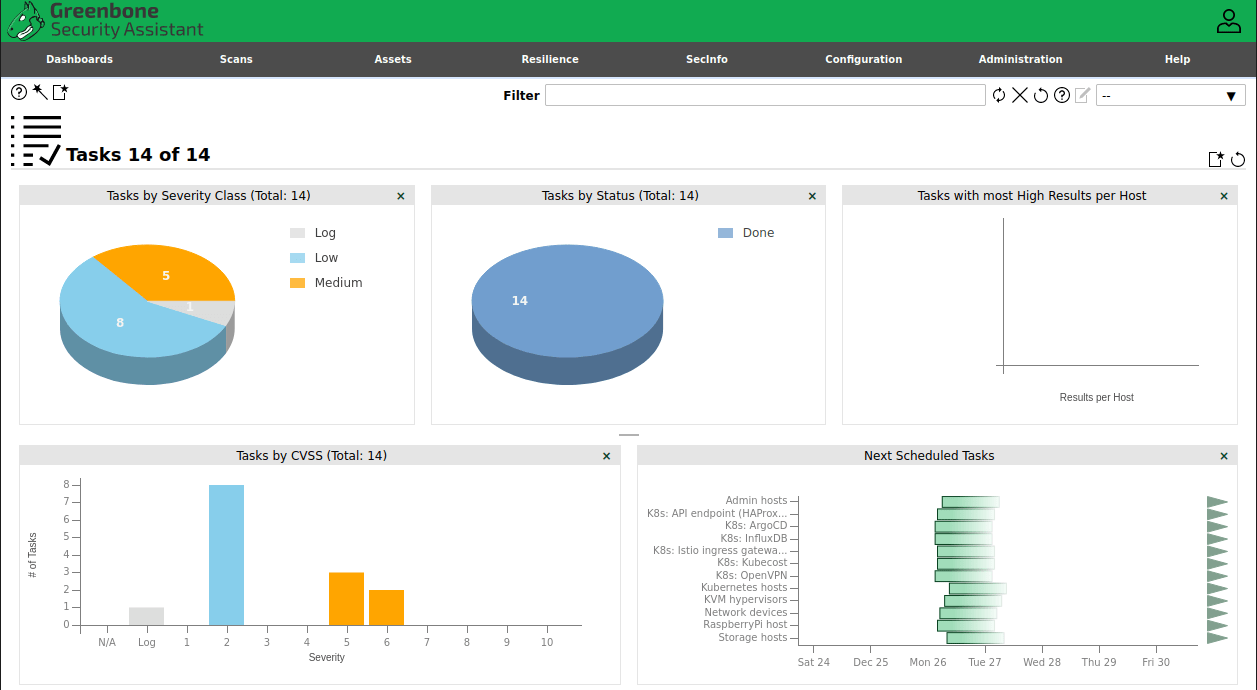
Once logged in, you land on the Greenbone Security Assistant dashboard. Feeds may still be loading during the first launch — this process can take 5 to 15 minutes depending on your hardware. Be patient. When the feed status indicators turn green, the scanner is ready.
Running Your First Vulnerability Scan
- Go to Configuration → Targets and create a new target by entering an IP address or hostname
- Navigate to Scans → Tasks and click the star icon to create a new task
- Set the Scan Config to “Full and Fast” for a well-balanced assessment
- Select “OpenVAS Default” as the scanner
- Click the Start (▶) button to launch the scan
- Monitor real-time progress from the Tasks list view
- Once complete, click the results count to open the report and export it as PDF or XML
Automating Feed Updates with Cron
NVTs are updated daily on Greenbone’s servers. Falling behind means your scanner misses newly published CVEs. Set up automated cron jobs as the GVM user:
sudo crontab -e -u gvmAdd the following lines:
0 2 * * * greenbone-nvt-sync
30 2 * * * greenbone-feed-sync --type SCAP
0 3 * * * greenbone-feed-sync --type CERT
30 3 * * * greenbone-feed-sync --type GVMD_DATA
This runs NVT synchronization nightly at 2:00 AM and staggers the SCAP and CERT feeds afterward to avoid conflicts.
Troubleshooting Common Installation Issues
| Problem | Solution |
|---|---|
rsync: connection reset by peer during feed sync |
Append --rsync flag: greenbone-nvt-sync --rsync |
ospd-openvas fails to start |
Run systemctl status redis-server@openvas — Redis must be active first |
| GSA shows “Feed Outdated” warning | Manually run all three greenbone-feed-sync commands as the gvm user |
| Admin login fails after user creation | Reset password: gvmd --user=admin --new-password=NewPass |
| “Full and Fast” scan config missing | Ensure Feed Import Owner UUID is correctly set with --modify-setting |
| High memory consumption during scans | Confirm at least 8 GB RAM is available; tune Redis maxmemory in /etc/redis/redis-openvas.conf |
| VTs not loading in scanner dashboard | Re-run sudo openvas --update-vt-info as the gvm user, then restart ospd-openvas |
Congratulations! You have successfully installed OpenVAS. Thanks for using this tutorial for installing the OpenVAS vulnerability assessment scanner on the Ubuntu 24.04 LTS system. For additional help or useful information, we recommend you check the official OpenVAS website.
