How To Install ownCloud on Debian 13

Privacy is no longer a feature. It is a requirement. As cloud storage subscriptions grow more expensive and data breaches continue making headlines, more system administrators and developers are turning to self-hosted solutions. ownCloud is one of the most trusted open-source file synchronization and sharing platforms available today — and for good reason. It gives you full control over your data without relying on a third-party provider.
This guide walks you through a complete, step-by-step installation of ownCloud on Debian 13 (Trixie). By the end, you will have a fully operational private cloud server running on Apache, PHP 7.4, and MariaDB. Whether you are setting this up for personal use or deploying it for a small organization, every command and configuration in this tutorial is production-ready.
What Is ownCloud?
ownCloud is a free, open-source file-sharing and collaboration platform that you host on your own server. Originally launched in 2010, it has grown into one of the most widely deployed self-hosted cloud storage alternatives to services like Dropbox, Google Drive, and OneDrive.
The platform provides file management, version control, automatic synchronization across devices, calendar and contacts integration, and user access controls. It works across Windows, macOS, Linux, Android, and iOS. More importantly, since you deploy it on your own infrastructure, no third party ever touches your data. That is data sovereignty in its most practical form. ownCloud is built on PHP and requires either a LAMP (Linux, Apache, MySQL/MariaDB, PHP) or LEMP (Linux, Nginx, MySQL/MariaDB, PHP) stack to run.
Why Install ownCloud on Debian 13?
Debian 13, codenamed Trixie, is a modern, highly stable Linux distribution designed for long-term server use. Its APT package manager makes dependency resolution straightforward, and its reputation for reliability makes it a go-to platform for production web services.
Installing ownCloud on Debian 13 eliminates subscription costs and puts full storage management in your hands. Every file you upload stays on your server — not in a data center you cannot audit. Apache, MariaDB, and PHP are all natively supported in Debian’s repositories, which means fewer compatibility headaches and a smoother setup experience. For small businesses, development environments, or privacy-conscious individuals, this stack is a powerful combination.
Prerequisites
Before you begin, make sure the following are in place:
- A fresh Debian 13 server — physical machine, VPS, or cloud instance — with at least 512 MB RAM (2 GB+ recommended for production workloads)
- Root or
sudoaccess to the server - A domain name pointed to your server’s public IP address
- Ports 80 (HTTP) and 443 (HTTPS) open in your firewall
- A stable internet connection for downloading packages
Throughout this guide, commands prefixed with # require root privileges, and $ commands can be run as a regular sudo user.
Step 1: Update the Debian 13 System
Start every server setup the same way — with a full system update. This ensures all installed packages are at their latest versions and prevents conflicts when adding new software stacks.
apt update && apt upgrade -yIf the update includes a new kernel, reboot the server before continuing:
rebootOnce the server is back online, you are ready to install the LAMP stack components one by one.
Step 2: Install and Configure Apache Web Server
Apache is the web server that will serve ownCloud to your browser. Install it directly from Debian’s default repositories:
apt install apache2 -yAfter installation, verify that Apache is running:
systemctl status apache2The output should show active (running). If it does not, start and enable it manually:
systemctl start apache2
systemctl enable apache2
ownCloud relies on several Apache modules to function correctly. Enable them now:
a2enmod rewrite headers unique_idRestart Apache to apply the module changes:
systemctl restart apache2Next, create the web root directory for your domain:
mkdir -p /var/www/html/yourdomain.com/Now create the Apache virtual host configuration file:
nano /etc/apache2/sites-enabled/yourdomain.com.confAdd the following virtual host block:
<VirtualHost *:80>
  ServerName yourdomain.com
  ServerAlias www.yourdomain.com
  DocumentRoot /var/www/html/yourdomain.com/

  <Directory /var/www/html/yourdomain.com/>
    Options +FollowSymlinks
    AllowOverride All
    Require all granted
    Dav off
  </Directory>

  <FilesMatch \.php$>
    SetHandler "proxy:unix:/run/php/php7.4-fpm.sock|fcgi://localhost"
  </FilesMatch>

  ErrorLog ${APACHE_LOG_DIR}/yourdomain.com_error.log
  CustomLog ${APACHE_LOG_DIR}/yourdomain.com_access.log combined
</VirtualHost>
Do not restart Apache yet. You need PHP 7.4 installed first, or the virtual host configuration will throw errors.
Step 3: Install PHP 7.4 and Required Extensions
This is the most critical step in the entire installation — and the one most likely to trip up a first-time installer on Debian 13.
Debian 13 ships with PHP 8.4 by default. However, ownCloud does not support PHP 8.x. The official ownCloud documentation explicitly states that only PHP 7.4 is supported, and this limitation applies to all current ownCloud 10.x releases. Trying to run ownCloud on PHP 8.x will result in white screens, fatal errors, or a completely broken installation.
To install PHP 7.4 on Debian 13, you need to add Ondřej Surý’s third-party PHP repository — the most widely trusted PHP source for Debian and Ubuntu systems.
First, install the required utilities:
apt install -y apt-transport-https lsb-release ca-certificates wgetAdd the GPG key and repository:
wget -O /etc/apt/trusted.gpg.d/php.gpg https://packages.sury.org/php/apt.gpg
echo "deb https://packages.sury.org/php/ $(lsb_release -sc) main" | tee /etc/apt/sources.list.d/php.list
apt update
Now install PHP 7.4 along with all extensions required by ownCloud:
apt install php7.4 php7.4-fpm php7.4-xml php7.4-intl php7.4-common \
php7.4-json php7.4-curl php7.4-mbstring php7.4-mysql php7.4-gd \
php7.4-imagick php7.4-zip php7.4-opcache -y
Here is what each extension does:
php7.4-mysql— connects ownCloud to MariaDB or MySQLphp7.4-gdandphp7.4-imagick— handle image thumbnails and previewsphp7.4-zip— enables file compression and extractionphp7.4-opcache— dramatically improves PHP performance by caching compiled bytecodephp7.4-curl— allows ownCloud to make external HTTP requestsphp7.4-mbstring— manages multi-byte character encoding
Integrate PHP-FPM with Apache:
a2enmod proxy_fcgi setenvif
a2enconf php7.4-fpm
systemctl restart apache2
Confirm PHP 7.4 is the active version:
php7.4 -vStep 4: Install MariaDB and Create the Database
ownCloud supports MySQL 8.0+, MariaDB, PostgreSQL, Oracle, and SQLite. For most deployments, MariaDB is the recommended choice due to its performance, open-source nature, and full compatibility with ownCloud. SQLite is only suitable for testing and single-user setups — never for production.
Install MariaDB from Debian’s official repository:
apt install mariadb-server -yMariaDB starts automatically after installation on Debian 13. To harden the installation and remove insecure defaults, run the secure installation script:
mysql_secure_installationFollow the prompts: set a root password, remove anonymous users, disable remote root login, and drop the test database.
Log into the MariaDB shell:
mysql -u root -pCreate the ownCloud database and its dedicated user:
CREATE DATABASE owncloud;
GRANT ALL ON owncloud.* TO 'owncloud'@'localhost' IDENTIFIED BY 'StrongP@ssword!';
FLUSH PRIVILEGES;
EXIT;
Replace StrongP@ssword! with a unique, strong password. Write these credentials down — you will need them during the web-based setup wizard later.
Step 5: Download and Extract ownCloud
Navigate to your web root directory:
cd /var/www/html/yourdomain.comDownload the latest stable ownCloud release:
wget https://download.owncloud.com/server/stable/owncloud-latest.tar.bz2You can also visit the official ownCloud download page to grab a specific version. Extract the archive and strip the top-level folder so all files land directly in the web root:
tar -xf owncloud-latest.tar.bz2 --strip-components 1The --strip-components 1 flag is important. Without it, a nested /owncloud/ subdirectory is created instead of placing files in the correct location — a common source of 404 errors.
Set the correct file ownership so Apache’s www-data user can read and write to all files:
chown -R www-data: /var/www/html/yourdomain.com/Incorrect permissions at this stage will cause the ownCloud installer to fail silently or produce file write errors during setup.
Step 6: Configure the Apache Virtual Host
The virtual host file you created in Step 2 is already in place. Now enable the site and verify the Apache configuration:
a2ensite yourdomain.com.conf
apachectl configtest
The configtest command should return Syntax OK. If it reports any errors, review the virtual host file for typos. Once confirmed, reload Apache:
systemctl reload apache2A quick recap of the most important directives in the virtual host block:
- AllowOverride All — permits ownCloud’s
.htaccessfile to control URL rewriting. Without this, pretty URLs and many ownCloud features will break. - Dav off — disables Apache’s built-in WebDAV module to prevent conflicts with ownCloud’s own WebDAV implementation.
- SetHandler pointing to the PHP 7.4 FPM socket — ensures requests are processed by PHP 7.4 specifically, not the system’s default PHP version.
Getting these three directives right is what separates a working ownCloud instance from a frustrating one.
Step 7: Complete ownCloud Setup via Web Browser
Open a browser on any device and navigate to:
http://yourdomain.comThe ownCloud web installer will load automatically. Fill in every field carefully:
- Admin Username — choose a secure admin account name (avoid using “admin”)
- Admin Password — use a strong, unique password
- Data Folder — the default is
/var/www/html/yourdomain.com/data; for large deployments, point this to a dedicated external volume - Database Type — select MySQL/MariaDB
- Database Host — enter
localhost - Database Name —
owncloud - Database User —
owncloud - Database Password — the password set in Step 4
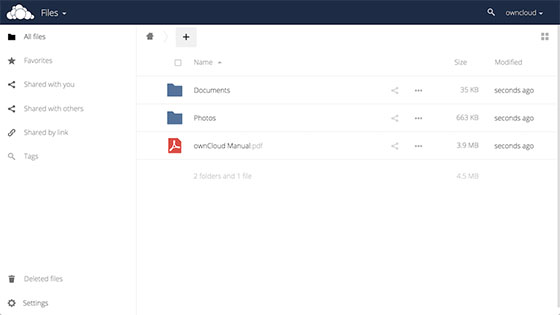
Click Finish Setup. ownCloud will initialize the database, configure the file system, and redirect you to the login screen. Sign in with the admin credentials you just created.
Your private cloud file storage server is now live.
Step 8: Secure ownCloud with SSL/HTTPS
Running ownCloud over plain HTTP means your login credentials and file transfers travel in cleartext. That is unacceptable for any real deployment. Secure your installation with a free Let’s Encrypt SSL certificate using Certbot.
Install Certbot and the Apache plugin:
apt install certbot python3-certbot-apache -yObtain and install the certificate:
certbot --apache -d yourdomain.com -d www.yourdomain.comCertbot will automatically modify your Apache virtual host to enable HTTPS and set up a permanent redirect from HTTP to HTTPS. Test automatic certificate renewal:
certbot renew --dry-runAfter enabling SSL, update ownCloud’s config.php to reflect the HTTPS trusted domain:
nano /var/www/html/yourdomain.com/config/config.phpAdd or verify the trusted_domains array includes your domain:
'trusted_domains' =>
  array (
    0 => 'yourdomain.com',
    1 => 'www.yourdomain.com',
  ),
Save the file. If you skip this step, ownCloud will display an “Untrusted Domain” error when accessed via HTTPS.
Post-Installation Best Practices
A working installation is just the beginning. These steps transform a basic setup into a secure, high-performance private cloud server.
- Switch to System Cron: Go to Settings → Admin → Cron in ownCloud and select Cron. Then set up a system crontab entry:
*/15 * * * * www-data php /var/www/html/yourdomain.com/occ system:cron. This is significantly more reliable than the default Ajax-based background processing. - Increase PHP Memory Limits: Edit
/etc/php/7.4/fpm/php.iniand setmemory_limit = 512M,upload_max_filesize = 512M, andpost_max_size = 512Mto support large file uploads. - Enable Redis for Memory Caching: Install
redis-serverandphp7.4-redis, then configure ownCloud’sconfig.phpto use Redis as a memory cache. This dramatically reduces database load and speeds up file listings for large directories. - Schedule Regular Backups: Back up three things — the
/var/www/html/yourdomain.com/data/directory, theconfig/config.phpfile, and the MariaDBownclouddatabase. A broken installation is recoverable; lost data is not. - Keep ownCloud Updated: Check the ownCloud changelog regularly and apply updates to stay current with security patches and new features.
Troubleshooting Common Issues
Even with careful execution, things sometimes go wrong. Here are the most frequent issues encountered during ownCloud installation on Debian — and how to fix them.
PHP version errors on the setup page: If ownCloud complains about an unsupported PHP version, confirm that PHP 7.4-FPM is active: run php7.4 -v and systemctl status php7.4-fpm. Also verify the Apache virtual host’s SetHandler directive points to the correct PHP 7.4 FPM socket path.
403 Forbidden errors: This almost always means incorrect file ownership. Re-run chown -R www-data: /var/www/html/yourdomain.com/ and confirm AllowOverride All is set in the virtual host configuration.
Database connection failure during setup: Double-check the database name, username, and password entered in the web wizard. Verify MariaDB is running with systemctl status mariadb. If the service stopped, start it with systemctl start mariadb.
Apache mod_rewrite not working: Ensure a2enmod rewrite was executed, Apache was restarted afterward, and AllowOverride All is present in the virtual host. Without rewrite support, ownCloud URLs and WebDAV access will break.
Untrusted domain error after login: This is one of the most common post-install issues. Add your server’s IP address or domain name to the trusted_domains array in config/config.php. Both the bare domain and the www subdomain should be listed.
Blank white page after setup: This is almost always a PHP 8.x compatibility issue. Confirm you are running PHP 7.4 by checking the Apache virtual host’s SetHandler and verifying that php7.4-fpm is the active handler — not the system default.
Congratulations! You have successfully installed ownCloud. Thanks for using this tutorial for installing the latest version of ownCloud on the Debian 13 “Trixie” system. For additional help or useful information, we recommend check the official ownCloud website.
