How To Install Parse Server on Ubuntu 24.04 LTS

Parse Server has emerged as a powerful open-source backend solution for mobile and web applications, offering developers complete control over their infrastructure without the hefty price tag of proprietary Backend-as-a-Service platforms. Installing Parse Server on Ubuntu 24.04 LTS provides a stable, scalable foundation for building modern applications with features like database management, RESTful APIs, user authentication, and push notifications. This comprehensive guide walks through every step of the installation process, from initial server preparation to production-ready security configurations, ensuring your Parse Server deployment is both functional and secure.
Prerequisites and System Requirements
Before diving into the installation process, ensuring your environment meets the necessary requirements prevents frustration and potential complications down the road.
Server Requirements
Your Ubuntu 24.04 LTS server should have at least 2GB of RAM and 2 CPU cores to handle Parse Server operations efficiently. A fresh installation is recommended, though Parse Server can coexist with other services if properly configured. You’ll need approximately 20GB of free disk space for the operating system, Parse Server, MongoDB, and application data. Root access or a user account with sudo privileges is essential for installing packages and configuring system services.
Required Software Components
The Parse Server stack requires several key components working in harmony. Node.js version 18.x or higher serves as the runtime environment for Parse Server. MongoDB version 4.4 or later provides the database backend where your application data resides. The npm package manager, which comes bundled with Node.js, facilitates installing Parse Server and its dependencies. Optionally, Parse Dashboard offers a visual interface for managing your backend data and monitoring server health.
Knowledge Requirements
Basic familiarity with Linux command-line operations makes this installation smoother. Understanding how to connect via SSH, navigate directories, and edit text files using nano or vim proves invaluable. A foundational grasp of JSON configuration format helps when customizing Parse Server settings to match your application requirements.
Step 1: Update System Packages
Keeping your Ubuntu system current patches security vulnerabilities and ensures compatibility with newer software versions.
Open your terminal and connect to your Ubuntu 24.04 server via SSH. Execute the following command to refresh the package repository cache:
sudo apt updateThis command downloads the latest package listings from Ubuntu’s repositories. Next, upgrade all installed packages to their newest versions:
sudo apt upgrade -yThe -y flag automatically confirms the upgrade without prompting. Install essential build tools and utilities that Parse Server dependencies may require during compilation:
sudo apt install -y ca-certificates curl gnupg build-essential gitThese packages include SSL certificate authorities for secure connections, curl for downloading files, GnuPG for package verification, compilation tools, and Git for version control. The entire update process typically completes within 2-5 minutes depending on your internet speed and the number of outdated packages.
Step 2: Install MongoDB Database
MongoDB serves as the persistent storage layer for Parse Server, housing all your application data in a flexible, document-oriented structure.
Import MongoDB Repository
Ubuntu 24.04’s default repositories may not include the latest MongoDB versions. Adding the official MongoDB repository ensures access to current releases with the newest features and security patches.
Create a directory for storing repository keyring files:
sudo mkdir -p /etc/apt/keyringsDownload and import MongoDB’s GPG key for package verification:
curl -fsSL https://www.mongodb.org/static/pgp/server-7.0.asc | sudo gpg --dearmor -o /etc/apt/keyrings/mongodb-server-7.0.gpgAdd the MongoDB repository to your system’s package sources:
echo "deb [ arch=amd64,arm64 signed-by=/etc/apt/keyrings/mongodb-server-7.0.gpg ] https://repo.mongodb.org/apt/ubuntu jammy/mongodb-org/7.0 multiverse" | sudo tee /etc/apt/sources.list.d/mongodb-org-7.0.listUpdate the package cache to include MongoDB packages:
sudo apt updateInstall and Configure MongoDB
Now install MongoDB Community Edition with a single command:
sudo apt install -y mongodb-orgOnce installation completes, start the MongoDB service:
sudo systemctl start mongodConfigure MongoDB to launch automatically whenever the server boots:
sudo systemctl enable mongodVerify MongoDB is running properly:
sudo systemctl status mongodYou should see output indicating the service is “active (running)” in green text. Confirm MongoDB is listening on the default port:
sudo ss -ant | grep 27017This command displays network connections, and you should see MongoDB bound to port 27017.
Step 3: Install Node.js and npm
Parse Server runs on Node.js, a JavaScript runtime built on Chrome’s V8 engine that enables server-side JavaScript execution.
Add NodeSource Repository
The NodeSource repository provides more recent Node.js versions than Ubuntu’s default packages. Download and execute the NodeSource setup script for Node.js 20.x:
curl -fsSL https://deb.nodesource.com/setup_20.x | sudo -E bash -This script configures the NodeSource repository and prepares your system for Node.js installation.
Install Node.js
Install Node.js and npm with the following command:
sudo apt install -y nodejsVerify the installation by checking version numbers:
node --versionThis should display something like v20.x.x. Check npm as well:
npm --versionYou should see a version number like 10.x.x or higher. Both tools are now ready to manage Parse Server and its dependencies.
Step 4: Install Parse Server
With the foundation established, installing Parse Server itself is straightforward.
Install Parse Server Module
Install Parse Server globally using npm, making it accessible system-wide:
sudo npm install -g parse-serverThe -g flag ensures Parse Server installs globally rather than in a project-specific directory. Installation takes 1-3 minutes as npm downloads Parse Server and all its dependencies.
Create Parse Server Configuration Directory
Organization matters for maintainability. Create a dedicated directory for Parse Server configuration:
sudo mkdir -p /etc/parse-serverNavigate to this directory:
cd /etc/parse-serverCreate Configuration File
Parse Server requires a configuration file specifying database connections, security credentials, and server parameters. Create the configuration file:
sudo nano /etc/parse-server/config.jsonAdd the following JSON configuration, replacing placeholder values with your own secure credentials:
{
  "appName": "MyParseApp",
  "databaseURI": "mongodb://localhost:27017/parsedb",
  "appId": "myAppIdGenerateYourOwnSecureString",
  "masterKey": "myMasterKeyGenerateYourOwnSecureString",
  "serverURL": "http://localhost:1337/parse",
  "port": 1337
}
Critical Security Note: Generate strong, random strings for appId and masterKey. These credentials protect your backend from unauthorized access. Use at least 32 characters combining uppercase, lowercase, numbers, and special characters. The databaseURI points to your MongoDB instance, while serverURL defines where Parse Server accepts API requests.
Save the file by pressing Ctrl+X, then Y, then Enter.
Step 5: Create Systemd Service for Parse Server
Running Parse Server manually isn’t sustainable. Creating a systemd service ensures Parse Server starts automatically and recovers from crashes.
Create Service File
Generate a systemd service file:
sudo nano /etc/systemd/system/parse-server.serviceInsert the following configuration:
[Unit]
Description=Parse Server
After=network.target mongod.service
Requires=mongod.service

[Service]
Type=simple
User=root
ExecStart=/usr/bin/parse-server /etc/parse-server/config.json
Restart=on-failure
RestartSec=10

[Install]
WantedBy=multi-user.target
This configuration tells systemd to start Parse Server after MongoDB launches, automatically restart on failures, and wait 10 seconds between restart attempts.
Enable and Start Service
Reload systemd to recognize the new service:
sudo systemctl daemon-reloadEnable Parse Server to start on boot:
sudo systemctl enable parse-serverStart the service immediately:
sudo systemctl start parse-serverCheck the service status:
sudo systemctl status parse-serverGreen “active (running)” text confirms successful startup. If you encounter errors, view detailed logs:
sudo journalctl -u parse-server -fThe -f flag follows the log in real-time, displaying new entries as they occur.
Step 6: Install and Configure Parse Dashboard
Parse Dashboard provides a user-friendly web interface for managing your Parse Server data, monitoring usage, and testing API queries.
Install Parse Dashboard
Install Parse Dashboard globally using npm:
sudo npm install -g parse-dashboardThis command downloads and installs the dashboard application system-wide.
Create Dashboard Configuration
Create a directory for dashboard configuration:
sudo mkdir -p /etc/parse-dashboardCreate the dashboard configuration file:
sudo nano /etc/parse-dashboard/config.jsonAdd this configuration structure:
{
  "apps": [
    {
      "serverURL": "http://localhost:1337/parse",
      "appId": "myAppIdGenerateYourOwnSecureString",
      "masterKey": "myMasterKeyGenerateYourOwnSecureString",
      "appName": "MyParseApp"
    }
  ],
  "users": [
    {
      "user": "admin",
      "pass": "secure_password_here"
    }
  ]
}
The apps array can contain multiple Parse Server instances if you’re managing several applications. The users array defines who can access the dashboard. Important: Use the exact same appId and masterKey values from your Parse Server configuration.
Create Dashboard Systemd Service
Create a systemd service for Parse Dashboard:
sudo nano /etc/systemd/system/parse-dashboard.serviceAdd this service configuration:
[Unit]
Description=Parse Dashboard
After=network.target parse-server.service
Requires=parse-server.service

[Service]
Type=simple
User=root
ExecStart=/usr/local/bin/parse-dashboard --config /etc/parse-dashboard/config.json --allowInsecureHTTP
Restart=on-failure
RestartSec=10

[Install]
WantedBy=multi-user.target
The –allowInsecureHTTP flag permits HTTP connections for initial testing. Production deployments should use HTTPS.
Reload systemd, enable, and start the dashboard:
sudo systemctl daemon-reload
sudo systemctl enable parse-dashboard
sudo systemctl start parse-dashboard
Verify the dashboard is running:
sudo systemctl status parse-dashboardParse Dashboard now listens on port 4040 by default.
Step 7: Configure Firewall Rules
Firewall configuration prevents unauthorized access while allowing legitimate traffic to reach your Parse Server and Dashboard.
UFW Firewall Configuration
Check if UFW (Uncomplicated Firewall) is active:
sudo ufw statusAllow SSH connections to prevent lockout:
sudo ufw allow 22/tcpOpen the Parse Server port:
sudo ufw allow 1337/tcpOpen the Parse Dashboard port:
sudo ufw allow 4040/tcpEnable the firewall if not already active:
sudo ufw enableConfirm your rules are in place:
sudo ufw status numberedCloud Provider Security Groups
If running on AWS, DigitalOcean, Azure, or other cloud platforms, configure their security groups or firewall rules to permit inbound traffic on ports 1337 and 4040. For production environments, restrict dashboard access to specific IP addresses rather than allowing global access.
Step 8: Test Parse Server Installation
Testing confirms everything works correctly before deploying production applications.
Test via Command Line
Use curl to send a POST request creating a test object:
curl -X POST \
  -H "X-Parse-Application-Id: myAppIdGenerateYourOwnSecureString" \
  -H "Content-Type: application/json" \
  -d '{"score":1337,"playerName":"TestUser","level":42}' \
  http://localhost:1337/parse/classes/GameScore
Replace myAppIdGenerateYourOwnSecureString with your actual appId. A successful response returns JSON containing an objectId and createdAt timestamp.
Retrieve the created object:
curl -X GET \
  -H "X-Parse-Application-Id: myAppIdGenerateYourOwnSecureString" \
  http://localhost:1337/parse/classes/GameScore
You should receive JSON containing your test data.
Test Parse Dashboard Access
Open a web browser and navigate to:
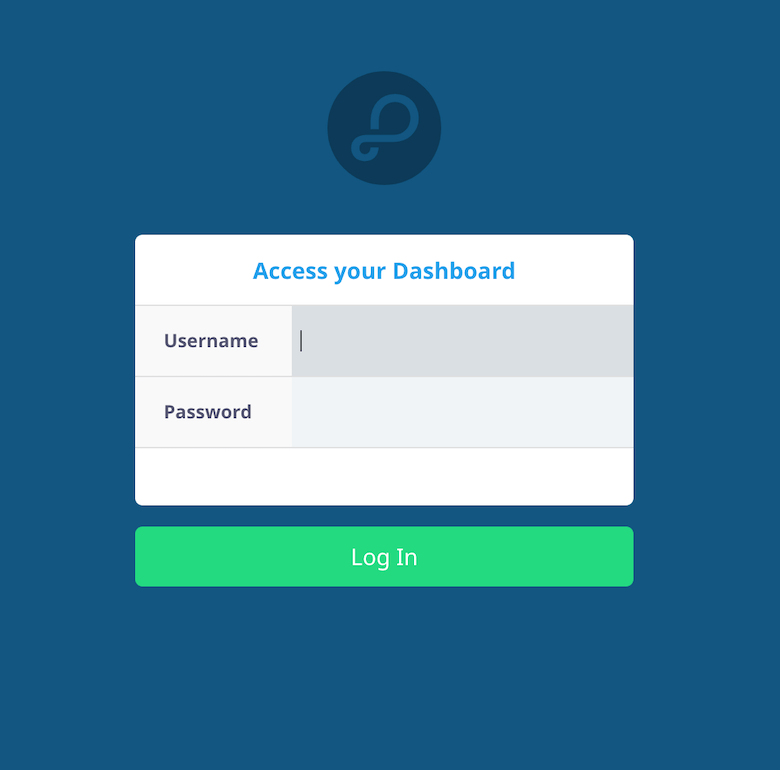
http://your-server-ip:4040Replace your-server-ip with your server’s actual IP address. Log in using the credentials specified in your dashboard configuration (username: admin, password: secure_password_here). Browse the GameScore class to view your test data created via curl. The dashboard interface allows you to create, read, update, and delete objects through an intuitive graphical interface.
Step 9: Secure Parse Server for Production
Development configurations aren’t suitable for production. Implementing security best practices protects your data and infrastructure.
Enable HTTPS with SSL Certificate
Install Nginx as a reverse proxy:
sudo apt install -y nginxInstall Certbot for obtaining Let’s Encrypt SSL certificates:
sudo apt install -y certbot python3-certbot-nginxConfigure Nginx to proxy requests to Parse Server and Dashboard. Create an Nginx configuration file:
sudo nano /etc/nginx/sites-available/parseAdd a basic proxy configuration and obtain an SSL certificate:
sudo certbot --nginx -d yourdomain.comCertbot automatically configures HTTPS. Update your Parse Server config.json to reflect the new HTTPS URLs.
Security Hardening
Generate cryptographically secure credentials using a password generator or command-line tools. Your appId and masterKey should each be at least 64 characters long. Consider changing default ports to non-standard values to reduce automated attack exposure.
For production deployments, disable Parse Dashboard entirely or restrict access to specific IP addresses through firewall rules. The dashboard exposes sensitive data and should never be publicly accessible without authentication and HTTPS.
Configure MongoDB authentication by creating a dedicated database user:
mongosh
use admin
db.createUser({
  user: "parseuser",
  pwd: "strong_password_here",
  roles: [{role: "readWrite", db: "parsedb"}]
})
exit
Enable MongoDB authentication in /etc/mongod.conf and update your Parse Server databaseURI to include credentials:
mongodb://parseuser:strong_password_here@localhost:27017/parsedbEnvironment Variables
Storing sensitive credentials in configuration files poses security risks. Move secrets to environment variables by creating an environment file:
sudo nano /etc/parse-server/environmentAdd your credentials:
APP_ID=myAppIdGenerateYourOwnSecureString
MASTER_KEY=myMasterKeyGenerateYourOwnSecureString
DATABASE_URI=mongodb://parseuser:strong_password_here@localhost:27017/parsedb
Update your systemd service to load this file and modify your config.json to reference environment variables. Implement automated MongoDB backups using mongodump scheduled via cron jobs.
Troubleshooting Common Issues
Even careful installations encounter occasional hiccups. These solutions address the most frequent problems.
Parse Server Won’t Start
Check the service status for error messages:
sudo systemctl status parse-serverView detailed logs:
sudo journalctl -u parse-server -n 50Verify MongoDB is running before Parse Server attempts to start. Validate your JSON configuration syntax using online JSON validators—a single misplaced comma breaks the entire file. Check for port conflicts if another application already uses port 1337.
Cannot Access Dashboard
Confirm the dashboard service is active and running. Verify firewall rules allow traffic on port 4040. Double-check the URL includes the correct IP address and port. Review dashboard authentication credentials for typos.
Database Connection Errors
Ensure MongoDB is running:
sudo systemctl status mongodVerify the databaseURI format matches MongoDB’s connection string specification. Check that MongoDB accepts connections on localhost. Review MongoDB logs:
sudo journalctl -u mongod -n 50If using authentication, confirm username and password are correct and the user has appropriate permissions on the specified database.
Congratulations! You have successfully installed Parse. Thanks for using this tutorial for installing the Parse Server on Ubuntu 24.04 LTS Focal Fossa system. For additional help or useful information, we recommend you check the official Parse Server website.
