How To Install Passbolt on Fedora 43

Managing passwords across a team is one of those problems that sneaks up on you — until a credential gets leaked or someone leaves and nobody knows what they had access to. If you’re running a Linux environment and want full control over your password infrastructure, Passbolt is the answer. In this guide, you’ll learn exactly how to install Passbolt on Fedora 43, configure it from scratch, and have a production-ready, self-hosted password manager running on your server by the end.
Passbolt is a free, open-source, GPG-encrypted password manager built specifically for teams and organizations. Unlike cloud-based tools like LastPass or 1Password, Passbolt runs entirely on your own infrastructure — which means your credentials never leave your network. This Linux server tutorial covers everything: system prep, package installation, MariaDB setup, SSL, the web configuration wizard, and post-install hardening.
Whether you’re a developer spinning up a homelab, or a sysadmin rolling this out for a team, this guide for install Passbolt on Fedora 43 setup is written to be clear, accurate, and complete.
What Is Passbolt and Why Self-Host It?
Passbolt Community Edition (CE) is an open-source password manager designed for teams. Every password is encrypted client-side using GPG (GNU Privacy Guard) before it ever reaches the server — meaning even if your server is compromised, your passwords remain encrypted and unreadable without the user’s private key.
Here’s why sysadmins choose to self-host Passbolt:
- Full data ownership — no third-party cloud ever touches your credentials
- Compliance-friendly — ideal for GDPR, HIPAA, or internal data sovereignty policies
- Team collaboration — securely share passwords with specific users or groups
- Browser extension integration — Chrome and Firefox extensions for seamless autofill
- Free forever — CE is fully featured for most small-to-medium teams
The Pro Edition adds LDAP/Active Directory sync, SSO, and advanced audit logs — but CE is more than sufficient to start with.
Prerequisites
Before you run a single command, make sure your environment meets these requirements. Skipping this step is the number one reason installs fail.
Server requirements:
- A fresh Fedora 43 minimal server (physical, VM, or VPS — no existing services)
- Minimum 2 CPU cores, 2 GB RAM, 20 GB disk space
- At least 10 Mbps internet access
- A domain name or subdomain (e.g.,
passbolt.yourdomain.com) with its DNSArecord pointing to your server’s public IP — required for SSL
Access requirements:
- A non-root user with
sudoprivileges and SSH access - Ports 80 and 443 open on your firewall or security group
Tools needed:
curlanddnf— included in Fedora 43 by default- A working SMTP server or relay (Gmail, Mailgun, Postfix) for email notifications
- A working NTP service to prevent GPG authentication time-skew issues
⚠️ Important: Use a vanilla server with no pre-installed web servers (Apache, Nginx) or database services. The Passbolt install scripts can conflict with or overwrite existing configurations.
[LINK: How to Set Up a Fedora 43 VPS from Scratch]
Step 1: Update Your Fedora 43 System
The first thing any sysadmin does before installing anything is update the system. This prevents dependency conflicts between outdated packages and the new software you’re about to install.
sudo dnf update -y && sudo dnf upgrade -yThis command refreshes all installed packages and upgrades them to their latest versions. The -y flag auto-confirms all prompts.
If the kernel was updated, reboot before continuing:
sudo rebootAfter rebooting, confirm you’re running Fedora 43:
cat /etc/fedora-releaseExpected output:
Fedora release 43 (Forty Three)Also verify that NTP is active and syncing time correctly:
timedatectl statusLook for NTP service: active in the output. GPG authentication in Passbolt is time-sensitive — a server clock that’s off by more than a few minutes will cause silent login failures later.
Step 2: Set Up the Passbolt Package Repository
Passbolt provides an official RPM package repository for Fedora-based systems. Using the official repo ensures you get signed packages and makes future upgrades simple with dnf update.
Download the Repo Setup Script
curl -LO https://download.passbolt.com/ce/installer/passbolt-repo-setup.ce.shVerify the Script Integrity
Always verify the checksum before executing any script from the internet. Download the SHA512 checksum file:
curl -LO https://github.com/passbolt/passbolt-dep-scripts/releases/latest/download/passbolt-ce-SHA512SUM.txtVerify the script against the checksum:
sha512sum -c passbolt-ce-SHA512SUM.txt && sudo bash ./passbolt-repo-setup.ce.sh \
  || echo "Bad checksum. Aborting" && rm -f passbolt-repo-setup.ce.sh
This command validates that the downloaded script matches the expected hash and only executes it if the checksum passes. If it prints Bad checksum. Aborting, re-download the script — do not proceed.
Expected output on success:
passbolt-repo-setup.ce.sh: OK
Setting up Passbolt CE repository...
Done.
[IMAGE: screenshot of terminal showing successful Passbolt repo setup on Fedora 43]
Install the Passbolt CE Package
Now install Passbolt CE server from the newly configured repository:
sudo dnf install -y passbolt-ce-serverDuring installation, dnf will prompt you to import the Passbolt SA package signing key:
Importing GPG key 0xC155581D:
Userid : "Passbolt SA package signing key <[email protected]>"
Fingerprint: 3D1A 0346 C8E1 802F 774A EF21 DE8B 853F C155 581D
Type y to accept. This key fingerprint can be verified against the official Passbolt documentation.
Step 3: Configure Passbolt on Fedora 43 Using the Setup Tool
This is where the magic happens. The passbolt-configure script is an interactive helper that automates MariaDB setup, Nginx configuration, and SSL certificate provisioning in one guided flow. It’s one of the cleanest install experiences in the Linux world.
Launch the tool:
sudo /usr/local/bin/passbolt-configureConfigure MariaDB
================================================================
Do you want to configure a local mariadb server on this machine?
================================================================
1) yes
2) no
Enter 1 to install and configure a local MariaDB server. You’ll then be asked to set:
- MariaDB root password — use a strong, unique password and save it securely
- Passbolt database username — e.g.,
passboltuser - Passbolt database password — another strong password
- Passbolt database name — e.g.,
passboltdb
Passbolt creates the database and user automatically. You don’t need to touch the MariaDB shell manually.
Install Haveged (Entropy Generator)
==================
Install Haveged ?
==================
1) yes
2) no
Enter 1. On virtualized servers (VPS, cloud instances), the kernel may not generate enough entropy for GPG key generation. Haveged solves this by supplementing the entropy pool — without it, Passbolt’s GPG operations can hang or fail silently.
Configure Nginx and Hostname
Enter your fully qualified domain name when prompted:
Hostname: passbolt.yourdomain.comThis hostname is used both as the Nginx server_name and for Let’s Encrypt SSL registration.
Configure SSL
==================
Setting up SSL...
==================
1) manual
2) auto
3) none
Choose 2 (auto) to let the script issue a free Let’s Encrypt certificate automatically via Certbot. Choose 1 only if you have pre-existing certificates from your organization’s CA.
⚠️ Never choose 3 (none) in a production setup. Passbolt’s browser extension requires HTTPS to function. An HTTP-only install will break the extension entirely.
After completing all prompts, you’ll see:
===============================================================
Installation is almost complete. Please point your browser to
https://passbolt.yourdomain.com to complete the process
===============================================================
[IMAGE: screenshot of terminal showing successful passbolt-configure completion with domain name]
Step 4: Configure SELinux and the Firewall
This step is Fedora-specific and the most commonly skipped in generic Linux tutorials — often the sole reason Passbolt silently fails on Fedora after a seemingly clean install.
Configure SELinux Booleans
Fedora 43 ships with SELinux enforcing by default. Without the correct booleans, SELinux will silently block Nginx from connecting to MariaDB and from sending emails:
sudo setsebool -P httpd_can_network_connect 1
sudo setsebool -P httpd_can_sendmail 1
sudo setsebool -P httpd_can_network_connect_db 1
The -P flag makes these changes persistent across reboots. Without it, your Passbolt instance will break every time the server restarts.
Verify the booleans are set:
getsebool httpd_can_network_connect httpd_can_sendmail httpd_can_network_connect_dbExpected output:
httpd_can_network_connect --> on
httpd_can_sendmail --> on
httpd_can_network_connect_db --> on
Open Firewall Ports
If firewalld is active (it is by default on Fedora), open the required ports:
sudo firewall-cmd --permanent --add-service=http
sudo firewall-cmd --permanent --add-service=https
sudo firewall-cmd --reload
Verify the rules took effect:
sudo firewall-cmd --list-allLook for services: cockpit dhcpv6-client http https in the output.
[IMAGE: screenshot showing firewall-cmd output with http and https services listed]
Step 5: Complete the Web Configuration Wizard
Open a browser and navigate to https://passbolt.yourdomain.com. You’ll reach the Passbolt setup wizard — a five-step web interface that finalizes the application configuration.
Step 5.1 — Healthcheck
The first page runs an environment healthcheck. It verifies PHP extensions, file permissions, database connectivity, and GPG availability. All checks should show green.
If anything fails here, check /var/log/nginx/passbolt-error.log for details before proceeding.
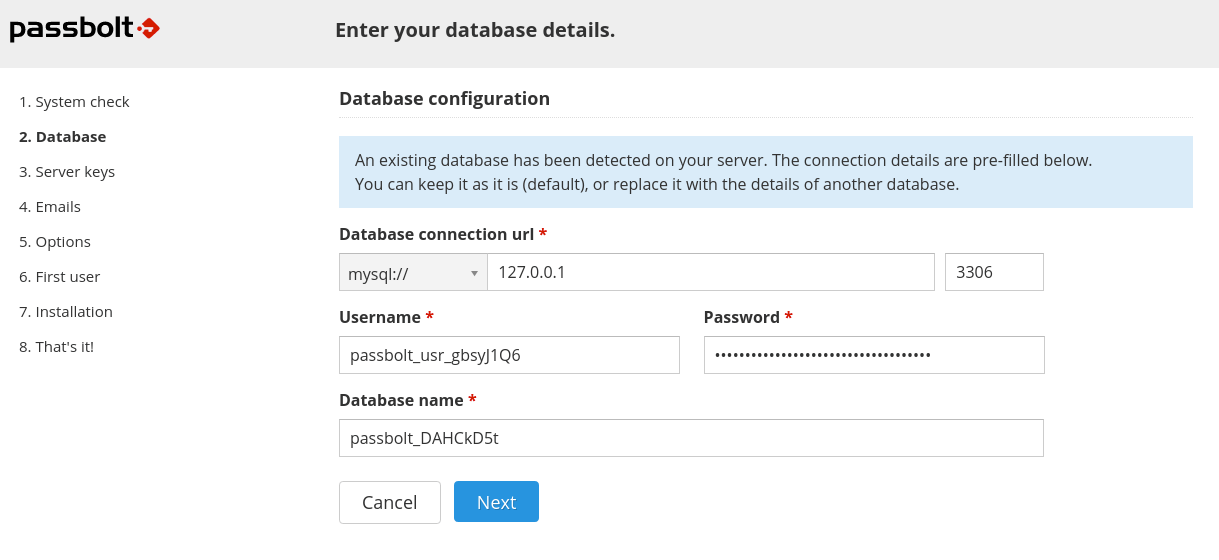
Step 5.2 — Database Configuration
Enter the database credentials you set during passbolt-configure:
- Host:
localhost - Port:
3306 - Database name: e.g.,
passboltdb - Username: e.g.,
passboltuser - Password: your Passbolt DB password
Click “Next” to validate the connection.
Step 5.3 — GPG Server Key
This section lets you generate or import a GPG key pair for the Passbolt API server. This key authenticates the server during the login handshake — it is not your personal key.
To generate a new key on the server, run:
gpg --batch --no-tty --gen-key <<EOF
Key-Type: default
Key-Length: 3072
Subkey-Type: default
Subkey-Length: 3072
Name-Real: Passbolt Server
Name-Email: passbolt@yourdomain.com
Expire-Date: 0
%no-protection
%commit
EOF
Then export and paste the key into the wizard:
gpg --armor --export-secret-keys passbolt@yourdomain.comStep 5.4 — SMTP Email Configuration
Enter your SMTP server details:
- SMTP host: e.g.,
smtp.gmail.com - Port:
587(TLS) or465(SSL) - Username/Password: your SMTP credentials
- From address: e.g.,
passbolt@yourdomain.com
Use the “Send test email” feature in the wizard to confirm email delivery works before continuing.
Step 5.5 — First Admin User
Create the first administrator account. Enter your name and email address. Passbolt will send an activation email to that address.
Click “Next,” then go to your inbox, open the activation email, and click the link to begin your personal account setup.
[IMAGE: screenshot of Passbolt web wizard showing first admin user creation step]
Step 6: Set Up Your Administrator Account and Browser Extension
After clicking the activation link, Passbolt walks you through personal account configuration — separate from the server setup.
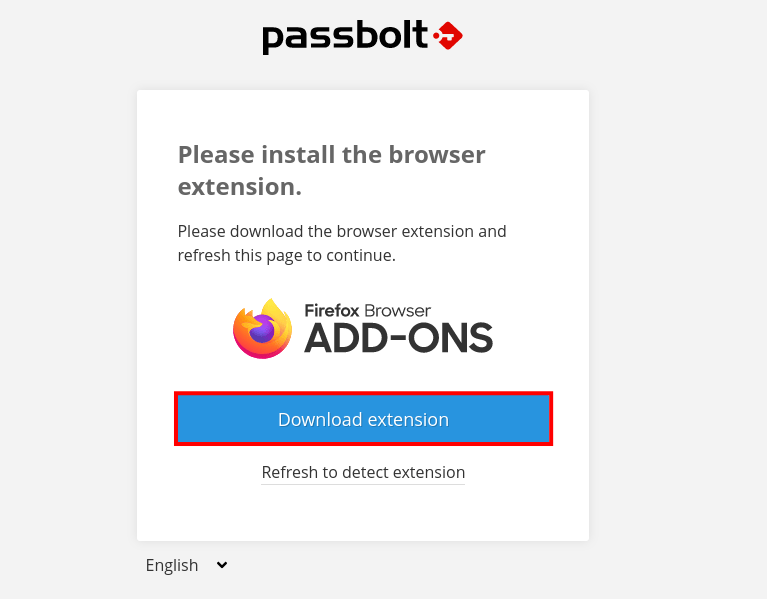
Step 6.1 — Install the Browser Extension
Passbolt will prompt you to install the browser extension for Chrome or Firefox. This extension handles all client-side GPG operations — encrypting and decrypting passwords locally before they’re sent to or received from the server.
Step 6.2 — Generate Your Personal GPG Key
The extension will ask you to create a personal GPG key pair protected by a passphrase. This passphrase is your master password — choose a strong one and never share it. Passbolt itself does not store or know your passphrase.
Step 6.3 — Download Your Recovery Kit
Do not skip this step. Your recovery kit contains your encrypted private key. If you lose your browser profile or reinstall your OS without this kit, you will permanently lose access to all your stored passwords — even if the server is intact.
Store the recovery kit in a secure offline location (encrypted USB, printed and locked away).
Step 6.4 — Set Your Security Token
Choose a color and 3-character token. This token appears on every Passbolt authentication prompt. If you ever see a prompt without your token, it could be a phishing attempt — do not enter your passphrase.
Post-Installation Best Practices
Your Passbolt instance is live. Here’s what to do next to keep it secure and reliable:
- Automate database backups: Schedule a daily
mysqldump passboltdbcron job and store dumps off-server. Losing your database and GPG keys together means losing all passwords permanently. - Back up your server GPG keys: Copy
/etc/passbolt/gpg/serverkey.ascandserverkey_private.ascto a secure location. - Enable TOTP two-factor authentication: Available in CE — enforce it for all admin accounts under Administration > Multi Factor Authentication.
- Keep Passbolt updated: Run
sudo dnf update passbolt-ce-serverregularly and subscribe to Passbolt security advisories. - Monitor logs: Check
/var/log/nginx/passbolt-error.logand/var/log/mariadb/regularly. - Harden SSH access: Disable password-based SSH login and use key-based authentication only.
Troubleshooting Common Issues
Even with a clean install, things can go wrong. Here are the five most common problems and how to fix them on this How To Passbolt on Fedora 43 setup:
- White screen or HTTP 500 error after installation
Cause: Incorrect file permissions on the Passbolt web directory.
Fix:sudo chown -R nginx:nginx /var/www/html/passbolt && sudo chmod -R 755 /var/www/html/passbolt - “Database connection failed” in the web wizard
Cause: Wrong credentials or MariaDB isn’t running.
Fix: Verify credentials withmysql -u passboltuser -p passboltdb, then checksudo systemctl status mariadb. - GPG fingerprint mismatch error
Cause: The exported GPG key doesn’t match what Passbolt expects — often caused by multiple keys in the keyring.
Fix: Rungpg --list-secret-keysto confirm only one key exists. Re-export the correct key and update/etc/passbolt/passbolt.php. - Emails not sending
Cause: SMTP misconfiguration or SELinux blocking outbound mail from Nginx.
Fix: Confirmhttpd_can_sendmailisonviagetsebool httpd_can_sendmail. Test SMTP credentials externally usingswaksor an online SMTP tester. - Browser extension cannot connect to server
Cause: Passbolt is running on HTTP, not HTTPS. The extension refuses to connect to an insecure endpoint.
Fix: Re-runsudo /usr/local/bin/passbolt-configureand choose the SSLautooption to provision a Let’s Encrypt certificate.
Congratulations! You have successfully installed Passbolt. Thanks for using this tutorial for installing the Passbolt password manager on your Fedora 43 Linux system. For additional Apache or useful information, we recommend you check the official Passbolt website.
