How To Install Passbolt Password Manager on Debian 13

Managing passwords securely has become critical for individuals and organizations alike. Passbolt offers a robust, open-source solution that combines enterprise-grade security with the flexibility of self-hosting. This comprehensive guide walks you through installing Passbolt Community Edition on Debian 13 (Trixie), ensuring you have complete control over your sensitive credentials.
Debian 13 provides an excellent foundation for hosting Passbolt due to its stability, extensive package repositories, and strong security track record. By the end of this tutorial, you’ll have a fully functional password management system with end-to-end encryption, ready to secure your team’s credentials. Whether you’re a system administrator setting up enterprise password management or a small business owner looking for better security practices, this guide covers everything you need.
Understanding Passbolt Password Manager
Passbolt stands out among password management solutions through its commitment to open-source transparency and privacy-first design. Unlike cloud-based alternatives where third parties control your data, Passbolt gives you complete ownership. The application utilizes OpenPGP encryption, ensuring that passwords remain encrypted from the moment they’re stored until authorized users decrypt them.
The Community Edition offers impressive features including browser extensions for Chrome and Firefox, RESTful API access for integrations, user and group management, and comprehensive audit logs. Teams benefit from secure password sharing capabilities without compromising security. For organizations requiring advanced features like multi-factor authentication enforcement, LDAP integration, and priority support, the Pro Edition provides additional functionality.
Self-hosting Passbolt on Debian 13 delivers several advantages. You maintain complete data sovereignty, meeting compliance requirements for industries with strict data handling regulations. Cost savings become significant as team size grows, since there are no per-user subscription fees. Performance optimization remains under your control, allowing custom configurations based on your infrastructure needs.
Prerequisites and System Requirements
Before beginning the installation, verify your server meets the minimum specifications. Your Debian 13 system requires at least 2 CPU cores, though 4 cores improve performance for larger teams. Allocate a minimum of 2GB RAM, but consider 4GB or more for production environments handling multiple concurrent users. Storage needs depend on your user base, but 20GB provides adequate space for the application and database growth.
Network requirements include a stable internet connection with at least 10mbps bandwidth for reliable operation. A fully qualified domain name (FQDN) or static IP address ensures consistent access. Configure your DNS records to point to your server’s IP address before starting. Firewall configuration should allow inbound traffic on ports 80 and 443 for HTTP and HTTPS respectively.
Critical software components include a web server (Apache or Nginx), MariaDB or MySQL database server, PHP 8.1 or higher with essential extensions, and GnuPG for encryption functionality. The installation requires root or sudo privileges, and Debian 13 should be freshly installed without conflicting services running on ports 80 or 443.
An SSL certificate becomes mandatory for production deployments since Passbolt enforces HTTPS for security reasons. Plan to obtain either a free Let’s Encrypt certificate for public-facing servers or prepare a self-signed certificate for testing environments. Modern browsers will display security warnings without proper SSL configuration, preventing users from accessing your Passbolt instance.
Step 1: Update Debian 13 System
Begin by ensuring your Debian 13 installation has the latest security patches and package updates. Connect to your server via SSH and execute system updates:
sudo apt update && sudo apt upgrade -yThis command refreshes package repositories and upgrades installed software to their latest versions. The process may take several minutes depending on your internet connection and the number of pending updates. If kernel updates are applied, reboot your system to ensure changes take effect:
sudo rebootAfter rebooting, verify you’re running Debian 13 by checking the release information:
cat /etc/debian_version
lsb_release -a
Install essential build tools and dependencies that Passbolt requires during setup:
sudo apt install -y curl wget gnupg2 ca-certificates lsb-release apt-transport-https software-properties-commonThese utilities facilitate secure package downloads and repository management throughout the installation process.
Step 2: Install Required Dependencies
Install Apache Web Server
Apache serves as the web server handling HTTP requests to your Passbolt instance. Install Apache and enable necessary modules:
sudo apt install -y apache2
sudo a2enmod rewrite ssl headers
sudo systemctl start apache2
sudo systemctl enable apache2
The rewrite module enables URL rewriting for clean URLs, while ssl handles encrypted connections and headers allows security header configuration. Verify Apache is running:
sudo systemctl status apache2Configure your firewall to allow web traffic. If using UFW:
sudo ufw allow 'Apache Full'
sudo ufw enable
Install MariaDB Database Server
MariaDB stores all Passbolt data including encrypted passwords, user information, and configuration settings. Install the database server:
sudo apt install -y mariadb-server mariadb-client
sudo systemctl start mariadb
sudo systemctl enable mariadb
Secure your MariaDB installation by running the security script:
sudo mysql_secure_installationFollow the prompts to set a strong root password, remove anonymous users, disallow remote root login, remove test databases, and reload privilege tables. Choose ‘Y’ for all security-related questions to harden your database server.
Install PHP and Required Extensions
Passbolt requires PHP 8.1 or newer with specific extensions for cryptography, image processing, and database connectivity. Install PHP with all necessary modules:
sudo apt install -y php php-cli php-common php-mysql php-gd php-curl php-json php-zip php-mbstring php-intl php-gnupg php-imagick php-xml php-fpm libapache2-mod-phpVerify PHP installation and check the version:
php -v
php -m | grep -E 'gd|mysql|curl|gnupg|intl|mbstring'
All required extensions should appear in the output, confirming proper installation.
Step 3: Configure MariaDB Database
Create a dedicated database and user account for Passbolt with appropriate permissions. Log into MariaDB as root:
sudo mysql -u root -pExecute the following SQL commands to create the database with UTF8MB4 character set support:
CREATE DATABASE passbolt DEFAULT CHARACTER SET utf8mb4 COLLATE utf8mb4_unicode_ci;
CREATE USER 'passboltadmin'@'localhost' IDENTIFIED BY 'your_strong_password_here';
GRANT ALL PRIVILEGES ON passbolt.* TO 'passboltadmin'@'localhost';
FLUSH PRIVILEGES;
EXIT;
Replace your_strong_password_here with a complex password containing uppercase letters, lowercase letters, numbers, and special characters. Document these credentials securely as you’ll need them during Passbolt configuration.
Test the database connection with your new credentials:
mysql -u passboltadmin -p passboltEnter the password when prompted. Successful login confirms proper database and user creation.
Step 4: Add Passbolt Repository
Passbolt provides an official package repository for Debian, simplifying installation and future updates. Download the repository setup script:
wget "https://download.passbolt.com/ce/installer/passbolt-repo-setup.ce.sh"Review the script contents before execution for security verification:
less passbolt-repo-setup.ce.shExecute the repository setup script with bash:
sudo bash passbolt-repo-setup.ce.shThis script adds Passbolt’s GPG key to your trusted keys and configures the appropriate repository for Debian 13. Update your package cache to recognize the new repository:
sudo apt updateYou should see the Passbolt repository among the sources being updated.
Step 5: Install Passbolt Package
With repositories configured, install the Passbolt Community Edition server package:
sudo apt install -y passbolt-ce-serverDuring installation, an interactive configuration wizard prompts for essential settings. Provide your database configuration when requested:
- Database host: localhost
- Database name: passbolt
- Database username: passboltadmin
- Database password: [your database password from Step 3]
Enter your fully qualified domain name (FQDN) or server IP address when prompted for the Passbolt URL. This value determines how users access your installation. Email configuration can be skipped initially and configured later through the web interface.
The package installation automatically creates an Apache virtual host configuration optimized for Passbolt and sets appropriate file permissions.
Step 6: Generate GPG Server Keys
Passbolt’s security architecture relies on OpenPGP encryption, requiring a server key pair for cryptographic operations. Generate the server GPG keys:
sudo -u www-data gpg --gen-keyFollow the interactive prompts:
- Select key type (RSA and RSA recommended)
- Choose key size (4096 bits for maximum security)
- Set expiration (0 for no expiration)
- Provide server name and email address
- Enter passphrase or leave empty for automated operations
Export the generated keys to Passbolt’s configuration directory:
sudo -u www-data gpg --armor --export-secret-keys server_email@yourdomain.com > /etc/passbolt/gpg/serverkey_private.asc
sudo -u www-data gpg --armor --export server_email@yourdomain.com > /etc/passbolt/gpg/serverkey.asc
Replace server_email@yourdomain.com with the email address you specified during key generation. Verify file permissions ensure only the web server can access these sensitive files:
sudo chown -R www-data:www-data /etc/passbolt/gpg/
sudo chmod 640 /etc/passbolt/gpg/serverkey_private.asc
Step 7: Configure SSL/HTTPS Certificate
HTTPS encryption protects data transmission between users and your Passbolt server. Passbolt requires SSL and will refuse to operate without it, as browsers enforce security standards for password management applications.
Option A: Let’s Encrypt Certificate (Production)
For publicly accessible servers, Let’s Encrypt provides free, trusted SSL certificates. Install Certbot for Apache:
sudo apt install -y certbot python3-certbot-apacheObtain and install your SSL certificate:
sudo certbot --apache -d passbolt.yourdomain.comFollow the prompts to provide your email address and agree to the terms of service. Certbot automatically configures Apache with your new certificate and sets up auto-renewal. Verify automatic renewal works:
sudo certbot renew --dry-runOption B: Self-Signed Certificate (Testing Only)
For internal testing or development environments, create a self-signed certificate:
sudo openssl req -x509 -nodes -days 365 -newkey rsa:4096 -keyout /etc/ssl/private/passbolt-selfsigned.key -out /etc/ssl/certs/passbolt-selfsigned.crtConfigure Apache to use the self-signed certificate by editing your virtual host configuration. Note that browsers will display security warnings with self-signed certificates, requiring manual exception approval.
Verify SSL configuration by testing HTTPS access:
sudo openssl s_client -connect localhost:443 -servername passbolt.yourdomain.comThis command displays certificate details and confirms successful SSL configuration.
Step 8: Run Passbolt Installation Script
Execute the Passbolt installation wizard to initialize the database schema and create your first administrator account:
sudo -u www-data /usr/share/php/passbolt/bin/cake passbolt installThe installation script performs several operations:
- Creates database tables and indexes
- Generates encryption keys
- Configures server settings
- Prompts for first administrator details
Provide the following information when requested:
- Admin first name: Your first name
- Admin last name: Your last name
- Admin email: Valid email address for administrator account
Upon successful completion, the installer displays a unique registration URL. Copy this URL immediately and save it securely, as it’s required for completing administrator setup and expires after first use.
Step 9: Configure First Administrator Account
Install the Passbolt browser extension before proceeding with administrator registration. Visit the Chrome Web Store for Chrome/Edge users or Firefox Add-ons for Firefox users. Search for “Passbolt” and install the official extension, verifying the publisher is Passbolt SA.
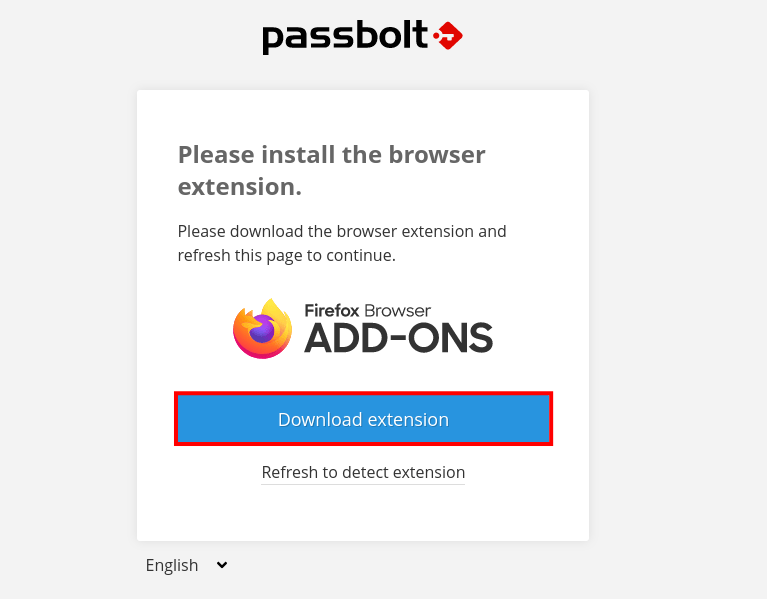
Open the registration URL provided in Step 8 in your browser. The Passbolt extension automatically detects the setup process and guides you through account creation.
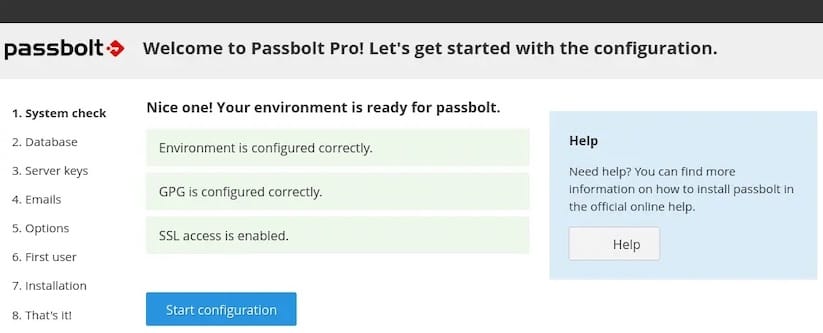
Generate a new GPG key pair for your administrator account when prompted. The extension creates client-side encryption keys that never leave your browser. Create a strong passphrase protecting your private key—this passphrase becomes essential for accessing Passbolt, so choose something memorable yet secure.
Download and securely store your recovery kit. This file contains your private key and enables account recovery if you lose access. Store it in a safe location separate from your computer, such as encrypted cloud storage or physical backup media.
Configure your security token by selecting a color and three-character code. This token appears during login, helping you verify you’re accessing the legitimate Passbolt server and not a phishing site.
Complete the setup wizard and log into your Passbolt dashboard. You now have full administrative access to configure users, groups, and password folders.
Step 10: Post-Installation Configuration
Configure Email Settings
Email notifications keep users informed about password shares, account activities, and security events. Access the administration panel and navigate to Email settings.
Configure SMTP server details:
- SMTP Host: Your mail server hostname
- SMTP Port: 587 (TLS) or 465 (SSL)
- SMTP Username: Email account username
- SMTP Password: Email account password
- Sender Email: Email address appearing in sent messages
Send a test email to verify configuration. If emails fail to deliver, check firewall rules allow outbound SMTP connections and verify credentials with your email provider.
Configure Security Settings
Strengthen your installation’s security posture by configuring password policies and access controls. Navigate to Security settings and adjust:
- User self-registration: Disable for closed organizations
- Password complexity: Enforce minimum length and character requirements
- Multi-factor authentication: Enable MFA options for enhanced security
- Session timeout: Configure automatic logout after inactivity
Optimize Performance
For optimal performance, adjust PHP configuration limits. Edit /etc/php/8.1/apache2/php.ini:
sudo nano /etc/php/8.1/apache2/php.iniIncrease these values:
memory_limit = 256M
max_execution_time = 300
upload_max_filesize = 50M
post_max_size = 50M
Enable PHP OPcache for improved performance by uncommenting and adjusting OPcache settings in the same file. Restart Apache to apply changes:
sudo systemctl restart apache2Run Health Check
Passbolt includes a comprehensive health check utility identifying configuration issues:
sudo -u www-data /usr/share/php/passbolt/bin/cake passbolt healthcheckReview the output for any warnings or errors. Address issues flagged as critical before moving to production. Common warnings about email configuration can be resolved once SMTP settings are properly configured.
Security Best Practices
Server Hardening
Protect your Passbolt server by implementing system-level security measures. Keep Debian 13 updated with regular security patches:
sudo apt update && sudo apt upgrade -yConfigure firewall rules restricting access to essential ports only:
sudo ufw default deny incoming
sudo ufw default allow outgoing
sudo ufw allow 22/tcp
sudo ufw allow 80/tcp
sudo ufw allow 443/tcp
sudo ufw enable
Disable root SSH login and enforce SSH key authentication by editing /etc/ssh/sshd_config:
PermitRootLogin no
PasswordAuthentication no
Install fail2ban to protect against brute-force attacks:
sudo apt install -y fail2ban
sudo systemctl enable fail2ban
sudo systemctl start fail2ban
Passbolt-Specific Security
Always use CA-signed SSL certificates in production environments rather than self-signed alternatives. Certificate authorities validate domain ownership, ensuring users connect to your legitimate server.
Enable and enforce multi-factor authentication for all users, particularly administrators. MFA adds a critical second layer protecting accounts even if passwords are compromised.
Regularly rotate GPG keys following your organization’s security policy. Key rotation limits exposure if keys become compromised.
Monitor authentication logs regularly for suspicious activity:
sudo tail -f /var/log/apache2/access.log
sudo tail -f /var/log/apache2/error.log
Implement IP whitelisting if your organization operates from fixed locations, restricting access to known networks.
Review user permissions quarterly, removing access for departed employees and adjusting roles based on current responsibilities.
Backup and Maintenance
Creating a Backup Strategy
Password management systems contain critical data requiring reliable backup procedures. Implement automated daily backups with off-site storage ensuring business continuity during disasters.
Your backup strategy must include the MariaDB database containing all encrypted passwords and user data, GPG keys stored in /etc/passbolt/gpg/, Passbolt configuration files in /etc/passbolt/, and Apache virtual host configurations.
Manual Backup Process
Create manual backups using command-line tools. Backup the database:
sudo mysqldump -u passboltadmin -p passbolt > passbolt_db_backup_$(date +%Y%m%d).sqlBackup configuration and keys:
sudo tar -czf passbolt_config_backup_$(date +%Y%m%d).tar.gz /etc/passbolt/Store backups on separate servers or cloud storage, never relying solely on the same server hosting Passbolt.
Automated Backup Script
Passbolt provides an official bash script automating backups. Download and configure the script:
wget https://raw.githubusercontent.com/passbolt/passbolt_scripts/master/backup/passbolt_backup.sh
chmod +x passbolt_backup.sh
Edit the script to specify backup destinations and retention policies. Schedule daily execution using cron:
sudo crontab -eAdd this line for daily 2 AM backups:
0 2 * * * /path/to/passbolt_backup.sh > /var/log/passbolt_backup.log 2>&1Implement backup rotation retaining daily backups for one week, weekly backups for one month, and monthly backups for one year.
Testing Backups
Regularly test backup restoration procedures, ideally monthly. Spin up a test server and restore your most recent backup, verifying all data remains intact and accessible. Document restoration steps ensuring any team member can perform recovery during emergencies.
Troubleshooting Common Issues
SSL Certificate Problems
Browser security warnings indicate SSL configuration issues. Verify your certificate hasn’t expired:
sudo openssl x509 -in /etc/ssl/certs/passbolt-selfsigned.crt -noout -datesCheck certificate chain completeness using online SSL validators for public servers. Mixed content errors occur when HTTPS pages load HTTP resources—ensure all assets use HTTPS URLs.
Certificate verification failures may result from intermediate certificates missing from your configuration. Let’s Encrypt handles this automatically, but manual installations require downloading and configuring intermediate certificates.
Performance Issues
Slow login or page loading typically indicates insufficient resources or configuration problems. Monitor server resources during peak usage:
htopCheck memory and CPU utilization. If consistently high, consider upgrading server specifications.
504 Gateway timeout errors suggest PHP execution time limits are too restrictive. Increase limits in php.ini as described in the optimization section. Verify PHP-FPM has adequate worker processes handling concurrent requests.
Email Delivery Failures
Users not receiving emails indicates SMTP configuration problems. Test SMTP connectivity manually:
telnet your_smtp_server.com 587Successful connection confirms network accessibility. Authentication errors require verifying credentials with your email provider. Some providers require app-specific passwords rather than account passwords for SMTP access.
Check firewall rules permit outbound connections on SMTP ports. Verify SPF and DKIM records if emails reach spam folders rather than inboxes.
Database Connection Errors
“Unable to connect to database” messages indicate MariaDB service issues or incorrect credentials. Verify MariaDB is running:
sudo systemctl status mariadbTest database connectivity manually:
mysql -u passboltadmin -p passboltReview database credentials in /etc/passbolt/passbolt.php ensuring they match values configured during setup. Confirm the database user has necessary permissions by checking grant tables.
GPG Key Issues
“Key does not match” errors suggest GPG key fingerprints don’t align with database records. Regenerate server keys following Step 6 instructions if keys become corrupted. Verify key fingerprints match configuration:
sudo -u www-data gpg --list-keysCompare fingerprints with values stored in /etc/passbolt/passbolt.php. Update configuration if discrepancies exist.
Congratulations! You have successfully installed Passbolt. Thanks for using this tutorial for installing the latest version of Passbolt Password Manager on Debian 13 “Trixie” system. For additional help or useful information, we recommend you check the official Passbolt website.
