How To Install Passbolt Password Manager on Linux Mint 22

Managing passwords across a team is no small task. One weak or reused credential can be the single point of failure that exposes an entire organization. If you’re running Linux Mint 22 and want a self-hosted, open-source solution with real encryption, Passbolt is one of the best tools available. This guide walks you through every step of installing Passbolt Community Edition on Linux Mint 22 — from server setup to your first saved password — in plain, actionable language.
What Is Passbolt?
Passbolt is a 100% open-source, self-hosted password manager purpose-built for teams. Unlike commercial tools that store your credentials in someone else’s cloud, Passbolt gives you full control — your data lives on your server, encrypted with OpenPGP end-to-end encryption.
It’s not just a vault. Passbolt enables granular password sharing with individuals or groups, audit logs, email notifications on access events, and browser extension support for Chrome and Firefox. The software comes in three tiers: Community Edition (CE — completely free), Pro, and Cloud. For most self-hosted setups, CE delivers everything you need to get started.
With the release of Passbolt v5, the platform now also supports encrypted metadata, custom fields, multiple URIs per entry, and standalone secret notes — a significant upgrade over earlier versions.
Why Run Passbolt on Linux Mint 22?
Linux Mint 22 “Wilma” is built on Ubuntu 24.04 LTS, giving it a long support window, a stable package ecosystem, and full compatibility with Debian-based software repositories. Because Passbolt officially supports Debian-derived distros, Linux Mint 22 is a natural fit — you can follow the Ubuntu CE installer path directly.
Self-hosting also eliminates third-party cloud dependency. You’re not relying on a vendor’s uptime, data policies, or server security. For homelab operators, small businesses, and system administrators handling sensitive credentials, that control is invaluable. And since Passbolt CE is free, there’s no recurring cost for a team password manager that actually works.
Prerequisites and System Requirements
Before touching the command line, make sure your environment meets the following requirements.
Hardware minimums:
- 2 CPU cores
- 2 GB RAM (4 GB recommended for production)
- 20 GB disk space (50–100 GB for larger teams)
- Reliable internet connection
Software requirements:
- Fresh Linux Mint 22 installation (highly recommended to avoid package conflicts)
- Root or
sudoaccess - A registered domain name pointed at your server’s IP — SSL is required
- A working SMTP relay (Gmail App Password, SendGrid, or another provider)
- PHP 8.2 or newer — required by Passbolt v5
Passbolt runs on a LEMP stack: Linux + Nginx + MySQL/MariaDB + PHP. The official installer handles most of this automatically, but knowing what’s being installed helps you troubleshoot confidently. Nginx is preferred over Apache here because of its non-blocking architecture, which handles concurrent API requests more efficiently.
Step 1: Update Your System
Always start with a fully updated system. Stale packages cause dependency conflicts that are painful to debug later. Open your terminal and run:
sudo apt update
sudo apt upgrade
Once updates complete, install the essential dependencies Passbolt’s installer will rely on:
sudo apt install wget apt-transport-https gnupg2 software-properties-common certbot python3-certbot-nginxThese packages handle secure downloads, GPG signature verification, and the Let’s Encrypt Certbot toolchain needed for SSL. Don’t skip this step.
Step 2: Download and Verify the Passbolt Installer Script
Passbolt isn’t available in Linux Mint’s default repositories. It ships its own APT repository via a setup script. Download both the installer and its SHA512 checksum file:
curl -LO "https://download.passbolt.com/ce/installer/passbolt-repo-setup.ce.sh"
curl -LO "https://github.com/passbolt/passbolt-dep-scripts/releases/latest/download/passbolt-ce-SHA512SUM.txt"
Now verify the checksum before running anything. This is a critical security step — it confirms the script you downloaded hasn’t been tampered with in transit:
sha512sum -c passbolt-ce-SHA512SUM.txt && sudo bash ./passbolt-repo-setup.ce.sh || echo "Bad checksum. Aborting" && rm -f passbolt-repo-setup.ce.shIf the output shows passbolt-repo-setup.ce.sh: OK, the script is valid and will execute. If it fails, re-download both files and try again. Never skip checksum verification — this is how supply chain attacks get in.
Step 3: Install Passbolt CE Server
With the Passbolt repository now registered on your system, install the server package:
sudo apt install passbolt-ce-serverThe installer is interactive. It walks you through database and web server configuration with a series of prompts. Here’s what to expect and how to respond:
| Prompt | Recommended Response |
|---|---|
| Create a Passbolt database? | Yes |
| MySQL administrator username | root |
| MySQL administrator password | Your root MySQL password |
| Passbolt database user | passboltadmin (default) |
| Passbolt database user password | Set a strong password |
| Configure Nginx for you? | Yes |
| SSL setup method | auto (Let’s Encrypt) |
| FQDN for Passbolt | passbolt.yourdomain.com |
| Email for SSL certificate | A valid, working email |
The installer automatically provisions MySQL, creates the Passbolt database, configures an Nginx virtual host, and requests an SSL certificate via Let’s Encrypt. For most setups, this single package install replaces what would otherwise be hours of manual configuration.
Step 4: Configure Nginx and Verify PHP-FPM
Once the installer finishes, reload Nginx to activate the new virtual host configuration:
sudo systemctl reload nginxNext, confirm PHP-FPM is running and set to start at boot. Passbolt v5 requires PHP 8.2 or higher — verify you have the right version active:
sudo systemctl enable php8.2-fpm
sudo systemctl start php8.2-fpm
sudo systemctl status php8.2-fpm
If the status shows active (running), you’re in good shape. If Nginx returns a 502 Bad Gateway error at this point, the most common cause is PHP-FPM not running or a socket path mismatch in the Nginx config. Check that your Nginx server block references the correct PHP-FPM socket — usually /var/run/php/php8.2-fpm.sock.
Also open your firewall to allow HTTP and HTTPS traffic:
sudo ufw allow 80,443/tcp
sudo ufw enable
Step 5: Complete the Web-Based Setup Wizard
Open your browser and navigate to https://passbolt.yourdomain.com. You’ll see the Passbolt installation wizard. This is where you finish configuring the application layer — database connection, encryption keys, email, and your admin account.
Database Configuration
Fill in your database connection details:
- Host: 127.0.0.1
- Username: passboltadmin
- Password: The password you set during installation
- Database name: passboltdb
Click Next and Passbolt will test the connection. If it fails, double-check your MySQL credentials by connecting manually: mysql -u passboltadmin -p.
GPG Key Generation
Passbolt uses OpenPGP for end-to-end encryption. The wizard generates a server keypair automatically. Provide a Server Name (e.g., “Passbolt”) and a working Server Email address.
If this step stalls or fails, the most common culprit is an incorrect server time. GPG key generation is sensitive to clock drift. Fix it before retrying:
sudo timedatectl set-timezone "Asia/Jakarta"Replace Asia/Jakarta with your actual timezone. Run timedatectl list-timezones to find yours.
SMTP / Email Server Configuration
Passbolt requires a working SMTP relay to send invitation emails, password share notifications, and admin alerts. Configure it now:
- Sender Name: Passbolt Admin (or your org name)
- Sender Email: A real, deliverable address
- SMTP Host: e.g., smtp.gmail.com or smtp.sendgrid.net
- TLS: Yes
- Port: 587
- Username / Password: Your SMTP relay credentials
If you’re using Gmail, generate an App Password from your Google Account settings rather than your main password — this is required when 2FA is enabled on your Gmail account.
Create the First Admin Account
Enter your full name and email address to create the initial administrator account. This email will receive the account setup link, so make sure it’s the same one you configured in the SMTP step. Click Next to complete the wizard.
Step 6: Install the Browser Extension and Log In
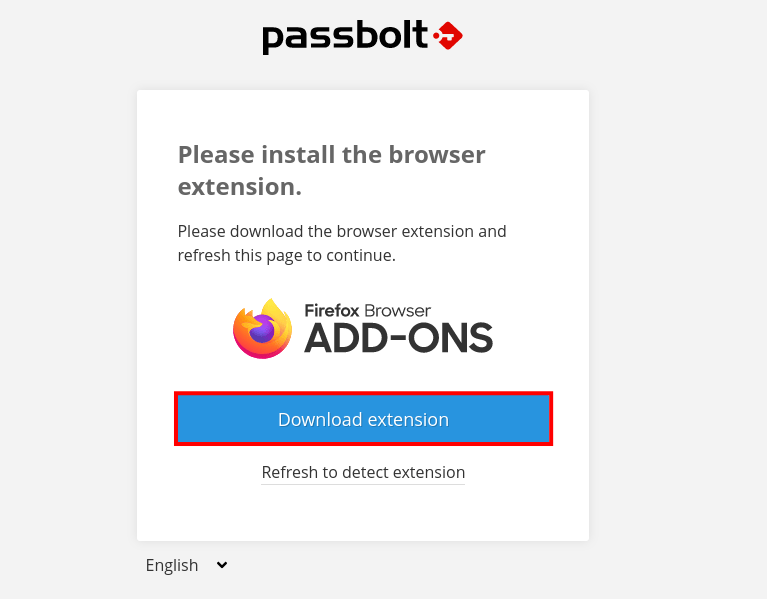
Passbolt’s security model requires the browser extension to handle all client-side encryption and decryption. No extension means no access — this is by design.
Download it from the Chrome Web Store or Firefox Add-ons. Once installed, follow the first-login flow:
- Create a passphrase — this protects your private GPG key locally. Choose something long and memorable; you’ll need it every time you unlock Passbolt.
- Download your Recovery Kit — this is a backup of your encrypted private key. Store it offline, somewhere physically secure. Losing this means losing access to your account permanently.
- Set up your security token — a color-and-number combination that appears on the Passbolt login screen. It’s an anti-phishing measure that proves you’re on the real Passbolt instance.
Once those steps complete, you land on the Passbolt dashboard. Pin the browser extension to your toolbar for fast access.
Step 7: Run a Post-Installation Health Check
Don’t assume everything is working perfectly just because the wizard completed. Passbolt includes a built-in health check command that audits every component of the installation. Run it:
sudo su -s /bin/bash -c "/usr/share/php/passbolt/bin/cake passbolt healthcheck" www-dataThe output will flag each component with a status:
- [PASS] — Component is configured correctly
- [WARN] — Configuration works but could be improved
- [FAIL] — Something needs to be fixed before the system is reliable
Pay close attention to database connectivity, GPG key validity, SSL certificate status, and SMTP configuration flags. Fix any [FAIL] items before onboarding users.
Step 8: Save Your First Password
With everything running, verify the core function works. In your Passbolt dashboard, click the + button to create a new password entry. Fill in the name, URL, username, and password fields. Click Save.
The browser extension also captures credentials automatically. Navigate to any website, log in, and the extension will prompt you to save those credentials to Passbolt. They’ll appear instantly in your dashboard.
To migrate existing passwords, use Passbolt’s import function. It supports CSV files and KDBX (KeePass) format, making migration from other password managers straightforward. Once imported, organize entries into folders and assign them to groups to control which team members have access.
Managing Users and Sharing Passwords
From the administration panel, invite team members by entering their email address. Passbolt sends an invitation link they use to set up their own keypair and passphrase.
Create Groups to organize users by role, department, or project. Assign a password to a group, and every member gets access — but the underlying encryption remains individual. When you share a password with another user, Passbolt re-encrypts it with that user’s public key. Nothing is stored in plaintext, ever.
Standard user roles are Admin and Regular User. Admins manage accounts, groups, and system settings; regular users create and share passwords within their permissions. For organizations needing LDAP/Active Directory sync and more granular access policies, those features are available in the Pro and Enterprise tiers.
Troubleshooting Common Issues
GPG key generation stalls or fails
Your server clock is drifted or the timezone is not set. Run sudo timedatectl set-timezone "Your/Timezone" and retry the wizard step.
502 Bad Gateway from Nginx
PHP-FPM is not running or the socket path in your Nginx config is wrong. Restart PHP-FPM with sudo systemctl restart php8.2-fpm and confirm the socket path matches what Nginx expects.
SMTP test email never arrives
Check that your SMTP credentials are correct and that port 587 is not blocked by your firewall. If using Gmail, confirm you’re using an App Password and not your account password. Test with:
sudo su -s /bin/bash -c "/usr/share/php/passbolt/bin/cake passbolt send_test_email --recipient=you@example.com" www-data“Bad checksum. Aborting” during install
The installer script download was interrupted or corrupted. Delete both downloaded files with rm -f passbolt-repo-setup.ce.sh passbolt-ce-SHA512SUM.txt, re-download fresh copies, and verify again.
“Unable to locate package passbolt-ce-server”
The setup script didn’t register the Passbolt repository properly. Re-run sudo bash ./passbolt-repo-setup.ce.sh manually, then run sudo apt update before attempting sudo apt install passbolt-ce-server again.
Congratulations! You have successfully installed Passbolt. Thanks for using this tutorial for installing the latest version of Passbolt Password Manager on Linux Mint 22 system. For additional help or useful information, we recommend you check the official Passbolt website.
