How To Install Passbolt on Rocky Linux 10

Managing passwords across a team without a proper system is a security incident waiting to happen. Shared spreadsheets, reused credentials, and email threads with plaintext passwords are exactly how breaches start. Passbolt is a self-hosted, open-source password manager built specifically for teams, and installing it on Rocky Linux 10 gives you full control over your credential infrastructure with zero dependency on third-party cloud services.
In this guide, you will install Passbolt Community Edition on Rocky Linux 10 from scratch. You will set up the official repository, configure MariaDB and Nginx, handle SSL, and walk through the web-based wizard to get your first admin account working. By the end, you will have a production-ready, browser-accessible Passbolt instance secured with TLS.
What Is Passbolt and Why Run It on Rocky Linux 10?
Passbolt is a PHP-based, OpenPGP-powered password manager designed for collaborative credential management. Unlike consumer password managers, Passbolt is built around team workflows: role-based access control, secure password sharing, and an extensible REST API for DevOps integrations.
On the server side, Passbolt uses the GnuPG PHP extension and GPGAuth, a challenge-response authentication protocol built on OpenPGP. All encryption and decryption happen inside the browser via the Passbolt browser extension; the server never handles plaintext passwords at any point.
Rocky Linux 10, released in June 2025, is a free, RHEL 10-compatible enterprise Linux distribution. It ships with updated security features including Post-Quantum Cryptography support in OpenSSL and OpenSSH, Sequoia PGP, and the yescrypt password hashing algorithm by default. It is a rock-solid base for a security-sensitive application like Passbolt.
Prerequisites
Before you start the Passbolt on Rocky Linux 10 setup, make sure the following are in place:
- Fresh Rocky Linux 10 minimal install with no pre-existing services. The Passbolt installer scripts can damage existing data if other applications are already running.
- Minimum 2 CPU cores and 2 GB RAM on your server.
- A domain name with a DNS A record already pointing to your server’s public IP (e.g.,
passbolt.yourdomain.com). Let’s Encrypt validation requires this to be live before running the configuration tool. - A non-root sudo user with SSH access.
- A working SMTP server or relay for Passbolt email notifications. Invitations and health alerts are sent over SMTP.
- NTP configured and active on the server. GPGAuth is time-sensitive; clock drift causes authentication failures.
- Open firewall ports 80 (HTTP) and 443 (HTTPS).
- If you plan to use manual SSL certificates instead of Let’s Encrypt, have the full paths to your
.pemcertificate and private key ready before running the configuration tool.
Step 1: Update Your Rocky Linux 10 System
Always start with a fully updated system. This ensures you have the latest security patches and avoids dependency conflicts during Passbolt installation.
sudo dnf update -y
sudo dnf upgrade -y
After the upgrade completes, reboot if a kernel update was applied:
sudo rebootConfirm your OS version after reboot:
cat /etc/os-releaseYou should see Rocky Linux 10 in the output. If the version does not match, stop and verify your server image before continuing.
Step 2: Configure the Firewall
Rocky Linux 10 uses firewalld by default. Passbolt runs over HTTPS, but the configuration wizard also requires port 80 open temporarily for Let’s Encrypt HTTP-01 domain validation.
Open both HTTP and HTTPS services:
sudo firewall-cmd --permanent --add-service=http
sudo firewall-cmd --permanent --add-service=https
sudo firewall-cmd --reload
Verify the rules applied correctly:
sudo firewall-cmd --list-allYou should see both http and https listed under services in the output. If they are missing, re-run the --add-service commands and reload again.
Step 3: Set Up the Passbolt Package Repository
Passbolt provides an official RPM repository for simplified installation and future updates. You should never download and run a shell script without verifying its integrity first.
Download the Repository Setup Script
curl -LO https://download.passbolt.com/ce/installer/passbolt-repo-setup.ce.shDownload the SHA512 Checksum File
curl -LO https://github.com/passbolt/passbolt-dep-scripts/releases/latest/download/passbolt-ce-SHA512SUM.txtVerify Integrity and Execute
This single command verifies the checksum first. If the checksum matches, it executes the script. If not, it aborts and removes the downloaded file:
sha512sum -c passbolt-ce-SHA512SUM.txt && sudo bash ./passbolt-repo-setup.ce.sh || echo "Bad checksum. Aborting" && rm -f passbolt-repo-setup.ce.shA successful run adds the Passbolt RPM repository to your system and configures the signing key. The script output will confirm the repository was added correctly.
Step 4: Install the Passbolt CE Server Package
With the repository in place, install Passbolt CE using a single dnf command. This pulls in all required dependencies: PHP, PHP-FPM, GnuPG PHP extension, Nginx, and MariaDB.
sudo dnf install passbolt-ce-serverDuring installation, dnf will prompt you to accept the Passbolt repository GPG key. Before accepting, verify the fingerprint matches exactly:
Fingerprint: 3D1A 0346 C8E1 802F 774A EF21 DE8B 853F C155 581DIf the fingerprint shown in your terminal differs from the one above, do not proceed. An altered fingerprint indicates a potentially compromised package source. Type y and press Enter to accept and complete the installation.
Step 5: Run the Passbolt Configuration Tool to Install Passbolt on Rocky Linux 10
This is the most important step in the how to install Passbolt on Rocky Linux 10 process. The passbolt-configure tool is an interactive wizard that sets up MariaDB, Nginx, and your SSL certificate in one pass.
Launch it with:
sudo /usr/local/bin/passbolt-configureConfigure MariaDB
The wizard first asks whether to configure a local MariaDB instance. For a self-contained setup, choose option 1 (yes):
================================================================
Do you want to configure a local mariadb server on this machine?
================================================================
1) yes
2) no
#?
Then provide the following credentials when prompted:
- MariaDB root password: Use a long, random password. Store it in a safe place.
- Passbolt database username: e.g.,
passboltuser - Passbolt database user password: Another strong, unique password.
- Passbolt database name: e.g.,
passboltdb
These credentials are written into the Passbolt configuration file automatically by the wizard.
Configure Nginx and SSL
The wizard presents two SSL options:
- Auto (Let’s Encrypt): Recommended for most setups. Enter your domain name and a valid email for certificate renewal notifications. Certbot handles certificate generation and automatic renewal.
- Manual (user-provided certificates): Enter the full filesystem paths to your
.pemcertificate and private key files.
Passbolt strongly recommends using TLS in production. Running Passbolt over plain HTTP exposes session tokens and leaves authentication data vulnerable to interception. The wizard configures Nginx server blocks automatically based on your inputs.
Step 6: Complete the Web-Based Setup Wizard
Once the passbolt-configure tool finishes, open your domain in a browser. You will land on the Passbolt getting started page, which kicks off the browser-based configuration wizard.
Healthcheck
The first screen runs an automated environment check. Every item must show green before you can proceed. Common failures at this stage include:
- SELinux permission errors: Rocky Linux 10 runs SELinux in enforcing mode. If Passbolt file contexts are wrong, run
sudo restorecon -Rv /var/www/passboltand refresh. - NTP not running: Start it with
sudo systemctl enable --now chronyd. - File ownership issues: The
/var/www/passboltdirectory must be owned by thenginxuser.
Fix any reported issues, then click Start configuration.
Database Configuration
Enter the database connection details you set in Step 5:
- Host:
localhost - Port:
3306 - Database name:
passboltdb(or whatever name you chose) - Username and Password: as configured earlier
Click Next to test the connection.
GPG Server Key Setup
Passbolt requires a GPG key pair for the server to authenticate API requests via the GPGAuth protocol. For a fresh install, generate a new RSA key. RSA is explicitly recommended for reliable passphrase-less generation across all environments.
Use this batch generation command in your terminal before returning to the wizard:
gpg --batch --no-tty --gen-key <<EOF
  Key-Type: RSA
  Key-Length: 3072
  Key-Usage: sign,cert
  Subkey-Type: RSA
  Subkey-Usage: encrypt
  Subkey-Length: 3072
  Name-Real: Passbolt Server
  Name-Email: admin@yourdomain.com
  Expire-Date: 0
  %no-protection
  %commit
EOF
Display the generated key to copy its fingerprint and armor-export value for the wizard:
gpg --armor --export-secret-keys admin@yourdomain.comSMTP Mail Server Configuration
Enter your SMTP server details: hostname, port, username, password, and sender address. Use the built-in Send test email feature before clicking Next. Passbolt sends account invitation emails, so a broken SMTP configuration means your first admin user will never receive the setup link.
Application Preferences and First Admin User
Review the application preferences. The pre-populated defaults work well for most deployments. On the next screen, enter your first name, last name, and email address to create the initial administrator account. Passbolt will finalize the configuration and send a setup invitation to the email you provided.
Step 7: Configure Your Administrator Account via Browser Extension
Check your inbox for the Passbolt invitation email. Click the setup link inside it. You must complete account configuration within the browser using the Passbolt extension.
Install the Browser Extension
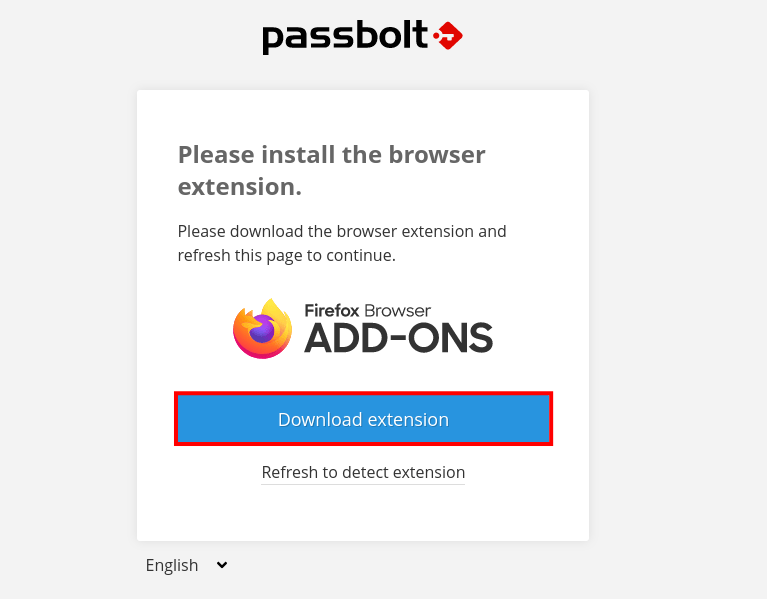
Passbolt detects your browser and redirects you to the Chrome Web Store or Firefox Add-ons page. Install the extension before continuing.
Generate Your Personal GPG Key
This key is separate from the server GPG key. It encrypts and decrypts the passwords in your personal vault. Protect it with a strong, memorable passphrase. If you forget it, your vault data is permanently inaccessible, even to server administrators.
Download the Recovery Kit
Download your private key recovery kit and store it securely offline. Recommended storage options include:
- An encrypted USB drive stored in a physically secure location
- An encrypted file container (e.g., VeraCrypt volume) on a separate backup device
- A printed copy stored in a locked safe
Losing this recovery kit means losing permanent access to all passwords in your account.
Set Your Security Token
Choose a background color and a three-character alphanumeric token. This anti-phishing mechanism appears on every sensitive Passbolt operation. If you visit a Passbolt login page and your token is missing or incorrect, do not enter your passphrase. It likely means you are on a phishing page or the extension is not loaded.
Verifying the Installation
Log in to the Passbolt dashboard. You should see the user list and an empty password vault. Run the built-in healthcheck from the CLI to confirm all system components are healthy:
sudo su -s /bin/bash -c "/usr/share/php/passbolt/bin/cake passbolt healthcheck" nginxVerify that all three core services are active:
sudo systemctl status nginx mariadb php-fpmConfirm your SSL certificate is valid by opening the domain in a browser and checking the padlock icon. If you used Let’s Encrypt, verify the renewal timer is active:
sudo systemctl status certbot-renew.timerTroubleshooting Common Issues
Even with careful setup, things can go wrong. Here are the most common issues encountered when running a configure Passbolt on Rocky Linux 10 setup and how to resolve them.
For any issue not listed here, run the Passbolt healthcheck command first. It is the single best diagnostic tool and pinpoints configuration problems with clear, actionable output. The Passbolt community forum and GitHub issues tracker are also well-maintained resources for harder-to-diagnose problems.
| Issue | Likely Cause | Fix |
|---|---|---|
| Healthcheck fails on GPG | GnuPG not properly configured or key not found | Re-export the server GPG key; verify the key path in passbolt.php |
| 502 Bad Gateway in Nginx | PHP-FPM not running or socket path mismatch | Run sudo systemctl restart php-fpm; confirm socket path matches in Nginx config |
| Email not received | Wrong SMTP credentials or port 25/587 blocked | Re-test SMTP in admin panel; check hosting provider firewall rules |
| Let’s Encrypt certificate fails | DNS A record not yet propagated | Wait for TTL; verify record with dig yourdomain.com A |
| SELinux permission denied | Wrong file security context | Run sudo restorecon -Rv /var/www/passbolt |
| Database connection refused | MariaDB not started or wrong credentials | Run sudo systemctl start mariadb; verify credentials in /etc/passbolt/passbolt.php |
Post-Installation Security Hardening
Completing the install is not the finish line. A few additional steps make your Linux server tutorial setup production-grade:
- SELinux: Do not disable SELinux in production. Rocky Linux 10 runs it in enforcing mode for good reason. Use
audit2whyto diagnose specific denials rather than broadening permissions. - Fail2ban: Install and configure Fail2ban to block brute-force login attempts against the Passbolt web interface. Target the Nginx access log for repeated 401 responses.
- Database hardening: If you did not run it during setup, execute
mysql_secure_installationto remove anonymous users, test databases, and remote root login capability. - Automatic updates: Subscribe to Passbolt security advisories. Apply package updates with
sudo dnf update passbolt-ce-serveras part of your regular patching cycle. - Audit logs: Consider upgrading to Passbolt Pro if your organization needs centralized audit logging, LDAP/AD directory sync, or MFA policy enforcement.
Congratulations! You have successfully installed Passbolt. Thanks for using this tutorial for installing the Passbolt password manager on your Rocky Linux 10 system. For additional help or useful information, we recommend you check the official Passbolt website.
