How To Install PeaZip on Debian 13

Managing compressed files efficiently is essential for any Linux user. Whether you’re extracting downloaded archives, compressing project folders, or handling various file formats, having a reliable archive manager makes all the difference. PeaZip stands out as one of the most versatile open-source compression tools available for Debian systems. This comprehensive guide walks you through installing PeaZip on Debian 13, covering multiple methods to ensure you can start managing your archives with confidence.
What is PeaZip?
PeaZip is a free, open-source file archiver that brings professional-grade compression capabilities to your desktop. Unlike basic archive managers, PeaZip supports over 200 file formats, including popular ones like ZIP, 7Z, RAR, TAR, GZ, and ISO. Built with a GTK-based interface, it integrates seamlessly with Debian’s desktop environments.
The software offers far more than simple compression and extraction. You get authenticated encryption through the native PEA format, secure file deletion, batch operations, and the ability to split large archives into manageable chunks. System administrators appreciate its command-line capabilities for automation, while everyday users enjoy the intuitive graphical interface.
What sets PeaZip apart from alternatives like File Roller or Ark? It’s the combination of extensive format support and advanced features without sacrificing usability. The cross-platform nature means your skills transfer between Windows, Linux, and BSD systems. For Debian users specifically, PeaZip provides a lightweight solution that doesn’t consume excessive system resources.
Understanding Debian 13 Trixie
Debian 13, codenamed “Trixie,” represents the latest stable release of this venerable Linux distribution. Released with Linux Kernel 6.12 LTS, it brings updated package repositories and improved hardware support. The distribution maintains Debian’s reputation for stability while incorporating modern software versions.
Trixie supports multiple architectures including amd64, i386, arm64, and others, ensuring broad compatibility across different hardware configurations. This matters when selecting the correct PeaZip package for your system. The enhanced security features and long-term support make it an ideal platform for both desktop and server deployments.
Prerequisites and System Requirements
Before diving into the installation, ensure your system meets these requirements. Debian 13 needs at minimum 2 GB of RAM, though 4 GB is recommended for comfortable multitasking. You’ll need at least 20 GB of disk space and a 64-bit processor for optimal performance.
For PeaZip specifically, confirm you have the GTK2 or GTK3 libraries installed, as the application depends on these for its graphical interface. You’ll also need sudo privileges to install system packages. An active internet connection is essential for downloading packages and dependencies.
Check your current system specifications with these commands:
uname -a
lsb_release -a
free -h
df -h
These commands reveal your kernel version, Debian release, available memory, and disk space. Verify you’re running Debian 13 and have sufficient resources before proceeding.
Pre-Installation Steps
Proper preparation ensures a smooth installation process. Start by updating your package lists and upgrading existing software:
sudo apt update
sudo apt upgrade -y
The first command refreshes the repository information, while the second upgrades all installed packages to their latest versions. This step prevents compatibility issues and ensures you have the most recent security patches. Wait for the process to complete—it may take several minutes depending on how many packages need updating.
Next, install the gdebi package installer, which handles DEB files more elegantly than dpkg:
sudo apt install gdebi-core -y
Gdebi automatically resolves and installs dependencies, saving you from manual troubleshooting later. Although optional, it streamlines the installation process significantly.
Check if you have any conflicting archive managers installed:
dpkg -l | grep archive
While PeaZip can coexist with other tools, knowing what’s already installed helps you make informed decisions about file associations and default applications.
Method 1: Installing PeaZip Using DEB Package
The DEB package method provides native integration with Debian’s package management system. This approach ensures optimal performance and seamless desktop environment integration.
Downloading the DEB Package
Visit the official PeaZip website at peazip.github.io to download the appropriate package. Navigate to the Linux downloads section and select the DEB package matching your architecture—typically amd64 for modern 64-bit systems.
Alternatively, download directly using wget in your terminal:
cd ~/Downloads
wget https://github.com/peazip/PeaZip/releases/download/[version]/peazip_[version]-1_amd64.deb
Replace [version] with the current release number. The file downloads to your Downloads folder by default. You can verify the download completed successfully by listing the directory contents:
ls -lh peazip*.deb
Installing via APT
The modern way to install local DEB packages uses apt, which handles dependencies automatically:
sudo apt install ./peazip_*-1_amd64.deb
The “./” prefix tells apt to install from the current directory rather than searching repositories. Accept any prompts about additional packages—these are necessary dependencies. The installation process typically completes in under a minute.
Alternative: Using GDEBI
If you prefer a more interactive approach:
sudo gdebi peazip_*-1_amd64.deb
Gdebi displays detailed information about the package and its dependencies before installation. Type ‘y’ to confirm and proceed. This method provides more visibility into what’s being installed, which some administrators prefer.
Alternative: Using DPKG
For advanced users who want direct control:
sudo dpkg -i peazip_*-1_amd64.deb
If dependency errors occur, resolve them with:
sudo apt install -f
The “-f” flag fixes broken dependencies by installing missing packages. While this approach requires an extra step, it works reliably when other methods encounter issues.
Verifying the Installation
Confirm PeaZip installed correctly:
peazip --version
which peazip
The first command displays the installed version number, while the second shows the executable’s location, typically /usr/bin/peazip. Launch the application from the terminal to ensure it opens:
peazip &
The ampersand runs it in the background, freeing your terminal for other commands.
Method 2: Installing PeaZip Using Flatpak
Flatpak offers an alternative installation method that provides sandboxed applications and automatic updates. This universal package format works across different Linux distributions and often includes the latest software versions.
Understanding Flatpak Benefits
Flatpak packages run in isolated environments, enhancing security by limiting system access. You get newer versions faster than traditional repositories typically provide. The trade-off is larger download sizes due to bundled dependencies and potential limitations accessing certain system directories.
Installing Flatpak
If Flatpak isn’t already on your system:
sudo apt install flatpak -y
Verify the installation:
flatpak --version
You should see version information confirming Flatpak is ready to use.
Adding Flathub Repository
Flathub serves as the primary repository for Flatpak applications:
flatpak remote-add --if-not-exists flathub https://flathub.org/repo/flathub.flatpakrepo
The “–if-not-exists” flag prevents errors if Flathub is already configured. Confirm the repository was added:
flatpak remotes
You should see “flathub” listed among available remotes.
Installing PeaZip from Flathub
Now install PeaZip:
flatpak install flathub io.github.peazip.PeaZip -y
The download includes the application and its runtime dependencies. Expect several hundred megabytes depending on what’s already on your system. The installation process provides progress indicators as files download and install.
Launching PeaZip via Flatpak
Run the application:
flatpak run io.github.peazip.PeaZip
Create a convenient alias by adding this line to your ~/.bashrc file:
alias peazip='flatpak run io.github.peazip.PeaZip'
After reloading your shell configuration, simply type “peazip” to launch the application.
Verifying Flatpak Installation
Check installed Flatpak applications:
flatpak list | grep -i peazip
This confirms PeaZip appears in your Flatpak installation list with its full application ID.
Launching and Configuring
Once installed, locate PeaZip in your application menu under Accessories or Utilities. The exact location depends on your desktop environment—GNOME, KDE Plasma, Xfce, and MATE organize applications differently, but all place archive managers in similar categories.
On first launch, PeaZip presents a clean interface with toolbar buttons for common operations. The main window displays file browsing capabilities similar to a file manager. Take a moment to explore the menu system—you’ll find extensive options for customization.
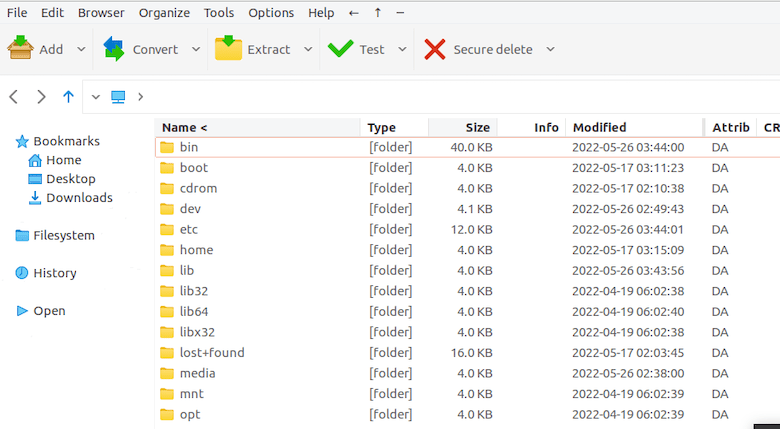
Initial Configuration
Access preferences through the Options menu. Set your preferred default archive format—ZIP offers universal compatibility, while 7Z provides better compression ratios. Adjust compression levels based on your priorities: maximum compression saves space but takes longer, while fast compression speeds up the process at the cost of file size.
Configure file associations so archive files automatically open in PeaZip. The application can register itself as the default handler for common formats like ZIP, TAR, GZ, and many others. This integration means you simply double-click archives to open them.
Customize the interface theme and language if desired. PeaZip supports multiple languages and can match your system theme for a cohesive appearance.
File Manager Integration
Right-click an archive file in your file manager. If PeaZip appears in the context menu, integration succeeded automatically. If not, you may need to log out and back in for changes to take effect. Some desktop environments require manual configuration through their settings panels.
Basic Usage and Features
Creating an archive is straightforward. Click the “Add” button, select files or folders, choose your output format and compression level, then click OK. PeaZip handles the rest, displaying progress as it works.
For password-protected archives, check the “Password/keyfile” option before creating. Enter your desired password when prompted. PeaZip supports strong AES-256 encryption for secure file storage.
Extracting archives is equally simple. Open the archive file, select your destination folder, and click “Extract.” The application intelligently handles nested archives and maintains file permissions during extraction.
Advanced users will appreciate features like checksum verification, which ensures file integrity. Generate MD5, SHA, or CRC checksums for verification purposes. The batch operation mode processes multiple archives simultaneously, saving significant time when working with many files.
Split large files for easier storage or transfer. PeaZip can divide archives into specific sizes, ideal for email attachments or storage media with size limitations.
Troubleshooting Common Issues
Dependency Errors During Installation
If installation fails with dependency errors, run:
sudo apt install -f
This command fixes broken dependencies by downloading and installing missing packages. Alternatively:
sudo apt --fix-broken install
Both commands accomplish the same goal. If specific libraries are missing, install them manually using apt install followed by the package name.
PeaZip Won’t Launch
When the application fails to start, launch it from the terminal to see error messages:
peazip
Error output indicates the problem. Missing GTK libraries are common culprits:
sudo apt install libgtk2.0-0 libgtk-3-0
Reinstall PeaZip if problems persist:
sudo apt install --reinstall peazip
File Association Problems
If archives don’t open with PeaZip by default, manually set file associations. For GNOME users:
xdg-mime default peazip.desktop application/zip
Repeat for other formats, replacing “application/zip” with the appropriate MIME type. KDE users can configure associations through System Settings > Applications > File Associations.
Flatpak Permission Issues
Flatpak’s sandboxing sometimes prevents accessing certain directories. Grant broader filesystem access:
flatpak override --user --filesystem=host io.github.peazip.PeaZip
This allows PeaZip to access your entire filesystem. For more granular control, replace “host” with specific paths like “/home” or “/media.”
Extract or Compress Errors
Insufficient disk space causes many compression failures. Verify available space with:
df -h
Free up space if necessary. Permission errors indicate you lack rights to read source files or write to the destination. Check file ownership and permissions:
ls -la
Use sudo cautiously when working with protected files, as running archive operations as root can create files with restrictive permissions.
Updating and Maintaining PeaZip
Keep PeaZip current for security patches and new features. For DEB installations, regular system updates include PeaZip:
sudo apt update && sudo apt upgrade
Check specifically for PeaZip updates:
apt list --upgradable | grep peazip
If newer versions appear on the official website before reaching Debian repositories, download and install the latest DEB package using the same method as the initial installation.
Flatpak users update with:
flatpak update io.github.peazip.PeaZip
Or update all Flatpak applications simultaneously:
flatpak update
Flatpak typically receives updates faster than traditional repositories, giving you access to new features sooner.
Uninstalling PeaZip
Should you need to remove PeaZip, the process is straightforward. For DEB installations:
sudo apt remove peazip
This removes the application but preserves configuration files. For complete removal including settings:
sudo apt purge peazip
Clean up unnecessary dependencies:
sudo apt autoremove
Flatpak users uninstall with:
flatpak uninstall io.github.peazip.PeaZip
Remove unused runtimes to free additional space:
flatpak uninstall --unused
User configuration files reside in ~/.config/peazip/. Delete this directory manually if you want to completely remove all traces:
rm -rf ~/.config/peazip/
Congratulations! You have successfully installed PeaZip. Thanks for using this tutorial to install the latest version of PeaZip on Debian 13 “Trixie” system. For additional help or useful information, we recommend you check the official PeaZip website.
