How To Install PhotoPrism on Debian 13

Managing thousands of photos scattered across devices can feel overwhelming. PhotoPrism offers an elegant solution: a self-hosted, AI-powered photo management platform that puts you in complete control of your memories. Unlike cloud services that charge monthly fees and mine your data, PhotoPrism runs entirely on your server, ensuring privacy while delivering powerful features like facial recognition, automatic tagging, and intuitive organization.
Debian 13 provides the perfect foundation for hosting PhotoPrism. Its stability, security, and extensive package repositories make it ideal for self-hosted applications. This comprehensive guide walks through everything needed to install PhotoPrism on Debian 13, from initial system preparation to advanced configuration and security hardening. Whether choosing the Docker-based approach or native package installation, this tutorial covers both methods with detailed instructions that work for beginners and experienced Linux administrators alike.
Prerequisites and System Requirements
Before diving into installation, ensuring your system meets PhotoPrism’s requirements prevents headaches later. The hardware demands are modest but non-negotiable for smooth operation.
Hardware Requirements
PhotoPrism needs at least 2 CPU cores and 3-4 GB of RAM for optimal performance. Systems with less memory will struggle during indexing, especially when processing RAW images or high-resolution panoramas. Adding 4 GB of swap space helps handle large files without crashes. Storage requirements vary based on your photo collection—plan for at least 100 GB minimum, though serious photographers need multiple terabytes.
Software Prerequisites
Start with a fresh Debian 13 installation. Root or sudo access is essential for installing packages and modifying system configurations. The operating system must be 64-bit, as PhotoPrism doesn’t support 32-bit architectures. A stable internet connection downloads necessary packages, and basic familiarity with the Linux command line makes following instructions easier.
Compatibility Considerations
Debian 13 (Trixie) ships with glibc versions fully compatible with PhotoPrism binaries. Earlier Debian releases like Bookworm (12) also work perfectly, but older versions may face compatibility issues. Verify your Debian version with lsb_release -a before proceeding.
Preparation: Updating Your Debian 13 System
System updates eliminate security vulnerabilities and ensure all packages use their latest versions. Open a terminal and execute:
sudo apt update
sudo apt upgrade -y
The first command refreshes package lists from repositories. The second upgrades installed packages to their newest versions. This process may take several minutes depending on how outdated your system is.
Next, install essential utilities:
sudo apt install -y curl wget gnupg ca-certificates lsb-releaseThese tools facilitate downloading files, managing encryption keys, and verifying SSL certificates—all critical for secure software installation.
Method 1: Installing PhotoPrism Using Docker Compose (Recommended)
Docker simplifies PhotoPrism deployment dramatically. Containers package all dependencies, eliminating version conflicts and streamlining updates. This method suits most users, from hobbyists to production environments.
Step 1: Installing Docker and Docker Compose
Debian’s default repositories contain Docker, but official Docker repositories provide newer versions with better features.
Add Docker’s official GPG key:
sudo install -m 0755 -d /etc/apt/keyrings
curl -fsSL https://download.docker.com/linux/debian/gpg | sudo gpg --dearmor -o /etc/apt/keyrings/docker.gpg
sudo chmod a+r /etc/apt/keyrings/docker.gpg
Set up the Docker repository:
echo "deb [arch=$(dpkg --print-architecture) signed-by=/etc/apt/keyrings/docker.gpg] https://download.docker.com/linux/debian $(lsb_release -cs) stable" | sudo tee /etc/apt/sources.list.d/docker.list > /dev/nullInstall Docker Engine and Docker Compose:
sudo apt update
sudo apt install -y docker-ce docker-ce-cli containerd.io docker-compose-plugin
Start Docker and enable it to launch at boot:
sudo systemctl start docker
sudo systemctl enable docker
Verify installation:
docker --version
docker compose version
Both commands should return version numbers. Optionally, add your user to the docker group to run commands without sudo:
sudo usermod -aG docker $USERLog out and back in for group changes to take effect.
Step 2: Creating Directory Structure
Organization matters. Create a dedicated directory for PhotoPrism:
mkdir -p ~/photoprism/{originals,storage,database}
cd ~/photoprism
This structure separates original photos, processed files, and database data. The originals folder holds your actual photos, storage contains thumbnails and metadata, while database stores MariaDB files.
Set appropriate permissions:
chmod -R 755 ~/photoprismStep 3: Creating Docker Compose Configuration File
Docker Compose orchestrates multiple containers with a single configuration file. Create docker-compose.yml:
nano docker-compose.ymlPaste this configuration:
version: '3.8'

services:
  photoprism:
    image: photoprism/photoprism:latest
    container_name: photoprism
    restart: unless-stopped
    security_opt:
      - seccomp:unconfined
      - apparmor:unconfined
    ports:
      - "2342:2342"
    environment:
      PHOTOPRISM_ADMIN_USER: "admin"
      PHOTOPRISM_ADMIN_PASSWORD: "YourSecurePasswordHere"
      PHOTOPRISM_AUTH_MODE: "password"
      PHOTOPRISM_SITE_URL: "http://localhost:2342/"
      PHOTOPRISM_ORIGINALS_LIMIT: 5000
      PHOTOPRISM_HTTP_COMPRESSION: "gzip"
      PHOTOPRISM_DATABASE_DRIVER: "mysql"
      PHOTOPRISM_DATABASE_SERVER: "mariadb:3306"
      PHOTOPRISM_DATABASE_NAME: "photoprism"
      PHOTOPRISM_DATABASE_USER: "photoprism"
      PHOTOPRISM_DATABASE_PASSWORD: "DatabasePasswordHere"
      PHOTOPRISM_DETECT_NSFW: "false"
      PHOTOPRISM_UPLOAD_NSFW: "true"
    working_dir: "/photoprism"
    volumes:
      - "./originals:/photoprism/originals"
      - "./storage:/photoprism/storage"
    depends_on:
      - mariadb

  mariadb:
    image: mariadb:11
    container_name: mariadb
    restart: unless-stopped
    command: --innodb-buffer-pool-size=512M --transaction-isolation=READ-COMMITTED --character-set-server=utf8mb4 --collation-server=utf8mb4_unicode_ci --max-connections=512 --innodb-rollback-on-timeout=OFF --innodb-lock-wait-timeout=120
    volumes:
      - "./database:/var/lib/mysql"
    environment:
      MARIADB_AUTO_UPGRADE: "1"
      MARIADB_INITDB_SKIP_TZINFO: "1"
      MARIADB_DATABASE: "photoprism"
      MARIADB_USER: "photoprism"
      MARIADB_PASSWORD: "DatabasePasswordHere"
      MARIADB_ROOT_PASSWORD: "RootPasswordHere"
Critical Configuration Notes:
Replace YourSecurePasswordHere, DatabasePasswordHere, and RootPasswordHere with strong, unique passwords. Never use default passwords in production.
The PHOTOPRISM_SITE_URL should match your access method. Change localhost to your server’s IP or domain name.
Volume mappings connect host directories to container paths. Photos placed in ~/photoprism/originals appear in PhotoPrism automatically.
Save the file (Ctrl+O, Enter, Ctrl+X in nano).
Step 4: Deploying PhotoPrism with Docker Compose
Launch the containers:
docker compose up -dThe -d flag runs containers in detached mode (background). Docker downloads images on first run, which takes several minutes.
Monitor startup progress:
docker compose logs -f photoprismPress Ctrl+C to exit log viewing. Check container status:
docker compose psBoth photoprism and mariadb should show “running” status. If containers repeatedly restart, check logs for error messages indicating configuration problems.
Method 2: Installing PhotoPrism Using Native Debian Packages
Advanced users preferring native installations can skip Docker entirely. This method offers more control but requires manual dependency management and configuration.
Installing Dependencies
PhotoPrism relies on external tools for media processing. Install them:
sudo apt install -y ffmpeg exiftool darktable libpng-dev libjpeg-dev libtiff-dev imagemagickFFmpeg handles video transcoding. ExifTool extracts photo metadata. Darktable converts RAW images. ImageMagick processes various image formats. These packages significantly enhance PhotoPrism’s capabilities.
Downloading and Installing PhotoPrism Binary
Download the appropriate package for your architecture:
cd /tmp
curl -sLO https://dl.photoprism.app/pkg/linux/deb/amd64.deb
For ARM systems (like Raspberry Pi), use:
curl -sLO https://dl.photoprism.app/pkg/linux/deb/arm64.debInstall the package:
sudo dpkg -i amd64.debVerify installation:
photoprism --versionThe binary installs to /opt/photoprism.
Configuring Native Installation
Native setup requires manual configuration file creation and systemd service configuration. This complexity explains why Docker remains the recommended approach. Create configuration directories and files, set up MariaDB separately, and write systemd unit files—tasks beyond this tutorial’s scope but documented in PhotoPrism’s advanced installation guides.
Post-Installation Configuration
Regardless of installation method, initial configuration optimizes PhotoPrism for your needs.
Accessing the Web Interface
Open a web browser and navigate to:
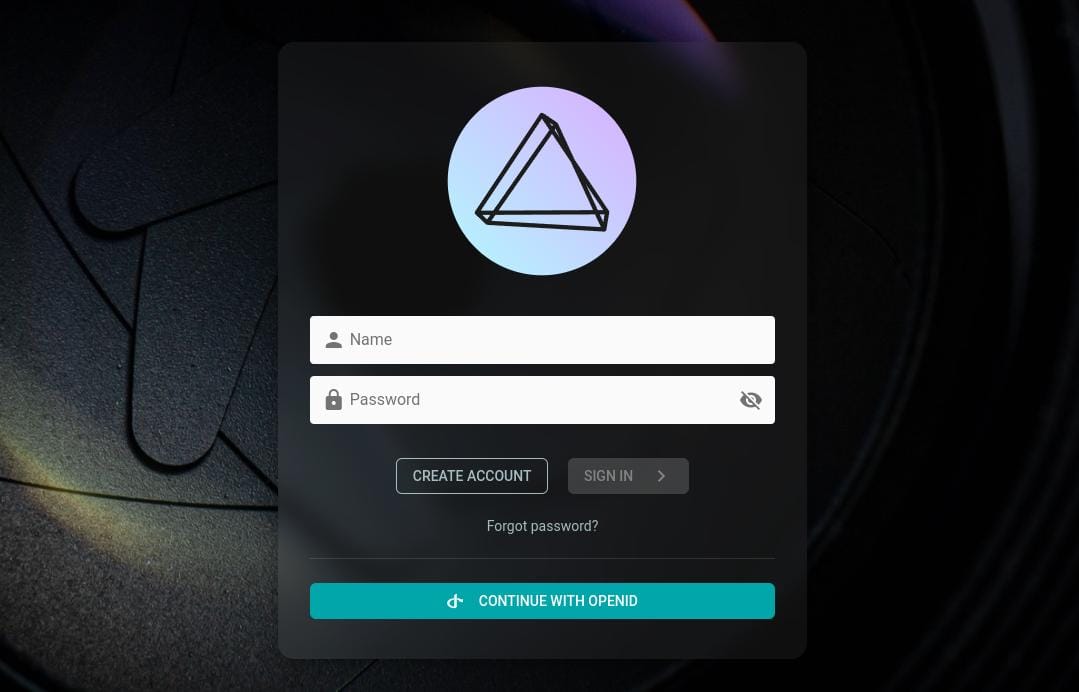
http://localhost:2342Replace localhost with your server’s IP address if accessing remotely. The PhotoPrism login screen appears.
Enter the admin credentials specified in docker-compose.yml. Default Docker installations use admin as username with your configured password.
Essential Settings
Immediately change the default admin password. Navigate to Settings > Account > Password. Use a strong, unique password stored in a password manager.
Configure library paths under Settings > Library. The originals folder already points to the correct location, but additional import folders can be added for organizing photos from multiple sources.
Adjust photo quality settings under Settings > Advanced. Higher quality thumbnails consume more storage but display better on high-resolution screens. Balance quality against available disk space.
Enable or disable features based on needs. Face recognition, object detection, and location services enhance organization but increase processing time during indexing.
Set your time zone under Settings > General to ensure correct timestamps on photos. Language preferences also adjust here.
Database Configuration Best Practices
Never expose MariaDB to the public internet. The Docker Compose configuration binds the database only to internal container networks—keep it that way.
Use strong, randomly generated passwords for database access. Password managers generate suitable options.
Consider increasing MariaDB’s buffer pool size for large libraries. Edit the command line in docker-compose.yml, increasing --innodb-buffer-pool-size from 512M to 1G or higher if RAM allows.
Setting Up Reverse Proxy with Nginx (Optional but Recommended)
Reverse proxies add SSL/TLS encryption, enable custom domain names, and improve security. Nginx excels at this role.
Install Nginx:
sudo apt install -y nginxCreate a configuration file:
sudo nano /etc/nginx/sites-available/photoprismAdd this configuration:
server {
    listen 80;
    server_name photos.yourdomain.com;

    client_max_body_size 500M;

    location / {
        proxy_pass http://localhost:2342;
        proxy_set_header Host $host;
        proxy_set_header X-Real-IP $remote_addr;
        proxy_set_header X-Forwarded-For $proxy_add_x_forwarded_for;
        proxy_set_header X-Forwarded-Proto $scheme;
        proxy_buffering off;
    }
}
Replace photos.yourdomain.com with your actual domain.
Enable the site:
sudo ln -s /etc/nginx/sites-available/photoprism /etc/nginx/sites-enabled/
sudo nginx -t
sudo systemctl reload nginx
For SSL/TLS, install Certbot:
sudo apt install -y certbot python3-certbot-nginx
sudo certbot --nginx -d photos.yourdomain.com
Certbot automatically configures HTTPS and renewal. Your PhotoPrism instance now serves over encrypted connections.
Initial Indexing and Library Management
PhotoPrism doesn’t automatically scan photos. Trigger indexing manually.
From the web interface, click Library > Index. PhotoPrism scans the originals folder, extracting metadata, generating thumbnails, and applying AI analysis.
Alternatively, use the command line:
docker compose exec photoprism photoprism indexIndexing duration varies wildly. A few hundred photos might take minutes. Tens of thousands can require hours, especially when processing RAW files.
Difference Between Index and Import:
Indexing scans existing files in originals without moving them. Importing copies files from an import folder into originals before indexing. Most users prefer indexing, as it preserves existing folder structures.
Monitor progress in the web interface. Errors appear in the log, usually indicating corrupted files or unsupported formats.
Security Hardening and Best Practices
Self-hosted applications require active security measures.
Configure the firewall using UFW:
sudo apt install -y ufw
sudo ufw allow 22/tcp
sudo ufw allow 80/tcp
sudo ufw allow 443/tcp
sudo ufw enable
This allows SSH, HTTP, and HTTPS while blocking other ports. Never expose port 2342 directly to the internet—always use a reverse proxy.
Restrict admin access to specific IP addresses by modifying Nginx configuration with allow and deny directives.
Install fail2ban to prevent brute force attacks:
sudo apt install -y fail2ban
sudo systemctl enable fail2ban
Keep systems updated. Regular security patches close vulnerabilities. Enable automatic security updates:
sudo apt install -y unattended-upgrades
sudo dpkg-reconfigure -plow unattended-upgrades
Implement strong authentication. Change default passwords immediately. Consider enabling two-factor authentication if using PhotoPrism Pro.
Backup and Maintenance
Backups aren’t optional. Data loss happens.
PhotoPrism automatically creates database backups daily in recent versions. Backups reside in the storage folder under storage/backups, with three copies retained by default.
Manual database backup:
docker compose exec mariadb mysqldump -u photoprism -p photoprism > backup.sqlEnter the database password when prompted.
Back up the entire PhotoPrism directory:
tar -czf photoprism-backup-$(date +%Y%m%d).tar.gz ~/photoprismThis creates a compressed archive containing originals, storage, and database. Copy backups to external storage, cloud services, or remote servers. The 3-2-1 rule applies: three copies on two different media with one off-site.
Restoring from backup reverses the process. Stop containers, replace files, restart containers:
docker compose down
tar -xzf photoprism-backup-20260206.tar.gz
docker compose up -d
Monitor disk space regularly:
df -hPhotoPrism’s storage folder grows as thumbnails accumulate. Periodic cleanup removes unnecessary cached files.
Common Troubleshooting Issues
Problems arise even with careful installation. These solutions address frequent issues.
Database Connection Failures
Error messages mentioning “no route to host” or “connection refused” indicate network problems. Verify MariaDB is running:
docker compose psCheck environment variables in docker-compose.yml. Database name, user, and password must match between PhotoPrism and MariaDB services.
Permission Denied Errors
File permission problems prevent PhotoPrism from reading originals or writing to storage. Fix ownership:
sudo chown -R 1000:1000 ~/photoprismDocker containers typically run as UID 1000. Adjust if your user ID differs.
Memory and Performance Issues
Insufficient RAM causes crashes during indexing. Add swap space:
sudo fallocate -l 4G /swapfile
sudo chmod 600 /swapfile
sudo mkswap /swapfile
sudo swapon /swapfile
Make permanent by adding /swapfile none swap sw 0 0 to /etc/fstab.
Missing Thumbnails
Corrupted cache causes blank thumbnails. Clear the cache:
docker compose exec photoprism photoprism thumbs -fThe -f flag forces regeneration of all thumbnails.
Updating PhotoPrism
Regular updates bring new features and security fixes.
For Docker installations:
cd ~/photoprism
docker compose pull
docker compose up -d
Docker downloads the latest images and recreates containers. Settings and data persist through updates.
Always back up before updating. Rare but possible database schema changes can cause issues.
For native installations, download the new .deb package:
sudo dpkg -r photoprism
curl -sLO https://dl.photoprism.app/pkg/linux/deb/amd64.deb
sudo dpkg -i amd64.deb
Restart the PhotoPrism service after installation.
Check release notes on PhotoPrism’s GitHub repository before major version updates. Breaking changes occasionally require configuration adjustments.
Congratulations! You have successfully installed PhotoPrism. Thanks for using this tutorial for installing the PhotoPrism on the Debian 13 “Trixie” system. For additional help or useful information, we recommend you check the official PhotoPrism website.
