How To Install PhotoPrism on Fedora 43

Managing thousands of photos on a cloud service sounds convenient — until your subscription doubles, your data ends up on someone else’s servers, or worse, the service shuts down entirely. That is where self-hosted photo management tools like PhotoPrism change the game entirely. In this guide, you will learn exactly how to install PhotoPrism on Fedora 43 using multiple methods, configure it correctly for your environment, and start indexing your photo library in no time. Whether you are a Linux enthusiast, a developer, or a sysadmin tired of paying for Google Photos, this PhotoPrism Fedora 43 setup guide covers everything you need from system prep to first login.
What Is PhotoPrism and Why Run It on Fedora 43?
PhotoPrism is an AI-powered, open-source photo management application designed specifically for self-hosting. It replaces cloud-based platforms by running entirely on your own hardware, giving you full ownership of your data.
Key features that make PhotoPrism stand out include:
- AI-powered scene and object classification — automatically tags photos without manual input
- EXIF/IPTC/XMP metadata extraction via ExifTool for rich search capabilities
- Powerful search by color, date, GPS location, and image content
- Face recognition and duplicate detection built-in
- WebDAV support for remote access from any device
- No subscription fees — completely free and open-source
Fedora 43 is an ideal host for PhotoPrism because of its modern kernel, cutting-edge package management via DNF, and robust SELinux security framework. It also has excellent Docker support, making the containerized install path smooth and reliable.
Prerequisites
Before you start the installation, make sure your system meets the following requirements:
Hardware minimums:
- CPU: Dual-core 64-bit processor (quad-core or better recommended)
- RAM: 3 GB minimum — 8 GB or more for large libraries
- Storage: Your photo collection size plus at least 50% extra for thumbnails and the database
- SSD storage is strongly recommended for the database and application data
Software and access requirements:
- A fresh or updated Fedora 43 install (64-bit)
sudoor root access on the system- A stable network connection
- Port 2342 available for the PhotoPrism web UI
- Basic familiarity with the Linux terminal
Tools you will need:
dnfpackage manager (built into Fedora 43)- Docker and Docker Compose (for Method 1) or
wget(for Method 2) - A modern browser: Firefox, Chrome, Safari, or Edge for the web interface
Step 1: Update Your Fedora 43 System
Always start a new server deployment with a full system update. This prevents dependency conflicts and ensures you are working with the latest security patches.
sudo dnf update -y
sudo dnf upgrade -y
What this does: The update command refreshes the package metadata cache and downloads updated packages. The upgrade command applies those updates to your installed software. Running both guarantees a clean baseline.
Expected output: You will see a list of updated packages followed by Complete! at the end. If nothing needs updating, DNF will say Nothing to do.
Step 2: Install Essential Dependencies
PhotoPrism relies on several system libraries for image processing, video handling, and metadata extraction. Install them all in one command:
sudo dnf install -y ffmpeg exiftool libpng-devel libjpeg-devel libtiff-devel vips ImageMagickWhat each package does:
ffmpeg— handles video transcoding and thumbnail extraction from video filesexiftool— reads and writes metadata embedded in photos (EXIF, IPTC, XMP)libpng-devel,libjpeg-devel,libtiff-devel— image format libraries for processingvips— high-performance image processing engine used for fast thumbnail generationImageMagick— fallback image manipulation tool for formats vips does not cover
Skipping this step will cause silent failures during indexing, especially for RAW files and video imports.
Step 3: Prepare the System — User, Directories, and Firewall
Running PhotoPrism under a dedicated system user is a security best practice. It limits the application’s access to only what it needs.
3.1 Create a Dedicated System User
sudo useradd --system photoprismThe --system flag creates a user without a home directory or login shell — exactly what a background service needs.
3.2 Create the Directory Structure
sudo mkdir -p /var/lib/photoprism/originals
sudo mkdir -p /var/lib/photoprism/import
sudo mkdir -p /var/lib/photoprism/storage/originals— stores your actual photo and video files/import— a staging area for new photos before they are moved into originals/storage— holds thumbnails, cache, SQLite DB, sidecar files, and backups
3.3 Set File Permissions
sudo chown -R photoprism:photoprism /var/lib/photoprism
sudo find /var/lib/photoprism -type d -exec chmod 750 {} \;
sudo find /var/lib/photoprism -type f -exec chmod 640 {} \;
This gives the photoprism user ownership and restricts access from other users on the system.
3.4 Open the Firewall Port
Fedora 43 uses firewalld by default. Open port 2342 for the PhotoPrism web interface:
sudo firewall-cmd --permanent --add-port=2342/tcp
sudo firewall-cmd --reload
Verify the port is open:
sudo firewall-cmd --list-allYou should see 2342/tcp listed under ports: in the output.
Step 4: Install PhotoPrism via Docker on Fedora 43 (Recommended)
Docker is the recommended way to install PhotoPrism on Fedora 43. It isolates the application, simplifies updates, and avoids dependency conflicts on your host system.
4.1 Install Docker and Docker Compose
sudo dnf install -y dnf-plugins-core
sudo dnf config-manager --add-repo https://download.docker.com/linux/fedora/docker-ce.repo
sudo dnf install -y docker-ce docker-ce-cli containerd.io docker-compose-plugin
sudo systemctl enable --now docker
What this does: Installs Docker Engine, the CLI client, the container runtime (containerd), and the Docker Compose plugin. The enable --now flag starts Docker immediately and sets it to launch at boot.
4.2 Add Your User to the Docker Group
sudo usermod -aG docker $USER
newgrp docker
This lets you run Docker commands without sudo. Log out and back in if newgrp does not take effect immediately.
4.3 Verify the Installation
docker --version
docker compose version
Expected output:
Docker version 26.x.x, build xxxxxxx
Docker Compose version v2.x.x
4.4 Create the Docker Compose File
sudo mkdir -p /opt/photoprism
cd /opt/photoprism
sudo nano docker-compose.yml
Paste the following configuration. Replace /path/to/your/photos with your actual photo directory path and your_secure_password with a strong password:
version: '3.5'

services:
  photoprism:
    image: photoprism/photoprism:latest
    container_name: photoprism
    security_opt:
      - seccomp:unconfined
      - apparmor:unconfined
    ports:
      - "2342:2342"
    environment:
      PHOTOPRISM_ADMIN_PASSWORD: "your_secure_password"
      PHOTOPRISM_SITE_URL: "http://your-server-ip:2342/"
      PHOTOPRISM_ORIGINALS_PATH: "/photoprism/originals"
      PHOTOPRISM_IMPORT_PATH: "/photoprism/import"
      PHOTOPRISM_STORAGE_PATH: "/photoprism/storage"
      PHOTOPRISM_DATABASE_DRIVER: "sqlite"
      PHOTOPRISM_DATABASE_DSN: "/photoprism/storage/photoprism.db"
      PHOTOPRISM_WORKERS: "2"
      PHOTOPRISM_JPEG_QUALITY: "92"
      PHOTOPRISM_DISABLE_WEBDAV: "false"
      PHOTOPRISM_DISABLE_TENSORFLOW: "false"
      PHOTOPRISM_AUTO_INDEX: "300"
    volumes:
      - ./storage:/photoprism/storage
      - /path/to/your/photos:/photoprism/originals:ro
      - /var/lib/photoprism/import:/photoprism/import
    restart: unless-stopped
Key configuration notes:
- The
:roflag on the originals volume makes it read-only — PhotoPrism reads but never modifies your original files PHOTOPRISM_WORKERScontrols indexing CPU threads — set it to half your core count for balanced performancerestart: unless-stoppedensures PhotoPrism automatically restarts after a reboot or crash
4.5 Pull the Image and Start PhotoPrism
sudo docker compose pull
sudo docker compose up -d
What -d does: Runs the container in detached mode so it runs in the background and your terminal is freed up.
4.6 Verify the Container Is Running
sudo docker psExpected output:
CONTAINER ID   IMAGE                          STATUS         PORTS
a1b2c3d4e5f6   photoprism/photoprism:latest   Up 2 minutes   0.0.0.0:2342->2342/tcp
4.7 SELinux Note for Fedora 43
Fedora 43 enforces SELinux by default, which may block Docker from accessing host volume directories. If you see permission errors in the logs, add the :z flag to your volume mounts:
volumes:
  - ./storage:/photoprism/storage:z
  - /path/to/your/photos:/photoprism/originals:ro,z
The :z flag tells SELinux to relabel the directory so the container can access it safely.
Step 5: Install PhotoPrism via Pre-Built Package (Alternative Method)
If you prefer a traditional installation without containers, PhotoPrism provides pre-built binaries for Linux.
5.1 Download the Package
# For x86_64 / AMD64 architecture (most servers)
wget https://dl.photoprism.app/pkg/linux/amd64.tar.gz

# For ARM64 (e.g., Raspberry Pi or ARM-based servers)
# wget https://dl.photoprism.app/pkg/linux/arm64.tar.gz
5.2 Extract and Install
sudo mkdir -p /opt/photoprism
sudo tar -xzf amd64.tar.gz -C /opt/photoprism
sudo ln -sf /opt/photoprism/bin/photoprism /usr/local/bin/photoprism
Verify the binary is accessible system-wide:
photoprism --version5.3 Create the Configuration File
sudo mkdir -p /etc/photoprism
sudo nano /etc/photoprism/defaults.yml
storage-path: "/var/lib/photoprism/storage"
originals-path: "/var/lib/photoprism/originals"
import-path: "/var/lib/photoprism/import"
database-driver: "sqlite"
database-dsn: "/var/lib/photoprism/storage/photoprism.db"
admin-password: "your_secure_password"
site-url: "http://your-server-ip:2342/"
workers: 2
jpeg-quality: 925.4 Create and Enable the systemd Service
sudo nano /etc/systemd/system/photoprism.service[Unit]
Description=PhotoPrism Photo Management Server
After=network.target
[Service]
User=photoprism
Group=photoprism
WorkingDirectory=/opt/photoprism
ExecStart=/usr/local/bin/photoprism start
Restart=on-failure
RestartSec=5
[Install]
WantedBy=multi-user.targetsudo systemctl daemon-reload
sudo systemctl enable --now photoprism
sudo systemctl status photoprismStep 6: Configure the Database
PhotoPrism supports two database backends. Choose the one that fits your library size and performance needs.
Option A: SQLite (Default — Best for Small to Medium Libraries)
SQLite requires zero additional setup. It is already configured in both the Docker Compose file and the defaults.yml above. SQLite works well for personal libraries up to ~50,000 photos on a reasonably modern machine.
Option B: MariaDB (Best for Large Libraries and Multi-User Setups)
sudo dnf install -y mariadb-server
sudo systemctl enable --now mariadb
sudo mysql_secure_installation
Log into MariaDB and create the PhotoPrism database:
sudo mysql -u root -pCREATE DATABASE photoprism CHARACTER SET utf8mb4 COLLATE utf8mb4_unicode_ci;
CREATE USER 'photoprism'@'localhost' IDENTIFIED BY 'db_strong_password';
GRANT ALL PRIVILEGES ON photoprism.* TO 'photoprism'@'localhost';
FLUSH PRIVILEGES;
EXIT;Update your PhotoPrism configuration to point to MariaDB:
PHOTOPRISM_DATABASE_DRIVER: "mysql"
PHOTOPRISM_DATABASE_DSN: "photoprism:db_strong_password@tcp(localhost:3306)/photoprism?charset=utf8mb4&parseTime=true&loc=Local"
Performance tip: Add these lines to /etc/my.cnf.d/photoprism.cnf for better MariaDB throughput:
[mysqld]
innodb_buffer_pool_size = 512M
innodb_file_per_table = 1
Step 7: First-Time Access, Setup, and Indexing Your Photos
With PhotoPrism running, it is time to access the web interface and import your library. This is the final stage of the configure PhotoPrism Fedora 43 process.
7.1 Access the Web Interface
http://your-server-ip:2342Use localhost if you are accessing the server directly from the same machine.
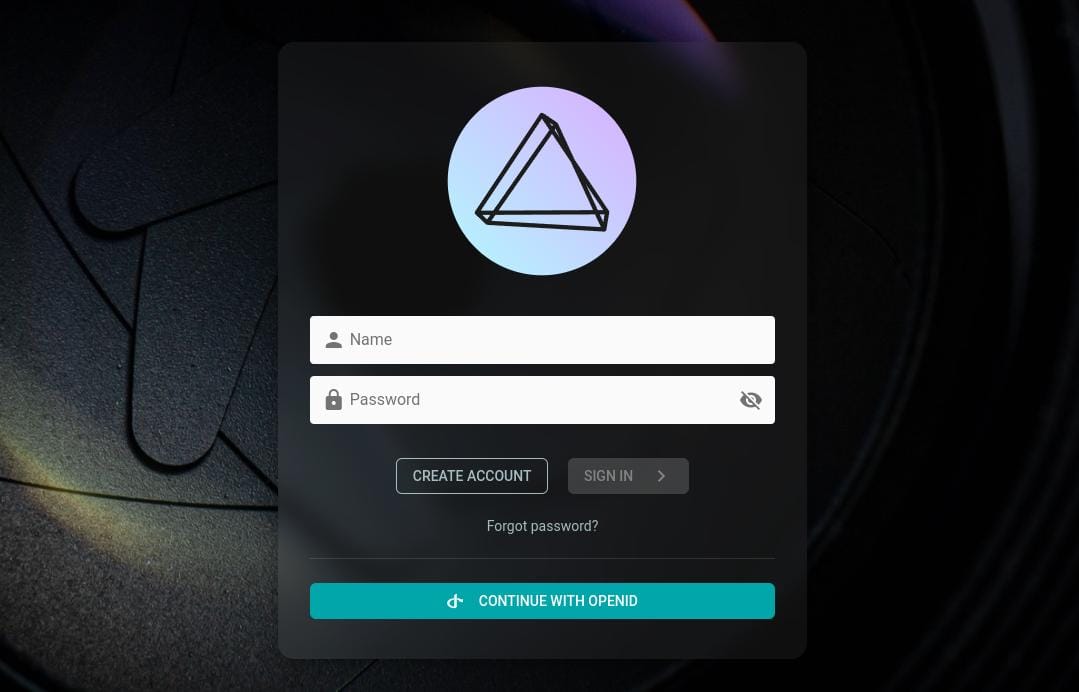
7.2 Log In and Secure Your Account
- Username:
admin - Password: The value you set in
PHOTOPRISM_ADMIN_PASSWORDoradmin-password
Change the password immediately from Settings → Account if you have not already set a strong one in the config. Never leave a default or weak password on a publicly accessible server.
7.3 Complete the Setup Wizard
The setup wizard walks you through:
- Language, theme, and timezone preferences
- Index settings appropriate for your library size
- Privacy settings and public/private mode toggle
- Creating additional user accounts for family members or colleagues
7.4 Copy Photos and Start Indexing
sudo cp -r ~/Pictures /var/lib/photoprism/originals/
sudo chown -R photoprism:photoprism /var/lib/photoprism/originals/
In the web UI, navigate to Library → Index and click Start Indexing. PhotoPrism will scan files, extract metadata, generate thumbnails, and run AI classification.
Monitor progress from the status bar at the top of the screen. Large libraries of 50,000+ photos may take several hours depending on your CPU and storage speed.
Step 8: Set Up HTTPS with Nginx Reverse Proxy
Running PhotoPrism over plain HTTP is fine on a local network, but you should enable HTTPS before exposing it to the internet.
sudo dnf install -y nginx
sudo nano /etc/nginx/conf.d/photoprism.conf
server {
listen 80;
server_name photos.yourdomain.com;
location / {
proxy_pass http://localhost:2342;
proxy_set_header Host $host;
proxy_set_header X-Real-IP $remote_addr;
proxy_set_header X-Forwarded-For $proxy_add_x_forwarded_for;
proxy_set_header X-Forwarded-Proto $scheme;
proxy_read_timeout 300;
client_max_body_size 500M;
}
}sudo systemctl enable --now nginx
sudo dnf install -y certbot python3-certbot-nginx
sudo certbot --nginx -d photos.yourdomain.comCertbot automatically configures Nginx to redirect HTTP to HTTPS and renews the certificate on a schedule.
Step 9: Updating PhotoPrism on Fedora 43
Keeping PhotoPrism updated is straightforward regardless of which installation method you chose.
Docker Update
cd /opt/photoprism
sudo docker compose down
sudo docker compose pull
sudo docker compose up -d
Package Update
wget https://dl.photoprism.app/pkg/linux/amd64.tar.gz
sudo systemctl stop photoprism
sudo cp -r /opt/photoprism /opt/photoprism-backup
sudo tar -xzf amd64.tar.gz -C /opt/photoprism
sudo chown -R photoprism:photoprism /opt/photoprism
sudo systemctl start photoprism
Always review the official PhotoPrism changelog on GitHub before updating, as major releases may include breaking configuration changes.
Troubleshooting Common Issues on Fedora 43
Even a careful installation sometimes hits a snag. Here are the five most common issues and how to resolve them.
Problem 1: Cannot Access the Web UI on Port 2342
Likely cause: Firewall blocking the port or the service is not running.
sudo firewall-cmd --list-all
sudo firewall-cmd --permanent --add-port=2342/tcp
sudo firewall-cmd --reload
sudo ss -tulpn | grep 2342
Problem 2: Docker Container Won’t Start
Likely cause: Docker daemon is not running or there is a syntax error in docker-compose.yml.
sudo systemctl start docker
sudo systemctl status docker
sudo docker compose config
sudo docker logs photoprism
Problem 3: Indexing Fails or Is Extremely Slow
Likely cause: Permission errors, missing dependencies, or insufficient RAM.
sudo chown -R photoprism:photoprism /var/lib/photoprism
free -h
If RAM is the bottleneck, reduce PHOTOPRISM_WORKERS to 1 in your config, or switch from SQLite to MariaDB for better memory efficiency.
Problem 4: SELinux Blocking Docker Volume Mounts
Likely cause: Fedora 43’s SELinux policy prevents the container from reading host directories.
sudo ausearch -m avc -ts recentFix by adding :z to affected volume mounts in docker-compose.yml:
- /path/to/your/photos:/photoprism/originals:ro,zProblem 5: Database Connection Errors with MariaDB
Likely cause: MariaDB is not running, or the credentials in the config are incorrect.
sudo systemctl status mariadb
mysql -u photoprism -p -h localhost photoprism
sudo docker logs -f photoprism
sudo journalctl -u photoprism -f
Congratulations! You have successfully installed PhotoPrism. Thanks for using this tutorial for installing the PhotoPrism open-source photo management on the Fedora 43 Linux system. For additional help or useful information, we recommend you check the official PhotoPrism website.
