How To Install phpMyAdmin on Fedora 43

Managing databases through command-line interfaces can be intimidating, even for experienced developers. phpMyAdmin offers a powerful web-based alternative that simplifies MySQL and MariaDB database administration. This comprehensive guide walks you through installing and configuring phpMyAdmin on Fedora 43, from initial setup to security hardening.
Whether you’re a system administrator managing multiple databases or a developer who prefers visual interfaces over terminal commands, phpMyAdmin streamlines tasks like creating databases, managing users, executing queries, and importing data. The installation process requires some Linux knowledge, but following these steps carefully ensures a smooth setup.
Prerequisites and System Requirements
Before diving into the installation, verify your system meets the necessary requirements. You’ll need a working Fedora 43 installation with root or sudo privileges. An active internet connection is essential for downloading packages. The system should have at least 2GB of RAM and 1GB of available disk space, though these are conservative estimates.
Basic familiarity with the Linux command line helps tremendously. You’ll be executing terminal commands, editing configuration files, and managing system services. Don’t worry if you’re not an expert—each step includes clear explanations.
Ensure your firewall is active and note its status. You’ll need to configure firewall rules later. Check that your system can connect to the internet by pinging a common website or running a quick package update test.
Update Your Fedora 43 System
Starting with a fully updated system prevents compatibility issues and ensures you have the latest security patches. Open your terminal and run the update command:
sudo dnf update -yThe -y flag automatically confirms all prompts, streamlining the process. This command checks for available updates across all installed packages and applies them. Depending on your last update and internet speed, this might take several minutes.
Watch for kernel updates in the output. If the kernel gets updated, reboot your system before proceeding:
sudo rebootAfter rebooting, log back in and continue with the installation.
Install Apache Web Server
Apache serves as the foundation for phpMyAdmin, handling HTTP requests and delivering the web interface to your browser. Install it using Fedora’s package manager:
sudo dnf install httpd -yThe installation completes within seconds on most systems. Once finished, start the Apache service immediately:
sudo systemctl start httpdEnable Apache to start automatically when your system boots:
sudo systemctl enable httpdVerify the service is running correctly:
sudo systemctl status httpdYou should see green text indicating “active (running)” status. Press q to exit the status view.
Configure Firewall for Web Access
Fedora’s firewall blocks HTTP and HTTPS traffic by default. Open these ports permanently:
sudo firewall-cmd --add-service=http --permanent
sudo firewall-cmd --add-service=https --permanent
Reload the firewall to apply changes:
sudo firewall-cmd --reloadTest your Apache installation by opening a web browser and navigating to http://localhost or http://your-server-ip-address. The default Fedora Apache test page confirms successful installation.
Install MariaDB Database Server
phpMyAdmin needs a database server to manage. MariaDB, a community-developed fork of MySQL, provides excellent performance and compatibility. Install both the server and client packages:
sudo dnf install mariadb mariadb-server -yStart the MariaDB service:
sudo systemctl start mariadbEnable it to launch on system startup:
sudo systemctl enable mariadbSecure Your MariaDB Installation
Fresh MariaDB installations lack proper security configurations. Run the security script to lock down your database:
sudo mysql_secure_installationThis interactive script presents several security options. Here’s how to respond:
First, it asks about switching to Unix socket authentication. Press Enter to skip this for now. When prompted to set a root password, press Y and enter a strong password. Save this password securely—you’ll need it to access phpMyAdmin.
Remove anonymous users by typing Y. These accounts pose security risks. Disallow root login remotely by selecting Y again. Root access should only occur from localhost.
Remove the test database by confirming with Y. This database exists purely for testing and has no production value. Finally, reload privilege tables by typing Y one last time.
Verify your MariaDB installation works:
sudo mysql -u root -pEnter the root password you just created. The MariaDB prompt appears, confirming successful connection. Type exit to leave the database shell.
Install PHP and Required Extensions
PHP processes dynamic content and connects phpMyAdmin to your database server. Fedora 43 includes PHP in its repositories along with necessary extensions. Install the complete PHP stack:
sudo dnf install php php-cli php-mysqlnd php-mbstring php-gd php-xml php-curl php-zip php-bcmath php-pear php-php-gettext -yEach extension serves a specific purpose. The php-mysqlnd extension enables MySQL/MariaDB connectivity. php-mbstring handles multibyte character encoding, essential for international character sets. php-gd generates images and captchas. php-xml processes XML data structures. php-curl manages URL operations, while php-zip handles file compression.
After installation, restart Apache to load the PHP module:
sudo systemctl restart httpdCheck your PHP version:
php -vThe output displays the installed PHP version and build information. Fedora 43 typically includes PHP 8.2 or newer.
Install phpMyAdmin
Fedora’s official repositories include phpMyAdmin, simplifying installation significantly. Run the installation command:
sudo dnf install phpMyAdmin -yThe package manager downloads phpMyAdmin and its dependencies automatically. Installation takes just moments. The default installation directory is /usr/share/phpMyAdmin, and configuration files reside in /etc/phpMyAdmin/.
Verify the installation by checking the version:
rpm -qi phpMyAdminThis displays package information including version number and installation date.
Configure phpMyAdmin
Fresh phpMyAdmin installations restrict access to localhost only. For local-only usage, this works perfectly. For remote access, configuration changes are necessary.
Edit Apache Configuration
Open the phpMyAdmin Apache configuration file:
sudo nano /etc/httpd/conf.d/phpMyAdmin.confLook for lines containing Require local. This directive restricts access to the local machine. For remote access from any IP address, replace these lines with:
Require all grantedHowever, opening access to all IP addresses creates security vulnerabilities. A better approach limits access to specific IP addresses:
Require ip 192.168.1.100Replace 192.168.1.100 with your actual IP address. For multiple IPs, list them space-separated:
Require ip 192.168.1.100 192.168.1.101Save the file by pressing Ctrl+O, then Enter. Exit nano with Ctrl+X.
Handle SELinux Considerations
Fedora’s Security-Enhanced Linux (SELinux) sometimes blocks phpMyAdmin connections. If you encounter access issues, check SELinux status:
sestatusIf SELinux is enforcing, you may need to adjust permissions:
sudo setsebool -P httpd_can_network_connect_db 1This boolean setting allows Apache to connect to database servers over the network.
Restart Apache to apply all configuration changes:
sudo systemctl restart httpdAccess phpMyAdmin Interface
Open your web browser and navigate to the phpMyAdmin URL. For local access:
http://localhost/phpMyAdminFor remote access, use your server’s IP address:
http://your-server-ip/phpMyAdminThe phpMyAdmin login screen appears, displaying a clean interface with username and password fields. Enter your MariaDB credentials—username root and the password you set during the security configuration.
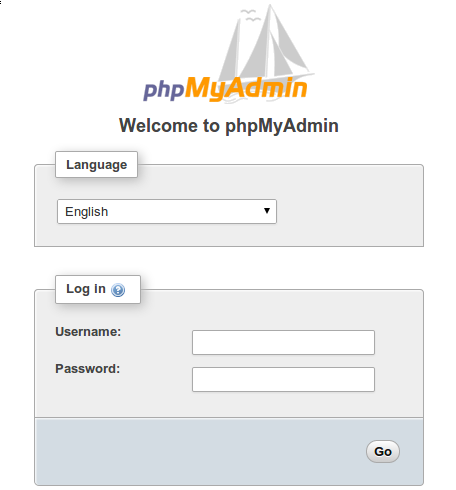
After successful login, the phpMyAdmin dashboard loads. The left sidebar lists databases, while the main panel displays server statistics, MySQL variables, and quick access tools. The interface provides tabs for databases, SQL queries, user accounts, export, import, and settings.
Explore the interface briefly. Click “Databases” to view existing databases. The “SQL” tab opens a query editor for direct SQL execution. The “User accounts” section manages database users and privileges.
Securing Your phpMyAdmin Installation
Default phpMyAdmin installations require additional security hardening. Several straightforward measures dramatically improve security.
Change the Default Access URL
Automated bots constantly scan for /phpMyAdmin URLs. Changing this path adds an immediate security layer. Edit the Apache configuration again:
sudo nano /etc/httpd/conf.d/phpMyAdmin.confFind the Alias directive near the top:
Alias /phpMyAdmin /usr/share/phpMyAdminChange /phpMyAdmin to something unique and less obvious:
Alias /secret-database-panel /usr/share/phpMyAdminSave and restart Apache. Access phpMyAdmin using your new URL: http://localhost/secret-database-panel
Implement HTTP Authentication
Add an authentication layer before the phpMyAdmin login. This creates a two-factor approach—users must pass HTTP authentication before even seeing the phpMyAdmin login screen.
Create a password file:
sudo htpasswd -c /etc/phpMyAdmin/.htpasswd adminEnter a secure password when prompted. This creates user admin with the specified password.
Edit the phpMyAdmin Apache configuration to require this authentication:
sudo nano /etc/httpd/conf.d/phpMyAdmin.confAdd these lines within a <Directory> block:
AuthType Basic
AuthName "Restricted Access"
AuthUserFile /etc/phpMyAdmin/.htpasswd
Require valid-user
Restart Apache. Now accessing phpMyAdmin prompts for HTTP authentication credentials before displaying the login screen.
Restrict Access by IP Address
We touched on this earlier, but it deserves emphasis. Limiting phpMyAdmin access to known IP addresses prevents unauthorized access attempts. Always configure IP restrictions in production environments.
Disable Root Login
Using the root account for routine database operations is risky. Create a separate administrative user with appropriate privileges.
Log into phpMyAdmin as root, navigate to “User accounts,” and click “Add user account.” Create a new user with a strong password. In the “Global privileges” section, select “Check all” to grant full privileges. Click “Go” to create the user.
Test the new account by logging out and logging back in with the new credentials. Once verified, consider disabling root login entirely by modifying the user’s host settings.
Configure Blowfish Secret
phpMyAdmin uses a blowfish secret for cookie-based authentication. Set a strong, unique secret:
sudo nano /etc/phpMyAdmin/config.inc.phpFind this line:
$cfg['blowfish_secret'] = '';Generate a random 32-character string and insert it between the quotes. You can generate one with:
openssl rand -base64 32Copy the output and paste it into the configuration file.
Troubleshooting Common Issues
Even with careful installation, issues occasionally arise. Here are solutions to the most common problems.
“Cannot log in to MySQL server” Error
This error typically indicates authentication problems. MariaDB 10.4 and newer use unix_socket authentication for root by default, which conflicts with phpMyAdmin’s login mechanism.
Fix this by logging into MariaDB:
sudo mysql -u root -pRun these commands:
ALTER USER 'root'@'localhost' IDENTIFIED WITH mysql_native_password BY 'your_password';
FLUSH PRIVILEGES;
EXIT;
Replace your_password with your actual root password. This switches root authentication to the traditional password method.
403 Forbidden or Access Denied Errors
These errors stem from Apache configuration or SELinux restrictions. First, verify your phpMyAdmin Apache configuration allows access from your IP address. Check the Require directives discussed earlier.
If configuration looks correct, SELinux might be blocking access. Temporarily set SELinux to permissive mode for testing:
sudo setenforce 0If phpMyAdmin works in permissive mode, SELinux is the culprit. Set the correct boolean:
sudo setsebool -P httpd_unified 1Re-enable SELinux:
sudo setenforce 1Blank Page or PHP Errors
Missing PHP extensions cause blank pages or errors. Verify all required extensions are installed:
php -m | grep -E 'mysqli|mbstring|gd|xml'Each extension should appear in the output. If any are missing, reinstall the PHP packages mentioned earlier.
Check Apache error logs for specific issues:
sudo tail -f /var/log/httpd/error_logError messages here pinpoint exact problems.
TempDir Warning Messages
phpMyAdmin displays warnings about inaccessible temporary directories. Create a dedicated temp directory:
sudo mkdir -p /var/lib/phpMyAdmin/tmp
sudo chown -R apache:apache /var/lib/phpMyAdmin
sudo chmod 700 /var/lib/phpMyAdmin/tmp
Edit the phpMyAdmin configuration:
sudo nano /etc/phpMyAdmin/config.inc.phpAdd this line:
$cfg['TempDir'] = '/var/lib/phpMyAdmin/tmp';Restart Apache to apply changes.
Congratulations! You have successfully installed phpMyAdmin. Thanks for using this tutorial for installing the latest version of phpMyAdmin on the Fedora 43 Linux system. For additional help or useful information, we recommend you check the official phpMyAdmin website.
