How To Install Piwigo on Debian 13

Managing and sharing your photo collection shouldn’t mean surrendering your privacy to third-party services. Piwigo offers a powerful, self-hosted alternative that puts you in complete control of your images. This comprehensive guide walks you through installing Piwigo on Debian 13, creating a professional photo gallery platform that’s both secure and feature-rich.
Piwigo is an open-source photo gallery application written in PHP that transforms your server into a sophisticated image management system. Whether you’re a professional photographer showcasing your portfolio, a family preserving precious memories, or an organization managing visual assets, Piwigo delivers the flexibility and control you need. Built on the LAMP stack (Linux, Apache, MySQL, PHP), it integrates seamlessly with Debian 13’s stable environment.
Understanding Piwigo and System Requirements
Before diving into installation, let’s establish what you’re building and what resources you’ll need.
What is Piwigo?
Piwigo goes beyond simple photo storage. It’s a complete gallery management solution featuring album organization, granular user permissions, extensive plugin ecosystem, and customizable themes. You can tag photos, add descriptions, manage metadata, and even allow visitors to upload their own images with moderated approval. The platform supports batch operations, making it efficient to manage thousands of photos simultaneously.
System Requirements
Your Debian 13 server needs adequate resources to run Piwigo smoothly. A minimum of 1GB RAM works for small galleries, but 2GB or more is recommended for larger collections with multiple concurrent users. Storage requirements depend on your photo library size—allocate at least 10GB initially, with room to expand.
Software-wise, you’ll need Debian 13 (codenamed Trixie), Apache2 or Nginx as your web server, PHP 8.4 or higher, and MariaDB or MySQL for database management. A domain name or static IP address helps with access, though you can test using your server’s IP. Root or sudo privileges are essential for system-level configurations.
Prerequisites and Preparation
Proper preparation ensures a smooth installation process and prevents common pitfalls.
Access Requirements
Connect to your Debian 13 server via SSH. You’ll need either root access or a user account with sudo privileges. Basic familiarity with Linux command-line operations helps, though this guide provides explicit commands for each step.
Initial System Update
Start by refreshing your system. This critical step ensures you’re working with the latest security patches and package versions:
sudo apt update
sudo apt upgrade -y
The apt update command refreshes package repository indexes, while apt upgrade installs available updates. The -y flag automatically confirms installations. This process might take several minutes depending on how recently your system was updated.
Installing Essential Utilities
Install tools needed for downloading and extracting Piwigo:
sudo apt install wget unzip -yThese utilities are lightweight but essential—wget handles file downloads from the internet, while unzip extracts compressed archives.
Installing and Configuring Apache Web Server
Apache serves as the foundation for delivering your Piwigo gallery to web browsers.
Installing Apache2
Install Apache with a single command:
sudo apt install apache2 -yOnce installed, start the service and enable it to launch automatically on system boot:
sudo systemctl start apache2
sudo systemctl enable apache2
Verify Apache is running correctly:
sudo systemctl status apache2You should see “active (running)” in green text, indicating successful installation.
Configuring Firewall for Apache
If you’re using UFW (Uncomplicated Firewall), allow web traffic:
sudo ufw allow 'Apache Full'
sudo ufw status
The ‘Apache Full’ profile opens both HTTP (port 80) and HTTPS (port 443). This step is crucial—without it, external users cannot access your gallery.
Testing Apache Installation
Open a web browser and navigate to your server’s IP address. You should see the default Apache welcome page displaying “It works!” This confirms Apache is serving content correctly. The default document root is /var/www/html, but we’ll create a dedicated directory for Piwigo.
Installing PHP and Required Extensions
Piwigo relies heavily on PHP for its functionality, requiring specific extensions for image processing and database connectivity.
Installing PHP 8.4
Debian 13 ships with PHP 8.4 by default, which is fully compatible with Piwigo. Install PHP-FPM (FastCGI Process Manager) for optimal performance:
sudo apt install php8.4-fpm php8.4-cli -yPHP-FPM processes PHP scripts more efficiently than traditional mod_php, especially under load. It runs as a separate service, allowing better resource management and security isolation.
Installing Required PHP Extensions
Piwigo needs several PHP extensions to function properly. Install them all at once:
sudo apt install php8.4-gd php8.4-curl php8.4-mysql php8.4-xml php8.4-mbstring php8.4-zip php8.4-imap php8.4-intl php8.4-imagick -yEach extension serves a specific purpose:
- php8.4-gd: Image manipulation and thumbnail generation
- php8.4-curl: Remote data fetching and HTTP operations
- php8.4-mysql: Database connectivity with MariaDB/MySQL
- php8.4-xml: XML document parsing for imports/exports
- php8.4-mbstring: Multibyte string handling for international characters
- php8.4-zip: Archive creation and extraction
- php8.4-imap: Email integration capabilities
- php8.4-intl: Internationalization functions
- php8.4-imagick: Advanced image processing via ImageMagick
Additionally, install supporting utilities for enhanced functionality:
sudo apt install imagemagick libjpeg-progs libimage-exiftool-perl ffmpeg mediainfo -yThese tools enable advanced features like EXIF metadata reading, video thumbnail generation, and optimized image formats.
Configuring PHP Settings
Adjust PHP limits to accommodate large photo uploads. Edit the PHP-FPM pool configuration:
sudo nano /etc/php/8.4/fpm/pool.d/www.confWhile default settings often work, consider increasing these values for larger photo uploads. After making changes, restart PHP-FPM:
sudo systemctl restart php8.4-fpmInstalling and Configuring MariaDB Database
Piwigo stores its configuration, user data, and photo metadata in a relational database.
Installing MariaDB Server
Install MariaDB with this command:
sudo apt install mariadb-server -yStart and enable the service:
sudo systemctl start mariadb
sudo systemctl enable mariadb
MariaDB is a drop-in replacement for MySQL, offering better performance and fully open-source licensing.
Securing MariaDB Installation
Run the security script to harden your database installation:
sudo mysql_secure_installationThis interactive script prompts you through several security measures. When asked, press Enter for the current root password (none by default), then set a strong root password. Answer ‘Y’ to remove anonymous users, disallow remote root login, remove the test database, and reload privilege tables. These steps close common security vulnerabilities.
Creating Piwigo Database and User
Log into MariaDB as root:
sudo mysql -u root -pEnter the root password you just created. Now create a dedicated database and user for Piwigo:
CREATE DATABASE piwigo;
CREATE USER 'piwigo'@'localhost' IDENTIFIED BY 'your_secure_password';
GRANT ALL PRIVILEGES ON piwigo.* TO 'piwigo'@'localhost';
FLUSH PRIVILEGES;
EXIT;
Replace your_secure_password with a strong, unique password. Write it down—you’ll need it during web-based installation. Using a dedicated database user follows the principle of least privilege, limiting potential damage if credentials are compromised.
Downloading and Installing Piwigo
With the server environment configured, it’s time to install Piwigo itself.
Downloading Latest Piwigo Version
Download the latest stable release directly from Piwigo’s official website:
cd /tmp
wget http://piwigo.org/download/dlcounter.php?code=latest -O piwigo.zip
This URL always points to the most recent version, ensuring you get the latest features and security patches. The download typically ranges from 5-10 MB.
Extracting Piwigo Files
Create a directory for Piwigo and extract the archive:
sudo mkdir -p /var/www/piwigo
sudo unzip piwigo.zip -d /var/www/piwigo
The extraction creates a piwigo subdirectory within /var/www/piwigo, so move the contents up one level:
sudo mv /var/www/piwigo/piwigo/* /var/www/piwigo/
sudo rm -rf /var/www/piwigo/piwigo
Setting Proper Permissions
Apache needs ownership of Piwigo files to create directories, process uploads, and manage cache:
sudo chown -R www-data:www-data /var/www/piwigo
sudo chmod -R 755 /var/www/piwigo
The www-data user is Apache’s default process owner on Debian. These permissions balance functionality with security—Apache can write necessary files while preventing unauthorized system access.
Configuring Apache for Piwigo
Apache needs specific configuration to serve Piwigo correctly.
Creating Apache Configuration File
Create a dedicated configuration file for Piwigo:
sudo nano /etc/apache2/conf-available/piwigo.confAdd the following configuration:
Timeout 600

Alias /piwigo /var/www/piwigo

<Directory /var/www/piwigo>
    Options FollowSymLinks
    AllowOverride All
    Require all granted

    <FilesMatch \.php$>
        SetHandler "proxy:unix:/run/php/php8.4-fpm.sock|fcgi://localhost"
    </FilesMatch>
</Directory>
This configuration accomplishes several things. The Timeout 600 directive allows 10 minutes for large photo uploads. The Alias directive maps the URL path /piwigo to the physical directory. Options FollowSymLinks enables symbolic link following, AllowOverride All permits .htaccess files for additional configuration, and Require all granted allows public access. The FilesMatch block routes PHP files to PHP-FPM for processing.
Enabling Piwigo Configuration
Activate the configuration and required Apache modules:
sudo a2enconf piwigo
sudo a2enmod proxy_fcgi setenvif
sudo a2enconf php8.4-fpm
These commands enable the Piwigo configuration, activate the FastCGI proxy module, and link PHP-FPM with Apache.
Validating and Reloading Apache
Test the configuration for syntax errors:
sudo apache2ctl configtestYou should see “Syntax OK.” If errors appear, review your configuration file for typos. Once validated, reload Apache to apply changes:
sudo systemctl reload apache2Reload is preferable to restart—it applies new configurations without dropping active connections.
Completing Installation Through Web Interface
The final installation steps occur through Piwigo’s web-based installer.
Accessing Piwigo Installer
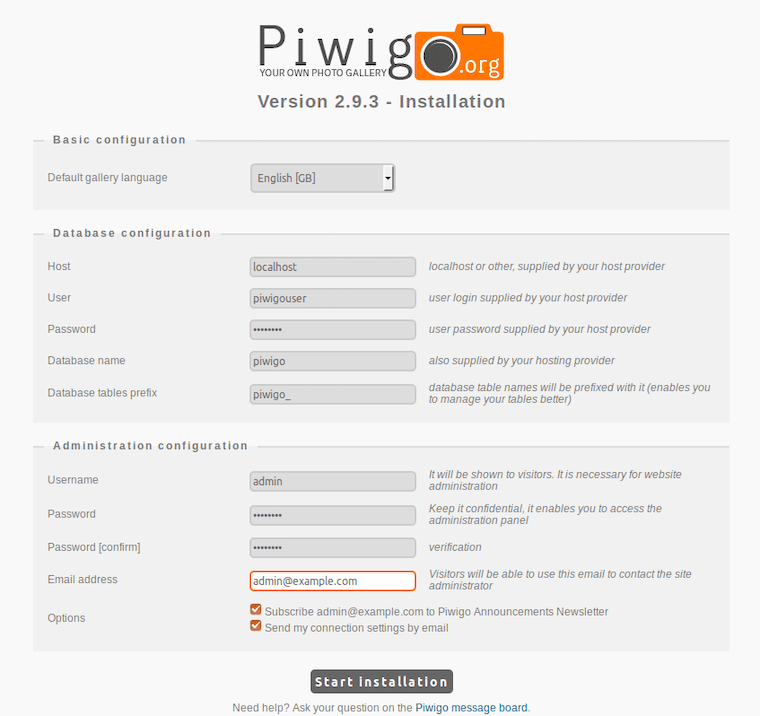
Open your web browser and navigate to http://your-server-ip/piwigo/. Replace your-server-ip with your actual server IP address or domain name. You should see the Piwigo installation wizard with language selection.
Choose your preferred language. The installer immediately checks for required PHP extensions and directory permissions. If any requirements aren’t met, error messages appear with specific details. Green checkmarks indicate everything is configured correctly.
Configuring Database Connection
The installer requests database connection details. Fill in the form accurately:
- Host: localhost (since MariaDB runs on the same server)
- User: piwigo (the database user you created)
- Password: (the secure password you set earlier)
- Database name: piwigo
- Database table prefix: piwigo_ (default is fine unless you’re installing multiple instances)
Click “Start installation.” Piwigo connects to the database, creates necessary tables, and populates initial data. This process takes 10-20 seconds.
Creating Administrator Account
After database setup, create your admin account. Choose a username (avoid “admin” for security reasons) and a strong password combining uppercase, lowercase, numbers, and special characters. Provide a valid email address—Piwigo uses it for notifications and password resets.
Click “Start installation.” Piwigo finalizes the setup, creating configuration files and completing table initialization. Upon success, you’ll see a confirmation message with a link to your new gallery.
Post-Installation Configuration and Optimization
Your Piwigo installation is functional, but a few additional steps enhance security and performance.
Initial Piwigo Configuration
Log into the admin dashboard using the credentials you just created. The administration panel provides comprehensive control over your gallery. Start by configuring basic settings under Administration → Configuration → General:
Set your gallery name and banner text to personalize your site. Configure the gallery description for SEO purposes. Under Administration → Configuration → Options, customize thumbnail sizes, photo display settings, and album behaviors. Explore email notification settings to stay informed about user activity and comments.
Installing SSL Certificate
HTTPS encryption is essential for protecting user data and admin credentials. Install Certbot for free SSL certificates from Let’s Encrypt:
sudo apt install certbot python3-certbot-apache -y
sudo certbot --apache -d your-domain.com
Certbot automatically configures Apache for HTTPS, redirects HTTP traffic to HTTPS, and sets up automatic certificate renewal. This step requires a registered domain name pointing to your server.
Essential Security and Maintenance Tips
Maintaining your Piwigo installation ensures long-term reliability and security.
Security Best Practices
Keep your system updated. Run these commands monthly:
sudo apt update
sudo apt upgrade -y
Regular updates patch security vulnerabilities in Debian, Apache, PHP, and MariaDB. Enable automatic security updates with unattended-upgrades:
sudo apt install unattended-upgrades -y
sudo dpkg-reconfigure --priority=low unattended-upgrades
Implement a backup strategy. Back up both the Piwigo database and photo files regularly:
sudo mysqldump -u root -p piwigo > piwigo_backup_$(date +%Y%m%d).sql
sudo tar -czf piwigo_files_$(date +%Y%m%d).tar.gz /var/www/piwigo
Store backups off-server using rsync, cloud storage, or external drives. Test restoration procedures periodically to verify backup integrity.
Monitor logs for suspicious activity. Check Apache error logs if issues arise:
sudo tail -f /var/log/apache2/error.logWithin Piwigo, explore plugins for two-factor authentication, which adds an extra security layer for admin accounts.
Performance Optimization
Enable PHP opcache to accelerate script execution. Edit the PHP configuration:
sudo nano /etc/php/8.4/fpm/php.iniEnsure opcache is enabled (it usually is by default in PHP 8.4). Within Piwigo’s admin panel, enable template compilation cache and derivative cache to reduce server load.
Optimize uploaded images automatically. Piwigo can generate multiple size derivatives, but consider pre-optimizing large photos before upload using tools like JPEGoptim or ImageOptim to reduce storage and bandwidth consumption.
Perform regular database maintenance. Run this command monthly:
sudo mysqlcheck -u root -p --optimize piwigoThis optimizes tables, improving query performance as your photo collection grows.
Common Troubleshooting Issues
Even with careful installation, you might encounter issues. Here are solutions to common problems.
Permission Errors
If Piwigo displays “Unable to write to directory” or cannot create thumbnails, permissions are likely incorrect. Verify ownership:
sudo chown -R www-data:www-data /var/www/piwigo
sudo chmod -R 755 /var/www/piwigo
Specific directories like _data and upload need write access. Check Apache error logs for specific path information:
sudo tail -n 50 /var/log/apache2/error.logPHP Extension Missing
A white screen or missing features often indicates missing PHP extensions. Verify installed extensions:
php -m | grep -E "gd|curl|mysql|xml|mbstring|zip"If any required extension is missing, install it specifically and restart PHP-FPM:
sudo apt install php8.4-extension-name -y
sudo systemctl restart php8.4-fpm
Database Connection Failures
“Cannot connect to database” errors suggest credential or service issues. First, verify MariaDB is running:
sudo systemctl status mariadbIf stopped, start it with sudo systemctl start mariadb. Test database credentials manually:
mysql -u piwigo -p piwigoIf login fails, your password might be incorrect. Reset it in MariaDB:
sudo mysql -u root -p
ALTER USER 'piwigo'@'localhost' IDENTIFIED BY 'new_secure_password';
FLUSH PRIVILEGES;
EXIT;
Update the password in Piwigo’s configuration file located at /var/www/piwigo/local/config/database.inc.php.
Congratulations! You have successfully installed Piwigo. Thanks for using this tutorial to install the latest version of the Piwigo open-source photo management on Debian 13 “Trixie” system. For additional help or useful information, we recommend you check the official Piwigo website.
