
Looking for a powerful image editing solution on your Debian 13 system? Pixeluvo offers professional-grade photo editing capabilities that rival proprietary software, combining layer-based editing with an intuitive interface designed specifically for Linux users. This comprehensive guide walks you through every step of installing Pixeluvo on Debian 13 (Trixie), from downloading the package to verifying your installation and troubleshooting common issues.
Whether you’re a photographer seeking RAW image support, a designer requiring non-destructive editing tools, or simply someone looking for a robust alternative to GIMP, Pixeluvo delivers the functionality you need. The installation process takes just minutes, and you’ll be editing images professionally in no time.
What Makes Pixeluvo Stand Out
Pixeluvo isn’t just another image editor. It’s a comprehensive photo manipulation platform built with modern Linux users in mind. The software provides full layer-based editing capabilities, allowing you to work non-destructively with adjustment layers that preserve your original images.
Key features include support for RAW image formats from major camera manufacturers, powerful color correction tools, realistic pressure-sensitive drawing for graphics tablets, and an interface that feels refreshingly modern compared to traditional Linux image editors. Available both on Steam and as a standalone download, Pixeluvo bridges the gap between professional requirements and accessible design.
The software operates on a 30-day trial basis, after which you can purchase a full license for approximately $34-40 USD. This one-time payment grants you permanent access without subscription fees.
System Requirements and Compatibility
Before diving into installation, verify your system meets the basic requirements. Pixeluvo runs smoothly on systems with at least 2GB of RAM, though 4GB is recommended for optimal performance when working with large files. Your CPU needs SSE2 support, available on virtually all modern processors, and the software works on both 32-bit and 64-bit architectures, though 64-bit systems provide better performance.
Debian 13 Trixie provides an excellent foundation for running Pixeluvo. The operating system includes the necessary Qt libraries that Pixeluvo depends on, though we’ll verify these during installation. You’ll need approximately 100MB of free disk space for the application itself, plus additional space for your image projects.
Preparing Your Debian 13 System
Preparation ensures smooth installation. Start by opening your terminal application—you can find it in your applications menu or press Ctrl+Alt+T on most Debian installations.
Update your package lists first. This critical step ensures your system knows about the latest available software versions:
sudo apt-get updateNext, upgrade existing packages to their latest versions:
sudo apt upgradeConfirm any prompts that appear during the upgrade process. This might take several minutes depending on your internet connection and how recently you last updated.
Check your system architecture to download the correct Pixeluvo package. Run this command:
dpkg --print-architectureIf the output shows “amd64,” download the 64-bit version. An “i386” result indicates you need the 32-bit package.
Ensure wget is installed for downloading files. Check by running:
wget --versionIf you see version information, you’re ready. If not, install wget:
sudo apt install wgetDownloading Pixeluvo Package
Navigate to your Downloads directory where we’ll keep installation files organized:
cd ~/DownloadsNow download the appropriate Pixeluvo .deb package. For 64-bit systems (most common), use:
wget http://www.pixeluvo.com/downloads/pixeluvo_1.6.0-2_amd64.debFor 32-bit systems, use this command instead:
wget http://www.pixeluvo.com/downloads/pixeluvo_1.6.0-2_i386.debThe download typically completes in seconds to minutes depending on your connection speed. You’ll see a progress bar indicating download status.
Verify the file downloaded successfully:
ls -lh pixeluvo*.debThis command displays the file size, which should be approximately 40-50MB. If you see the file listed, proceed to installation.
Installing Pixeluvo Using dpkg
Debian’s native package manager, dpkg, handles .deb file installations. The installation command requires administrator privileges, which is why we use sudo.
Execute this installation command (adjust the filename if you downloaded the 32-bit version):
sudo dpkg -i pixeluvo_1.6.0-2_amd64.debEnter your password when prompted. You won’t see characters appear as you type—this is normal Linux security behavior.
The installation process displays several status messages. You’ll see “Selecting previously unselected package pixeluvo” followed by unpacking information. The system then reads database files and sets up the package. This entire process typically completes within one to two minutes.
Handling Dependencies Automatically
Sometimes dpkg reports missing dependencies. Don’t worry—this is common and easily resolved. If you see dependency errors, run this fix command:
sudo apt-get install -fThe -f flag tells apt to fix broken dependencies by downloading and installing missing libraries. Apt automatically identifies what’s needed and handles the installation.
Alternatively, use apt directly for the initial installation. This method provides automatic dependency resolution from the start:
sudo apt install ./pixeluvo_1.6.0-2_amd64.debNotice the ./ before the filename—this tells apt you’re installing a local file rather than searching repositories. Apt then downloads any required dependencies and completes the installation in one smooth operation.
Alternative Installation with gdebi
For users preferring a more interactive installation experience, gdebi offers excellent dependency handling with clear user prompts.
First, install gdebi if it’s not already on your system:
sudo apt install gdebiThen use gdebi to install Pixeluvo:
sudo gdebi pixeluvo_1.6.0-2_amd64.debGdebi displays detailed package information including size, version, and dependencies. It then asks for confirmation before proceeding. Type ‘y’ and press Enter to continue. Gdebi automatically resolves and installs dependencies, making it particularly useful for users new to Linux package management.
Verifying Your Installation
Successful installation deserves verification. Launch Pixeluvo directly from the terminal:
pixeluvoThe application should start within seconds, displaying a splash screen followed by the main interface. You’ll notice the trial version homepage appears, offering information about purchasing a full license.
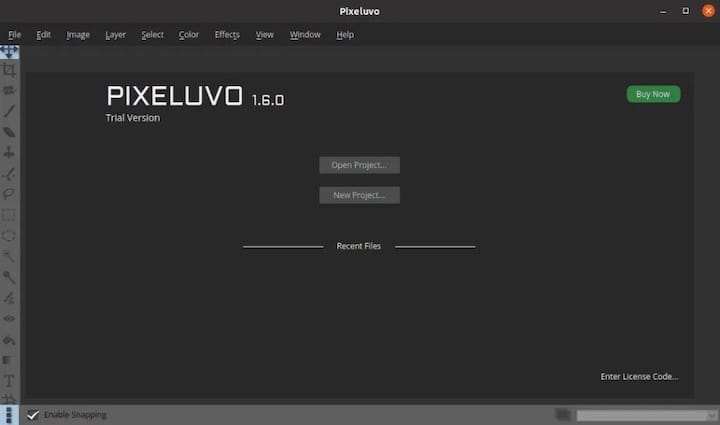
You can also find Pixeluvo in your application menu. Look under Graphics or Photo Editing categories. Click the icon to launch. Consider right-clicking the menu entry to add it to your favorites or create a desktop shortcut for quick access.
Confirm installation details from the terminal:
dpkg -l | grep pixeluvoThis command lists the installed package with its version number. To see all installed files and their locations:
dpkg -L pixeluvoThis comprehensive list shows where Pixeluvo placed its executables, libraries, and documentation files across your system.
Configuring Pixeluvo After Installation
First launch presents configuration opportunities. Set your default save location to keep projects organized. Configure color profiles for accurate image representation—this matters especially for professional photography work where color accuracy is paramount.
The trial version runs for 30 days, giving you full access to explore features. During this period, evaluate whether Pixeluvo meets your editing needs. Purchase a license through the application’s “Buy Now” option if you decide to continue using it. License activation typically involves downloading a license file and placing it in your home directory as instructed.
Qt libraries power Pixeluvo’s interface. Debian 13 usually includes necessary Qt5 components, but if you encounter library issues, install them manually:
sudo apt install qtbase5-dev qt5-qmakeIntegrate Pixeluvo with your desktop environment by setting file associations. Right-click an image file, select “Open With,” choose Pixeluvo, and check “Set as default” to make Pixeluvo your primary image editor.
Troubleshooting Common Installation Problems
Even straightforward installations occasionally hit snags. Here’s how to resolve the most common issues.
Dependency Conflicts: If you see “dpkg: dependency problems prevent configuration,” don’t panic. Run the fix command:
sudo apt --fix-broken installThis command intelligently resolves conflicts by installing missing packages or suggesting alternatives.
Architecture Mismatches: Downloaded the wrong package? Remove it completely:
sudo dpkg -r pixeluvoThen download and install the correct architecture version. Always verify your system architecture before downloading.
Permission Errors: “Permission denied” messages indicate file access problems. Ensure you’re using sudo for installation commands. Check that your user account has sudo privileges by running:
groups $USERLook for “sudo” in the output. If it’s missing, you’ll need to add your user to the sudo group or use the root account.
Qt Library Issues: Missing Qt libraries prevent Pixeluvo from launching. Install comprehensive Qt5 support:
sudo apt install qt5-default libqt5widgets5 libqt5gui5If ldconfig issues appear, they typically resolve themselves after rebooting, though you can manually update the library cache:
sudo ldconfigLaunch Failures: Application won’t start? Check for error messages by launching from terminal. Common causes include insufficient RAM, outdated graphics drivers, or conflicting software. Ensure you have at least 2GB free RAM and your graphics drivers are current.
Getting Started with Image Editing
With Pixeluvo installed, explore its capabilities. Open an image by clicking File > Open or dragging images directly into the workspace. The software supports JPEG, PNG, TIFF, and numerous RAW formats from Canon, Nikon, Sony, and other major camera manufacturers.
The layer-based workflow forms Pixeluvo’s foundation. Each edit lives on separate layers, allowing non-destructive modifications. Adjustment layers apply color corrections and filters without altering original pixels. This professional approach means you can always revert changes or fine-tune adjustments later.
Use the crop tool for composition refinement. Selection tools enable precise area manipulation. For digital artists, pressure-sensitive drawing tools work beautifully with graphics tablets, responding naturally to pen pressure for varied line weights and brush effects.
Color correction tools rival professional software. Adjust curves, levels, hue, saturation, and vibrance with intuitive controls. Apply filters like blur, sharpen, and artistic effects to enhance your images.
Save projects in Pixeluvo’s native .pxv format to preserve all layers and editing data. Export finished work as JPEG, PNG, or TIFF with customizable quality settings.
Updating to Newer Versions
Software updates bring bug fixes, new features, and improved performance. Check for updates periodically by visiting the official Pixeluvo website. Compare the version number shown there with your installed version, visible in Help > About within the application.
When updates are available, download the new .deb package. You can install directly over the existing version:
sudo apt install ./pixeluvo_[new-version]_amd64.debApt automatically handles the upgrade, replacing old files while preserving your settings and preferences. Alternatively, remove the old version first:
sudo dpkg -r pixeluvo
sudo dpkg -i pixeluvo_[new-version]_amd64.deb
Always backup important project files before major version updates, though Pixeluvo typically maintains backward compatibility.
Removing Pixeluvo if Needed
Should you decide Pixeluvo isn’t right for you, removal is straightforward. Remove the package while keeping configuration files:
sudo dpkg -r pixeluvoFor complete removal including all configuration data:
sudo dpkg --purge pixeluvoClean up orphaned dependencies:
sudo apt autoremoveThis removes packages that Pixeluvo required but nothing else uses. Delete the downloaded .deb file from your Downloads folder to reclaim disk space. User-specific settings typically reside in ~/.config/pixeluvo—delete this directory manually if desired.
Congratulations! You have successfully installed Pixeluvo. Thanks for using this tutorial for installing the Pixeluvo image and photo editor on Debian 13 “Trixie” system. For additional help or useful information, we recommend you check the official Pixeluvo website.
