How To Install Portainer on Fedora 43

Managing Docker containers from the command line works — but it gets tedious fast, especially when you’re juggling dozens of containers across multiple projects. If you’re running Fedora 43 and want a cleaner, faster way to manage your Docker environment, Portainer CE is the tool you need. This guide shows you exactly how to install Portainer on Fedora 43, from a fresh system update all the way to logging into your new web-based container dashboard.
Whether you’re a developer spinning up local services, a sysadmin managing a homelab, or someone stepping into containerization on a Linux server, this tutorial gives you a clear, reliable path forward. No guesswork, no outdated commands — just a working Portainer setup on Fedora 43.
What Is Portainer and Why Use It on Fedora 43?
Portainer is a free, open-source container management platform that gives you a powerful web-based GUI to manage Docker environments. Instead of memorizing lengthy docker CLI commands, you get a clean browser interface to deploy containers, manage images, inspect logs, and handle volumes — all with a few clicks.
Portainer CE (Community Edition) is the free tier and covers everything most users will ever need: container lifecycle management, Docker Compose stack deployments, network configuration, volume management, and real-time container stats. The paid Business Edition adds advanced team features, but CE is more than sufficient for this guide.
Here is why Portainer pairs especially well with Fedora 43:
- Fedora 43 is an RPM-based system where Docker CE must be added as an external repository — a GUI takes that complexity away after initial setup
- Fedora ships with SELinux enforced by default and firewalld instead of ufw, both requiring Fedora-specific configuration that most generic guides skip
- Portainer CE v2.33 (latest stable release as of early 2026) runs as a container itself, making it trivially easy to update and remove without polluting your host system
Portainer’s core features worth knowing:
- Container management: Start, stop, restart, kill, and inspect any container
- Image management: Pull, tag, and remove Docker images
- Stack deployment: Deploy multi-container apps using Docker Compose YAML files
- Volume and network management: Create, inspect, and remove Docker volumes and networks
- Live logs and stats: Monitor container output and resource usage in real time
Prerequisites
Before you install Portainer on Fedora 43, make sure you have the following in place:
- Operating System: Fedora 43 (fresh install recommended; Fedora 42 and 41 also work)
- User privileges: A non-root user account with
sudoaccess - Internet access: Required to download Docker packages and the Portainer image
- Hardware minimums: 2 vCPUs, 2 GB RAM, 20 GB available disk space
- Open ports: TCP ports 9443 (Portainer HTTPS UI) and 8000 (Edge Agent) must be available
- No conflicting Docker packages: Any older or unofficial Docker builds must be removed first (covered in Step 2)
Note: If you are on a VPS or cloud instance (DigitalOcean, AWS, Hetzner, etc.), also ensure your provider’s firewall or security group allows inbound TCP traffic on ports 9443 and 8000.
Step 1: Update Your Fedora 43 System
Before installing any new software, always bring your system up to date. This ensures you have the latest kernel headers, security patches, and package metadata — all of which affect Docker’s ability to install and run cleanly.
Run the following command:
sudo dnf update -y && sudo dnf upgrade -yThis command does two things: dnf update refreshes your package list and installs available updates, while dnf upgrade handles package version upgrades including obsolete package replacements. The -y flag auto-confirms all prompts.
After the update completes — especially if a kernel update was included — reboot your system:
sudo rebootOnce the system is back online, confirm your Fedora version:
cat /etc/fedora-releaseExpected output:
Fedora release 43 (Thirty Three)You are now on a clean, fully updated Fedora 43 system and ready to install Docker Engine.
Step 2: Install Docker Engine on Fedora 43
Portainer does not install independently — it runs inside a Docker container. So Docker Engine is a hard dependency, and you need to install it correctly for Fedora 43. This section covers removing conflicting packages, adding the official Docker repository, and installing Docker CE.
Remove Conflicting or Legacy Docker Packages
Fedora’s default repositories may contain unofficial docker or moby-engine packages that conflict with Docker CE. Remove them first:
sudo dnf remove docker \
  docker-client \
  docker-client-latest \
  docker-common \
  docker-latest \
  docker-latest-logrotate \
  docker-logrotate \
  docker-selinux \
  docker-engine-selinux \
  docker-engine
If none of these are installed, dnf will report “No match for argument” — that is perfectly fine. Your existing container data in /var/lib/docker/ is not touched by this removal.
Add the Official Docker Repository
Install dnf-plugins-core and add Docker’s official Fedora repository:
sudo dnf config-manager addrepo --from-repofile https://download.docker.com/linux/fedora/docker-ce.repoThis pulls the repository configuration directly from Docker’s CDN and registers it with dnf. From this point on, dnf can find and install the official, GPG-signed Docker packages.
Install Docker CE and Required Plugins
Now install the full Docker Engine stack:
sudo dnf install -y docker-ce docker-ce-cli containerd.io docker-buildx-plugin docker-compose-pluginHere is what each package does:
docker-ce— the Docker Engine daemon itselfdocker-ce-cli— thedockercommand-line clientcontainerd.io— the low-level container runtime that Docker depends ondocker-buildx-plugin— extended image build capabilitiesdocker-compose-plugin— enablesdocker compose(v2) commands
When prompted to accept the GPG key, verify the fingerprint matches: 060A 61C5 1B55 8A7F 742B 77AA C52F EB6B 621E 9F35 — then accept it.
Enable and Start Docker
Docker does not start automatically on Fedora after installation. Enable it at boot and start it now:
sudo systemctl enable --now dockerVerify Docker is running:
sudo systemctl status dockerYou should see Active: active (running) in green.
Add Your User to the Docker Group
By default, only root can run Docker commands. Add your user to the docker group so you can run Docker without sudo:
sudo usermod -aG docker $USER
newgrp docker
Verify the Docker Installation
Run the classic test container to confirm everything works:
docker run hello-worldExpected output (excerpt):
Hello from Docker!
This message shows that your installation appears to be working correctly.
Docker Engine is now fully installed and running on your Fedora 43 system.
Step 3: Configure Firewalld for Portainer
Unlike Ubuntu (which uses ufw), Fedora uses firewalld as its default firewall manager. You need to open the two ports Portainer requires before deploying the container, otherwise the web UI will be unreachable even if Portainer is running perfectly.
Open port 9443 (Portainer HTTPS web UI) and port 8000 (Edge Agent tunnel):
sudo firewall-cmd --permanent --add-port=9443/tcp
sudo firewall-cmd --permanent --add-port=8000/tcp
sudo firewall-cmd --reload
The --permanent flag makes these rules survive reboots. The --reload command applies changes to the running firewall without dropping existing connections.
Verify the ports are open:
sudo firewall-cmd --list-portsExpected output:
8000/tcp 9443/tcpPro Tip: If you are running this on a cloud VPS, you must also open these ports in your provider’s external firewall or security group settings. The firewalld rules above only apply to the OS-level firewall.
Step 4: Create a Persistent Docker Volume for Portainer
Before you launch the Portainer container, create a named Docker volume to store its data. This volume holds Portainer’s configuration, user accounts, and settings. Without it, you would lose all your Portainer configuration every time you restart or update the container.
docker volume create portainer_dataConfirm the volume was created:
docker volume lsExpected output:
DRIVER    VOLUME NAME
local     portainer_data
Docker stores the actual volume data at /var/lib/docker/volumes/portainer_data/ on your host. Using a named volume — rather than a bind mount — is the officially recommended approach and makes container upgrades significantly cleaner.
Step 5: Deploy the Portainer CE Container on Fedora 43
This is the core step of this Portainer on Fedora 43 setup guide. Run the following command to deploy Portainer CE:
docker run -d \
  -p 8000:8000 \
  -p 9443:9443 \
  --name portainer \
  --restart=always \
  -v /var/run/docker.sock:/var/run/docker.sock \
  -v portainer_data:/data \
  portainer/portainer-ce:lts
Here is a breakdown of every flag so you understand exactly what this command does:
| Flag | Purpose |
|---|---|
-d |
Runs the container in detached (background) mode |
-p 8000:8000 |
Maps the Edge Agent tunnel port from container to host |
-p 9443:9443 |
Maps the Portainer HTTPS web UI port from container to host |
--name portainer |
Assigns the name portainer for easy management |
--restart=always |
Auto-restarts the container after crash or system reboot |
-v /var/run/docker.sock |
Gives Portainer access to the Docker daemon |
-v portainer_data:/data |
Mounts the persistent volume created in Step 4 |
portainer/portainer-ce:lts |
Uses the Long-Term Support Portainer CE image |
Verify the container launched successfully:
docker psExpected output:
CONTAINER ID   IMAGE                        STATUS         PORTS                                            NAMES
7963585688a9   portainer/portainer-ce:lts   Up 12 seconds  0.0.0.0:8000->8000/tcp, 0.0.0.0:9443->9443/tcp  portainer
If you see Up in the STATUS column, Portainer is running correctly.
Step 6: Access and Configure the Portainer Web Interface
Open a browser on your local machine and navigate to:
https://localhost:9443If you are accessing a remote server, replace localhost with your server’s IP address:
https://<your-server-ip>:9443Your browser will display an SSL certificate warning — this is completely normal. Portainer uses a self-signed certificate by default. Click Advanced → Proceed (Chrome) or Accept the Risk and Continue (Firefox).
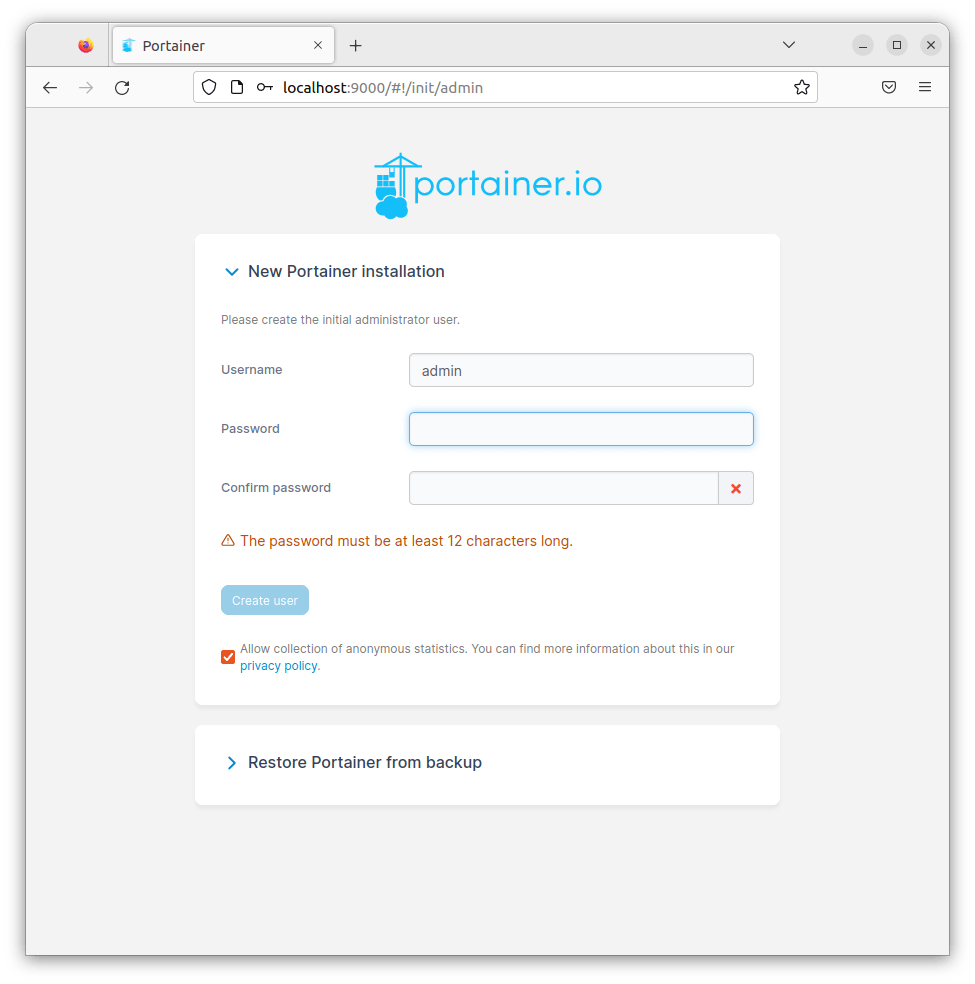
Create Your Admin Account
On first visit, Portainer presents a setup screen asking you to create an administrator account.
- Enter your desired admin username (default is
admin) - Set a strong password — Portainer requires a minimum of 12 characters
- Click “Create user” to proceed
Security note: Use a strong, unique password here. Portainer’s admin account has full control over every container in your Docker environment.
Connect to Your Local Docker Environment
After creating your admin account, the Environment Wizard appears.
- Click “Get Started” to connect to the local Docker environment already running on your Fedora 43 host
- Portainer automatically detects the Docker socket you mounted in Step 5
- You will land on the main Portainer dashboard within seconds
The dashboard shows a live overview of your Docker environment: running containers, stopped containers, images, volumes, networks, and stacks — all in a single view.
Step 7: Navigating the Portainer Dashboard
Now that your Portainer on Fedora 43 setup is complete, here is a quick tour of the key sections you will use most often:
- Home: Environment overview with container count and resource health summary
- Containers: List all running/stopped containers; start, stop, restart, or delete with one click; access live logs and CPU/memory stats
- Images: Pull new images from Docker Hub, list locally cached images, and remove unused ones to reclaim disk space
- Volumes: View and manage all Docker volumes including your
portainer_datavolume - Networks: Inspect Docker bridge/overlay networks and create new ones
- Stacks: Deploy multi-container applications using a Docker Compose YAML editor directly in the browser — no file transfer needed
Quick test: Navigate to Containers → Add container, search for nginx in the Image field, map port 80, and click Deploy. You should see an Nginx container spin up in seconds — confirming Portainer has full control over Docker.
Managing and Updating Portainer CE on Fedora 43
Day-to-Day Management Commands
# Check if Portainer is running
docker ps --filter name=portainer

# Stop Portainer
docker stop portainer

# Start Portainer
docker start portainer

# Restart Portainer
docker restart portainer
How to Update Portainer CE
Portainer does not auto-update itself. When a new version is released, follow these steps:
# Step 1: Stop and remove the old container (your data is safe in the volume)
docker stop portainer && docker rm portainer

# Step 2: Pull the latest Portainer CE image
docker pull portainer/portainer-ce:lts

# Step 3: Re-deploy using the same docker run command from Step 5
docker run -d \
  -p 8000:8000 \
  -p 9443:9443 \
  --name portainer \
  --restart=always \
  -v /var/run/docker.sock:/var/run/docker.sock \
  -v portainer_data:/data \
  portainer/portainer-ce:lts
Your portainer_data volume retains all settings, users, and stacks across the update.
How to Fully Uninstall Portainer
docker rm -f portainer && docker volume rm portainer_dataTroubleshooting Common Issues
1. Docker Service Fails to Start
Symptom: sudo systemctl status docker shows failed or inactive.
Fix: Check for SELinux conflicts, which are common on Fedora:
sudo journalctl -u docker --no-pager -n 50
sudo ausearch -m avc -ts recent
If SELinux is blocking Docker, apply the correct policy context:
sudo setsebool -P container_manage_cgroup on2. Cannot Access Port 9443 in Browser
Symptom: Browser times out or refuses to connect to https://<ip>:9443.
Fix: Confirm firewalld has the port open and the Portainer container is running:
sudo firewall-cmd --list-ports
docker ps --filter name=portainer
sudo ss -tlnp | grep 9443
3. “Permission Denied” When Running Docker Commands
Symptom: Got permission denied while trying to connect to the Docker daemon socket.
Fix: Add your user to the docker group and re-activate it:
sudo usermod -aG docker $USER
newgrp docker
Log out and log back in for the change to take full effect.
4. SSL Certificate Warning in Browser
Symptom: Browser shows “Your connection is not private” or NET::ERR_CERT_AUTHORITY_INVALID.
Explanation: This is expected — Portainer generates a self-signed TLS certificate on first run. It does not mean Portainer is insecure. For production, set up Nginx or Caddy as a reverse proxy with a valid Let’s Encrypt certificate. For local or homelab use, simply accept the browser warning.
5. Portainer Dashboard Shows No Containers
Symptom: Portainer loads but the Containers section is empty despite having containers running.
Fix: Verify the Docker socket was mounted correctly:
docker inspect portainer | grep -A5 MountsYou should see /var/run/docker.sock listed as a bind mount. If it is missing, stop the container, remove it, and re-run the docker run command with the -v /var/run/docker.sock:/var/run/docker.sock flag included.
Congratulations! You have successfully installed Portainer. Thanks for using this tutorial for installing Portainer on Fedora 43 Linux system. For additional help or useful information, we recommend you check the official Portainer website.
