How To Install Postman on Fedora 43

If you work with APIs daily, a clunky testing workflow costs you real time. Postman is the industry-standard API platform trusted by over 40 million developers worldwide — and getting it running on Fedora 43 is easier than most people think. In this guide, you will learn exactly how to install Postman on Fedora 43 using three proven methods: Snap, Flatpak, and manual tar.gz — so you can pick the approach that fits your environment and start testing APIs in minutes.
Whether you are a developer spinning up a new workstation or a sysadmin configuring a Linux server tutorial environment, this guide covers every step from system prep to your first successful Postman launch. By the end, you will also know how to update, uninstall, and troubleshoot the most common issues on Fedora 43.
Prerequisites
Before you begin the install Postman on Fedora 43 setup, make sure your environment meets these requirements:
- Operating System: Fedora 43 (64-bit) installed and booted
- User Permissions: A user account with
sudoprivileges - Internet Access: Active connection for downloading packages
- Terminal: GNOME Terminal, Konsole, or any terminal emulator
- Hardware: Minimum 4 GB RAM, 1 GB free disk space, x86_64 architecture
- System State: All existing packages updated
Run this command first to update your system:
sudo dnf upgrade --refresh -yThis updates all installed packages and refreshes repository metadata. Skipping this step can cause dependency conflicts on a fresh Fedora 43 install.
Pro Tip: If you are setting this up on a remote Linux server, ensure your SSH session is stable before starting — a dropped connection mid-install can leave partial package states.
Step 1: Choose Your Installation Method
Fedora 43 gives you three solid paths to configure Postman on Fedora 43. Each has distinct trade-offs:
| Method | Auto-Updates | Sandboxed | Best For |
|---|---|---|---|
| Snap | ✅ Yes | Partial | Most users — easiest path |
| Flatpak | ✅ Yes | ✅ Full | Users preferring sandboxing |
| Manual tar.gz | ❌ Manual | ❌ No | Offline/air-gapped systems |
If you are unsure which method to use, Method 1 (Snap) is the recommended starting point for most developers and sysadmins on Fedora 43.
Step 2: Install Postman on Fedora 43 via Snap (Recommended)
The Snap method is the most straightforward way to install Postman on Fedora 43. Snap packages are self-contained, officially supported by Postman Inc., and auto-update in the background.
Step 2.1 — Install Snapd on Fedora 43
Fedora 43 does not ship with Snap pre-installed. Install it with:
sudo dnf install snapd -yWhat this does: dnf is Fedora’s default package manager. The -y flag auto-confirms the install so you are not prompted mid-process.
Expected output:
Installed:
  snapd-2.61.3-1.fc43.x86_64
Complete!
Step 2.2 — Enable the Snapd Socket
sudo systemctl enable --now snapd.socketWhat this does: Enables the snapd socket at boot and starts it immediately. Without this step, Snap commands will fail because the daemon is not listening.
Step 2.3 — Create the Classic Snap Symlink
sudo ln -s /var/lib/snapd/snap /snapWhat this does: Creates a symbolic link at /snap pointing to Snapd’s data directory. Some classic Snap packages — including Postman — require this path to exist.
Important: After running this command, log out and log back in or reboot with sudo reboot to refresh your shell’s $PATH.
Step 2.4 — Install Postman
sudo snap install postmanExpected output:
postman (v10/stable) 10.24.3 from Postman, Inc. (postman-inc✓) installedThe checkmark (✓) next to postman-inc confirms this is the officially verified publisher — not a community fork.
Step 2.5 — Launch Postman
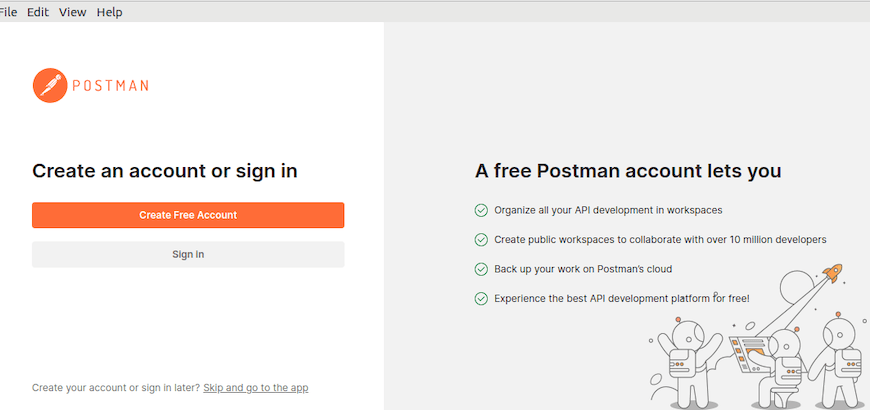
postmanOr open your GNOME/KDE application menu and search “Postman”. The welcome screen will prompt you to sign in or create a free account.
Step 2.6 — Verify Auto-Updates
Snaps auto-update every 24 hours. To manually trigger an update check:
sudo snap refresh postmanIf already on the latest version, you will see: snap "postman" has no updates available
Step 3: Install Postman on Fedora 43 via Flatpak
If you prefer a fully sandboxed application without enabling Snap, Flatpak is the best alternative for this Fedora 43 setup. Fedora 43 ships with Flatpak support by default.
Note: Some Fedora community users have reported occasional Flatpak launch instability with Postman. If you experience issues, switch to Method 1 or Method 3.
Step 3.1 — Enable the Flathub Repository
flatpak remote-add --if-not-exists flathub https://flathub.org/repo/flathub.flatpakrepoWhat this does: Registers Flathub as a trusted repository. The --if-not-exists flag prevents errors if you have already added it.
Step 3.2 — Install Postman via Flatpak
flatpak install flathub com.getpostman.PostmanPress y when prompted to confirm. Flatpak will download Postman along with all required runtime dependencies.
Step 3.3 — Launch and Update Postman
flatpak run com.getpostman.PostmanTo keep Postman updated via Flatpak:
flatpak update com.getpostman.PostmanStep 4: How To Install Postman on Fedora 43 Manually via tar.gz
The manual installation gives you maximum control over the Postman version and install location. This method is ideal for air-gapped servers, offline environments, or when you need to pin a specific version for a CI/CD pipeline.
Step 4.1 — Download the Postman Linux Package
wget https://dl.pstmn.io/download/latest/linux64 -O postman.tar.gzWhat this does: wget downloads the latest stable Linux 64-bit release directly from Postman’s official CDN. The -O flag saves it with a clean filename.
Step 4.2 — Extract the Archive to /opt/
sudo tar -xzf postman.tar.gz -C /opt/What this does: Extracts the compressed archive into /opt/ — the Linux filesystem standard for third-party software. This creates the directory /opt/Postman/.
Step 4.3 — Create a Symbolic Link
sudo ln -s /opt/Postman/Postman /usr/local/bin/postmanWhat this does: Creates a symlink so you can run postman from any terminal location. /usr/local/bin/ is already in your system’s $PATH.
Step 4.4 — Create a Desktop Entry File
sudo nano /usr/share/applications/postman.desktopPaste the following content exactly:
[Desktop Entry]
Encoding=UTF-8
Name=Postman
Comment=API Development Environment
Exec=/opt/Postman/Postman
Icon=/opt/Postman/app/icons/icon_128x128.png
Terminal=false
Type=Application
Categories=Development;Network;
Save with Ctrl+O, press Enter, then exit with Ctrl+X.
What this does: Registers Postman as a GUI application with your desktop environment (GNOME or KDE), making it appear in your application launcher.
Step 4.5 — Refresh the Application Database
sudo update-desktop-databaseThis forces the desktop environment to re-scan /usr/share/applications/ and register the new Postman shortcut immediately.
Step 4.6 — Launch and Verify
postmanIf you get a “command not found” error, verify your symlink:
ls -la /usr/local/bin/postmanStep 5: How to Update Postman on Fedora 43
Keeping Postman current is critical — new releases patch security vulnerabilities and add support for evolving API standards.
Updating via Snap
sudo snap refresh postmanSnap handles this automatically every 24 hours. This command forces an immediate check.
Updating via Flatpak
flatpak update com.getpostman.PostmanUpdating the Manual tar.gz Install
- Back up your current install:
sudo cp -r /opt/Postman /opt/Postman.bak - Download the new version:
wget https://dl.pstmn.io/download/latest/linux64 -O postman_new.tar.gz - Extract over the old directory:
sudo tar -xzf postman_new.tar.gz -C /opt/ - Verify and refresh the symlink:
sudo ln -sf /opt/Postman/Postman /usr/local/bin/postman
Step 6: How to Uninstall Postman on Fedora 43
Uninstall via Snap
sudo snap remove postmanUninstall via Flatpak
flatpak uninstall com.getpostman.PostmanUninstall Manual Install
sudo rm -rf /opt/Postman
sudo rm /usr/local/bin/postman
sudo rm /usr/share/applications/postman.desktop
sudo update-desktop-database
These four commands remove the application files, the terminal symlink, the desktop entry, and refresh the app menu database.
Troubleshooting Common Errors
Even on a clean Fedora 43 system, installs can hit snags. Here are the five most common issues and how to fix them fast.
Error 1: snap: command not found After Installing Snapd
Cause: Your shell session has not refreshed its $PATH after the symlink was created.
Fix:
sudo ln -s /var/lib/snapd/snap /snap
sudo reboot
Error 2: Postman Fails to Launch After Flatpak Install
Cause: A known intermittent GTK portal issue on some Fedora 43 desktops.
Fix:
GTK_USE_PORTAL=0 flatpak run com.getpostman.PostmanIf the problem persists, switch to the Snap or manual method.
Error 3: postman: command not found (Manual Install)
Cause: The symbolic link at /usr/local/bin/postman is broken or missing.
Fix:
ls -la /usr/local/bin/postman
sudo ln -sf /opt/Postman/Postman /usr/local/bin/postman
Error 4: Desktop Icon Not Appearing in App Menu
Cause: The .desktop file exists but the application database has not been refreshed.
Fix:
sudo update-desktop-database /usr/share/applications/
sudo chmod 644 /usr/share/applications/postman.desktop
Error 5: No space left on device During Download
Cause: Insufficient disk space in /opt/ or /tmp/.
Fix:
df -h /opt /tmp
sudo dnf clean all
Postman requires approximately 350–500 MB of disk space depending on the version.
Getting Started with Postman on Fedora 43
Once Postman is running, here is how to hit the ground running:
- Create a free account at postman.com for cloud sync and team collaboration features.
- Set up a Collection: Click New → Collection to group related API requests together.
- Use Environments: Store variables like
{{base_url}}or{{api_key}}to switch between dev, staging, and production effortlessly. - Explore the Postman API Network: Under Explore, browse thousands of pre-built public API collections from Stripe, Twilio, NASA, and more.
- Enable the Console: Press
Ctrl+Alt+Cto open the Postman console and debug request/response details in real time.
Congratulations! You have successfully installed Postman. Thanks for using this tutorial for installing Postman on Fedora 43 Linux system. For additional help or useful information, we recommend you check the official Postman website.
