How To Install PrestaShop on Debian 13

Running your own e-commerce store on a self-managed Linux server gives you control that no shared hosting plan ever will. PrestaShop is one of the most powerful open-source shopping cart platforms available today — and pairing it with Debian 13 (codenamed Trixie) creates a rock-solid foundation for any online business. This guide walks you through every single step: from a fresh Debian 13 server all the way to a fully secured, production-ready PrestaShop store. No fluff, no guesswork — just clean commands and clear explanations.
What Is PrestaShop?
PrestaShop is a free, open-source e-commerce platform written in PHP and distributed under the Open Software License. It was built specifically for online merchants who want complete ownership of their storefront — no monthly SaaS fees, no vendor lock-in, and no limitations on customization.
Out of the box, it comes loaded with features: multi-currency support, inventory tracking, order management, hundreds of payment gateway integrations, and a rich marketplace of themes and modules. Because PrestaShop runs on Linux-based servers, it performs best in Unix-like environments. Windows is not officially supported. The latest stable release at the time of writing is PrestaShop 8.2.1.
Why Choose Debian 13 for PrestaShop?
Debian 13 “Trixie” was officially released on August 9, 2025, and it brings a refined package ecosystem, improved kernel support, and long-term community backing. For server administrators, Debian has always been the safe bet: predictable release cycles, minimal bloat, and ironclad stability.
One important thing to know upfront: Debian 13 ships with PHP 8.4 by default, but PrestaShop 8 officially supports PHP 7.2.5 through 8.1, with PHP 8.1 being the recommended version for the best compatibility. That means you will need to pull PHP 8.1 from a third-party repository — which this guide covers in full detail.
Prerequisites Before You Begin
Before running a single command, make sure your environment meets these requirements:
- A Debian 13 VPS or dedicated server with at least 1 GB of RAM (2 GB recommended for production).
- Root SSH access or a user with full
sudoprivileges. - A registered domain name with its DNS A record pointing to your server’s public IP address.
- A valid email address for Let’s Encrypt SSL certificate registration.
- Internet connectivity on the server for downloading packages.
Throughout this tutorial, commands prefixed with # are run as root. The minimum PHP memory_limit must be 512M as per official PrestaShop system requirements — anything lower will cause erratic behavior or failed installations.
Step 1: Update Your Debian 13 Server
Always start with a fully updated system. This eliminates known security vulnerabilities and prevents package dependency conflicts during installation.
apt update && apt upgrade -yThis command refreshes the package index and upgrades all installed packages in one pass. If a kernel update was included, reboot the server before continuing:
rebootIt is a small step, but it matters. An outdated system is the most common cause of mysterious installation failures.
Step 2: Install and Configure the Nginx Web Server
Install Nginx
Nginx is a high-performance, lightweight web server and reverse proxy — the ideal choice for serving PrestaShop efficiently under load. Install it using the default Debian repository:
apt install nginx -yNginx starts automatically after installation. Confirm it is active and running:
systemctl status nginxCreate the Nginx Server Block
A server block tells Nginx how to handle requests for your specific domain. Create a new configuration file:
nano /etc/nginx/conf.d/prestashop.yourdomain.com.confPaste the following configuration, replacing prestashop.yourdomain.com with your actual domain:
server {
    listen 80;
    server_name prestashop.yourdomain.com;
    root /opt/prestashop/;
    index index.php;

    client_max_body_size 16M;

    location / {
        try_files $uri $uri/ /index.php$is_args$args;
    }

    location ~ \.php$ {
        include snippets/fastcgi-php.conf;
        fastcgi_pass unix:/run/php/php8.1-fpm.sock;
        fastcgi_param SCRIPT_FILENAME $document_root$fastcgi_script_name;
        include fastcgi_params;
    }

    location ~* \.(jpg|jpeg|png|gif|ico|css|js|woff2|ttf|svg)$ {
        expires 30d;
        add_header Cache-Control "public, no-transform";
    }

    location ~ /\. {
        deny all;
    }
}
The fastcgi_pass directive connects Nginx to PHP-FPM via a Unix socket, which is faster and more secure than a TCP connection. The client_max_body_size 16M setting aligns with the upload_max_filesize value you will configure in php.ini shortly. Save the file but do not restart Nginx yet — wait until after PHP is installed.
Step 3: Install MariaDB and Set Up the PrestaShop Database
Install MariaDB
MariaDB is the recommended SQL database for PrestaShop. Install it directly from the Debian 13 repository:
apt install mariadb-server -yThe minimum supported version is MariaDB 10.2, but Debian 13’s repository provides a much newer version — fully compatible and more performant. After installation, run the security script to harden your database:
mysql_secure_installationFollow the prompts: set a root password, remove anonymous users, disallow remote root login, and remove the test database. Each of these steps removes a common attack vector.
Create the PrestaShop Database and User
Log into the MariaDB shell:
mysqlThen run the following SQL commands to create a dedicated database and user:
CREATE DATABASE prestashop;
GRANT ALL ON prestashop.* TO 'prestashop'@'localhost' IDENTIFIED BY 'YourStrongP@ssword123';
FLUSH PRIVILEGES;
EXIT;
Security note: Replace YourStrongP@ssword123 with a truly unique, complex password. This database credential is the single most important thing to protect in your entire stack. The FLUSH PRIVILEGES command forces MariaDB to reload the grant tables immediately, activating the new user.
Step 4: Install PHP 8.1 and All Required Extensions
Understanding the Version Compatibility Issue
Debian 13 ships with PHP 8.4, which PrestaShop 8 does not support. The officially recommended PHP version for PrestaShop 8 is PHP 8.1. To install it, you need to add Ondřej Surý’s maintained PHP repository — the de facto standard source for multiple PHP versions on Debian-based systems.
Add the PHP 8.1 Repository
First, install the required utilities:
apt install -y apt-transport-https lsb-release ca-certificates wgetNow download the GPG key and register the repository:
wget -O /etc/apt/trusted.gpg.d/php.gpg https://packages.sury.org/php/apt.gpg
echo "deb https://packages.sury.org/php/ $(lsb_release -sc) main" | tee /etc/apt/sources.list.d/php.list
apt update
Install PHP 8.1 and Required Extensions
Install PHP 8.1-FPM along with every extension PrestaShop requires:
apt install php8.1-{xml,intl,common,bcmath,curl,fpm,mbstring,mysql,gd,imagick,zip,opcache} imagemagick -yHere is what the key extensions do:
- curl — handles remote API calls and module downloads
- gd / imagick — generates and processes product image thumbnails
- intl — enables internationalization for multi-language and multi-currency stores
- mbstring — manages multibyte string operations for global character sets
- zip — extracts downloaded modules and localization packs
- opcache — caches compiled PHP bytecode to dramatically speed up page loads
Verify that PHP-FPM is active:
systemctl status php8.1-fpmStep 5: Configure PHP Settings for PrestaShop
Open the PHP-FPM configuration file in your preferred editor:
nano /etc/php/8.1/fpm/php.iniLocate and update the following directives to match PrestaShop’s recommended values:
memory_limit = 512M
upload_max_filesize = 16M
post_max_size = 16M
max_execution_time = 300
allow_url_fopen = On
The memory_limit of 512M is a hard requirement from the official PrestaShop documentation — stores running below this threshold will experience checkout errors and back-office crashes. Save the file, then restart PHP-FPM and Nginx to apply all settings:
systemctl restart php8.1-fpm
systemctl restart nginx
Step 6: Secure Your Site With a Free SSL Certificate
HTTPS is not optional for e-commerce. Customers need to trust your site before they hand over payment details, and search engines actively penalize insecure URLs. Beyond user trust, SSL is a baseline requirement for PCI DSS compliance on any site processing card transactions.
Install the Certbot client for Nginx:
apt install python3-certbot-nginx -yRun Certbot to obtain and automatically install your certificate:
certbot --nginxThe interactive prompt will ask for your email address, Terms of Service acceptance, and which domain to secure. Choose your domain, and Certbot will automatically modify your Nginx server block to add HTTPS support on port 443.
Your certificate is valid for 90 days and auto-renews via a background timer. Confirm auto-renewal works:
certbot renew --dry-runRestart Nginx one final time:
systemctl restart nginxStep 7: Download and Deploy PrestaShop
Verify Server Readiness First
Before deploying any files, use the official PrestaShop server compatibility checker called php-ps-info. This tool scans your server configuration and confirms everything is ready.
apt install unzip -y
wget https://github.com/PrestaShop/php-ps-info/archive/refs/tags/v1.2.zip -O phppsinfo.zip
unzip phppsinfo.zip -d /opt/prestashop/
Visit https://prestashop.yourdomain.com/php-ps-info-1.2/phppsinfo.php in your browser (login: prestashop / prestashop). Every item should show green. If anything is red, resolve it before continuing.
Download and Extract PrestaShop 8.2.1
Download the latest stable release:
cd /tmp
wget https://assets.prestashop3.com/dst/edition/corporate/8.2.1/prestashop_edition_basic_version_8.2.1.zip
unzip prestashop_edition_basic_version_8.2.1.zip
unzip prestashop.zip -d /opt/prestashop
Set the correct file ownership so Nginx can read and write to the PrestaShop directory:
chown -R www-data: /opt/prestashopThe www-data user is the identity under which Nginx runs on Debian. Without proper ownership, the web server cannot write cache files, upload images, or install modules.
Step 8: Run the PrestaShop Web Installer
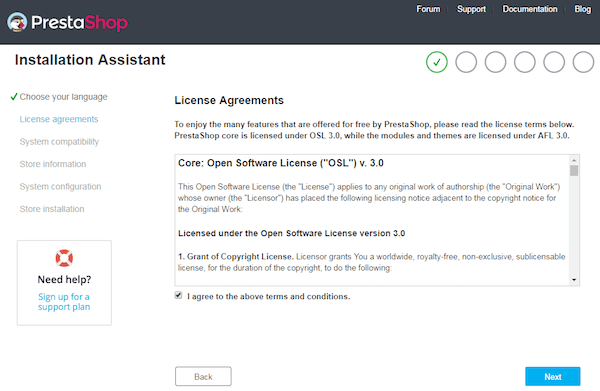
Open a browser and go to https://prestashop.yourdomain.com. The installation wizard will launch automatically. Work through each screen in order:
- Language Selection — Choose your store’s primary language and click Next.
- License Agreement — Review and accept the PrestaShop Open Software License to proceed.
- Store Information — Enter your store name, admin email address, and a strong admin password. Set your country and timezone here as well.
- Demo Products — For first-time installs, enable sample products. They help you test how your store looks before adding real inventory.
- Database Configuration — Enter the database name (
prestashop), the database username (prestashop), your password, andlocalhostas the host. Click “Test database connection” before proceeding — if this fails, double-check your MariaDB credentials. - Installation Progress — The installer will now create all database tables and copy configuration files. This typically takes one to three minutes.
- Completion Screen — Once finished, the installer displays your admin panel URL, which PrestaShop automatically randomizes for security (e.g.,
/admin7k3p2xq). Copy and save this URL immediately.
Step 9: Essential Post-Installation Security Tasks
The very first thing you must do after installation is delete the /install directory. Leaving it in place exposes a critical attack surface — anyone could use it to wipe and reinstall your store.
rm -rf /opt/prestashop/installNow log into your admin panel using the unique URL the installer provided, along with your email and password. Take a few more minutes to complete these hardening steps:
- Enable UFW firewall — Allow only necessary ports:
ufw allow 22 && ufw allow 80 && ufw allow 443 && ufw enable - Confirm OPcache is active — Navigate to Admin Panel → Advanced Parameters → Information and verify PHP OPcache shows as enabled.
- Disable directory listing in Nginx — Add
autoindex off;inside the server block if it is not already present. - Schedule regular backups — Use PrestaShop’s built-in database backup tool under Admin Panel → Advanced Parameters → DB Backup.
- Keep modules and the core updated — Outdated modules are the leading source of PrestaShop security vulnerabilities.
Troubleshooting Common PrestaShop Installation Errors
Even on a clean server, things occasionally go sideways. Here are the most frequent issues and their fixes:
- 502 Bad Gateway: PHP-FPM is not running or the socket path is wrong. Check with
systemctl status php8.1-fpmand confirm/run/php/php8.1-fpm.sockexists. Make sure thefastcgi_passline in your Nginx config points to exactly this path. - Database connection error in the wizard: Verify MariaDB is running with
systemctl status mariadb. Re-check the username, password, and database name — a single typo will block the connection. - File permission errors (403 Forbidden or blank pages): Run
chown -R www-data: /opt/prestashopagain. Core directories should be755and files644. - SSL certificate issuance fails: Your domain’s DNS A record must fully propagate before Certbot can verify it. Use
dig +short yourdomain.comto confirm the IP resolves correctly. - Missing PHP extension error: Re-run
php-ps-infoto identify which extension is absent, then install it:apt install php8.1-[extension_name] -yand restart PHP-FPM. - Blank back office after login: This is almost always a
memory_limitissue. Confirm yourphp.inichange was saved correctly and that you restarted PHP-FPM afterward.
Congratulations! You have successfully installed PrestaShop. Thanks for using this tutorial to install the latest version of the PrestaShop e-commerce platform on Debian 13 “Trixie” system. For additional help or useful information, we recommend you check the official PrestaShop website.
