How To Install Pritunl on Fedora 43

Pritunl stands as one of the most robust open-source VPN solutions available today, offering enterprise-grade features without the enterprise price tag. This powerful VPN server brings together OpenVPN and WireGuard protocols under a sleek web-based management interface, making it an ideal choice for organizations seeking secure remote access solutions. Whether you’re setting up a VPN for a small team or deploying infrastructure for hundreds of remote users, Pritunl on Fedora 43 delivers the performance and flexibility modern networks demand. This comprehensive guide walks through every step of the installation process, from initial system preparation to connecting your first client.
Understanding Pritunl VPN
Pritunl transforms complex VPN management into an intuitive experience. Unlike traditional VPN solutions that require extensive command-line configuration, Pritunl provides a modern web interface that simplifies user management, server configuration, and monitoring. The platform supports both OpenVPN and WireGuard protocols, giving administrators flexibility to choose the best option for their specific use case.
The software excels in several key areas. Multi-factor authentication comes built-in, supporting popular services like Google Authenticator and Duo. The distributed architecture allows for high availability deployments across multiple servers. User management becomes straightforward with organizational structures that mirror real-world access requirements.
Organizations use Pritunl for various scenarios: providing secure remote access to corporate networks, establishing site-to-site VPN connections between offices, and creating encrypted tunnels to cloud resources. The platform handles everything from small deployments with a handful of users to large-scale implementations serving thousands of concurrent connections.
Prerequisites and System Requirements
Successful deployment begins with proper system preparation. The hardware specifications depend heavily on expected usage patterns.
Hardware Requirements
Minimum specifications include 1GB RAM and 10GB disk space, suitable for testing environments or small deployments with fewer than 20 concurrent users. Production environments serving 50+ concurrent connections should start with 2GB RAM minimum, with 4GB or more recommended for optimal performance. CPU requirements scale with user count — a dual-core processor handles most small to medium deployments, while larger implementations benefit from quad-core or better processors.
Software Requirements
A fresh or existing Fedora 43 installation provides the foundation. Root access or sudo privileges are essential for installing packages and modifying system configurations. Stable internet connectivity ensures smooth package downloads and future updates.
Network Configuration
The VPN server requires several ports open and accessible. TCP port 443 serves the web interface, UDP port 1194 handles OpenVPN connections, TCP port 80 supports Let’s Encrypt certificate verification, and UDP port 51820 enables WireGuard connections. A fully qualified domain name (FQDN) pointing to your server’s IP address simplifies SSL certificate management, though it remains optional for basic deployments.
Knowledge Foundation
Basic Linux command-line familiarity makes the installation process smoother. Understanding fundamental networking concepts like IP addressing, subnetting, and routing helps with configuration decisions. SSH access to your Fedora 43 server completes the prerequisite checklist.
Preparing Your Fedora 43 System
System preparation establishes a solid foundation for the VPN server.
Update System Packages
Begin by updating all existing packages to their latest versions:
sudo dnf update -yThis command ensures your system has the latest security patches and bug fixes before introducing new software.
Install Required Dependencies
Pritunl and its components need several supporting packages:
sudo dnf install -y dnf-plugins-core python3 python3-devel openssl-devel net-toolsThese dependencies include DNF plugins for repository management, Python 3 and its development headers, OpenSSL libraries for encryption, and network tools for troubleshooting.
Load Kernel Modules
Network address translation and packet filtering require specific kernel modules. Load them immediately:
sudo modprobe ip_tables
sudo modprobe iptable_filter
sudo modprobe iptable_nat
Make these modules persistent across reboots by adding them to the modules configuration:
echo "ip_tables" | sudo tee -a /etc/modules-load.d/pritunl.conf
echo "iptable_filter" | sudo tee -a /etc/modules-load.d/pritunl.conf
echo "iptable_nat" | sudo tee -a /etc/modules-load.d/pritunl.conf
Configure System Limits
VPN servers handle numerous simultaneous connections, requiring adjusted file descriptor limits. Edit the limits configuration:
sudo nano /etc/security/limits.confAdd these lines at the end:
* soft nofile 64000
* hard nofile 64000
Save and close the file. These settings allow the system to handle more open files and network connections simultaneously.
Configure Firewall
Fedora 43 uses firewalld for packet filtering. Open the necessary ports:
sudo firewall-cmd --permanent --add-port=443/tcp
sudo firewall-cmd --permanent --add-port=1194/udp
sudo firewall-cmd --permanent --add-port=80/tcp
sudo firewall-cmd --permanent --add-port=51820/udp
sudo firewall-cmd --reload
Each command adds a permanent firewall rule, and the reload applies them immediately.
SELinux Configuration
SELinux enforces security policies on Fedora. Allow necessary network connectivity:
sudo setsebool -P httpd_can_network_connect 1This boolean setting permits the web interface to communicate with backend services.
Installing and Configuring MongoDB
Pritunl relies on MongoDB as its database backend for storing configuration data, user information, and connection logs.
Add MongoDB Repository
Create a new repository file for MongoDB 6.0:
sudo nano /etc/yum.repos.d/mongodb-org-6.0.repoAdd this content:
[mongodb-org-6.0]
name=MongoDB Repository
baseurl=https://repo.mongodb.org/yum/redhat/9/mongodb-org/6.0/x86_64/
gpgcheck=1
enabled=1
gpgkey=https://www.mongodb.org/static/pgp/server-6.0.asc
Save and close the file.
Install MongoDB
With the repository configured, install MongoDB:
sudo dnf install -y mongodb-orgStart and Enable MongoDB Service
Enable and start the MongoDB service:
sudo systemctl enable mongod
sudo systemctl start mongod
These commands configure MongoDB to start automatically on boot and launch it immediately.
Verify MongoDB Status
Confirm the database service is running:
sudo systemctl status mongodLook for active (running) in the output. Green text indicates successful operation.
Optimize MongoDB Configuration
Edit the MongoDB configuration file for optimal performance:
sudo nano /etc/mongod.confEnsure the network interface binds to localhost for security:
net:
  port: 27017
  bindIp: 127.0.0.1
Restart MongoDB to apply changes:
sudo systemctl restart mongodThis configuration restricts database access to local connections only, preventing external access attempts.
Adding Pritunl Repository to Fedora 43
Create Repository File
Add Pritunl’s official repository:
sudo nano /etc/yum.repos.d/pritunl.repoInsert this configuration:
[pritunl]
name=Pritunl Repository
baseurl=https://repo.pritunl.com/stable/yum/fedora/43/
gpgcheck=1
enabled=1
Save the file.
Import GPG Keys
Security verification requires Pritunl’s GPG key. Import it using the keyserver method:
gpg --keyserver hkp://keyserver.ubuntu.com --recv-keys 7568D9BB55FF9E5287D586017AE645C0CF8E292A
gpg --armor --export 7568D9BB55FF9E5287D586017AE645C0CF8E292A | sudo tee /etc/pki/rpm-gpg/RPM-GPG-KEY-pritunl
sudo rpm --import /etc/pki/rpm-gpg/RPM-GPG-KEY-pritunl
Alternatively, import directly from GitHub:
sudo curl -fsSL https://raw.githubusercontent.com/pritunl/pgp/master/pritunl_repo_pub.asc | sudo gpg --dearmor -o /etc/pki/rpm-gpg/RPM-GPG-KEY-pritunl
sudo rpm --import /etc/pki/rpm-gpg/RPM-GPG-KEY-pritunl
The GPG key verifies package authenticity during installation.
Update Package Cache
Refresh the package database:
sudo dnf updateDNF now recognizes the Pritunl repository and can install packages from it.
Installing Pritunl Server Software
Install Pritunl Package
Install the VPN server software:
sudo dnf install -y pritunlDNF handles all dependencies automatically.
Add WireGuard Support
Install WireGuard tools for modern VPN protocol support:
sudo dnf install -y wireguard-toolsWireGuard offers superior performance in many scenarios compared to traditional OpenVPN.
Enable Pritunl Service
Configure the service for automatic startup:
sudo systemctl enable pritunl
sudo systemctl start pritunl
These commands ensure Pritunl starts with the system and launches immediately.
Verify Installation
Check the service status:
sudo systemctl status pritunlMonitor real-time logs:
sudo journalctl -u pritunl -fThe logs display startup messages and any potential errors. Press Ctrl+C to exit log monitoring.
Initial Web Interface Setup and Configuration
Access the Web Interface
Open a web browser and navigate to:
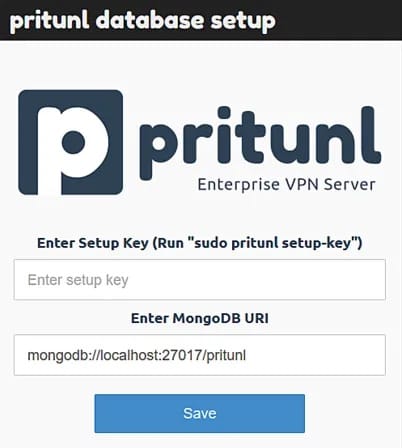
https://your-server-ip-addressReplace your-server-ip-address with your Fedora 43 server’s actual IP address. The browser displays a security warning about the self-signed SSL certificate. This is expected on initial access. Click Advanced and proceed to the site.
Generate Setup Key
Return to your SSH session and generate the setup key:
sudo pritunl setup-keyThe command outputs a long alphanumeric string. Copy this key and paste it into the web interface field, then click Save.
Retrieve Default Password
Obtain the default administrator credentials:
sudo pritunl default-passwordThe output shows the default username (usually pritunl) and a randomly generated password.
Complete Initial Login
Enter the default credentials in the login form. Pritunl immediately prompts for a password change. Choose a strong password combining uppercase letters, lowercase letters, numbers, and special characters — at least 12 characters for adequate security. The dashboard appears after successful authentication.
Configuring SSL/TLS Certificates
Let’s Encrypt Integration
Navigate to the Settings tab in the Pritunl interface. Scroll to the Let’s Encrypt Domain field and enter your server’s fully qualified domain name (e.g., vpn.yourdomain.com). Click Save. Pritunl automatically contacts Let’s Encrypt, verifies domain ownership through port 80, and installs the certificate. This process typically completes within 60 seconds.
Your domain’s DNS A record must point to the server’s IP address, and port 80 must be accessible from the internet for domain verification to succeed.
Custom Certificates
Organizations with existing certificates can upload them manually. In the Settings tab, locate the SSL Certificate section. Paste your certificate chain and private key into the respective fields and click Save. Let’s Encrypt certificates renew automatically every 60 days. Manual certificates require administrator intervention before expiration.
Creating Organizations and Managing Users
Create an Organization
Click the Users tab in the navigation menu. Select Add Organization from the top toolbar. Enter a descriptive name like Remote Workers or Engineering Team. The name should reflect the group’s purpose or department. Click Add to create the organization.
Add Users
Select your newly created organization from the list. Click Add User in the toolbar. Fill in the required username field — use email addresses or standard naming conventions for consistency. Optional fields include email address for profile distribution and PIN for additional authentication security. Click Add to create the user account.
Configure Two-Factor Authentication
Click the user’s name to expand their settings. Toggle Two-step Authentication to the enabled position. Pritunl supports Google Authenticator, Authy, and other TOTP-compatible applications. Users scan a QR code with their authenticator app during first connection.
User Profile Options
Set profile expiration dates for temporary access. Click Profile Expires and select a date. The system automatically blocks connections after the expiration date — ideal for contractors or short-term access needs.
Configuring VPN Servers
Create a New Server
Navigate to the Servers tab. Click Add Server in the toolbar. Configure the following essential settings:
- Name: Choose a descriptive identifier like Main Office VPN or Production Server.
- Protocol: UDP provides better performance and lower latency — ideal for most deployments. TCP offers greater reliability through firewalls that filter UDP traffic. Start with UDP unless specific network constraints require TCP.
- Port: Default port 1194 works well for OpenVPN. Custom ports help circumvent restrictive firewalls.
- Virtual Network: Define the IP address range assigned to VPN clients. Use private address space like 10.0.0.0/24 or 172.16.0.0/24. A /24 subnet allows 254 clients; a /23 subnet allows 510 clients.
- DNS Server: Specify DNS servers for client name resolution — 8.8.8.8 (Google), 1.1.1.1 (Cloudflare), or internal DNS servers for accessing local resources.
Advanced Server Options
Enable Inter-client Communication to allow VPN clients to communicate directly with each other. Disable this for security-sensitive environments requiring client isolation. Toggle IPv6 Support if your network infrastructure supports the protocol. Enable LZO Compression to reduce bandwidth usage on slow connections. Click Add to create the server.
Attaching Organizations to Servers
Link an Organization
In the Servers tab, click Attach Organization on your newly created server. Select the organization from the dropdown menu and click Attach to complete the link. Multiple organizations can attach to a single server, useful for separating user groups while consolidating infrastructure.
Start the Server
Click the Start Server button. The status indicator changes from gray to green, displaying ONLINE when ready. The server now accepts connections from users in attached organizations. Monitor the server panel for real-time connection statistics and authentication log entries.
Configuring Network Routes
Add Network Routes
Click your server name to expand its settings and navigate to the Routes section. Click Add Route to define accessible networks. Enter the network address in CIDR notation (e.g., 192.168.1.0/24 for a typical office network). Leave Virtual Network enabled to route traffic through the VPN tunnel. Add multiple routes for access to various network segments.
Split Tunnel Configuration
Enable Split Tunnel in the server settings to route only specific traffic through the VPN. This configuration preserves bandwidth by sending internet-bound traffic directly from client devices while routing only corporate traffic through the tunnel. Add routes for internal networks that require VPN access. Client internet traffic bypasses the VPN, improving performance for bandwidth-intensive applications.
Verify Routing
After connecting a test client, verify route functionality using ping commands to internal resources. Check the client routing table to confirm proper route installation.
Generating and Distributing Client Profiles
Create a Profile
Navigate to the Users tab. Locate the target user in your organization. Click the download icon next to their name. Select the appropriate server from the dropdown if multiple servers exist. Pritunl generates a .ovpn profile file containing all necessary connection parameters.
Distribution Methods
Download the profile directly and transfer it securely to the user via encrypted email or file sharing. Click Send Download Link to email a temporary download link directly to the user’s email address. Generate a QR code for mobile device configuration — the user scans this code with their mobile Pritunl client for instant setup.
Temporary Profiles
Click Temporary Profile and set an expiration period in hours, days, or weeks. Temporary profiles automatically become invalid after the specified duration — perfect for guest access or temporary contractors. Expired profiles require regeneration, and the old profile stops working immediately upon expiration.
Installing Pritunl Client on Various Platforms
Fedora Linux Client
Create the client repository file:
sudo nano /etc/yum.repos.d/pritunl-client.repoAdd:
[pritunl-client]
name=Pritunl Client Repository
baseurl=https://repo.pritunl.com/stable/yum/fedora/43/
gpgcheck=1
enabled=1
Import GPG keys and install:
gpg --keyserver hkp://keyserver.ubuntu.com --recv-keys 7568D9BB55FF9E5287D586017AE645C0CF8E292A
gpg --armor --export 7568D9BB55FF9E5287D586017AE645C0CF8E292A | sudo tee /etc/pki/rpm-gpg/RPM-GPG-KEY-pritunl
sudo rpm --import /etc/pki/rpm-gpg/RPM-GPG-KEY-pritunl
sudo dnf install -y pritunl-client-electron
Windows Installation
Visit https://client.pritunl.com and download the Windows installer. Run the executable and follow the installation wizard. The client installs to Program Files and creates a desktop shortcut.
macOS Installation
Download the macOS package from the official website. Open the .pkg file and drag Pritunl to the Applications folder. Launch from Launchpad or the Applications folder.
Mobile Clients
iOS users download Pritunl from the Apple App Store. Android users install from Google Play Store. Both mobile clients support QR code scanning for rapid profile import.
Connecting to Your VPN Server
Import Profile
Launch the Pritunl client application. Click the Import button or drag the .ovpn file directly into the client window. Mobile users tap Add Profile and scan the QR code. Enter the user PIN if configured during account creation.
Establish Connection
Click the Connect button next to the imported profile. The client displays connection progress. Successful connections show a green indicator and Connected status.
Verify Connectivity
Check the connection status in the client interface. Visit whatismyip.com to verify your IP address changed to the VPN server’s address. Ping internal resources to confirm network access. Connection logs in both the client and Pritunl server interface show detailed connection information.
Security Best Practices and Hardening
Enable Two-Factor Authentication
Mandate 2FA for all users without exception. Navigate to Settings and enable Enforce 2FA globally. Individual users configure their authenticator apps during first connection. Pritunl supports Google Authenticator, Duo Security, Authy, and any TOTP-compatible application.
Regular Updates
Keep Pritunl and MongoDB updated with the latest security patches:
sudo dnf update pritunl mongodb-orgSubscribe to the Pritunl security mailing list for vulnerability notifications.
Access Monitoring
Review connection logs regularly in the Pritunl dashboard. Look for unusual connection patterns, failed authentication attempts, or connections from unexpected geographic locations. Configure log retention policies to maintain historical records for security audits.
Additional Server Hardening
Implement SSH key-based authentication and disable password login:
sudo nano /etc/ssh/sshd_configSet PasswordAuthentication no and restart SSH. Install fail2ban to block brute-force attacks:
sudo dnf install -y fail2ban
sudo systemctl enable --now fail2ban
Troubleshooting Common Issues
Connection Failures
Verify server status in the Pritunl dashboard and confirm it shows ONLINE. Review server logs for error messages. Confirm firewall rules allow required ports:
sudo firewall-cmd --list-allTest network connectivity from client to server using telnet or netcat. Regenerate client profiles if connections fail with authentication errors.
DNS Resolution Problems
Verify DNS server settings in the VPN server configuration. Test DNS resolution from a connected client:
nslookup internal-resource.localChange DNS servers to public resolvers like 8.8.8.8 if internal DNS fails. Check client DNS configuration to ensure VPN-provided DNS takes precedence over the local resolver.
Performance Issues
Switch from TCP to UDP protocol for better throughput. UDP reduces overhead and improves latency for most applications. Adjust compression settings — enable for slow connections, disable for high-speed links. Scale server resources if CPU or memory maxes out during peak usage. Consider distributing load across multiple Pritunl servers for large deployments.
Authentication Troubles
Reset user passwords in the Pritunl dashboard by clicking the user, then Change Password. Reset 2FA by disabling and re-enabling the feature for affected users. Regenerate expired profiles using the profile download button. Check user account expiration dates and extend if necessary.
Congratulations! You have successfully installed Pritunl. Thanks for using this tutorial for installing the Pritunl VPN Server on your Fedora 43 Linux system. For additional help or useful information, we recommend you check the official Pritunl website.
