How To Install Prometheus on Debian 13

Prometheus has become the go-to monitoring solution for modern infrastructure, offering powerful time-series data collection and alerting capabilities that system administrators rely on daily. This open-source monitoring system provides a multi-dimensional data model, flexible query language called PromQL, and seamless integration with visualization tools like Grafana. Whether you’re managing a small server setup or orchestrating complex cloud environments, Prometheus delivers the insights needed to maintain optimal system performance.
Installing Prometheus on Debian 13 requires careful attention to configuration details and security practices. This comprehensive guide walks you through every step of the installation process, from system preparation to advanced troubleshooting. You’ll learn two installation methods—using APT packages and manual binary installation—giving you flexibility based on your specific requirements. By the end, you’ll have a fully functional Prometheus monitoring system collecting metrics from your Debian 13 server.
Understanding Prometheus
Prometheus operates as a time-series database specifically designed for monitoring and alerting. Its architecture consists of several key components working together seamlessly. The Prometheus server itself handles data scraping, storage, and query processing. Exporters collect metrics from various systems and applications, exposing them in a format Prometheus understands. The Alertmanager component processes alerts and routes them to appropriate channels.
What sets Prometheus apart is its pull-based model. Rather than applications pushing metrics, Prometheus actively scrapes configured targets at regular intervals. This approach provides better reliability and gives you centralized control over monitoring configuration. The system excels at tracking metrics like CPU usage, memory consumption, disk I/O, and custom application metrics.
Node Exporter serves as the primary metric collector for Linux systems, exposing hardware and kernel-related metrics that Prometheus can scrape. It provides detailed information about system resources, making it essential for comprehensive server monitoring.
Prerequisites and Requirements
Before beginning the installation, ensure your Debian 13 system meets the necessary requirements. You’ll need root or sudo privileges to execute system-level commands. A minimum of 2GB RAM is recommended for basic monitoring setups, though production environments typically require more resources based on the number of targets being monitored.
Your system should have at least 10GB of available disk space for Prometheus data storage. This requirement increases proportionally with the number of metrics collected and your retention period. Network connectivity is essential, as Prometheus needs to reach its scrape targets and external services.
Familiarity with basic Linux command-line operations will make the installation process smoother. Understanding YAML configuration syntax helps when customizing Prometheus settings, though this guide explains each configuration section in detail.
Preparing Your Debian 13 System
Updating System Packages
Start by updating your system’s package index to ensure you have access to the latest software versions. Open your terminal and execute:
sudo apt updateNext, upgrade any outdated packages:
sudo apt upgrade -yThis step ensures system stability and security before introducing new software. The process typically takes a few minutes depending on your internet connection and the number of packages requiring updates.
Creating Dedicated System User
For enhanced security, running Prometheus under a dedicated system user limits potential damage from security vulnerabilities. Create the prometheus user and group:
sudo groupadd --system prometheus
sudo useradd -s /sbin/nologin --system -g prometheus prometheus
The --system flag creates a system account without a home directory or login shell, reducing the attack surface. This user will own the Prometheus processes and data directories.
Create the necessary directory structure:
sudo mkdir /etc/prometheus
sudo mkdir /var/lib/prometheus
Set appropriate ownership:
sudo chown prometheus:prometheus /etc/prometheus
sudo chown prometheus:prometheus /var/lib/prometheus
These directories store configuration files and time-series data respectively.
Method 1: Installing Prometheus via APT (Recommended)
Installing from Debian Repository
The simplest installation method uses Debian’s official repositories. This approach provides automatic dependency resolution and easier updates. Install Prometheus and Node Exporter with a single command:
sudo apt install prometheus prometheus-node-exporter -yThe package manager handles all dependencies and configures basic systemd services automatically. This method suits most users who prefer convenience over having the absolute latest version.
Verify the installation completed successfully:
prometheus --versionYou should see version information displayed in your terminal.
Understanding Default Installation Paths
The APT installation places files in standard Linux directory locations. Configuration files reside in /etc/prometheus/, including the main prometheus.yml file. This centralized location follows Linux filesystem hierarchy standards.
Time-series data is stored in /var/lib/prometheus/ by default. This directory grows over time as Prometheus collects metrics, so monitor disk space usage regularly. Binary executables are installed to /usr/bin/, making them accessible system-wide.
The systemd service file is located at /lib/systemd/system/prometheus.service, controlling how Prometheus runs as a system service. Log files can be accessed through journalctl commands, providing centralized log management.
Method 2: Manual Installation from Source
Downloading Prometheus Binary
Manual installation gives you access to the latest releases and greater control over the setup. Visit the official Prometheus downloads page or use wget to fetch the latest version directly. First, identify the current release from GitHub:
cd /tmp
wget https://github.com/prometheus/prometheus/releases/download/v2.48.0/prometheus-2.48.0.linux-amd64.tar.gz
Replace the version number with the latest stable release. Extract the downloaded archive:
tar -xvf prometheus-2.48.0.linux-amd64.tar.gz
cd prometheus-2.48.0.linux-amd64
Setting Up Directory Structure
Move the binaries to appropriate system locations:
sudo cp prometheus /usr/local/bin/
sudo cp promtool /usr/local/bin/
The promtool utility validates configuration files and performs administrative tasks. Copy console templates and libraries:
sudo cp -r consoles /etc/prometheus
sudo cp -r console_libraries /etc/prometheus
These files enable Prometheus’s built-in web console functionality. Move the configuration file:
sudo cp prometheus.yml /etc/prometheus/Ensure all files have correct ownership:
sudo chown -R prometheus:prometheus /etc/prometheus /var/lib/prometheus
sudo chown prometheus:prometheus /usr/local/bin/prometheus /usr/local/bin/promtool
Proper permissions prevent security issues and ensure Prometheus can read its configuration and write data.
Configuring Prometheus
Understanding prometheus.yml
The prometheus.yml file controls all aspects of Prometheus behavior. Open it for editing:
sudo nano /etc/prometheus/prometheus.ymlThe file uses YAML syntax, where indentation matters significantly. Global settings define default parameters for all scrape configurations. Here’s a basic structure:
global:
  scrape_interval: 15s
  evaluation_interval: 15s

scrape_configs:
  - job_name: 'prometheus'
    static_configs:
      - targets: ['localhost:9090']
The scrape_interval determines how frequently Prometheus collects metrics from targets. A 15-second interval balances data granularity with resource usage. The evaluation_interval controls how often Prometheus evaluates alerting rules.
Configuring Scrape Targets
Scrape configurations define which endpoints Prometheus monitors. Each job has a unique name and one or more targets. Configure Prometheus to monitor itself:
scrape_configs:
  - job_name: 'prometheus'
    static_configs:
      - targets: ['localhost:9090']
Add Node Exporter as a monitoring target:
  - job_name: 'node_exporter'
    static_configs:
      - targets: ['localhost:9100']
Node Exporter runs on port 9100 by default, exposing system metrics. You can add multiple targets under a single job by listing them in the targets array. For monitoring multiple servers, specify their IP addresses or hostnames.
Static configurations work well for small environments, while larger deployments benefit from dynamic service discovery.
Validating Configuration
Always validate your configuration before starting Prometheus. The promtool utility checks YAML syntax and logical errors:
sudo promtool check config /etc/prometheus/prometheus.ymlThis command reports any syntax errors or configuration problems. A successful validation displays “SUCCESS” along with loaded rules and scrape configurations. Fix any reported errors before proceeding.
Creating and Configuring Systemd Service
Creating Service File
If you performed a manual installation, create a systemd service file to manage Prometheus. Create the file:
sudo nano /etc/systemd/system/prometheus.serviceAdd the following configuration:
[Unit]
Description=Prometheus Monitoring System
Documentation=https://prometheus.io/docs/introduction/overview/
Wants=network-online.target
After=network-online.target

[Service]
Type=simple
User=prometheus
Group=prometheus
ExecStart=/usr/local/bin/prometheus \
  --config.file=/etc/prometheus/prometheus.yml \
  --storage.tsdb.path=/var/lib/prometheus/ \
  --web.console.templates=/etc/prometheus/consoles \
  --web.console.libraries=/etc/prometheus/console_libraries \
  --web.listen-address=0.0.0.0:9090
Restart=always
RestartSec=10s

[Install]
WantedBy=multi-user.target
This configuration ensures Prometheus starts after network services are available. The Restart=always directive automatically restarts Prometheus if it crashes. The RestartSec parameter adds a 10-second delay between restart attempts, preventing rapid restart loops.
Managing Prometheus Service
Reload systemd to recognize the new service file:
sudo systemctl daemon-reloadStart the Prometheus service:
sudo systemctl start prometheusEnable automatic startup at boot time:
sudo systemctl enable prometheusThis command creates the necessary symbolic links in the systemd configuration. Check the service status:
sudo systemctl status prometheusYou should see “active (running)” in green text. View detailed logs if needed:
sudo journalctl -u prometheus -fThe -f flag follows the log output in real-time. When you modify prometheus.yml, restart the service to apply changes:
sudo systemctl restart prometheusAccessing Prometheus Web Interface
Open your web browser and navigate to http://your-server-ip:9090, replacing “your-server-ip” with your actual server address. For local installations, use http://localhost:9090. The Prometheus web interface loads, displaying the expression browser on the landing page.
Click “Status” in the top menu, then select “Targets” to view all configured scrape targets. Each target shows its current state—”UP” indicates successful scraping, while “DOWN” signals connection problems. The page displays when each target was last scraped and how long the scrape took.
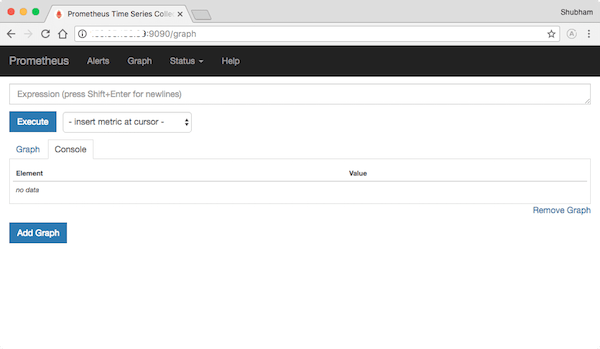
The expression browser accepts PromQL queries for exploring metrics. Try a simple query:
upThis query shows which targets are currently reachable. Press “Execute” to see results. Try another query:
node_cpu_seconds_totalThis displays CPU time spent in different modes. The Graph tab visualizes metric trends over time, while the Console tab shows current values.
Configuring Node Exporter
Node Exporter collects comprehensive system metrics including CPU, memory, disk, and network statistics. If installed via APT, it starts automatically. Verify it’s running:
sudo systemctl status prometheus-node-exporterNode Exporter listens on port 9100 by default. Test it directly:
curl http://localhost:9100/metricsThis command displays all available metrics in Prometheus format. The output includes hundreds of metrics covering various system aspects.
Ensure Node Exporter appears in your Prometheus configuration’s scrape targets. Once configured and Prometheus restarts, metrics become queryable. Common Node Exporter metrics include:
node_cpu_seconds_total: CPU time statisticsnode_memory_MemAvailable_bytes: Available memorynode_disk_io_time_seconds_total: Disk I/O statisticsnode_network_receive_bytes_total: Network traffic received
Query these metrics in the Prometheus web interface to verify data collection works correctly.
Security Best Practices
Firewall Configuration
Restrict access to Prometheus ports using your firewall. If using UFW:
sudo ufw allow 9090/tcp
sudo ufw allow from trusted_ip to any port 9090
Replace “trusted_ip” with your actual trusted IP address or subnet. This limits who can access the Prometheus web interface. For production environments, avoid exposing Prometheus directly to the internet.
Configure similar rules for Node Exporter if monitoring from remote systems:
sudo ufw allow 9100/tcpReview and enable your firewall rules:
sudo ufw enable
sudo ufw status
Additional Security Measures
Deploy a reverse proxy like Nginx to add authentication layers. Nginx handles HTTPS termination and basic authentication, keeping Prometheus behind a secure gateway. Configure TLS certificates to encrypt traffic between clients and your monitoring system.
Consider implementing network segmentation, placing Prometheus on a management network separate from production traffic. This isolation limits exposure if other network segments are compromised.
Keep Prometheus and all exporters updated with the latest security patches. Subscribe to security mailing lists to stay informed about vulnerabilities. Limit metric exposure by carefully choosing which metrics to collect—excessive detail can reveal sensitive system information.
Regularly audit access logs and review who has access to your monitoring infrastructure. Remove unnecessary user accounts and enforce strong authentication practices.
Testing Your Installation
Verify Prometheus is actively scraping targets by visiting the Targets page. All configured endpoints should show “UP” status with recent scrape times. Test several PromQL queries to ensure data collection works:
up{job="prometheus"}
node_memory_MemAvailable_bytes
rate(node_cpu_seconds_total[5m])
These queries confirm Prometheus can retrieve and process metrics. The rate() function calculates per-second rate increases, useful for understanding resource consumption trends.
Check that metrics update regularly by refreshing queries after waiting one scrape interval. Values should change, reflecting actual system activity. If metrics remain static, investigate scrape configuration and target connectivity.
Test Node Exporter metrics specifically to ensure comprehensive system monitoring. Query filesystem metrics, network statistics, and process information to confirm complete data collection.
Common Troubleshooting Issues
Service Won’t Start
When Prometheus fails to start, examine system logs immediately:
sudo journalctl -u prometheus -n 50 --no-pagerThis displays the last 50 log entries for the Prometheus service. Common problems include configuration syntax errors, which promtool identifies:
sudo promtool check config /etc/prometheus/prometheus.ymlPermission issues frequently prevent startup. Verify the prometheus user owns all necessary files and directories:
sudo chown -R prometheus:prometheus /etc/prometheus /var/lib/prometheusPort conflicts occur if another process uses port 9090. Identify the conflicting process:
sudo lsof -i :9090Either stop the conflicting service or configure Prometheus to use a different port using the --web.listen-address flag.
Target Down or Connection Refused
When targets show “DOWN” status, verify the target service is actually running. For Node Exporter:
sudo systemctl status prometheus-node-exporterCheck firewall rules aren’t blocking connections between Prometheus and its targets. Test connectivity manually:
curl http://target-ip:9100/metricsReview the target configuration in prometheus.yml for typos in hostnames or port numbers. Network issues, DNS problems, or routing misconfigurations can also cause target failures.
Storage and Performance Issues
Disk space exhaustion prevents Prometheus from storing new metrics. Monitor available space regularly:
df -h /var/lib/prometheusHigh cardinality metrics consume excessive resources. Cardinality refers to the number of unique time series created by label combinations. Avoid labels with highly variable values like timestamps or request IDs.
Compaction failures corrupt the time-series database. Check logs for compaction errors and consider reducing retention periods if storage capacity is limited. WAL (Write-Ahead Log) corruption requires recovery procedures described in Prometheus documentation.
If Prometheus enters crash loops, systemd may stop attempting restarts. Check restart limits in the service file and adjust StartLimitBurst if necessary:
[Unit]
StartLimitIntervalSec=300
StartLimitBurst=5
This allows five restart attempts within 300 seconds.
Congratulations! You have successfully installed Prometheus. Thanks for using this tutorial to install the latest version of the Prometheus monitoring tool on Debian 13 “Trixie” system. For additional help or useful information, we recommend you check the official Prometheus website.
