How To Install Prometheus on Fedora 43

Monitoring your infrastructure is critical for maintaining system reliability and performance. Prometheus has emerged as the industry-standard open-source monitoring solution, trusted by organizations worldwide for its powerful time-series database and flexible querying capabilities. This comprehensive guide walks you through installing and configuring Prometheus on Fedora 43, enabling you to monitor your systems effectively.
What is Prometheus?
Prometheus is an open-source monitoring and alerting toolkit designed for reliability and scalability. Originally developed at SoundCloud, it has become a cornerstone of cloud-native infrastructure monitoring. The system works by scraping metrics from configured endpoints at specified intervals, storing time-series data efficiently, and providing a powerful query language called PromQL for analysis.
The architecture consists of several key components: a scraper that pulls metrics from targets, a time-series database for storage, an expression browser for querying, and an alerting system for notifications. Released in November 2024, Prometheus 3.0 represents the first major version update in seven years, introducing UTF-8 support and numerous performance improvements.
Prometheus excels in dynamic cloud environments, Kubernetes clusters, and microservices architectures where traditional monitoring solutions struggle. Its pull-based model and service discovery mechanisms make it ideal for modern infrastructure.
Prerequisites and System Requirements
Before beginning the installation process, ensure your Fedora 43 system meets these requirements:
- A running Fedora 43 installation (physical server, virtual machine, or cloud instance)
- Root or sudo privileges for system-level changes
- Minimum 2GB RAM and 10GB free disk space for optimal performance
- Active internet connection for downloading packages
- Basic familiarity with Linux command-line operations
Optional but recommended: familiarity with YAML syntax and systemd service management.
Step 1: Update Your Fedora 43 System
Start by updating your system packages to ensure compatibility and security. Open your terminal and execute:
sudo dnf update -yThis command refreshes package repositories and installs available updates. If kernel updates are included, reboot your system to activate them. System updates prevent compatibility issues and security vulnerabilities that could affect Prometheus operation.
Step 2: Install Required Dependencies
Prometheus requires several utilities for downloading and managing files. Install these dependencies:
sudo dnf install curl wget tar nano -yThese tools serve specific purposes: curl and wget download files from remote servers, tar extracts compressed archives, and nano provides a text editor for configuration files. Verify successful installation by checking version numbers with commands like wget --version.
Step 3: Download Prometheus Binary
Navigate to the official Prometheus GitHub releases page to identify the latest stable version. As of November 2024, Prometheus 3.0 series offers the newest features and improvements. Download the appropriate binary for your architecture:
cd /tmp
wget https://github.com/prometheus/prometheus/releases/download/v3.7.3/prometheus-3.7.3.linux-amd64.tar.gz
For security-conscious environments, verify the download checksum:
sha256sum prometheus-*.tar.gzCompare the output against the checksum provided on the releases page. Extract the archive:
tar -xvf prometheus-*.tar.gzThe extracted directory contains binaries, configuration examples, and console templates. Inspect the contents with ls prometheus-* to familiarize yourself with the package structure.
Step 4: Create Prometheus System User
Running services as dedicated system users enhances security by limiting privileges. Create a non-login user specifically for Prometheus:
sudo useradd --no-create-home --shell /bin/false prometheusThe --no-create-home flag prevents creating a home directory, while --shell /bin/false disables interactive login. This configuration ensures the prometheus user can only run the service, reducing attack surface. Verify user creation with id prometheus.
Step 5: Create Required Directories
Prometheus requires specific directories for configuration and data storage. Establish the directory structure:
sudo mkdir -p /etc/prometheus
sudo mkdir -p /var/lib/prometheus
The /etc/prometheus directory stores configuration files, while /var/lib/prometheus holds time-series data. Assign proper ownership:
sudo chown -R prometheus:prometheus /etc/prometheus /var/lib/prometheusCorrect permissions prevent unauthorized access and ensure the Prometheus service can read configurations and write data. The recursive flag (-R) applies ownership changes to all subdirectories.
Step 6: Install Prometheus Binaries
Copy the Prometheus executables to system directories accessible from your PATH:
sudo cp prometheus-*/prometheus /usr/local/bin/
sudo cp prometheus-*/promtool /usr/local/bin/
The prometheus binary runs the monitoring server, while promtool validates configurations and performs troubleshooting. Copy console templates and libraries:
sudo cp -r prometheus-*/consoles /etc/prometheus/
sudo cp -r prometheus-*/console_libraries /etc/prometheus/
These resources enable the built-in expression browser and graphing interface. Set appropriate ownership:
sudo chown prometheus:prometheus /usr/local/bin/prometheus /usr/local/bin/promtool
sudo chown -R prometheus:prometheus /etc/prometheus/consoles /etc/prometheus/console_libraries
Verify installation by checking versions:
prometheus --version
promtool --version
Step 7: Configure Prometheus
Create the main configuration file that defines scraping behavior:
sudo nano /etc/prometheus/prometheus.ymlAdd this initial configuration:
global:
  scrape_interval: 15s
  evaluation_interval: 15s

scrape_configs:
  - job_name: 'prometheus'
    static_configs:
      - targets: ['localhost:9090']
The global section defines default intervals for scraping metrics and evaluating rules. The scrape_configs section specifies monitoring targets. This basic configuration monitors Prometheus itself, providing immediate validation.
Understanding YAML syntax is crucial: proper indentation (two spaces) determines structure, and inconsistent spacing causes errors. Job names identify metric sources, while static configs define specific endpoints.
Set file ownership:
sudo chown prometheus:prometheus /etc/prometheus/prometheus.ymlValidate your configuration before starting the service:
promtool check config /etc/prometheus/prometheus.ymlA successful check displays “SUCCESS: prometheus.yml is valid prometheus config file syntax”. This validation prevents startup failures from configuration errors.
Step 8: Create Systemd Service File
Managing Prometheus through systemd provides automatic startup, restart on failure, and centralized logging. Create the service definition:
sudo nano /etc/systemd/system/prometheus.serviceAdd this comprehensive service configuration:
[Unit]
Description=Prometheus Monitoring System
Documentation=https://prometheus.io/docs/introduction/overview/
Wants=network-online.target
After=network-online.target

[Service]
User=prometheus
Group=prometheus
Type=simple
Restart=on-failure
RestartSec=5s
ExecStart=/usr/local/bin/prometheus \
  --config.file=/etc/prometheus/prometheus.yml \
  --storage.tsdb.path=/var/lib/prometheus/ \
  --web.console.templates=/etc/prometheus/consoles \
  --web.console.libraries=/etc/prometheus/console_libraries \
  --web.listen-address=0.0.0.0:9090 \
  --storage.tsdb.retention.time=15d

[Install]
WantedBy=multi-user.target
The [Unit] section describes the service and establishes dependencies. Wants=network-online.target ensures network availability before starting.
The [Service] section defines execution parameters. Type=simple indicates a straightforward foreground process. Restart=on-failure automatically restarts Prometheus if it crashes. RestartSec=5s introduces a delay between restart attempts, preventing rapid failure loops.
The ExecStart directive specifies startup commands and flags:
--config.filepoints to the configuration file--storage.tsdb.pathdefines data storage location--web.console.templatesand--web.console.librariesenable console features--web.listen-addressbinds to all network interfaces on port 9090--storage.tsdb.retention.timesets data retention period (15 days default)
The [Install] section enables system startup with WantedBy=multi-user.target.
Step 9: Start and Enable Prometheus Service
Reload systemd to recognize the new service:
sudo systemctl daemon-reloadStart Prometheus immediately:
sudo systemctl start prometheusEnable automatic startup at boot:
sudo systemctl enable prometheusAlternatively, combine these actions:
sudo systemctl enable --now prometheusVerify the service is running:
sudo systemctl status prometheusA successful status shows “active (running)” in green text. If the service fails, examine logs for troubleshooting:
sudo journalctl -u prometheus -fCommon startup issues include configuration syntax errors, permission problems, or port conflicts.
Step 10: Configure Firewall Rules
Fedora 43 uses firewalld by default, requiring explicit port opening for remote access. Prometheus listens on port 9090. Allow incoming connections:
sudo firewall-cmd --permanent --add-port=9090/tcpThe --permanent flag ensures the rule persists across reboots. Reload firewall configuration:
sudo firewall-cmd --reloadVerify the rule:
sudo firewall-cmd --list-portsFor production environments, restrict access to specific IP addresses or networks:
sudo firewall-cmd --permanent --add-rich-rule='rule family="ipv4" source address="192.168.1.0/24" port protocol="tcp" port="9090" accept'This enhanced security limits exposure to authorized networks only.
Step 11: Access Prometheus Web Interface
Open your web browser and navigate to your Prometheus instance:
http://your-server-ip:9090Replace your-server-ip with your Fedora server’s IP address or hostname. For local access, use http://localhost:9090.
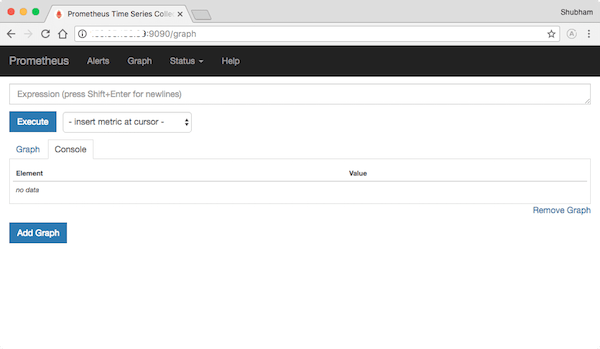
The Prometheus web interface provides several sections: the Graph page for querying and visualizing metrics, the Targets page showing scrape target status, and the Status menu offering configuration details and runtime information. Navigate to Status > Targets to verify Prometheus is successfully scraping itself.
Step 12: Verify Installation with Basic Queries
Prometheus Query Language (PromQL) enables powerful metric analysis. Test your installation with basic queries. In the Graph page, enter:
upThis fundamental query returns 1 for reachable targets and 0 for down targets. You should see up{job="prometheus"} with value 1, confirming successful self-monitoring.
Try additional validation queries:
prometheus_build_infoThis displays version and build information. Explore the Graph tab to visualize time-series data. Toggle between Console (tabular) and Graph (visual) views to understand different data representations.
Optional: Installing Node Exporter
Node Exporter collects hardware and operating system metrics, providing comprehensive system monitoring. Download the latest version:
cd /tmp
wget https://github.com/prometheus/node_exporter/releases/download/v1.10.2/node_exporter-1.10.2.linux-amd64.tar.gz
tar -xvf node_exporter-*.tar.gz
Create a dedicated system user:
sudo useradd --no-create-home --shell /bin/false node_exporterCopy the binary:
sudo cp node_exporter-*/node_exporter /usr/local/bin/
sudo chown node_exporter:node_exporter /usr/local/bin/node_exporter
Create a systemd service at /etc/systemd/system/node_exporter.service:
[Unit]
Description=Node Exporter
After=network.target

[Service]
User=node_exporter
Group=node_exporter
Type=simple
ExecStart=/usr/local/bin/node_exporter

[Install]
WantedBy=multi-user.target
Start and enable Node Exporter:
sudo systemctl daemon-reload
sudo systemctl enable --now node_exporter
Node Exporter listens on port 9100 by default. Update your firewall:
sudo firewall-cmd --permanent --add-port=9100/tcp
sudo firewall-cmd --reload
Add Node Exporter to Prometheus configuration. Edit /etc/prometheus/prometheus.yml:
scrape_configs:
  - job_name: 'prometheus'
    static_configs:
      - targets: ['localhost:9090']

  - job_name: 'node_exporter'
    static_configs:
      - targets: ['localhost:9100']
Restart Prometheus to apply changes:
sudo systemctl restart prometheusVerify Node Exporter metrics in the Prometheus web interface with queries like node_cpu_seconds_total.
Security Best Practices
Securing your Prometheus deployment is essential for production environments. Implement these recommendations:
Authentication and Encryption: Prometheus 2.24.0 and later support basic authentication and TLS. Configure authentication in prometheus.yml to restrict web interface access. Deploy TLS certificates to encrypt data transmission.
Network Security: Use firewall rules to limit access to trusted networks only. Consider deploying a reverse proxy like nginx for additional security layers, including rate limiting and advanced authentication.
Sensitive Data Protection: Avoid exposing sensitive information in metric labels. Implement label-based access control for multi-tenant environments. Regularly audit metric configurations to prevent data leakage.
Regular Updates: Keep Prometheus updated with security patches. Subscribe to the Prometheus security mailing list for vulnerability notifications. Prometheus 3.5 LTS receives support until July 2026.
Performance Optimization Tips
Optimizing Prometheus ensures efficient resource usage and responsive queries:
Scrape Intervals: Balance data granularity with system load by adjusting scrape intervals. Higher intervals reduce resource consumption but sacrifice detail.
Label Cardinality Management: Excessive unique label combinations create performance issues. Avoid high-cardinality labels like timestamps or UUIDs in metric names.
Storage Configuration: Adjust retention time based on storage capacity and requirements. Configure retention size limits with --storage.tsdb.retention.size.
Recording Rules: Pre-compute complex queries with recording rules to improve dashboard performance. Recording rules periodically evaluate expressions and store results as new time series.
Resource Allocation: Monitor Prometheus resource usage and adjust memory and disk allocations accordingly. For high-scale deployments, consider federation or remote storage solutions.
Troubleshooting Common Issues
Address these frequent installation challenges:
Service Fails to Start: Check systemd logs with journalctl -u prometheus -f. Common causes include configuration syntax errors, incorrect file paths, or permission issues.
Permission Denied Errors: Verify ownership of Prometheus directories and files. Ensure the prometheus user has read access to configurations and write access to data directories.
Configuration Syntax Errors: Use promtool check config to validate YAML syntax before starting the service. Pay attention to indentation and proper spacing.
Port Already in Use: Identify conflicting processes with sudo lsof -i :9090. Either stop the conflicting service or change Prometheus’s listening port.
Targets Down: Check network connectivity to scrape targets. Verify firewall rules allow communication. Examine target logs for exporter issues.
Rapid Restart Loops: The “Service start request repeated too quickly” error indicates persistent failures. Review ExecStart commands and file paths in the service definition.
Congratulations! You have successfully installed Prometheus. Thanks for using this tutorial for installing the Prometheus monitoring system tool on your Fedora 43 system. For additional help or useful information, we recommend you check the official Prometheus website.
