How To Install Prometheus on Linux Mint 22

Monitoring your Linux system’s health and performance is crucial for maintaining uptime and catching issues before they become critical. Prometheus stands out as one of the most powerful open-source monitoring solutions available today, offering real-time metrics collection, flexible querying, and robust alerting capabilities. This comprehensive guide walks you through installing and configuring Prometheus on Linux Mint 22, transforming your system into a monitoring powerhouse.
Whether you’re managing a single server or orchestrating complex infrastructure, Prometheus provides the observability you need. Its time-series database efficiently stores metrics, while PromQL (Prometheus Query Language) lets you extract meaningful insights from your data. By the end of this tutorial, you’ll have a fully functional Prometheus instance monitoring your Linux Mint 22 system.
What is Prometheus?
Prometheus is an open-source systems monitoring and alerting toolkit originally developed at SoundCloud. Unlike traditional monitoring solutions, Prometheus uses a pull-based model to scrape metrics from configured endpoints at specified intervals. This design makes it incredibly efficient and scalable.
The platform features a multi-dimensional data model where time series are identified by metric names and key-value pairs. This flexibility allows you to slice and dice your metrics however you need. Prometheus excels at infrastructure monitoring, application performance tracking, and automated alerting when thresholds are breached.
The ecosystem extends beyond the core server. Node Exporter collects hardware and OS metrics, Alertmanager handles notifications, and Grafana provides stunning visualizations. Together, these components create a complete monitoring stack.
Prerequisites and System Requirements
Before diving into the installation, ensure your Linux Mint 22 system meets these requirements. You’ll need sudo or root access to install packages and configure system services. A minimum of 2GB RAM and 10GB of available disk space will keep Prometheus running smoothly, though requirements scale with your monitoring needs.
An active internet connection is essential for downloading the Prometheus binaries. Basic familiarity with the Linux command line will help you follow along, though this guide explains each step thoroughly.
Verify your Linux Mint version by opening a terminal and running:
lsb_release -aThis command confirms you’re running Linux Mint 22, ensuring compatibility with the instructions ahead.
Update Your System
Starting with a fully updated system prevents dependency conflicts and security vulnerabilities. System updates patch known issues and ensure you have the latest package repositories.
Open your terminal and execute:
sudo apt update && sudo apt upgrade -yThe apt update command refreshes your package lists, while apt upgrade installs available updates. The -y flag automatically confirms installations, streamlining the process.
Next, install essential utilities if they’re not already present:
sudo apt install wget curl tar -yThese tools handle downloading files, extracting archives, and transferring data—all critical for the Prometheus installation.
Create a Dedicated Prometheus User
Security best practices dictate running services with minimal privileges. Creating a dedicated system user for Prometheus limits potential damage if the service is ever compromised.
Create the prometheus user with this command:
sudo useradd --no-create-home --shell /bin/false prometheusThis creates a system user without a home directory or login shell. The user exists solely to run the Prometheus service, following the principle of least privilege.
This approach isolates Prometheus from your regular user accounts. If an attacker compromises the Prometheus process, they won’t automatically gain access to other system resources.
Download Prometheus
Navigate to the official Prometheus downloads page at prometheus.io/download to find the latest stable release. Look for the Linux AMD64 architecture, which matches most modern systems.
Create a temporary directory for the download:
cd /tmpDownload the latest Prometheus version using wget. Replace the version number with the current release:
wget https://github.com/prometheus/prometheus/releases/download/v2.49.1/prometheus-2.49.1.linux-amd64.tar.gzFor production environments, verify the download’s integrity using checksums published on the release page. This extra step ensures your download hasn’t been tampered with, adding another layer of security.
Extract and Install Prometheus Binaries
Once downloaded, extract the tarball to access the Prometheus files:
tar xvfz prometheus-*.tar.gzThe x flag extracts, v provides verbose output, f specifies the file, and z handles gzip compression. You’ll see each extracted file listed in your terminal.
Navigate into the extracted directory:
cd prometheus-*/Copy the core binaries to your system’s binary directory:
sudo cp prometheus /usr/local/bin/
sudo cp promtool /usr/local/bin/
The prometheus binary runs the main server, while promtool provides utilities for configuration validation and testing. Both tools are essential for a complete installation.
Set the correct ownership for security:
sudo chown prometheus:prometheus /usr/local/bin/prometheus
sudo chown prometheus:prometheus /usr/local/bin/promtool
This ensures only the prometheus user can execute these binaries, maintaining your security posture.
Create Configuration Directories
Prometheus needs dedicated directories for configuration files and data storage. Organize these systematically for easier management.
Create the configuration directory:
sudo mkdir -p /etc/prometheusCreate the data directory:
sudo mkdir -p /var/lib/prometheusCopy console files and libraries from the extracted directory:
sudo cp -r consoles /etc/prometheus
sudo cp -r console_libraries /etc/prometheus
These resources power Prometheus’s web interface, providing navigation and templates for data visualization.
Set ownership for all Prometheus directories:
sudo chown -R prometheus:prometheus /etc/prometheus
sudo chown -R prometheus:prometheus /var/lib/prometheus
The -R flag applies ownership recursively to all subdirectories and files.
Configure Prometheus
Configuration determines what Prometheus monitors and how it behaves. Create the main configuration file:
sudo nano /etc/prometheus/prometheus.ymlAdd this basic configuration:
global:
  scrape_interval: 15s
  evaluation_interval: 15s

scrape_configs:
  - job_name: 'prometheus'
    static_configs:
      - targets: ['localhost:9090']
The scrape_interval defines how often Prometheus collects metrics. The evaluation_interval controls how frequently alerting rules are evaluated. Starting with 15-second intervals balances responsiveness with resource usage.
The scrape_configs section defines monitoring targets. This configuration monitors Prometheus itself, creating a self-monitoring setup that verifies everything works correctly.
Save the file (Ctrl+O, then Enter) and exit (Ctrl+X).
Validate your configuration with promtool:
promtool check config /etc/prometheus/prometheus.ymlA successful check returns “SUCCESS” with no errors. This validation catches syntax mistakes before they cause runtime issues.
Create Prometheus Systemd Service
Systemd manages services on Linux Mint 22, handling startup, shutdown, and automatic restarts. Creating a systemd unit file ensures Prometheus runs reliably.
Create the service file:
sudo nano /etc/systemd/system/prometheus.serviceAdd this configuration:
[Unit]
Description=Prometheus Monitoring System
Documentation=https://prometheus.io/docs/introduction/overview/
Wants=network-online.target
After=network-online.target

[Service]
User=prometheus
Group=prometheus
Type=simple
ExecStart=/usr/local/bin/prometheus \
  --config.file=/etc/prometheus/prometheus.yml \
  --storage.tsdb.path=/var/lib/prometheus/ \
  --web.console.templates=/etc/prometheus/consoles \
  --web.console.libraries=/etc/prometheus/console_libraries \
  --web.listen-address=0.0.0.0:9090 \
  --storage.tsdb.retention.time=15d

Restart=on-failure
RestartSec=5

[Install]
WantedBy=multi-user.target
The [Unit] section describes the service and defines dependencies. Wants=network-online.target ensures network connectivity before starting Prometheus.
The [Service] section specifies runtime parameters. Running as the prometheus user maintains security. The ExecStart directive launches Prometheus with proper configuration paths and a 15-day data retention period.
Restart=on-failure automatically restarts Prometheus if it crashes. This resilience keeps your monitoring operational even during unexpected issues.
Save and close the file.
Start and Enable Prometheus Service
Reload systemd to recognize the new service file:
sudo systemctl daemon-reloadStart Prometheus:
sudo systemctl start prometheusEnable automatic startup on boot:
sudo systemctl enable prometheusCheck the service status:
sudo systemctl status prometheusYou should see “active (running)” in green text. The output displays startup logs and confirms Prometheus is operational.
If the service fails, check logs with:
sudo journalctl -u prometheus -fThis command streams live logs, helping you diagnose startup problems.
Configure Firewall Rules
Opening the correct firewall ports allows access to Prometheus’s web interface while maintaining security. Linux Mint 22 typically uses UFW (Uncomplicated Firewall).
Allow port 9090:
sudo ufw allow 9090/tcpReload the firewall:
sudo ufw reloadFor production environments, restrict access to trusted IP addresses:
sudo ufw allow from 192.168.1.0/24 to any port 9090Replace the IP range with your network’s subnet. This prevents unauthorized access while permitting legitimate monitoring traffic.
Access Prometheus Web Interface
Open your web browser and navigate to:
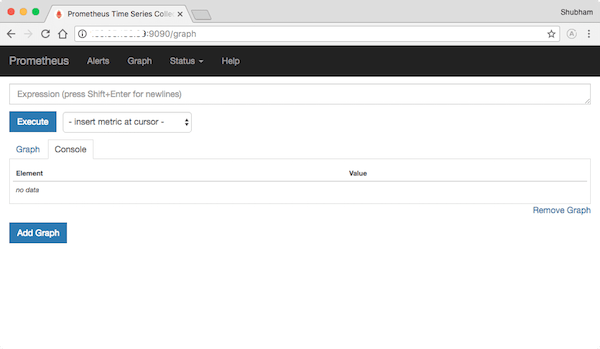
http://localhost:9090The Prometheus web UI loads, displaying the expression browser. This interface lets you query metrics, visualize graphs, and check system status.
Navigate to Status > Targets to verify Prometheus is scraping itself successfully. You should see the “prometheus” job with a state of “UP.”
Test a simple query by typing up into the expression browser and clicking Execute. This metric returns 1 for all running targets, confirming data collection works.
The Graph tab visualizes metrics over time. Experiment with different time ranges to understand your data’s behavior.
Installing Node Exporter
While Prometheus monitors itself, Node Exporter collects comprehensive hardware and operating system metrics. This optional but highly recommended component provides CPU usage, memory consumption, disk I/O, and network statistics.
Download Node Exporter:
cd /tmp
wget https://github.com/prometheus/node_exporter/releases/download/v1.7.0/node_exporter-1.7.0.linux-amd64.tar.gz
Extract and install:
tar xvfz node_exporter-*.tar.gz
sudo cp node_exporter-*/node_exporter /usr/local/bin/
sudo chown prometheus:prometheus /usr/local/bin/node_exporter
Create a systemd service for Node Exporter:
sudo nano /etc/systemd/system/node_exporter.serviceAdd this configuration:
[Unit]
Description=Node Exporter
Wants=network-online.target
After=network-online.target

[Service]
User=prometheus
Group=prometheus
Type=simple
ExecStart=/usr/local/bin/node_exporter

[Install]
WantedBy=multi-user.target
Start and enable Node Exporter:
sudo systemctl daemon-reload
sudo systemctl start node_exporter
sudo systemctl enable node_exporter
Update Prometheus configuration to scrape Node Exporter metrics:
sudo nano /etc/prometheus/prometheus.ymlAdd this scrape config:
  - job_name: 'node_exporter'
    static_configs:
      - targets: ['localhost:9100']
Restart Prometheus to apply changes:
sudo systemctl restart prometheusVerify Node Exporter appears in Status > Targets. You now have comprehensive system metrics at your fingertips.
Security Best Practices
Securing your Prometheus installation protects sensitive metrics and prevents unauthorized access. Beyond running as a non-root user, implement these hardening measures.
Enable TLS encryption for the web interface by configuring certificates in the Prometheus configuration. This encrypts data in transit, preventing eavesdropping on your metrics.
Implement basic authentication by creating a web configuration file:
sudo nano /etc/prometheus/web.ymlAdd authentication credentials using bcrypt-hashed passwords. This prevents anonymous access to your monitoring data.
Restrict file permissions further:
sudo chmod 640 /etc/prometheus/prometheus.ymlThis allows only the prometheus user and group to read configuration files, protecting sensitive settings.
Regularly update Prometheus and all exporters. Subscribe to security mailing lists to stay informed about vulnerabilities.
Implement network segmentation, placing Prometheus on an isolated monitoring network when possible. This limits exposure if other systems are compromised.
Verification and Testing
Confirm everything works correctly by running systematic checks. Query basic metrics in the expression browser:
prometheus_build_infoThis displays Prometheus version information, confirming the database stores data correctly.
Test data persistence by restarting the service:
sudo systemctl restart prometheusHistorical data should remain intact after restart. Query metrics from before the restart to verify.
Monitor resource usage:
prometheus_tsdb_storage_blocks_bytesThis metric shows database size, helping you plan storage capacity.
Verify automatic startup by rebooting your system:
sudo rebootAfter the system restarts, check that Prometheus runs automatically:
sudo systemctl status prometheusCommon Troubleshooting Tips
When issues arise, systematic troubleshooting identifies root causes quickly. If Prometheus won’t start, check file permissions first:
ls -la /etc/prometheus/
ls -la /var/lib/prometheus/
Ensure the prometheus user owns all necessary files and directories.
Configuration syntax errors prevent startup. Always validate with promtool before restarting:
promtool check config /etc/prometheus/prometheus.ymlThe “service start request repeated too quickly” error indicates rapid crash-restart loops. Check logs for the underlying cause:
sudo journalctl -u prometheus --no-pager -n 100Port conflicts occur if another service uses port 9090. Identify the conflicting process:
sudo netstat -tulpn | grep 9090Storage issues arise when disk space runs low. Monitor available space and adjust retention policies accordingly.
Performance problems often stem from too many metrics or inefficient queries. Review your scrape configurations and query patterns.
Congratulations! You have successfully installed Prometheus. Thanks for using this tutorial to install the latest version of the Prometheus monitoring tool on Linux Mint 22 system. For additional help or useful information, we recommend you check the official Prometheus website.
