How To Install Prometheus on Rocky Linux 10

Monitoring your server infrastructure is no longer optional in today’s fast-paced digital landscape. Prometheus has emerged as one of the most powerful open-source monitoring and alerting platforms, trusted by enterprises and developers worldwide for collecting metrics, visualizing data, and maintaining system health. This comprehensive guide will walk you through installing and configuring Prometheus on Rocky Linux 10, complete with Node Exporter integration for comprehensive system monitoring.
Originally developed at SoundCloud in 2012 and later graduated as a Cloud Native Computing Foundation (CNCF) project in 2016, Prometheus has revolutionized how we approach infrastructure monitoring. Its dimensional data model, powerful query language called PromQL, and efficient time-series database make it the go-to solution for modern DevOps teams. Whether you’re managing a single server or orchestrating a complex multi-server environment, Prometheus provides the visibility needed to maintain optimal performance and quickly identify issues before they escalate.
Prerequisites
Before diving into the installation process, ensure your system meets the following requirements. You’ll need a Rocky Linux 10 server with at least 2GB of RAM and 2 CPU cores for optimal performance. Root or sudo privileges are essential for installing packages and configuring system services. A stable internet connection is necessary for downloading Prometheus binaries and dependencies.
Firewalld should be installed and running on your system, which is the default firewall management tool on Rocky Linux. Basic familiarity with command-line operations and Linux system administration will help you follow along more effectively. If you plan to deploy this in a production environment, having a domain name configured for reverse proxy setup is recommended but optional for initial testing.
Understanding Prometheus Architecture
Prometheus operates on a pull-based model, actively collecting data through HTTP endpoints from target servers at regular intervals. This approach differs from traditional push-based monitoring systems and offers greater control over data collection. The system stores metrics as time-series data, with each metric identified by a unique name and optional key-value pairs called labels.
The heart of Prometheus is its time-series database, optimized for handling large volumes of metrics efficiently. PromQL, the Prometheus Query Language, allows you to query and aggregate this data in real-time, creating powerful visualizations and alerts. Exporters play a crucial role in the Prometheus ecosystem by exposing metrics from various services and systems in a format Prometheus can scrape.
Node Exporter specifically focuses on Linux machine monitoring, collecting hardware and kernel-level metrics like CPU usage, memory consumption, disk I/O, and network statistics. By default, Prometheus listens on port 9090, while Node Exporter uses port 9100. Understanding these components and how they interact is fundamental to building an effective monitoring infrastructure.
Step 1: Update Your System
Begin by ensuring your Rocky Linux 10 system has the latest security patches and package updates. This step is critical for system stability and security. Open your terminal and execute the following command to update all existing packages:
sudo dnf update -yFollow this with a system upgrade to ensure all components are at their latest versions:
sudo dnf upgrade -yNext, install the wget utility if it’s not already present on your system. Wget is essential for downloading files from the internet:
sudo dnf install wget -yVerify your Rocky Linux version to ensure compatibility:
cat /etc/rocky-releaseIf significant kernel updates were applied, consider rebooting your system to ensure all changes take effect properly. A system reboot ensures that new kernel versions and critical updates are fully activated.
Step 2: Create Prometheus System User and Group
Security best practices dictate that services should run under dedicated user accounts with minimal privileges. Creating a system user specifically for Prometheus prevents potential security vulnerabilities and limits the damage if the service is compromised. Execute the following command to create a Prometheus user without a home directory and no shell access:
sudo useradd --no-create-home --shell /bin/false prometheusAlternatively, you can use this more concise command format:
sudo useradd -M -r -s /bin/false prometheusThe --no-create-home flag prevents creating a home directory, while --shell /bin/false ensures the user cannot log in interactively. These security measures significantly reduce the attack surface. Verify the user was created successfully:
id prometheusThis command should display the user ID, group ID, and group membership for the prometheus user. Running Prometheus under this dedicated account ensures that even if the service is compromised, an attacker gains minimal system access.
Step 3: Create Prometheus Configuration Directories
Prometheus requires specific directories for storing configuration files and time-series data. Creating these directories with proper ownership is crucial for the service to function correctly. Start by creating the configuration directory:
sudo mkdir /etc/prometheusNext, create the data storage directory where Prometheus will store all collected metrics:
sudo mkdir /var/lib/prometheusNow assign ownership of these directories to the prometheus user and group you created earlier:
sudo chown prometheus:prometheus /etc/prometheus
sudo chown prometheus:prometheus /var/lib/prometheus
The /etc/prometheus directory will house configuration files, console templates, and console libraries. The /var/lib/prometheus directory serves as the time-series database storage location. Proper ownership ensures that the Prometheus service can read configuration files and write metric data without permission issues.
Step 4: Download Prometheus
Navigate to the Prometheus official GitHub releases page to identify the latest stable version. Using the most recent version ensures you have the latest features, bug fixes, and security patches. Set a version variable to make the download process more flexible:
VER=2.45.1Download the Prometheus binary package to the /tmp directory:
wget https://github.com/prometheus/prometheus/releases/download/v$VER/prometheus-$VER.linux-amd64.tar.gz -P /tmpThis command downloads the archive directly from the official Prometheus GitHub repository. Always download from official sources to avoid compromised or malicious packages. You can verify the download completed successfully by checking the file size:
ls -lh /tmp/prometheus-$VER.linux-amd64.tar.gzThe file should be several tens of megabytes in size, depending on the version. Taking a moment to verify the download integrity prevents issues during the extraction and installation phases.
Step 5: Extract and Install Prometheus
Navigate to the directory containing your downloaded archive:
cd /tmpExtract the tarball using the tar command:
tar -xzf prometheus-$VER.linux-amd64.tar.gzList the contents of the extracted directory to verify all necessary files are present:
ls prometheus-$VER.linux-amd64/You should see binaries, console files, and configuration templates. Copy the Prometheus and Promtool binaries to /usr/local/bin/ to make them available system-wide:
sudo cp prometheus-$VER.linux-amd64/{prometheus,promtool} /usr/local/bin/Copy the console templates and console libraries to the Prometheus configuration directory:
sudo cp -r prometheus-$VER.linux-amd64/{consoles,console_libraries} /etc/prometheus/Transfer the default configuration file to the appropriate location:
sudo cp prometheus-$VER.linux-amd64/prometheus.yml /etc/prometheus/Set proper ownership for all Prometheus files and directories:
sudo chown -R prometheus:prometheus /etc/prometheusVerify the binaries were installed correctly by checking their versions:
prometheus --version
promtool --version
Both commands should display version information, confirming successful installation. The promtool utility is particularly useful for validating configuration files before restarting the service.
Step 6: Configure Prometheus
Open the Prometheus configuration file using your preferred text editor:
sudo nano /etc/prometheus/prometheus.ymlThe default configuration file contains several important sections. The global settings define default parameters for all scrape jobs. The scrape_interval determines how frequently Prometheus collects metrics from targets, with 15 seconds being the default. The evaluation_interval controls how often Prometheus evaluates alerting rules.
Here’s an example of a basic Prometheus configuration:
global:
  scrape_interval: 15s
  evaluation_interval: 15s

alerting:
  alertmanagers:
    - static_configs:
        - targets: []

rule_files:
  # - "alert_rules.yml"

scrape_configs:
  - job_name: 'prometheus'
    static_configs:
      - targets: ['localhost:9090']
The scrape_configs section defines which targets Prometheus should monitor. Each job can have its own scrape interval, targets, and configuration parameters. The default configuration includes a job for Prometheus to monitor itself, which is essential for meta-monitoring.
For better security and network flexibility, replace localhost with your server’s actual IP address:
- targets: ['your_server_ip:9090']Understanding metric naming conventions and label usage is crucial for organizing your monitoring data effectively. Labels allow you to add dimensions to your metrics, enabling powerful queries and aggregations. Save the file and validate the configuration syntax using promtool:
promtool check config /etc/prometheus/prometheus.ymlThis command checks for syntax errors and validates the configuration structure. If the configuration is valid, promtool will report “SUCCESS” along with details about loaded configurations.
Step 7: Create Prometheus Systemd Service
Create a systemd service file to manage the Prometheus service lifecycle:
sudo nano /etc/systemd/system/prometheus.serviceAdd the following configuration to the file:
[Unit]
Description=Prometheus
Wants=network-online.target
After=network-online.target

[Service]
User=prometheus
Group=prometheus
Type=simple
ExecStart=/usr/local/bin/prometheus \
  --config.file=/etc/prometheus/prometheus.yml \
  --storage.tsdb.path=/var/lib/prometheus/ \
  --web.console.templates=/etc/prometheus/consoles \
  --web.console.libraries=/etc/prometheus/console_libraries

[Install]
WantedBy=multi-user.target
This service file defines how systemd should manage Prometheus. The User and Group directives ensure Prometheus runs under the dedicated user account. The ExecStart line specifies the command to launch Prometheus with all necessary parameters.
The --storage.tsdb.path flag points to the data directory where time-series data is stored. The --config.file parameter specifies the location of the configuration file. Console template and library paths enable the built-in Prometheus web console.
Save the file and reload the systemd daemon to recognize the new service:
sudo systemctl daemon-reloadEnable Prometheus to start automatically at boot:
sudo systemctl enable prometheusStart the Prometheus service:
sudo systemctl start prometheusCheck the service status to ensure it’s running correctly:
sudo systemctl status prometheusYou should see “active (running)” in green, indicating the service started successfully. If there are any errors, the status output will provide helpful diagnostic information.
Step 8: Configure Firewall for Prometheus
Rocky Linux uses firewalld as its default firewall management tool. You need to open port 9090 to access the Prometheus web interface. First, verify that firewalld is active:
sudo firewall-cmd --stateAdd port 9090 to the public zone and make the change permanent:
sudo firewall-cmd --zone=public --add-port=9090/tcp --permanentReload the firewall configuration to apply changes:
sudo firewall-cmd --reloadVerify the port was added successfully:
sudo firewall-cmd --list-portsYou should see 9090/tcp in the output. Additionally, confirm that Prometheus is listening on the correct port:
ss -tulpn | grep 9090This command displays socket statistics and should show Prometheus listening on port 9090. For production environments, consider restricting access to specific IP addresses rather than allowing connections from any source. You can implement source-based restrictions using firewalld’s rich rules for enhanced security.
Step 9: Install Node Exporter
Node Exporter is essential for collecting hardware and operating system metrics from your Linux server. It exposes metrics like CPU utilization, memory usage, disk I/O, network statistics, and filesystem information. Download the latest Node Exporter release from the official GitHub repository:
cd /tmp
wget https://github.com/prometheus/node_exporter/releases/download/v1.8.2/node_exporter-1.8.2.linux-amd64.tar.gz
Extract the downloaded archive:
tar -xf node_exporter-*.linux-amd64.tar.gzCreate a dedicated system user for Node Exporter following the same security principles used for Prometheus:
sudo useradd --no-create-home --shell /bin/false node_exporterMove the Node Exporter binary to the system binary directory:
sudo mv node_exporter-*/node_exporter /usr/local/bin/Set proper ownership for the binary:
sudo chown node_exporter:node_exporter /usr/local/bin/node_exporterVerify the installation by checking the version:
node_exporter --versionThe command should display version information and build details. Node Exporter runs as a simple binary without requiring complex configuration files, making it straightforward to deploy and manage.
Step 10: Create Node Exporter Systemd Service
Create a systemd service file for Node Exporter:
sudo nano /etc/systemd/system/node_exporter.serviceAdd the following service configuration:
[Unit]
Description=Node Exporter
Wants=network-online.target
After=network-online.target

[Service]
User=node_exporter
Group=node_exporter
Type=simple
ExecStart=/usr/local/bin/node_exporter

[Install]
WantedBy=multi-user.target
This configuration ensures Node Exporter runs under its dedicated user account with proper systemd integration. The service will automatically restart if it crashes and starts on system boot. Save the file and reload systemd:
sudo systemctl daemon-reloadEnable and start Node Exporter in a single command:
sudo systemctl enable --now node_exporterVerify the service is running:
sudo systemctl status node_exporterCheck that Node Exporter is listening on its default port 9100:
ss -aplnt | grep nodeOpen the firewall port for Node Exporter:
sudo firewall-cmd --zone=public --add-port=9100/tcp --permanent
sudo firewall-cmd --reload
These commands ensure Node Exporter can accept connections from Prometheus and other authorized systems.
Step 11: Configure Prometheus to Scrape Node Exporter
Edit the Prometheus configuration file to add Node Exporter as a scrape target:
sudo nano /etc/prometheus/prometheus.ymlAdd a new job definition in the scrape_configs section:
  - job_name: 'node_exporter'
    static_configs:
      - targets: ['localhost:9100']
If Prometheus and Node Exporter are on different servers, replace localhost with the Node Exporter server’s IP address. You can customize the scrape interval for this specific job if needed:
  - job_name: 'node_exporter'
    scrape_interval: 10s
    static_configs:
      - targets: ['localhost:9100']
Here’s a complete example configuration with both Prometheus and Node Exporter monitoring:
global:
  scrape_interval: 15s
  evaluation_interval: 15s

scrape_configs:
  - job_name: 'prometheus'
    static_configs:
      - targets: ['localhost:9090']

  - job_name: 'node_exporter'
    static_configs:
      - targets: ['localhost:9100']
Save the file and validate the updated configuration:
promtool check config /etc/prometheus/prometheus.ymlRestart Prometheus to apply the new configuration:
sudo systemctl restart prometheusCheck the service status to ensure it restarted without errors:
sudo systemctl status prometheusWait a few seconds for Prometheus to begin scraping the new target. The configured scrape interval determines how quickly metrics appear in the Prometheus database.
Step 12: Access and Verify Prometheus Web Interface
Open your web browser and navigate to Prometheus’s web interface using your server’s IP address:
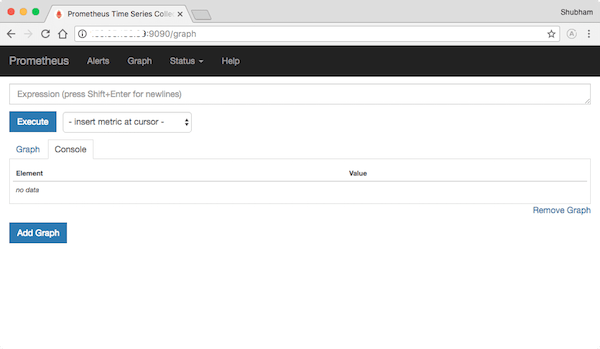
http://your_server_ip:9090The Prometheus web UI provides several important sections. Navigate to Status > Targets from the top menu to verify all configured targets are being scraped successfully. Both the Prometheus self-monitoring job and Node Exporter job should display “UP” in green, indicating successful scraping.
If any target shows “DOWN” or error messages, check firewall rules, network connectivity, and service status. The Targets page displays the last scrape time, duration, and any error messages, making troubleshooting straightforward.
Click on Graph to access the Expression Browser where you can execute PromQL queries. Try these sample queries to verify data collection:
upThis query shows which targets are currently up and responding. Try more specific queries:
node_cpu_seconds_total
node_memory_MemAvailable_bytes
node_filesystem_avail_bytes
These queries display CPU usage statistics, available memory, and filesystem availability respectively. The Graph tab allows you to visualize metrics over time, while the Console tab shows raw data values. Experiment with different time ranges using the time picker to see historical data.
The Alerts section displays any active alerts based on your alert rules. Since we haven’t configured alert rules yet, this section will be empty initially.
Security Best Practices for Prometheus
Never expose Prometheus directly to the internet without proper security measures. Implement HTTPS/TLS encryption for all Prometheus endpoints to protect data in transit. Configure basic authentication using a reverse proxy like Nginx or Apache to add an authentication layer.
TLS client authentication provides enhanced security by requiring client certificates for access. Implement Role-Based Access Control (RBAC) to restrict access to sensitive metrics and administrative functions. Configure network policies and firewall rules to limit access to Prometheus and exporters only from authorized IP addresses.
Secure Node Exporter by enabling TLS and authentication, especially if it runs on publicly accessible servers. Regular security updates and patch management are crucial for maintaining a secure monitoring infrastructure. Monitor Prometheus logs for suspicious activities using centralized log management tools.
Implement proper backup strategies for Prometheus data, configuration files, and alert rules. Consider using remote storage solutions for long-term metric retention and disaster recovery. Keep your Prometheus and exporter versions up to date to benefit from security patches and bug fixes.
Troubleshooting Common Issues
If Prometheus fails to start, check the configuration file syntax using promtool. View detailed error messages in the systemd journal:
sudo journalctl -u prometheus -fPort conflicts occur when another service uses port 9090 or 9100. Identify conflicting processes:
sudo lsof -i :9090
sudo lsof -i :9100
When Node Exporter targets show “DOWN” status, verify firewall rules allow connections between Prometheus and Node Exporter. Test connectivity manually using curl:
curl http://localhost:9100/metricsPermission denied errors typically indicate incorrect file ownership. Verify and correct ownership:
sudo chown -R prometheus:prometheus /etc/prometheus /var/lib/prometheusHigh memory usage can result from excessive metric cardinality or insufficient retention configuration. Optimize retention settings in the Prometheus startup flags:
--storage.tsdb.retention.time=15dScraping timeout issues occur when targets respond slowly. Adjust scrape timeout values in the configuration:
scrape_configs:
  - job_name: 'slow_target'
    scrape_interval: 30s
    scrape_timeout: 10s
Check if Prometheus processes are running:
ps aux | grep prometheusReview log files for detailed error information that can guide troubleshooting efforts.
Performance Optimization Tips
Configure appropriate retention periods based on available storage capacity and monitoring requirements. Excessive retention increases storage costs and query times. Optimize metric cardinality by avoiding high-cardinality labels like user IDs or session tokens.
Set reasonable scrape intervals based on your monitoring needs. More frequent scraping increases load on both Prometheus and targets. Use recording rules to pre-compute frequently queried complex expressions, reducing query execution time:
groups:
  - name: example
    interval: 30s
    rules:
      - record: job:node_cpu:avg_idle
        expr: avg by (job) (rate(node_cpu_seconds_total{mode="idle"}[5m]))
Implement proper label naming conventions to keep your metrics organized and queryable. Avoid label names that conflict with reserved keywords. Monitor Prometheus’s own metrics to identify performance bottlenecks:
prometheus_tsdb_head_series
prometheus_tsdb_head_chunks
rate(prometheus_http_request_duration_seconds_sum[5m])
Consider implementing remote storage for long-term retention while keeping local storage for recent data. Remote storage solutions like Thanos or Cortex provide scalable, durable metric storage. Regular cleanup of old time-series data prevents unbounded storage growth.
Next Steps and Integration Options
Integrate Grafana for advanced visualization capabilities and dashboard creation. Grafana provides beautiful, customizable dashboards that make metric interpretation easier for teams. Set up Alertmanager for sophisticated alert routing, silencing, and notification management.
Add specialized exporters for different services like MySQL Exporter, PostgreSQL Exporter, Nginx Exporter, and Redis Exporter. Each exporter provides detailed metrics specific to the service it monitors. Configure recording and alerting rules for proactive monitoring and automated incident response.
Implement high availability setups using Prometheus federation for redundancy and scalability. Federation allows one Prometheus server to scrape metrics from another, creating hierarchical monitoring architectures. Explore service discovery mechanisms like Consul, Kubernetes, or EC2 for dynamic environments where targets change frequently.
Consider implementing long-term storage solutions to retain historical data beyond local storage capacity. Remote write functionality enables sending metrics to multiple storage backends simultaneously.
Congratulations! You have successfully installed Prometheus. Thanks for using this tutorial for installing the Prometheus monitoring system tool on your Rocky Linux 10 system. For additional help or useful information, we recommend you check the official Prometheus website.
