How To Install RabbitMQ on Debian 13
Message queuing systems have become indispensable in modern application architecture. RabbitMQ stands out as one of the most reliable and widely adopted message brokers, enabling seamless communication between distributed systems through asynchronous message exchange. Whether you’re building microservices, handling background jobs, or orchestrating complex workflows, RabbitMQ provides the robust infrastructure you need. This comprehensive guide walks you through installing and configuring RabbitMQ on Debian 13 (Trixie), from initial setup to security hardening and troubleshooting common issues.
What is RabbitMQ?
RabbitMQ is an open-source message broker software that implements the Advanced Message Queuing Protocol (AMQP). Think of it as a postal service for your applications—it receives messages from producers, stores them safely, and delivers them to consumers when they’re ready. This decoupling of application components brings significant benefits: improved reliability, enhanced scalability, and greater flexibility in system design. From e-commerce platforms processing orders to IoT systems handling sensor data, RabbitMQ powers mission-critical messaging infrastructure across industries.
Prerequisites and System Requirements
Before diving into the installation, ensure your system meets these requirements. Your Debian 13 server should have at least 2-4 CPU cores for production environments. Memory matters significantly—allocate a minimum of 4GB RAM for optimal performance, though more is better for high-throughput scenarios. You’ll need at least 4GB of disk space for RabbitMQ data and logs.
On the software side, you need root or sudo privileges, an active internet connection, and Debian 13 (Trixie) properly installed. RabbitMQ requires Erlang as its runtime environment since the broker itself is built on the Erlang programming language. Don’t worry—we’ll install Erlang as part of this guide.
Update Your System Packages
Start with a clean slate. Updating your system ensures you have the latest security patches and software versions. Open your terminal and run:
sudo apt update -yThis command refreshes your package index, pulling the latest information about available packages. Follow it with:
sudo apt upgrade -yThis upgrades all installed packages to their newest versions. The -y flag automatically confirms prompts, streamlining the process. This foundational step prevents potential conflicts and ensures compatibility with RabbitMQ components.
Install Essential Dependencies
RabbitMQ installation requires specific tools for repository management and package verification. Install curl and gnupg:
sudo apt-get install curl gnupg -yCurl downloads files from remote servers, while gnupg handles cryptographic signing key verification. These tools ensure you’re downloading legitimate packages from trusted sources—a critical security measure that protects your system from tampered or malicious software.
Add RabbitMQ Repository Signing Key
Security starts with verification. Repository signing keys authenticate that packages come from legitimate sources. Add the official RabbitMQ signing key:
curl -1sLf "https://github.com/rabbitmq/signing-keys/releases/download/3.0/rabbitmq-release-signing-key.asc" | sudo gpg --dearmor | sudo tee /usr/share/keyrings/com.github.rabbitmq.signing.gpg > /dev/nullThis command downloads the RabbitMQ signing key, converts it to the proper format using gpg, and stores it in your system’s keyring. Every package you install from the RabbitMQ repository will be verified against this key, ensuring integrity and authenticity.
Add Official RabbitMQ and Erlang Repositories
Using official repositories provides several advantages over manual installation methods. You get automatic updates, dependency resolution, and streamlined package management. Add the repositories with proper configuration:
echo "deb [signed-by=/usr/share/keyrings/com.github.rabbitmq.signing.gpg] https://packagecloud.io/rabbitmq/rabbitmq-server/debian/ bookworm main" | sudo tee /etc/apt/sources.list.d/rabbitmq.listThis configures your system to pull RabbitMQ packages from the official repository. The repository URL includes the signing key reference, ensuring all packages are verified during installation.
Update Package List Again
Now that you’ve added new repositories, refresh your package index:
sudo apt update -yThis step incorporates the newly added RabbitMQ and Erlang repositories into your package manager’s database. You’ll see output indicating the system is reading from additional sources. Verify there are no errors—clean output means your repositories are configured correctly.
Install Erlang
Erlang serves as RabbitMQ’s foundation. The message broker is written in Erlang and requires it to function. Install it now:
sudo apt install erlang -yThe package manager handles all Erlang dependencies automatically. Version compatibility is crucial—the official repositories ensure you get an Erlang version that works seamlessly with RabbitMQ. The installation takes a few minutes depending on your connection speed.
Install RabbitMQ Server
With Erlang in place, install the RabbitMQ server:
sudo apt install rabbitmq-server -yThis command pulls the RabbitMQ server package from the repository you added earlier. The installation process automatically configures the service, creates necessary directories, and sets up initial configuration files. You’ll see progress indicators as packages download and install. The -y flag confirms installation prompts automatically.
Start and Enable RabbitMQ Service
Installation doesn’t automatically start the service. Activate RabbitMQ:
sudo systemctl start rabbitmq-serverThis starts the RabbitMQ server immediately. Configure it to start automatically at system boot:
sudo systemctl enable rabbitmq-serverThis ensures RabbitMQ launches whenever your server restarts. Verify everything is running correctly:
sudo systemctl status rabbitmq-serverLook for “active (running)” in the output. You’ll see process information, memory usage, and recent log entries. Green text and “active” status indicate successful operation.
Configure User Management
Security demands proper user configuration. The default “guest” user only works from localhost—a deliberate security restriction. Create an administrative user for remote access:
sudo rabbitmqctl add_user admin StrongPassword123Replace “admin” with your preferred username and “StrongPassword123” with a secure password. Grant administrative privileges:
sudo rabbitmqctl set_user_tags admin administratorThis elevates your user to administrator status. List all users to confirm:
sudo rabbitmqctl list_usersYou’ll see both the guest user and your newly created administrator. For production environments, consider disabling or deleting the guest user entirely to eliminate potential security vulnerabilities.
Configure Virtual Hosts
Virtual hosts provide logical separation within a single RabbitMQ instance. They’re like separate message broker instances sharing the same server. Create a virtual host:
sudo rabbitmqctl add_vhost /productionThis creates a virtual host named “/production”. Virtual hosts enable multi-tenant configurations, letting different applications or environments operate independently. List all virtual hosts:
sudo rabbitmqctl list_vhostsYou’ll see the default “/” virtual host plus any you’ve created. Virtual hosts become especially valuable in development environments where you need isolation between projects.
Set User Permissions
Permissions control what users can do within virtual hosts. RabbitMQ uses three permission types: configure, write, and read. Grant your administrator full access:
sudo rabbitmqctl set_permissions -p /production admin ".*" ".*" ".*"The three “.*” patterns grant configure, write, and read permissions on all resources. The -p /production flag specifies the virtual host. Check permissions for your virtual host:
sudo rabbitmqctl list_permissions -p /productionOr view all permissions for a specific user:
sudo rabbitmqctl list_user_permissions adminThese commands help you audit access rights. Proper permission management prevents unauthorized access and ensures users only interact with resources they should.
Enable the Management Plugin
RabbitMQ’s management plugin provides a powerful web interface for monitoring and administration. Enable it:
sudo rabbitmq-plugins enable rabbitmq_managementRestart the service to activate the plugin:
sudo systemctl restart rabbitmq-serverThe management interface listens on port 15672 by default. This web console displays queue statistics, connection information, message rates, and system health metrics. It’s indispensable for day-to-day operations and troubleshooting.
Configure Firewall Rules
Network security requires proper firewall configuration. RabbitMQ uses several ports for different functions. Allow AMQP traffic:
sudo ufw allow 5672/tcpPort 5672 handles standard AMQP protocol connections. Enable management interface access:
sudo ufw allow 15672/tcpThis opens the web management console. For clustered deployments, you’ll also need port 25672 for inter-node communication and port 4369 for the Erlang port mapper daemon. In production, restrict access to specific IP addresses rather than allowing traffic from anywhere:
sudo ufw allow from 192.168.1.0/24 to any port 15672This limits management interface access to your internal network. Layered security prevents unauthorized access.
Access the Management Interface
Open your web browser and navigate to:
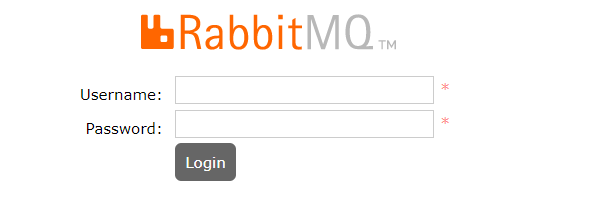
http://your-server-ip:15672Replace “your-server-ip” with your actual server address. Log in using the administrative credentials you created earlier. The dashboard presents an overview of your RabbitMQ instance: message rates, queue counts, node status, and resource utilization. Explore the tabs to examine queues, exchanges, connections, and channels. The interface lets you create and delete queues, purge messages, and adjust settings without command-line access.
Production Configuration Best Practices
Raw installation isn’t production-ready. Fine-tune memory management by setting the vm_memory_high_watermark between 40-70% of available RAM. This prevents RabbitMQ from consuming all system memory. Monitor disk space carefully—RabbitMQ blocks publishers when disk space falls below thresholds.
Choose appropriate queue types for your use case. Classic queues offer simplicity, while quorum queues provide better data safety and consistency. For cloud deployments, adjust network heartbeat timeouts to prevent false-positive connection failures in environments with variable latency. Resource allocation matters significantly; ensure your server has adequate CPU and memory for your expected message throughput.
Troubleshooting Common Issues
When the service won’t start, check logs in /var/log/rabbitmq/. Log files reveal configuration errors, permission issues, or resource constraints. Connection failures typically stem from firewall rules or network configuration. Verify your firewall allows traffic on port 5672 and that your application can reach the RabbitMQ server.
High memory usage? Adjust the memory watermark settings. If unacknowledged messages pile up, examine consumer configuration—slow or failing consumers cause message buildup. Virtual machine deployments sometimes experience resource contention; ensure adequate CPU and RAM allocation. When the management interface won’t load, confirm port 15672 is open in your firewall. Use rabbitmqctl commands for diagnostics:
sudo rabbitmqctl status
sudo rabbitmqctl list_queues
sudo rabbitmqctl list_connections
These commands provide detailed information about your RabbitMQ instance’s state.
Security Hardening
Security extends beyond basic configuration. Disable the default guest user in production environments. Use strong, unique passwords for all administrative accounts. Implement strict firewall rules that restrict access to known IP addresses. Enable SSL/TLS encryption for client connections to protect sensitive data in transit.
Keep your system updated with regular security patches. Monitor security advisories from the RabbitMQ project. Limit exposed ports to only what’s necessary—if you don’t need remote management access, don’t expose port 15672 to the internet. Consider using VPN access for administrative tasks. Network segmentation provides additional defense; place RabbitMQ servers on isolated network segments with controlled access.
Congratulations! You have successfully installed RabbitMQ. Thanks for using this tutorial to install the latest version of RabbitMQ on Debian 13 “Trixie” system. For additional help or useful information, we recommend you check the official RabbitMQ website.
