How To Install Rancher on openSUSE

Rancher has become the go-to Kubernetes management platform for organizations seeking a centralized solution to deploy, manage, and scale container workloads across multiple clusters. For openSUSE users, installing Rancher provides an intuitive interface to orchestrate Kubernetes environments, whether you’re running development projects on a single machine or managing production-grade infrastructure across distributed systems. SUSE’s acquisition of Rancher Labs in 2020 has strengthened the integration between Rancher and openSUSE, making this Linux distribution an ideal choice for running Rancher Server.
This comprehensive guide walks you through two proven installation methods for deploying Rancher on openSUSE. You’ll learn how to set up Rancher using Docker for rapid development environments and Kubernetes with Helm for production-ready deployments. Each method includes detailed prerequisites, step-by-step commands, configuration options, and troubleshooting guidance based on official documentation and real-world implementations.
Understanding Rancher and Its Architecture
Rancher operates as a complete container management platform built on top of Kubernetes. It provides a unified control plane for managing multiple Kubernetes clusters, regardless of where they run—on-premises data centers, public clouds, or edge locations. The platform simplifies complex Kubernetes operations through an intuitive web interface while maintaining full API access for automation.
At its core, Rancher consists of a management server that connects to downstream Kubernetes clusters. The Rancher Server itself runs on a Kubernetes cluster (or in a Docker container for testing scenarios). This architecture enables centralized authentication, access control, monitoring, and policy enforcement across all managed clusters.
Two primary deployment architectures exist for Rancher installations. The Docker single-node method runs Rancher in a privileged container, ideal for development, testing, and proof-of-concept scenarios. The Kubernetes-based method deploys Rancher on a dedicated cluster using Helm charts, providing high availability, scalability, and production-grade reliability. Understanding these distinctions helps you choose the appropriate installation method for your use case.
Both openSUSE Leap (stable release model) and openSUSE Tumbleweed (rolling release) support Rancher installations. Tumbleweed users benefit from the latest software versions, while Leap provides enterprise-grade stability with longer support cycles.
System Requirements and Prerequisites
Hardware Requirements
Proper resource allocation ensures smooth Rancher operations and prevents performance bottlenecks. For small deployments managing up to 150 clusters and 5,000 nodes, allocate 4 vCPUs and 16GB RAM to your Rancher Server. Medium deployments supporting up to 300 clusters and 15,000 nodes require 8 vCPUs with 32GB RAM. Large-scale environments managing over 300 clusters need 16 vCPUs and 64GB RAM.
Storage requirements depend on your deployment model. Docker-based installations need at least 50GB of disk space for the container image, logs, and persistent data. Kubernetes deployments require 100GB or more, accounting for etcd database storage, container images, and backup retention. Use SSD storage for optimal performance, particularly for etcd and database operations.
Network bandwidth becomes critical when managing multiple downstream clusters. Ensure stable network connectivity with adequate throughput to handle cluster communications, monitoring data, and user interface traffic.
Software Prerequisites
Before installing Rancher on openSUSE, verify your system meets these software requirements. Your openSUSE version should be Leap 15.3 or newer, or a recent Tumbleweed snapshot. Older versions may lack necessary kernel features or package dependencies.
Docker installation is mandatory for the single-node method. Docker version 20.10 or newer provides the best compatibility, though versions 19.03 and above generally work. RKE2 and K3s installations don’t require Docker since they bundle their own container runtime (containerd).
The kubectl command-line tool enables interaction with Kubernetes clusters. Install kubectl version 1.24 or newer to ensure compatibility with modern Kubernetes features. Helm 3.x is required for deploying Rancher on Kubernetes clusters. Helm 2 reached end-of-life and should not be used.
Network Time Protocol (NTP) synchronization prevents certificate validation errors. Install and enable the chrony or systemd-timesyncd service to maintain accurate system time across all nodes.
Network and Firewall Configuration
Rancher requires several network ports for proper operation. TCP port 80 and 443 handle HTTP and HTTPS traffic to the web interface. Kubernetes API servers use port 6443. If using K3s, port 6443 serves as the API endpoint, while RKE2 also uses this port for cluster communication.
For multi-node Kubernetes clusters, open additional ports. Etcd requires ports 2379-2380. CNI plugins like Calico or Flannel need specific port ranges depending on your configuration. Consult your chosen CNI documentation for exact requirements.
Configure your firewall using firewalld on openSUSE. DNS resolution must work correctly—Rancher needs a valid hostname or IP address accessible by all users and managed clusters. Plan your DNS strategy before installation, especially for production deployments requiring valid SSL certificates.
Preparing Your openSUSE System
System Updates
Start with a fully updated system to avoid compatibility issues and security vulnerabilities. Open a terminal and execute system updates using zypper, openSUSE’s package manager:
sudo zypper refresh
sudo zypper update
If kernel updates are installed, reboot your system to load the new kernel. Verify your kernel version meets minimum requirements:
uname -rRancher requires Linux kernel 3.10 or newer, but kernel 4.15 or later is recommended for optimal performance and security features.
Installing Docker
For Docker-based Rancher installations, install Docker using zypper. OpenSUSE maintains Docker packages in its official repositories:
sudo zypper install dockerEnable the Docker service to start automatically at boot and start it immediately:
sudo systemctl enable docker
sudo systemctl start docker
Verify Docker installation by checking the version:
docker --versionAdd your user account to the docker group to run Docker commands without sudo:
sudo usermod -aG docker $USERLog out and back in for group membership changes to take effect. Test Docker functionality:
docker run hello-worldIf the test container runs successfully, Docker is properly configured and ready for Rancher installation.
Installing Supporting Tools
Install kubectl to interact with Kubernetes clusters. Download the latest stable release:
curl -LO "https://dl.k8s.io/release/$(curl -L -s https://dl.k8s.io/release/stable.txt)/bin/linux/amd64/kubectl"Make the kubectl binary executable and move it to your system path:
chmod +x kubectl
sudo mv kubectl /usr/local/bin/
Verify kubectl installation:
kubectl version --clientFor Kubernetes-based Rancher installations, install Helm 3. Use the official installation script:
curl https://raw.githubusercontent.com/helm/helm/main/scripts/get-helm-3 | bashVerify Helm installation:
helm versionBoth tools are now ready for deploying and managing Rancher.
Method 1: Installing Rancher Using Docker (Single Node)
When to Use Docker Installation
The Docker installation method suits development environments, training scenarios, and proof-of-concept deployments. It provides the fastest path from zero to a working Rancher installation, typically completing in under 10 minutes. This approach works perfectly for learning Rancher features, testing configurations, or demonstrating Kubernetes management capabilities.
However, Docker installations lack high availability and should never be used in production environments. If the Docker container or host fails, your entire Rancher management plane becomes unavailable. The single-node architecture cannot scale horizontally and creates a single point of failure.
Use Docker installation when you need rapid deployment for temporary environments, personal learning, or small-scale testing. Plan to migrate to a Kubernetes-based installation before moving to production.
Running Rancher Server Container
Deploy Rancher as a Docker container with persistent storage. Create a directory for Rancher data:
sudo mkdir -p /opt/rancherRun the Rancher container with volume mounting for data persistence:
sudo docker run -d --restart=unless-stopped \
  -p 80:80 -p 443:443 \
  -v /opt/rancher:/var/lib/rancher \
  --privileged \
  --name rancher \
  rancher/rancher:stable
This command breakdown explains each parameter:
-druns the container in detached mode (background)--restart=unless-stoppedautomatically restarts the container after system reboots-p 80:80 -p 443:443maps HTTP and HTTPS ports from container to host-v /opt/rancher:/var/lib/rancherpersists Rancher data to the host filesystem--privilegedgrants extended privileges needed for Rancher operations--name rancherassigns a friendly name for easier managementrancher/rancher:stableuses the stable release tag for production-quality builds
Monitor container startup by following the logs:
docker logs -f rancherWait for the log message indicating Rancher is ready, typically appearing within 2-3 minutes. Press Ctrl+C to exit log following once you see successful startup messages.
Accessing Rancher UI
Open your web browser and navigate to your server’s IP address or hostname using HTTPS:
https://your-server-ipYour browser will display a security warning about the self-signed SSL certificate. This is expected for new installations. Click through the warning to proceed (specific steps vary by browser).
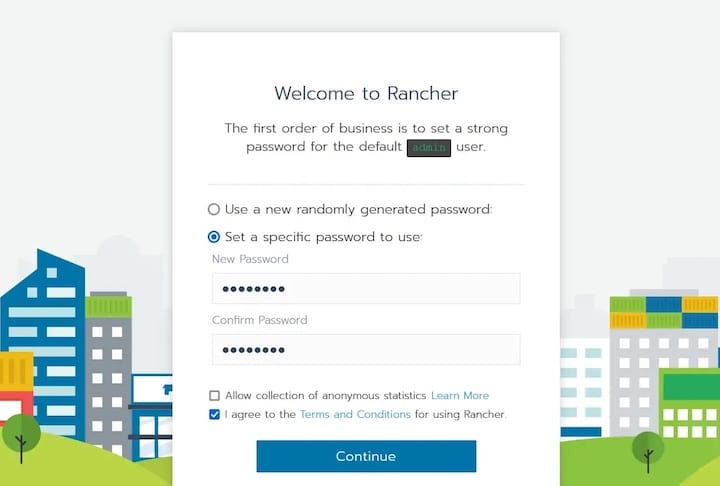
Rancher generates a random bootstrap password during first startup. Retrieve it from the container logs:
docker logs rancher 2>&1 | grep "Bootstrap Password:"Copy the password from the output. On the Rancher login page, paste this password and click “Log In with Local User.”
Set a new, strong administrator password when prompted. Store this password securely—it provides full administrative access to your Rancher installation.
Post-Installation Configuration
After setting your admin password, configure the Rancher Server URL. This URL must be accessible by all users and any downstream clusters you’ll manage. Enter your server’s fully qualified domain name or public IP address.
Accept the default telemetry settings or opt out if desired. Telemetry helps Rancher Labs improve the product but sends anonymous usage statistics.
The Rancher dashboard appears, displaying the local cluster (the embedded K3s cluster running inside the Docker container). Your single-node Docker installation is now complete and ready to import or create Kubernetes clusters.
For persistent installations, always use the volume mount option shown above. Without persistent storage, all Rancher configuration data is lost if the container stops or is removed.
Method 2: Installing Rancher on Kubernetes Cluster (Production)
When to Use Kubernetes Installation
Production environments require the Kubernetes-based installation method. This architecture provides high availability through multiple Rancher replicas distributed across cluster nodes. If one node fails, Rancher continues operating on the remaining nodes without service interruption.
Kubernetes installations scale better than Docker deployments. You can increase Rancher capacity by adding cluster nodes or increasing replica counts. The Helm-based deployment simplifies upgrades and configuration management through declarative manifests.
Enterprise features like backup operators, monitoring integrations, and disaster recovery work best with Kubernetes deployments. The Rancher backup operator can automatically backup and restore your entire Rancher configuration, something Docker installations require manual procedures to achieve.
Choose Kubernetes installation for any production workload, multi-user environments, or scenarios requiring guaranteed uptime and professional support.
Setting Up Kubernetes Cluster (K3s or RKE2)
Two lightweight Kubernetes distributions work exceptionally well with openSUSE: K3s and RKE2. K3s provides a minimal Kubernetes installation perfect for edge computing and resource-constrained environments. RKE2 offers enterprise-grade security and compliance features suitable for regulated industries.
Option A: Using K3s (Lightweight Kubernetes)
K3s installation requires a single command. SSH into your openSUSE server and run:
curl -sfL https://get.k3s.io | sh -The installation script automatically downloads K3s, configures systemd services, and starts the cluster. Wait approximately 2-3 minutes for completion.
Configure kubectl access by setting the KUBECONFIG environment variable:
export KUBECONFIG=/etc/rancher/k3s/k3s.yaml
sudo chmod 644 /etc/rancher/k3s/k3s.yaml
Make this configuration persistent by adding it to your shell profile:
echo 'export KUBECONFIG=/etc/rancher/k3s/k3s.yaml' >> ~/.bashrcVerify your cluster is running:
kubectl get nodesYou should see your node listed with STATUS “Ready”. K3s includes Traefik as the default ingress controller, eliminating the need for separate ingress installation.
Option B: Using RKE2 (Enterprise Kubernetes)
RKE2 provides enhanced security features including CIS hardening, FIPS 140-2 compliance capabilities, and built-in security policies. Install RKE2 on openSUSE:
curl -sfL https://get.rke2.io | INSTALL_RKE2_CHANNEL=stable sh -Create the RKE2 configuration directory:
sudo mkdir -p /etc/rancher/rke2For single-node testing, no additional configuration file is needed. Enable and start RKE2:
sudo systemctl enable rke2-server.service
sudo systemctl start rke2-server.service
RKE2 startup takes 3-5 minutes. Monitor progress:
sudo journalctl -u rke2-server -fConfigure kubectl to use RKE2:
export KUBECONFIG=/etc/rancher/rke2/rke2.yaml
sudo ln -s /var/lib/rancher/rke2/bin/kubectl /usr/local/bin/kubectl
Verify cluster status:
kubectl get nodesYour RKE2 node should appear as “Ready”. RKE2 includes nginx as the ingress controller.
Installing cert-manager
Rancher requires cert-manager to manage SSL/TLS certificates for secure communications. cert-manager automates certificate provisioning and renewal, supporting self-signed certificates, Let’s Encrypt, and custom certificate authorities.
Add the Jetstack Helm repository:
helm repo add jetstack https://charts.jetstack.io
helm repo update
Install cert-manager with Custom Resource Definitions (CRDs):
helm install cert-manager jetstack/cert-manager \
  --namespace cert-manager \
  --create-namespace \
  --set installCRDs=true \
  --version v1.12.0
Wait for cert-manager pods to reach Running status:
kubectl get pods -n cert-managerAll three cert-manager pods (cert-manager, cert-manager-cainjector, and cert-manager-webhook) must show “Running” with “1/1” ready status. This typically takes 1-2 minutes.
Verify cert-manager is working correctly:
kubectl get pods -n cert-manager --watchPress Ctrl+C once all pods are running. cert-manager is now ready to issue certificates for Rancher.
Installing Rancher Using Helm
Add the Rancher Helm repository to access installation charts:
helm repo add rancher-stable https://releases.rancher.com/server-charts/stable
helm repo update
Create a dedicated namespace for Rancher:
kubectl create namespace cattle-systemInstall Rancher with Helm, replacing rancher.yourdomain.com with your actual hostname:
helm install rancher rancher-stable/rancher \
  --namespace cattle-system \
  --set hostname=rancher.yourdomain.com \
  --set bootstrapPassword=admin \
  --set replicas=1
For production deployments, increase replica count to 3 for high availability:
helm install rancher rancher-stable/rancher \
  --namespace cattle-system \
  --set hostname=rancher.yourdomain.com \
  --set bootstrapPassword=SecurePassword123! \
  --set replicas=3
To use Let’s Encrypt for automatic SSL certificate provisioning:
helm install rancher rancher-stable/rancher \
  --namespace cattle-system \
  --set hostname=rancher.yourdomain.com \
  --set bootstrapPassword=admin \
  --set ingress.tls.source=letsEncrypt \
  --set letsEncrypt.email=admin@yourdomain.com \
  --set letsEncrypt.ingress.class=nginx
Monitor the Rancher deployment:
kubectl -n cattle-system rollout status deploy/rancherThis command waits until the deployment completes successfully. For multi-replica deployments, expect 5-10 minutes for all pods to become ready.
Check deployment status:
kubectl -n cattle-system get deploy rancherVerify all Rancher pods are running:
kubectl -n cattle-system get podsAll pods should show “Running” status with “1/1” ready containers.
Post-Installation Configuration and Setup
Accessing Rancher UI
Configure DNS to point your chosen hostname to your server’s IP address. For K3s, point DNS to the K3s node IP. For multi-node clusters, configure DNS to point to your load balancer.
Open your web browser and navigate to your Rancher hostname:
https://rancher.yourdomain.comIf using self-signed certificates, accept the browser security warning. For Let’s Encrypt deployments, your browser automatically trusts the certificate.
Log in using the bootstrap password specified during Helm installation. If you didn’t set a custom password, retrieve the generated password:
kubectl get secret --namespace cattle-system bootstrap-secret -o go-template='{{.data.bootstrapPassword|base64decode}}{{"\n"}}'Enter this password on the login page to access Rancher.
Initial Configuration
Set a strong permanent administrator password when prompted. This replaces the bootstrap password and secures your Rancher installation.
Configure the Rancher Server URL if it differs from the hostname used during installation. This URL must be accessible by all users and managed clusters.
Select your preferred authentication method. Rancher supports local authentication (built-in user database), Active Directory, LDAP, SAML providers, and OAuth with GitHub, Google, or Azure AD. For production environments, integrate with your existing identity provider.
Review and accept the End User License Agreement. Configure telemetry preferences based on your organization’s privacy policies.
SSL/TLS Certificate Configuration
Rancher automatically generates self-signed certificates by default. These work for testing but generate browser warnings and aren’t suitable for production.
For production deployments, use Let’s Encrypt for free, automatically-renewed certificates. This requires your Rancher hostname to be publicly accessible from the internet.
Alternatively, provide your own trusted SSL certificates. Create a Kubernetes secret with your certificate and private key:
kubectl -n cattle-system create secret tls tls-rancher-ingress \
  --cert=tls.crt \
  --key=tls.key
Update the Rancher Helm deployment to use your custom certificate:
helm upgrade rancher rancher-stable/rancher \
  --namespace cattle-system \
  --set hostname=rancher.yourdomain.com \
  --set ingress.tls.source=secret
Verifying Rancher Installation
Comprehensive verification ensures your Rancher installation functions correctly before managing production clusters.
Check all Rancher pods are running without restarts:
kubectl get pods -n cattle-systemLook for three pod types: rancher deployment pods, rancher-webhook, and potentially fleet-controller pods. All should show “Running” status.
Verify the Rancher deployment health:
kubectl -n cattle-system get deploy rancherThe output shows desired, current, up-to-date, and available replicas. All numbers should match your configured replica count.
Check Rancher service endpoints:
kubectl -n cattle-system get svcThe rancher service should have ClusterIP type. Verify the ingress configuration:
kubectl get ingress -n cattle-systemThe ingress should list your configured hostname and show an address (load balancer IP or node IP).
Access the Rancher web interface and verify basic functionality:
- Dashboard loads without errors
- The local cluster appears in the cluster list
- Navigation between different sections works smoothly
- No error messages appear in the browser console
Check Rancher logs for errors or warnings:
kubectl logs -n cattle-system -l app=rancher --tail=100Review logs for any concerning error messages. Some informational messages are normal during startup.
Test cluster management by accessing the local cluster. Click on the cluster name in the dashboard, then navigate to different resource types (pods, deployments, services). If you can view resources and access cluster information, Rancher is functioning correctly.
Common Troubleshooting Issues
Docker Installation Issues
Container fails to start: Check Docker logs for specific error messages:
docker logs rancherCommon issues include insufficient disk space, port conflicts, or Docker daemon problems.
Port conflicts on 80/443: Identify processes using these ports:
sudo netstat -tulpn | grep :80
sudo netstat -tulpn | grep :443
Stop conflicting services or modify the docker run command to use alternative ports:
sudo docker run -d --restart=unless-stopped \
  -p 8080:80 -p 8443:443 \
  -v /opt/rancher:/var/lib/rancher \
  --privileged \
  rancher/rancher:stable
Permission denied errors: Verify your user is in the docker group:
groups $USERIf docker isn’t listed, add it and log out/in:
sudo usermod -aG docker $USERAppArmor or SELinux blocking Docker: Check security system status:
sudo aa-status # AppArmorIf AppArmor blocks Docker operations, create an exception or temporarily disable for testing.
Kubernetes Installation Issues
cert-manager pods crash: Verify CRDs installed correctly:
kubectl get crds | grep cert-managerIf CRDs are missing, reinstall cert-manager with --set installCRDs=true.
Rancher pods in CrashLoopBackOff: Check resource constraints:
kubectl describe pod -n cattle-system <pod-name>Look for OOMKilled events indicating insufficient memory. Increase node resources or reduce replica count.
Ingress not accessible: Verify ingress controller is running. For K3s:
kubectl get pods -n kube-system -l app.kubernetes.io/name=traefikFor RKE2:
kubectl get pods -n kube-system -l app=rke2-ingress-nginx-controllerIf ingress pods aren’t running, investigate controller logs.
Helm installation failures: Verify Helm can communicate with the cluster:
helm list -AUpdate Helm repositories if you encounter chart not found errors:
helm repo updateNetwork and Access Issues
Cannot access Rancher UI: Check firewall rules on openSUSE:
sudo firewall-cmd --list-allOpen required ports:
sudo firewall-cmd --permanent --add-service=http
sudo firewall-cmd --permanent --add-service=https
sudo firewall-cmd --reload
For iptables-based firewalls:
sudo iptables -I INPUT -p tcp --dport 80 -j ACCEPT
sudo iptables -I INPUT -p tcp --dport 443 -j ACCEPT
sudo iptables-save
SSL certificate errors: For self-signed certificates, add an exception in your browser. For production, implement proper SSL certificates using Let’s Encrypt or commercial CAs.
Hostname resolution problems: Verify DNS resolves correctly:
nslookup rancher.yourdomain.comIf DNS fails, add entries to /etc/hosts for testing:
echo "192.168.1.100 rancher.yourdomain.com" | sudo tee -a /etc/hostsSecurity Best Practices
Authentication and Authorization
Never use default or weak passwords for the admin account. Create strong passwords with at least 12 characters including uppercase, lowercase, numbers, and special characters.
Configure external authentication providers instead of local authentication for production environments. Active Directory or LDAP integration provides centralized user management and password policies.
Implement Role-Based Access Control (RBAC) immediately. Create separate users for team members with appropriate permissions. Avoid sharing the admin account.
Enable audit logging to track all administrative actions:
kubectl edit configmap rancher -n cattle-systemAdd audit logging configuration to track security-relevant events.
Network Security
Configure firewall rules restrictively. Open only necessary ports and restrict source IP addresses when possible. Use iptables or firewalld to implement network-level access controls.
Always use valid SSL/TLS certificates for production deployments. Let’s Encrypt provides free, trusted certificates suitable for most scenarios. Commercial certificates offer extended validation for high-security requirements.
Implement network policies to control pod-to-pod communication within your clusters. Network policies prevent lateral movement in case of container compromise.
Restrict Kubernetes API access using firewall rules. Limit API endpoint access to known management networks and VPN connections.
System Hardening
Keep Rancher updated to the latest stable version. Security patches address vulnerabilities discovered in previous releases. Subscribe to Rancher security advisories to receive vulnerability notifications.
Apply regular security patches to your openSUSE host system:
sudo zypper patchEnable automatic security updates for critical vulnerabilities:
sudo zypper modifyrepo -r -p 70 security-repoEnable comprehensive audit logging for all cluster operations. Rancher can forward audit logs to external SIEM systems for security analysis.
Implement a robust backup strategy for Rancher configuration data. Regular backups enable rapid recovery from security incidents or system failures.
Managing and Upgrading Rancher
Backing Up Rancher
Docker backup procedures require stopping the container and backing up the data volume:
docker stop rancher
sudo tar czf rancher-backup-$(date +%Y%m%d).tar.gz /opt/rancher
docker start rancher
Store backups on separate storage systems to protect against host failures.
Kubernetes deployments benefit from the Rancher backup operator. Install it from the Rancher catalog in the web interface. The backup operator creates point-in-time snapshots of all Rancher configuration, stored in S3-compatible storage or persistent volumes.
Create a backup:
kubectl create -f - <<EOF
apiVersion: resources.cattle.io/v1
kind: Backup
metadata:
  name: rancher-backup
spec:
  resourceSetName: rancher-resource-set
EOF
Schedule automatic daily backups for production environments. Store backups in geographically separate locations for disaster recovery.
Upgrading Rancher
Before upgrading, always create a backup. Review release notes for breaking changes and upgrade procedures specific to your version.
Docker upgrade process:
# Stop existing container
docker stop rancher

# Create a data-only container to preserve data
docker create --volumes-from rancher --name rancher-data rancher/rancher:stable

# Pull new version
docker pull rancher/rancher:v2.7.0

# Start new container with existing data
docker run -d --volumes-from rancher-data \
  --restart=unless-stopped \
  -p 80:80 -p 443:443 \
  --privileged \
  --name rancher-new \
  rancher/rancher:v2.7.0

# Remove old container after verifying new one works
docker rm rancher
docker rename rancher-new rancher
Kubernetes upgrade using Helm:
# Update Helm repository
helm repo update

# Review available versions
helm search repo rancher-stable/rancher --versions

# Upgrade to specific version
helm upgrade rancher rancher-stable/rancher \
  --namespace cattle-system \
  --version=2.7.0

# Monitor upgrade progress
kubectl -n cattle-system rollout status deploy/rancher
Verify the upgrade succeeded by accessing the Rancher UI and checking the version in the footer. Test basic functionality before declaring the upgrade complete.
If issues occur, rollback using Helm:
helm rollback rancher -n cattle-systemCongratulations! You have successfully installed Rancher. Thanks for using this tutorial for installing Rancher on your openSUSE Linux system. For additional help or useful information, we recommend you check the official Rancher website.
