How To Install Ruby on Rails on Fedora 43

Ruby on Rails continues to be one of the most powerful and widely adopted web development frameworks in the world — and Fedora 43 is one of the best Linux platforms to run it on. Whether you are building your first web application or setting up a professional development environment, this guide walks you through every step of the process clearly, from system preparation to launching your first Rails app.
What Is Ruby on Rails?
Ruby on Rails — often shortened to Rails — is an open-source, full-stack web application framework written in the Ruby programming language. David Heinemeier Hansson created it in 2004, and it quickly became a cornerstone of modern web development. Major platforms like GitHub, Shopify, and Basecamp were built on it.
The framework is guided by two core principles. The first is Convention over Configuration (CoC), which means Rails makes smart assumptions by default, so you write less boilerplate code. The second is Don’t Repeat Yourself (DRY), which encourages you to define logic once and reuse it everywhere. Together, these philosophies make Rails incredibly productive for developers who need to ship applications fast without sacrificing quality.
Rails 8.0 — the version shipped with Fedora 43 — is the most significant update in years. It introduces the Solid trifecta: Solid Queue for background jobs, Solid Cache for fragment caching, and Solid Cable for WebSocket management — all powered by your database, eliminating the previous dependency on Redis. Propshaft replaces Sprockets as the new asset pipeline, and SQLite is now officially supported for production use.
Prerequisites
Before diving into the installation, make sure your environment meets the following requirements:
- Operating System: Fedora 43 (fully installed and updated)
- Hardware: Minimum 2 GB RAM (4 GB recommended), at least 10 GB of free disk space, a modern multi-core processor
- User Privileges: A non-root user account with sudo access — avoid installing gems as root
- Network: A stable internet connection for downloading packages and gems
- Terminal Access: Comfort with basic Linux terminal commands and the DNF5 package manager
- Git: Installed and configured, especially if you plan to use rbenv for Ruby version management
Step 1: Update Your Fedora 43 System
A fresh system update is the most important first step. Skipping it is a common reason installations break halfway through.
Run the following commands:
sudo dnf clean all
sudo dnf update -y
The dnf clean all command clears stale package metadata from the local cache. The dnf update -y command then downloads and installs all pending upgrades, including security patches and kernel updates. Note that Fedora 43 uses DNF5 as its default package manager, which offers faster dependency resolution and better debugging compared to its predecessor.
Once the update finishes, reboot your system to apply any kernel-level changes:
sudo rebootAfter the reboot, log back in and proceed.
Step 2: Install Development Tools and Dependencies
Ruby on Rails includes many gems with native C extensions — compiled code that needs a full build toolchain to work. Missing these libraries is the number one cause of gem installation failures.
Install the Development Tools group first:
sudo dnf groupinstall "Development Tools" -yThen install the essential development libraries:
sudo dnf install gcc gcc-c++ make automake autoconf libtool \
kernel-devel curl git libffi-devel libyaml-devel \
readline-devel zlib-devel openssl-devel sqlite-devel \
libxml2-devel libxslt-devel -y
Here is what each key package does:
- gcc / gcc-c++ — C and C++ compilers used to build native gem extensions
- openssl-devel — provides cryptographic headers required by many security-related gems
- sqlite-devel — SQLite database headers needed for Rails’ default development database
- libyaml-devel — enables YAML parsing, which Rails uses heavily for configuration files
- libxml2-devel / libxslt-devel — required by the Nokogiri gem, a critical HTML/XML parser used across hundreds of Rails dependencies
Installing all of these upfront saves significant debugging time later. Trust the process.
Step 3: Install Ruby on Fedora 43
Fedora 43 offers three solid ways to install Ruby. Choose the one that fits your workflow.
Method 1: Install Ruby via DNF (Simplest)
For beginners or server environments where version flexibility is not a priority, this is the fastest path:
sudo dnf install ruby ruby-devel rubygems zlib-devel -yVerify the installation:
ruby --versionFedora 43 packages a modern Ruby release through its repositories. However, it may not always reflect the absolute latest upstream version. If that matters to you, use Method 2.
Method 2: Install Ruby via rbenv (Recommended for Developers)
rbenv is the most widely recommended Ruby version manager for developers who juggle multiple projects. It lets you install and switch between specific Ruby versions without affecting your system Ruby.
Start by cloning rbenv and its build plugin:
git clone https://github.com/rbenv/rbenv.git ~/.rbenv
git clone https://github.com/rbenv/ruby-build.git ~/.rbenv/plugins/ruby-build
Add rbenv to your shell’s PATH and initialize it automatically:
echo 'export PATH="$HOME/.rbenv/bin:$PATH"' >> ~/.bashrc
echo 'eval "$(rbenv init -)"' >> ~/.bashrc
source ~/.bashrc
Now install a specific Ruby version (Ruby 3.3.x is a solid choice for Rails 8):
rbenv install 3.3.4
rbenv global 3.3.4
ruby -v
Compilation typically takes 10–30 minutes depending on your hardware. Do not close the terminal during this step. Once it finishes, confirm the correct version is active with ruby -v.
Method 3: Install Ruby via RVM
RVM (Ruby Version Manager) is an alternative to rbenv, popular for its simple switching commands. It works well but is slightly more opinionated about shell integration.
gpg --keyserver hkp://keyserver.ubuntu.com --recv-keys 409B6B1796C275462A1703113804BB82D39DC0E3
\curl -sSL https://get.rvm.io | bash -s stable --ruby
source ~/.rvm/scripts/rvm
ruby -v
Both rbenv and RVM accomplish the same goal. Pick one and stick with it across all your projects.
Step 4: Configure RubyGems for Faster Installs
By default, every gem install command downloads local documentation alongside the gem itself. This adds no practical value during development and significantly slows things down — especially when installing Rails and its 60+ dependencies.
Disable documentation generation globally:
echo "gem: --no-document" > ~/.gemrcThen update RubyGems to the latest version:
gem update --system
gem -v
This one small configuration change can reduce your total Rails installation time by several minutes.
Step 5: Install Node.js and Yarn
Rails 6 and above require a JavaScript runtime to handle the asset pipeline — either Webpacker or Importmap, depending on your Rails version. Rails 8 uses Importmap by default, but Node.js is still needed for certain JavaScript tooling and libraries.
Install Node.js using DNF5:
sudo dnf install nodejs -y
node -v
Then install Yarn, the JavaScript package manager used by Rails for bundling frontend assets:
npm install -g yarn
yarn -v
If you prefer a system-managed Yarn package, use:
sudo dnf install yarnpkg -yConfirm both Node.js and Yarn are accessible from your terminal before continuing. If either command returns “command not found,” check your PATH environment variable.
Step 6: Install Ruby on Rails
With all the dependencies in place, installing Rails itself is straightforward. Run this command to install the latest stable version:
gem install railsNeed a specific version for an existing project? Pin it explicitly:
gem install rails -v 8.0.1Verify the Rails installation:
rails -vYou should see output like Rails 8.0.1 or later. If you are using rbenv, run rbenv rehash immediately after to register the new gem binaries:
rbenv rehashAlternatively, if you prefer to install Rails entirely through Fedora’s native package system:
sudo dnf groupinstall "Ruby on Rails" -yFedora 43 ships Rails 8.0 through its official DNF group package, making this the fastest route for a system-wide installation. If the rails -v command still returns nothing after installation, verify your GEM_HOME and PATH are correctly configured in your .bashrc or .bash_profile.
Step 7: Set Up Your Database
Every Rails application needs a database. Rails supports SQLite3, PostgreSQL, and MySQL/MariaDB out of the box. Your choice depends on your project’s scale and production requirements.
SQLite3 (Default for Development)
Rails uses SQLite3 by default. It requires no server setup, making it ideal for getting started quickly. Ensure the development headers are installed:
sudo dnf install sqlite sqlite-devel -yPostgreSQL (Recommended for Production)
PostgreSQL is the most production-ready database for Rails applications. Install and initialize it:
sudo dnf install postgresql-server postgresql-devel libpq-devel -y
sudo postgresql-setup --initdb
sudo systemctl enable --now postgresql
MySQL / MariaDB
sudo dnf install mariadb-server mariadb-devel -y
sudo systemctl enable --now mariadb
Regardless of which database you choose, your Rails app will manage the connection through the config/database.yml file. The three corresponding adapter names you will reference in your Gemfile are sqlite3, postgresql, and mysql2.
Step 8: Create Your First Rails Application
This is the moment everything comes together. Generate a new Rails application with:
rails new myapp
cd myapp
The rails new command does a lot of heavy lifting automatically. It scaffolds the full application directory, generates a default Gemfile, and runs bundle install to download all listed gems. This may take a few minutes on the first run.
Here is a quick overview of the default directory structure you will see:
- app/ — Contains your MVC components: models, views, controllers, helpers, and mailers
- config/ — Routes (routes.rb), database settings (database.yml), and environment configurations
- db/ — Database schema, migrations, and seed data
- Gemfile — Your project’s gem dependency list, managed by Bundler
- public/ — Static assets served directly by your web server
If you want to use PostgreSQL instead of SQLite from the start, specify it during project creation:
rails new myapp --database=postgresqlThen create and migrate your development database:
rails db:create
rails db:migrate
If Bundler did not run automatically, or if you update the Gemfile later, run it manually:
bundle installStep 9: Start the Rails Development Server
With your app created and your database initialized, start the built-in Puma development server:
rails serverOr use the shorthand:
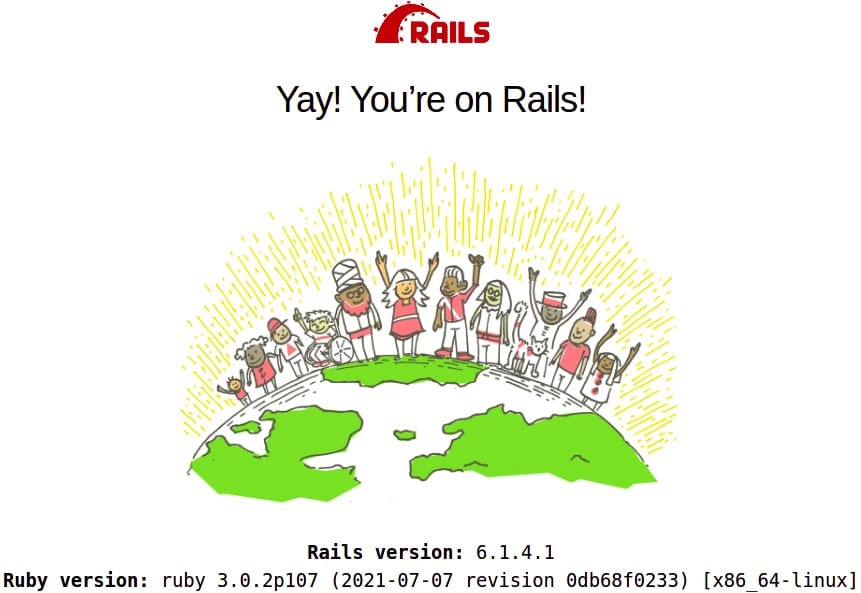
rails sOpen your browser and navigate to http://localhost:3000. You should see the Rails welcome page displaying the Ruby version, Rails version, and environment name. That page is your confirmation that the entire stack — Ruby, Rails, Bundler, and the database — is working correctly.
Need to run on a different port, or make the server accessible from other devices on your network?
rails server -p 4000 -b 0.0.0.0Stop the server at any time by pressing Ctrl + C in the terminal.
Troubleshooting Common Errors
Even with careful setup, things can go sideways. Here are the most frequent issues and their solutions:
| Error | Likely Cause | Fix |
|---|---|---|
ruby: command not found |
PATH not set after rbenv install | Add $HOME/.rbenv/bin to .bashrc and run source ~/.bashrc |
| Permission denied during gem install | Installing gems as root | Set GEM_HOME to $HOME/.gems or use a version manager |
rails: command not found |
Gem binary not registered in PATH | Run rbenv rehash or add ~/.gem/ruby/X.X.X/bin to PATH |
| Native extension build failure | Missing gcc or *-devel headers | Run sudo dnf install ruby-devel openssl-devel |
| Could not connect to database | Adapter not installed or DB not running | Install sqlite-devel or start PostgreSQL/MariaDB service |
| Bundler version conflicts | Incompatible gem versions across projects | Run bundle update or switch Ruby version with rbenv |
| Nokogiri install fails | Missing libxml2 / libxslt headers | Run sudo dnf install libxml2-devel libxslt-devel -y |
When debugging PATH issues, use echo $PATH and which rails to verify which binary is being resolved. When using rbenv, always run rbenv rehash after any gem install command — this is the single most overlooked step that causes “command not found” errors.
Congratulations! You have successfully installed Ruby on Rails. Thanks for using this tutorial for installing Ruby on Rails on your Fedora 43 Linux system. For additional or useful information, we recommend you check the official Ruby on Rails website.
