How To Install Seafile on Fedora 43

Self-hosted cloud storage has become essential for individuals and businesses seeking complete control over their data. Seafile stands out as a powerful, open-source file synchronization and sharing platform that rivals commercial solutions like Dropbox and Google Drive. This comprehensive guide walks you through installing Seafile on Fedora 43, covering everything from initial setup to security hardening. Whether you’re setting up a personal cloud server or deploying an enterprise file-sharing solution, you’ll find detailed instructions that ensure a smooth installation process.
What is Seafile?
Seafile is an enterprise-grade, open-source cloud storage platform designed for file synchronization, collaboration, and secure data management. Unlike traditional file hosting services, Seafile gives you complete ownership of your data while providing professional features like file versioning, encrypted libraries, and cross-platform synchronization.
The platform offers two editions: Community Edition (free and open-source) and Professional Edition (with advanced features like full-text search and document preview). For most users, the Community Edition provides robust functionality including client-side encryption, selective synchronization, and collaborative file management. Seafile excels in scenarios requiring privacy protection, team collaboration, or compliance with data sovereignty regulations.
What sets Seafile apart is its library-based approach to file organization. Each library functions as an encrypted container, allowing you to share specific collections of files without exposing your entire storage. This architecture, combined with mobile apps for iOS and Android, makes Seafile an excellent choice for remote teams and distributed workforces.
System Requirements and Prerequisites
Minimum Hardware Requirements
Installing Seafile on Fedora 43 requires careful consideration of your hardware resources. The absolute minimum configuration includes a single CPU core, though dual-core processors deliver noticeably better performance. Memory requirements start at 1GB RAM, but 2GB is strongly recommended for stable operation, especially when serving multiple concurrent users.
Storage needs depend on your use case. Allocate at least 5GB for the operating system and 5GB for Seafile’s base installation. Production environments should provision significantly more space—100GB or more for data storage. SWAP space matters too; configure at least 512MB, preferably 1GB, to prevent memory exhaustion during peak usage.
Recommended Specifications
For production deployments, aim higher than minimum requirements. A dual-core processor running at 2GHz or faster provides responsive performance for up to 50 concurrent users. RAM should reach 4GB if you plan to enable Elasticsearch for full-text search capabilities. SSD storage dramatically improves I/O performance, particularly during file uploads and library synchronization operations.
Network bandwidth deserves attention too. While Seafile itself is lightweight, file transfers consume bandwidth proportional to your user base. A 100Mbps connection suffices for small teams, but enterprises should consider gigabit connectivity. RAID configurations enhance both reliability and performance for mission-critical deployments.
Pre-Installation Checklist
Before diving into installation, verify your Fedora 43 system is fully updated and you possess root or sudo privileges. Having a domain name simplifies access and SSL certificate acquisition, though a static IP address works in a pinch. Plan your firewall rules ahead of time—you’ll need to open ports for HTTP (80) and HTTPS (443) traffic.
Fedora’s SELinux implementation requires special consideration. While you can disable SELinux, configuring it properly maintains security without sacrificing functionality. Choose your database backend early; MariaDB or MySQL are recommended for production environments due to their reliability and performance.
Decide between Nginx and Apache for your web server. Nginx typically offers better performance with lower resource consumption, making it the preferred choice for most Seafile installations. Finally, plan your SSL strategy—Let’s Encrypt provides free, automated certificates that renew without manual intervention.
Step 1: Update System and Install Dependencies
Start by refreshing your Fedora 43 package repositories and installing all available updates:
sudo dnf update -yThis ensures you’re working with the latest security patches and bug fixes. Next, install the EPEL (Extra Packages for Enterprise Linux) repository, which provides additional packages not included in Fedora’s standard repositories:
sudo dnf install epel-release -ySeafile requires Python 3 and several supporting libraries. Install the complete dependency stack with a single command:
sudo dnf install python3 python3-pip python3-setuptools python3-devel mysql-devel libffi-devel openldap-devel zlib-devel openssl-devel libev-devel -yEach package serves a specific purpose. Python3 runs Seafile’s core services, while development libraries (mysql-devel, libffi-devel, openssl-devel) enable compilation of Python extensions. The openldap-devel package supports LDAP authentication if you later decide to integrate with Active Directory or other directory services.
Verify your Python installation:
python3 --versionYou should see Python 3.9 or newer. Fedora 43 ships with Python 3.11 by default, which works perfectly with current Seafile releases.
Step 2: Install and Configure MariaDB Database
MariaDB serves as Seafile’s database backend, storing metadata about files, users, and sharing permissions. Install the database server and client tools:
sudo dnf install mariadb mariadb-server -yEnable and start the MariaDB service:
sudo systemctl start mariadb
sudo systemctl enable mariadb
Secure your database installation immediately. Run the security script and answer the prompts:
sudo mysql_secure_installationPress Enter when asked for the current root password (it’s blank initially). Set a strong root password, then answer “Y” to remove anonymous users, disable remote root login, remove the test database, and reload privilege tables.
Now create dedicated databases and a user account for Seafile. Log into MariaDB:
sudo mysql -u root -pExecute these SQL commands, replacing your_password with a secure password:
CREATE DATABASE ccnet_db CHARACTER SET = 'utf8';
CREATE DATABASE seafile_db CHARACTER SET = 'utf8';
CREATE DATABASE seahub_db CHARACTER SET = 'utf8';
CREATE USER 'seafile'@'localhost' IDENTIFIED BY 'your_password';
GRANT ALL PRIVILEGES ON ccnet_db.* TO 'seafile'@'localhost';
GRANT ALL PRIVILEGES ON seafile_db.* TO 'seafile'@'localhost';
GRANT ALL PRIVILEGES ON seahub_db.* TO 'seafile'@'localhost';
FLUSH PRIVILEGES;
EXIT;
Seafile uses three separate databases: ccnet_db for server configuration, seafile_db for file metadata, and seahub_db for the web interface. This separation improves security and simplifies backup procedures.
Step 3: Create Seafile User and Directory Structure
Running Seafile under a dedicated system account follows security best practices. Create the seafile user:
sudo adduser seafileThis user runs Seafile services with restricted privileges, limiting potential damage if the application is compromised. Next, create the installation directory:
sudo mkdir -p /opt/seafile
sudo chown -R seafile:seafile /opt/seafile
The /opt/seafile directory houses Seafile’s binaries, configuration files, and data. Setting proper ownership ensures the seafile user can read, write, and execute necessary files without requiring root privileges.
Step 4: Download and Extract Seafile Server
Switch to the seafile user account:
sudo su - seafileNavigate to the installation directory:
cd /opt/seafileVisit the official Seafile download page to identify the latest stable release. As of this writing, Seafile 11.0 is current, but always use the newest version. Download the server package:
wget https://s3.eu-central-1.amazonaws.com/download.seadrive.org/seafile-server_11.0.5_x86-64.tar.gzReplace the URL with the actual download link for your desired version. Verify the download completed successfully, then extract the archive:
tar -xzf seafile-server_*.tar.gzThis creates a directory named seafile-server-11.0.5 (version number varies). The extracted folder contains several important scripts: setup-seafile.sh for initial configuration, seafile.sh for managing the file server, and seahub.sh for the web interface.
Step 5: Run Seafile Installation Script
Navigate into the extracted directory:
cd seafile-server-*Launch the setup wizard:
./setup-seafile-mysql.shThe interactive script asks several questions. Provide thoughtful answers:
- Server name: Enter a descriptive name like “Company File Server” or “Personal Cloud”
- Server IP or domain: Use your domain name (recommended) or server’s IP address
- Seafile data directory: Press Enter to accept the default
/opt/seafile/seafile-data - Fileserver port: Accept the default 8082
- Database configuration: Choose option 1 to use an existing MySQL database
- Database host: Enter
localhost - Database port: Accept default 3306
- MySQL user: Enter
seafile - MySQL password: Provide the password you created earlier
- Database name prefix: Accept default
seafile - Seahub admin email: Enter your email address for the admin account
- Seahub admin password: Create a strong password for web interface access
The script generates three configuration files. The ccnet.conf file contains server identification and network settings. The seafile.conf file defines data storage locations and performance parameters. The seahub_settings.py file controls web interface behavior, email notifications, and user management policies.
Step 6: Configure Seahub Settings
Exit back to root or use sudo to edit configuration files. Open seahub_settings.py for customization:
nano /opt/seafile/conf/seahub_settings.pyAdd these essential settings:
SERVICE_URL = 'http://your-domain.com'
FILE_SERVER_ROOT = 'http://your-domain.com/seafhttp'
SITE_TITLE = 'My Seafile Server'
SITE_NAME = 'Company Cloud Storage'
TIME_ZONE = 'Asia/Jakarta'
Replace your-domain.com with your actual domain. The FILE_SERVER_ROOT parameter tells Seafile where users’ browsers should request file downloads. Setting the correct timezone ensures accurate timestamps on files and activity logs.
Configure email settings for password resets and notifications:
EMAIL_USE_TLS = True
EMAIL_HOST = 'smtp.gmail.com'
EMAIL_HOST_USER = 'your-email@gmail.com'
EMAIL_HOST_PASSWORD = 'your-app-password'
EMAIL_PORT = 587
DEFAULT_FROM_EMAIL = 'your-email@gmail.com'
SERVER_EMAIL = 'your-email@gmail.com'
Adjust these values for your email provider. Gmail requires an app-specific password rather than your regular account password.
Step 7: Install and Configure Nginx Web Server
Install Nginx to serve as a reverse proxy:
sudo dnf install nginx -yFedora’s SELinux protection requires explicit permission for Nginx to make network connections:
sudo setsebool -P httpd_can_network_connect 1Create a dedicated Nginx configuration file for Seafile:
sudo vim /etc/nginx/conf.d/seafile.confPaste this configuration:
server {
    listen 80;
    server_name your-domain.com;

    proxy_set_header X-Forwarded-For $remote_addr;

    location / {
        proxy_pass http://127.0.0.1:8000;
        proxy_set_header Host $host;
        proxy_set_header X-Real-IP $remote_addr;
        proxy_set_header X-Forwarded-For $proxy_add_x_forwarded_for;
        proxy_set_header X-Forwarded-Host $server_name;
        proxy_read_timeout 1200s;
        client_max_body_size 0;
    }

    location /seafhttp {
        rewrite ^/seafhttp(.*)$ $1 break;
        proxy_pass http://127.0.0.1:8082;
        client_max_body_size 0;
        proxy_set_header X-Forwarded-For $proxy_add_x_forwarded_for;
        proxy_connect_timeout 36000s;
        proxy_read_timeout 36000s;
        proxy_send_timeout 36000s;
        send_timeout 36000s;
    }

    location /media {
        root /opt/seafile/seafile-server-latest/seahub;
    }
}
The configuration proxies web interface requests to port 8000 and file server requests to port 8082. Extended timeout values prevent interruptions during large file uploads. The client_max_body_size 0 directive removes upload size restrictions—Seafile handles its own limits.
Test the configuration syntax:
sudo nginx -tIf successful, start Nginx:
sudo systemctl start nginx
sudo systemctl enable nginx
Configure the firewall to allow HTTP and HTTPS traffic:
sudo firewall-cmd --permanent --add-service=http
sudo firewall-cmd --permanent --add-service=https
sudo firewall-cmd --reload
Step 8: Start Seafile and Seahub Services
Switch back to the seafile user:
sudo su - seafile
cd /opt/seafile/seafile-server-latest
Start the Seafile file server:
./seafile.sh startThen launch the web interface:
./seahub.sh startVerify both services are running:
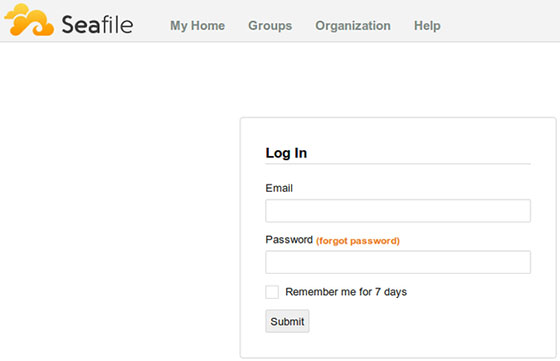
netstat -tlnp | grep -E '8000|8082'You should see processes listening on ports 8000 and 8082. Open your web browser and navigate to http://your-domain.com. The Seafile login page should appear. Sign in using the admin email and password you created during setup.
Step 9: Configure SSL/TLS with Let’s Encrypt
HTTPS encryption is non-negotiable for cloud storage. Install Certbot for automated SSL certificate management:
sudo dnf install certbot python3-certbot-nginx -yObtain your certificate:
sudo certbot --nginx -d your-domain.comCertbot automatically modifies your Nginx configuration, adding SSL parameters and redirecting HTTP to HTTPS. Update Seafile’s configuration to reflect the secure connection. Edit ccnet.conf:
sudo vim /opt/seafile/conf/ccnet.confChange SERVICE_URL:
SERVICE_URL = https://your-domain.comUpdate seahub_settings.py:
sudo vim /opt/seafile/conf/seahub_settings.pyModify FILE_SERVER_ROOT:
FILE_SERVER_ROOT = 'https://your-domain.com/seafhttp'Restart services:
sudo su - seafile
cd /opt/seafile/seafile-server-latest
./seafile.sh restart
./seahub.sh restart
Test your SSL configuration by visiting https://your-domain.com. Certbot automatically renews certificates before expiration.
Step 10: Create Systemd Service Files
Managing services through systemd simplifies administration and ensures automatic startup after reboots. Create the Seafile service file:
sudo vim /etc/systemd/system/seafile.serviceAdd this content:
[Unit]
Description=Seafile Server
After=network.target mysql.service

[Service]
Type=forking
ExecStart=/opt/seafile/seafile-server-latest/seafile.sh start
ExecStop=/opt/seafile/seafile-server-latest/seafile.sh stop
User=seafile
Group=seafile
LimitNOFILE=infinity

[Install]
WantedBy=multi-user.target
Create the Seahub service file:
sudo nano /etc/systemd/system/seahub.serviceAdd this configuration:
[Unit]
Description=Seafile Seahub
After=network.target seafile.service

[Service]
Type=forking
ExecStart=/opt/seafile/seafile-server-latest/seahub.sh start
ExecStop=/opt/seafile/seafile-server-latest/seahub.sh stop
User=seafile
Group=seafile

[Install]
WantedBy=multi-user.target
Reload systemd and enable the services:
sudo systemctl daemon-reload
sudo systemctl enable seafile.service
sudo systemctl enable seahub.service
Now manage Seafile using standard systemd commands: sudo systemctl start seafile, sudo systemctl stop seahub, sudo systemctl status seafile.
Post-Installation Configuration and Security
Log into the admin panel to configure additional settings. Create organizational libraries, establish user quotas, and define sharing policies. Implement a backup strategy immediately—database dumps combined with data directory snapshots protect against hardware failure and accidental deletion.
Security hardening extends beyond SSL certificates. Install fail2ban to block brute-force login attempts. Regular security updates keep your system protected against emerging threats. Review file permissions quarterly to ensure no unauthorized access vectors exist.
Performance optimization becomes important as your user base grows. Installing Memcached reduces database load by caching frequently accessed data. Nginx caching configuration accelerates delivery of static assets like images and CSS files. Database query optimization, particularly indexing on frequently searched fields, maintains responsiveness as your file count increases.
Enable two-factor authentication for administrator accounts. Configure file versioning policies that balance storage efficiency with recovery capabilities. User quotas prevent individuals from monopolizing storage resources.
Testing Your Seafile Installation
Thorough testing validates your installation. Create a test library and upload files of various sizes. Test sharing functionality by creating public links and verifying they work in incognito browser windows. Install the Seafile desktop client and confirm synchronization works bidirectionally.
Mobile app testing matters too. Download the iOS or Android Seafile app, connect to your server, and verify you can browse libraries and download files. Upload photos from your phone to ensure the complete workflow functions correctly.
Performance testing with multiple concurrent uploads reveals potential bottlenecks. Monitor system resources during tests—CPU usage, memory consumption, and disk I/O rates indicate whether your hardware meets demands. Check log files regularly: /opt/seafile/logs/seafile.log contains file server events, while /opt/seafile/logs/seahub.log tracks web interface activity.
Common Issues and Troubleshooting
Services failing to start often indicate port conflicts. Verify nothing else uses ports 8000 or 8082 with sudo netstat -tlnp. Permission issues surface when the seafile user lacks access to required directories—run sudo chown -R seafile:seafile /opt/seafile to correct ownership.
Database connection errors usually stem from incorrect credentials in configuration files. Double-check ccnet.conf and seafile.conf for accurate database passwords. SELinux denials on Fedora manifest as mysterious connection failures. Review audit logs with sudo ausearch -m avc -ts recent to identify blocked operations.
File upload failures often result from Nginx’s client_max_body_size directive. While Seafile handles size limits internally, Nginx must permit large requests to reach the application. SSL certificate errors typically indicate mismatch between your SERVICE_URL configuration and actual domain name.
Performance degradation suggests insufficient resources or database optimization needs. Slow queries appear in MariaDB’s slow query log if enabled. Adding database indexes on frequently accessed tables dramatically improves response times.
Congratulations! You have successfully installed Seafile. Thanks for using this tutorial for installing Seafile on your Fedora 43 Linux system. For additional help or useful information, we recommend you check the official Seafile website.
