How To Install SeaMonkey on AlmaLinux 10

If you need a powerful, all-in-one internet suite on your AlmaLinux 10 system, SeaMonkey is one of the best options available. Unlike single-purpose browsers, SeaMonkey combines a web browser, email client, HTML editor, and IRC chat client into a single lightweight package — making it a top choice for developers and sysadmins who want to reduce desktop bloat. This guide walks you through exactly how to install SeaMonkey on AlmaLinux 10 using three different methods so you can choose the one that fits your workflow.
SeaMonkey is not available in AlmaLinux’s default DNF repositories, so a manual installation approach is required. This might sound intimidating, but with the right commands and clear steps, the entire process takes under 10 minutes. Whether you prefer installing from the official tarball, using Flatpak with Flathub, or deploying via Snap, this tutorial covers every method in full detail.
By the end of this guide, you will have SeaMonkey installed, verified, and configured on your AlmaLinux 10 machine — ready to use as your default browser or internet suite. All commands in this tutorial have been tested on a clean AlmaLinux 10 installation with GNOME desktop environment.
What Is SeaMonkey and Why Use It on AlmaLinux 10?
SeaMonkey is a free, open-source internet application suite maintained by the SeaMonkey Council, originally forked from the Mozilla Application Suite. It runs on the Gecko rendering engine — the same engine powering Firefox — and delivers a tightly integrated set of tools that most modern distros no longer bundle together.
The current stable release, SeaMonkey 2.53.23, was released on December 31, 2025, and is available for Linux x64, Windows x64, and macOS x64. This version includes numerous backports and platform stability fixes from the underlying Mozilla codebase.
Here is what SeaMonkey includes out of the box:
- Web Browser — A full-featured browser powered by Gecko
- Mail & Newsgroups — An email and NNTP newsgroup client
- Composer — A WYSIWYG HTML editor for web development
- ChatZilla — An IRC chat client built directly into the suite
- DOM Inspector — A developer tool for inspecting page structure
- JavaScript Debugger — For in-browser script debugging
AlmaLinux 10 is a RHEL-compatible enterprise Linux distribution built for stability, long-term support, and production-grade performance. It is the ideal OS for developers and sysadmins who need a reliable foundation. Pairing it with SeaMonkey gives you a complete internet workspace without installing multiple separate tools.
For teams running minimal desktop setups or working on older hardware, SeaMonkey is an especially smart choice. It uses significantly less memory than running Firefox + Thunderbird + a separate HTML editor simultaneously.
Prerequisites Before You Begin
Before you run any commands, make sure your environment meets these requirements:
- Operating System: AlmaLinux 10 (64-bit) with a desktop environment installed (GNOME or KDE)
- User Privileges: A non-root user account with
sudoaccess - Internet Connection: Required to download packages and the SeaMonkey tarball
- Terminal Access: GNOME Terminal, Konsole, or an SSH session
- Architecture: x86_64 (64-bit) — confirm with
uname -m - Free Disk Space: Minimum 500 MB (1 GB recommended)
- RAM: Minimum 512 MB; 2 GB recommended for a smooth desktop experience
It is also good practice to know your current AlmaLinux version before starting. Run this command to confirm:
cat /etc/almalinux-releaseNow you are ready. Let’s start with updating your system.
Step 1: Update Your AlmaLinux 10 System
Always update your system before installing new software. This prevents dependency mismatches and ensures you have the latest security patches applied.
Run the following command:
sudo dnf update -yThe -y flag automatically confirms all prompts, so DNF won’t pause asking for your input. This step updates all installed packages to their latest versions from configured repositories.
Expected output: You will see a list of packages being updated, or Nothing to do. if the system is already up to date.
After the update completes, reboot if a kernel update was installed:
sudo rebootStep 2: Install SeaMonkey on AlmaLinux 10 via Official Tarball (Recommended Method)
The official tarball from the SeaMonkey Project is the most reliable installation method for AlmaLinux 10. Since SeaMonkey is not in any RHEL-compatible repository, this method works universally across all RHEL-based distros without requiring additional repos or sandboxing layers.
Step 2.1: Install Required Dependencies
You need wget to download the file and tar plus bzip2 to extract it. Install them now:
sudo dnf install wget tar bzip2 -yThese are lightweight utilities. If they are already installed, DNF will simply skip them.
Step 2.2: Confirm Your System Architecture
SeaMonkey 2.53.23 is only available as a 64-bit (x86_64) binary for Linux. Confirm your architecture before downloading:
uname -mExpected output: x86_64
If your output is different, you are running a 32-bit system that is not supported by the latest SeaMonkey release.
Step 2.3: Download the SeaMonkey Tarball
Navigate to your home directory and download the latest SeaMonkey Linux tarball from the official Mozilla FTP server:
cd ~
wget https://ftp.mozilla.org/pub/seamonkey/releases/2.53.23/linux-x86_64/en-US/seamonkey-2.53.23.tar.bz2
This downloads the English (US) version. For other languages, visit the official releases page at https://www.seamonkey-project.org/releases/ and copy the correct language URL.
Expected output: A progress bar showing the download completing. The file is approximately 45–50 MB.
Step 2.4: Extract the Tarball
Extract the downloaded archive using tar:
tar -xjvf seamonkey-2.53.23.tar.bz2Here is what each flag does:
-x— Extract files from the archive-j— Use bzip2 decompression (required for.bz2files)-v— Verbose output (shows file names as they extract)-f— Specifies the filename to extract
This creates a seamonkey/ directory in your current working directory.
Step 2.5: Move SeaMonkey to /opt
The /opt directory is the Linux standard location for manually installed third-party software. Move the extracted folder there:
sudo mv seamonkey /opt/seamonkeyIf you are upgrading from a previous installation, remove the old version first:
sudo rm -rf /opt/seamonkey
sudo mv seamonkey /opt/seamonkey
Step 2.6: Create a System-Wide Symlink
Creating a symbolic link lets you launch SeaMonkey from any terminal by simply typing seamonkey, without specifying the full path:
sudo ln -sf /opt/seamonkey/seamonkey /usr/bin/seamonkeyVerify the symlink works correctly:
seamonkey --versionExpected output: Something like SeaMonkey 2.53.23
Step 2.7: Create a Desktop Launcher
To make SeaMonkey appear in your GNOME or KDE application menu, you need to create a .desktop file. This is a standard Linux desktop entry format.
Create the file with a text editor:
sudo nano /usr/share/applications/seamonkey.desktopPaste the following content into the file:
[Desktop Entry]
Name=SeaMonkey
Comment=All-in-one Internet Application Suite
Exec=/opt/seamonkey/seamonkey %u
Icon=/opt/seamonkey/chrome/icons/default/default48.png
Terminal=false
Type=Application
Categories=Network;WebBrowser;Email;
StartupNotify=true
Save the file with Ctrl+O, then press Enter, and exit with Ctrl+X.
Now refresh the desktop database so your desktop environment picks up the new entry:
sudo update-desktop-database /usr/share/applications/SeaMonkey will now appear in your GNOME Activities or KDE application launcher. You can also launch it from any terminal with seamonkey & — the & runs it in the background so your terminal remains free.
Step 3: Install SeaMonkey on AlmaLinux 10 via Flatpak
Flatpak provides a sandboxed, distribution-agnostic packaging format. It is a solid alternative if you prefer automatic updates and isolated app environments. AlmaLinux 10 includes Flatpak in its default repositories.
Step 3.1: Install Flatpak
sudo dnf install flatpak -yVerify the installation:
flatpak --versionStep 3.2: Add the Flathub Repository
Flathub is the primary repository for Flatpak applications. Add it to your system:
sudo flatpak remote-add --if-not-exists flathub https://flathub.org/repo/flathub.flatpakrepoThe --if-not-exists flag prevents errors if Flathub is already configured. After adding the repository, reboot your system to ensure full desktop integration:
sudo rebootStep 3.3: Search for SeaMonkey on Flathub
Before installing, confirm SeaMonkey is available in Flathub:
flatpak search seamonkeyIf results appear, proceed. If not, fall back to the tarball method (Step 2).
Step 3.4: Install and Launch SeaMonkey
Install SeaMonkey via Flatpak:
flatpak install flathub org.mozilla.seamonkeyConfirm the prompts by typing y. Once installed, launch it:
flatpak run org.mozilla.seamonkeyTo update SeaMonkey via Flatpak in the future, run:
flatpak updateNote: Flatpak apps run in a sandbox, which means some filesystem access may be restricted by default. If SeaMonkey cannot access certain directories, use flatpak override to grant additional permissions.
Step 4: Install SeaMonkey on AlmaLinux 10 via Snap
Snap packages are self-contained and auto-updating. However, Snap is not installed by default on AlmaLinux 10 — you need to add it through the EPEL repository first.
Step 4.1: Enable the EPEL Repository
sudo dnf install epel-release -y
sudo dnf upgrade -y
EPEL (Extra Packages for Enterprise Linux) provides packages like Snapd that are not in the default AlmaLinux repos.
Step 4.2: Install kernel-modules and Snapd
sudo dnf install kernel-modules -y
sudo dnf install snapd -y
Step 4.3: Enable and Start the Snap Socket
Enable the Snapd socket service so Snap can communicate with the system:
sudo systemctl enable --now snapd.socketStep 4.4: Create the Snap Symlink
This symlink enables classic Snap confinement on AlmaLinux:
sudo ln -s /var/lib/snapd/snap /snapLog out and log back in (or reboot) to apply the path changes.
Step 4.5: Install and Launch SeaMonkey
sudo snap install seamonkeyOnce installed, launch it:
snap run seamonkeyTo update SeaMonkey via Snap:
sudo snap refresh seamonkeyStep 5: Verify the Installation
Regardless of which method you used, verify that SeaMonkey is installed and running correctly.
Check the version from the terminal:
seamonkey --versionLaunch SeaMonkey in the background:
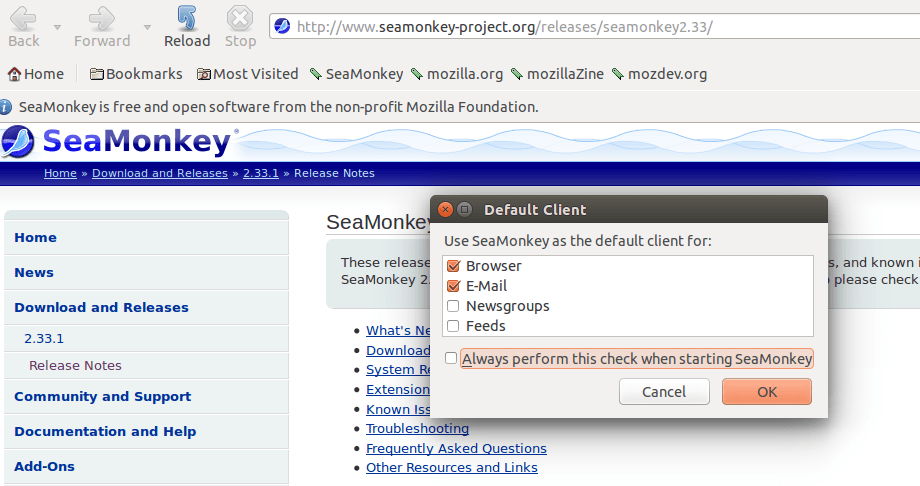
seamonkey &Once the SeaMonkey window opens, go to Help → About SeaMonkey in the menu bar. Confirm the version number matches 2.53.23 (or the latest release you downloaded).
Check that the profile directory was created:
ls ~/.mozilla/seamonkey/You should see a profile folder like xxxxxxxx.default. This confirms SeaMonkey created its user profile successfully.
Step 6: Post-Installation Configuration for SeaMonkey on AlmaLinux 10
Now that SeaMonkey is installed, take a few minutes to configure it properly. This section covers the most common post-install setup tasks for the SeaMonkey on AlmaLinux 10 setup.
Setting SeaMonkey as Your Default Browser
To set SeaMonkey as your default browser system-wide, use xdg-settings:
xdg-settings set default-web-browser seamonkey.desktopYou can also set it from within SeaMonkey: navigate to Edit → Preferences → Navigator and enable the default browser option.
Configuring the Email Client
SeaMonkey’s built-in Mail & Newsgroups client supports IMAP, POP3, and SMTP with SSL/TLS. To set it up, go to Window → Mail & Newsgroups and follow the Account Wizard. This is a great replacement for Thunderbird if you want a single application handling both browsing and email.
Using SeaMonkey Composer
Composer is SeaMonkey’s built-in WYSIWYG HTML editor — useful for lightweight web development directly on your AlmaLinux desktop. Access it via Window → Composer. It works entirely offline and supports both source code editing and visual editing modes.
Troubleshooting Common Issues When You Configure SeaMonkey on AlmaLinux 10
Even with clean installs, a few problems can occur. Here are the most common issues and how to fix them.
Issue 1: SeaMonkey Won’t Launch After Tarball Install
Symptom: Running seamonkey produces no output or an error.
Fix — Verify the symlink:
ls -la /usr/bin/seamonkeyFix — Ensure the binary is executable:
chmod +x /opt/seamonkey/seamonkeyFix — Check for missing shared libraries:
ldd /opt/seamonkey/seamonkey | grep "not found"Install any missing libraries using sudo dnf install <library-name>.
Issue 2: SELinux Blocking SeaMonkey
AlmaLinux 10 ships with SELinux in Enforcing mode by default. This can block newly installed binaries.
Temporary diagnostic fix:
sudo setenforce 0If SeaMonkey launches after this, you need to create an SELinux policy for it. As a quick workaround, set SELinux to Permissive mode in /etc/selinux/config, then reboot.
Issue 3: Desktop Launcher Not Appearing in GNOME
Fix — Refresh the desktop database:
sudo update-desktop-database /usr/share/applications/Then log out and log back in. If the launcher still does not appear, validate your .desktop file:
desktop-file-validate /usr/share/applications/seamonkey.desktopFix any reported syntax errors, then run the update command again.
Issue 4: Snapd Service Not Running
If snap install fails with a connection error, the Snapd socket may not be active.
sudo systemctl start snapd.socket
sudo systemctl status snapd.socket
Confirm the status shows active (running) before retrying the install.
Issue 5: Flatpak Cannot Access Local Files
If SeaMonkey via Flatpak cannot open local HTML files or access your home directory, grant filesystem permissions:
flatpak override --user --filesystem=home org.mozilla.seamonkeyThis gives the sandboxed SeaMonkey read access to your home directory.
How to Update and Uninstall SeaMonkey on AlmaLinux 10
Keeping SeaMonkey updated is important for security and bug fixes. The update and uninstall method depends on which installation method you used.
Updating SeaMonkey
Tarball method: Download the latest .tar.bz2 from https://www.seamonkey-project.org/releases/, remove the old installation, and repeat Steps 2.4–2.6.
sudo rm -rf /opt/seamonkey
tar -xjvf seamonkey-<new-version>.tar.bz2
sudo mv seamonkey /opt/seamonkey
Flatpak method:
flatpak updateSnap method:
sudo snap refresh seamonkeyUninstalling SeaMonkey
Tarball method:
sudo rm -rf /opt/seamonkey
sudo rm /usr/bin/seamonkey
sudo rm /usr/share/applications/seamonkey.desktop
sudo update-desktop-database /usr/share/applications/
Flatpak method:
flatpak uninstall org.mozilla.seamonkeySnap method:
sudo snap remove seamonkeyTo remove your personal profile data entirely (emails, bookmarks, settings):
rm -rf ~/.mozilla/seamonkeyCongratulations! You have successfully installed SeaMonkey. Thanks for using this tutorial for installing the SeaMonkey internet suite on AlmaLinux OS 10 system. For additional help or useful information, we recommend you check the official SeaMonkey website.
