How To Install Shotcut on Fedora 43

Shotcut stands as one of the most versatile free and open-source video editors available for Linux users today. This powerful, cross-platform application offers professional-grade features without the hefty price tag of commercial alternatives. For Fedora 43 users seeking a reliable video editing solution, Shotcut delivers timeline-based editing, multi-format support, and robust FFmpeg integration. The installation process on Fedora 43 provides multiple pathways, each with distinct advantages depending on your specific needs and system configuration. This comprehensive guide walks you through every installation method available—Flatpak, Snap, AppImage, and DNF—ensuring you can choose the approach that best suits your workflow. Whether you’re a content creator, hobbyist filmmaker, or professional editor, you’ll find clear, actionable instructions to get Shotcut running smoothly on your Fedora 43 system.
What is Shotcut?
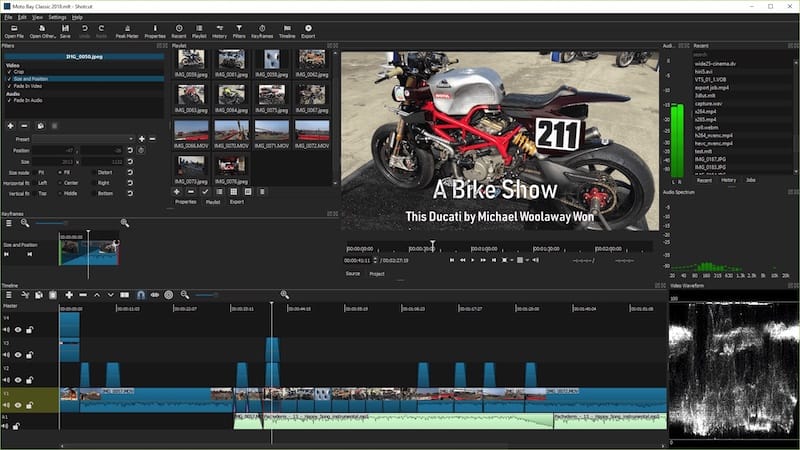
Shotcut represents a mature video editing platform built on the MLT Multimedia Framework and FFmpeg libraries. The application provides non-linear editing capabilities across multiple video and audio tracks simultaneously. Users benefit from native timeline editing, advanced color grading tools, and extensive filter support. The software supports screen capture, webcam recording, and audio capture directly within the interface. OpenGL GPU acceleration ensures smooth playback even with high-resolution footage.
The editor handles 4K resolution natively and works with hundreds of audio and video formats without requiring transcoding. Shotcut appeals to beginners due to its intuitive interface while offering enough depth for intermediate editors seeking professional results. The active development community ensures regular updates and responsive bug fixes.
Prerequisites Before Installation
Before diving into the installation process, verify your Fedora 43 system meets the necessary requirements. Your machine should run Fedora 43 Workstation or Server edition with a graphical desktop environment. Terminal access is essential for executing command-line instructions throughout this guide.
Ensure you possess a non-root user account with sudo privileges for security best practices. An active internet connection enables package downloads and repository access. Your system should have at least 4GB of RAM, though 8GB or more provides optimal performance for video editing tasks. Allocate sufficient storage space—at least 2GB for the application plus additional space for video projects.
Update your system packages before beginning any installation. Open the terminal and execute:
sudo dnf update -yThis command refreshes your package database and installs any pending system updates, ensuring compatibility with new software installations.
Understanding Installation Methods on Fedora 43
Fedora 43 supports multiple package management systems, each offering unique benefits and trade-offs for installing Shotcut.
Flatpak Method
Flatpak delivers applications in a sandboxed environment with bundled dependencies. This isolation improves security while ensuring consistent behavior across different Linux distributions. The Flatpak version includes all necessary multimedia codecs out of the box, eliminating common playback issues. Download sizes tend to be larger since runtimes and libraries are packaged together. Some users report occasional permission challenges when accessing files outside standard directories.
Snap Method
Snap packages offer universal compatibility and automatic background updates. The Snap Store provides centralized application management. However, Shotcut requires classic confinement, which reduces sandboxing benefits. The snapd daemon consumes additional system resources. Some Fedora users prefer alternatives due to philosophical differences with Canonical’s approach.
AppImage Method
AppImage provides ultimate portability—a single executable file runs across distributions without installation. No administrative privileges are required for execution. The format suits testing applications or running software on systems where you lack root access. Manual updates represent the primary drawback, as no automatic update mechanism exists. System integration requires additional configuration steps.
DNF/RPM Method
Native package management through DNF offers the smallest installation footprint and potentially better performance. System resources are utilized more efficiently compared to containerized solutions. However, Fedora’s strict adherence to free software principles means codecs for proprietary formats may be missing initially. Users must enable third-party repositories like RPM Fusion for complete multimedia support.
Performance testing reveals notable differences between methods. Some users report lower CPU utilization with Flatpak versions during rendering operations, with usage below 20% on capable hardware. Native DNF installations with properly configured codecs may deliver superior performance. For most users, Flatpak represents the recommended approach due to included codec support and ease of installation.
Method 1: Installing Shotcut via Flatpak (Recommended)
Flatpak installation provides the smoothest experience for Fedora 43 users seeking hassle-free video editing.
Step 1: Install Flatpak on Fedora 43
Fedora Workstation includes Flatpak by default. Verify its presence by checking the version:
flatpak --versionIf Flatpak is missing, install it using DNF:
sudo dnf install flatpak -yThe -y flag automatically confirms the installation without prompting.
Step 2: Add Flathub Repository
Flathub serves as the central repository for Flatpak applications. Add it to your system:
flatpak remote-add --if-not-exists flathub https://flathub.org/repo/flathub.flatpakrepoThis command checks whether Flathub already exists before adding it, preventing duplicate entries. Confirm the repository addition:
flatpak remotesYou should see “flathub” listed in the output.
Step 3: Install Shotcut
Execute the installation command:
flatpak install flathub org.shotcut.Shotcut -yThe system downloads the Shotcut application along with required runtimes and dependencies. Download size typically ranges from 200-400MB depending on existing runtimes. Installation completes within a few minutes on standard broadband connections.
Step 4: Launch Shotcut
Start Shotcut from the command line:
flatpak run org.shotcut.ShotcutAlternatively, locate Shotcut in your application menu under “Sound & Video” or “Multimedia.” The first launch may take slightly longer as the application initializes its configuration directory.
Step 5: Verify Installation
Confirm Shotcut appears in your Flatpak application list:
flatpak list | grep shotcutCheck the installed version by navigating to Help > About Shotcut within the application. Test basic functionality by importing a video file and previewing it on the timeline.
Method 2: Installing Shotcut via Snap
Snap installation offers another containerized approach with automatic update capabilities.
Step 1: Install Snapd on Fedora 43
Install the Snap daemon:
sudo dnf install snapdEnable and start the snapd service:
sudo systemctl enable --now snapd.socketFor snap commands to work properly across the system, log out and back in or restart your computer. This step ensures environment variables are properly configured.
Step 2: Enable Classic Snap Support
Classic snaps require a symbolic link:
sudo ln -s /var/lib/snapd/snap /snapThis command creates a link allowing classic confinement snaps to access system resources beyond the standard sandbox. Shotcut requires classic confinement for full functionality.
Step 3: Install Shotcut
Execute the installation with the classic flag:
sudo snap install shotcut --classicThe --classic parameter is mandatory for Shotcut. Without it, installation fails or the application operates with reduced functionality. The download proceeds automatically, displaying progress in your terminal.
Step 4: Launch and Verify
Start Shotcut by typing:
shotcutOr find it in your application launcher. Verify installation:
snap list | grep shotcutSnaps update automatically in the background. The snapd daemon checks for updates multiple times daily, ensuring you always run the latest version.
Step 5: Managing Snap Installation
Update manually if desired:
sudo snap refresh shotcutRemove the application:
sudo snap remove shotcutAdjust permissions using snap connect commands if file access issues arise.
Method 3: Installing Shotcut via AppImage
AppImage offers maximum portability for users who prefer self-contained executables.
Step 1: Download Shotcut AppImage
Visit the official Shotcut download page. Navigate to the Linux section and download the latest AppImage file. Alternatively, use wget from the terminal:
wget https://github.com/mltframework/shotcut/releases/download/v[VERSION]/shotcut-linux-x86_64.AppImageReplace [VERSION] with the current release number. Check the official website for the exact URL. The download saves to your current directory, typically your home folder.
Step 2: Navigate to Download Directory
Change to the directory containing the AppImage:
cd ~/DownloadsConfirm the file presence:
ls -lh shotcut*.AppImageThis command lists all files matching the pattern with human-readable file sizes.
Step 3: Make AppImage Executable
Grant execution permissions:
chmod +x shotcut-linux-x86_64-*.AppImageThe chmod command modifies file permissions, adding the executable bit. Linux security prevents running files without explicit executable permissions, protecting against accidental malware execution.
Step 4: Run Shotcut
Execute the AppImage:
./shotcut-linux-x86_64-*.AppImageThe application launches directly without installation. First-run dialogs may appear, requesting confirmation for various settings.
Step 5: Create Desktop Integration (Optional)
For menu integration, create a desktop entry file:
mkdir -p ~/.local/share/applications
nano ~/.local/share/applications/shotcut.desktop
Add the following content:
[Desktop Entry]
Name=Shotcut
Comment=Video Editor
Exec=/home/USERNAME/Applications/shotcut-linux-x86_64.AppImage
Icon=/home/USERNAME/Applications/shotcut-icon.png
Terminal=false
Type=Application
Categories=AudioVideo;Video;
Replace USERNAME with your actual username and adjust paths accordingly. Save the file and make it executable:
chmod +x ~/.local/share/applications/shotcut.desktopDownload an icon from the Shotcut website and place it in the specified path for complete integration.
Step 6: Managing AppImage
Consider moving the AppImage to a dedicated directory:
mkdir -p ~/Applications
mv ~/Downloads/shotcut*.AppImage ~/Applications/
This organization keeps portable applications separate from downloads. Update by downloading the new AppImage version and replacing the old file.
Method 4: Installing from Fedora Repositories via DNF
Native repository installation provides tight system integration.
Step 1: Check Repository Availability
Search Fedora repositories:
dnf search shotcutShotcut may not be available in default Fedora repositories due to codec licensing restrictions.
Step 2: Enable RPM Fusion
RPM Fusion provides additional packages restricted by Fedora’s free software policy:
sudo dnf install https://download1.rpmfusion.org/free/fedora/rpmfusion-free-release-$(rpm -E %fedora).noarch.rpmFor complete codec support, add the nonfree repository:
sudo dnf install https://download1.rpmfusion.org/nonfree/fedora/rpmfusion-nonfree-release-$(rpm -E %fedora).noarch.rpmThese repositories enable installation of multimedia software with broader codec support.
Step 3: Install Shotcut
If available through RPM Fusion:
sudo dnf install shotcutThe system resolves dependencies automatically and prompts for confirmation before proceeding.
Step 4: Install Additional Codecs
For H.264 and other proprietary format support:
sudo dnf install libavcodec-freeworld ffmpeg-libsThis package replaces Fedora’s limited codec library with a comprehensive version supporting commercial formats. Many users experience codec-related issues without this crucial step.
Step 5: Launch and Configure
Start Shotcut via terminal or application menu:
shotcutThe DNF installation typically demonstrates better CPU utilization during renders compared to containerized versions. This performance advantage matters for users processing large video files regularly.
Post-Installation Configuration
Optimize Shotcut for Fedora 43 after installation.
Initial Setup Wizard
First launch presents configuration options. Select your preferred language and interface theme. The application detects available hardware and suggests optimal settings. Configure audio and video input devices if you plan to capture content directly.
Optimize for Fedora 43
Enable GPU acceleration for smoother preview playback. Navigate to Settings > Display Method and select “OpenGL.” This setting leverages your graphics card for rendering, reducing CPU load. Adjust preview scaling under Settings > Preview Scaling to balance quality and performance. Lower settings improve playback on modest hardware.
Set the temporary file location to a fast drive with ample space. Video editing generates substantial temporary data during timeline operations. Use Settings > App Data Directory to specify your preferred location.
Configure Proxy Settings
Large 4K files benefit from proxy editing. Enable proxy mode to generate lower-resolution copies for timeline editing while preserving full quality for final renders. Access Proxy settings through Settings > Proxy. Choose proxy resolution based on your hardware capabilities—typically 540p or 720p for 4K source footage.
Install Additional Resources
Explore available filters and effects under Filters and Effects menus. Shotcut includes dozens of built-in options for color correction, transitions, and audio processing. Community-created presets enhance your editing capabilities further. Visit the Shotcut forums for shared configurations and custom presets.
Troubleshooting Common Installation Issues
Address frequent problems encountered during and after installation.
Codec and Format Issues
H.264 codec errors rank among the most common complaints. Error messages like “codec not found” or playback failures with modern camera footage indicate missing codec support. Flatpak users rarely encounter this issue since codecs are bundled. DNF installation users must install libavcodec-freeworld from RPM Fusion:
sudo dnf install libavcodec-freeworldSony A6400 camera users and others shooting in XAVC-S format specifically require these additional codecs. Install complete GStreamer plugin sets if problems persist:
sudo dnf install gstreamer1-plugins-bad-free gstreamer1-plugins-uglyPerformance Problems
Low CPU utilization during renders indicates suboptimal configuration. Flatpak versions occasionally exhibit this behavior, with CPU usage remaining below 20% during intensive operations. If performance lags, consider switching to a DNF installation with properly configured codecs. Enable parallel processing in Shotcut settings to utilize multiple CPU cores effectively. Adjust the processing thread count under Settings > Video Mode.
GPU acceleration issues occur when OpenGL drivers malfunction. Ensure your graphics drivers are current. For AMD and Intel GPUs, Fedora includes open-source drivers by default. NVIDIA users should install proprietary drivers from RPM Fusion for optimal performance:
sudo dnf install akmod-nvidiaFlatpak Permission Issues
Sandboxing occasionally prevents file access outside standard directories. Shotcut may fail to open projects or media files stored in non-standard locations. Install Flatseal for granular permission management:
flatpak install flathub com.github.tchx84.FlatsealLaunch Flatseal, select Shotcut, and grant filesystem access to required directories. Common permissions to enable include “All user files” or specific project folders.
Snap Classic Confinement Errors
If snap installation fails with classic confinement errors, verify the symbolic link exists:
ls -l /snapRecreate if necessary. Ensure snapd service runs properly:
sudo systemctl status snapdRestart the service if inactive:
sudo systemctl restart snapdAppImage Runtime Errors
AppImage execution failures often stem from missing FUSE (Filesystem in Userspace). Install it:
sudo dnf install fuse fuse-libsPermission denied errors indicate the executable bit wasn’t set properly. Repeat the chmod command. Icon visibility in menus requires proper desktop integration—verify your .desktop file uses absolute paths.
Audio/Video Playback Issues
Modern camera formats sometimes cause import problems. Sony A6400 XAVC-S footage specifically requires libavcodec-freeworld. Check file compatibility by attempting playback in another application like VLC. If VLC plays the file successfully but Shotcut doesn’t, codec configuration needs attention. Install the complete FFmpeg suite from RPM Fusion for maximum format support:
sudo dnf install ffmpegAudio sync issues during playback may indicate insufficient system resources or preview scaling problems. Reduce preview quality and enable proxy mode for problematic files.
Updating Shotcut on Fedora 43
Keep your installation current with the latest features and bug fixes.
Updating Flatpak Version
Refresh individual applications:
flatpak update org.shotcut.ShotcutUpdate all Flatpak applications simultaneously:
flatpak updateConfigure automatic updates through GNOME Software if you prefer graphical management. The software center checks for updates daily and notifies you when new versions are available.
Updating Snap Version
Snaps update automatically without user intervention. The snapd service checks multiple times daily and installs updates during idle periods. Force immediate updates:
sudo snap refresh shotcutView update history:
snap changesUpdating AppImage
AppImage requires manual updates. Visit the official download page periodically. Download the latest version and replace your existing AppImage file. No uninstallation is necessary—simply delete the old file and use the new one. Update your desktop entry file if the filename changes.
Updating DNF Version
Include Shotcut in regular system updates:
sudo dnf updateOr update specifically:
sudo dnf update shotcutDNF checks configured repositories and installs newer versions when available. RPM Fusion typically updates applications shortly after upstream releases.
Uninstalling Shotcut from Fedora 43
Remove Shotcut cleanly when no longer needed.
Remove Flatpak Installation
Uninstall the application:
flatpak uninstall org.shotcut.ShotcutRemove orphaned runtimes and free disk space:
flatpak uninstall --unusedThis command eliminates dependencies no longer required by any installed application. User data persists in ~/.var/app/org.shotcut.Shotcut/ unless manually deleted.
Remove Snap Installation
Execute removal:
sudo snap remove shotcutSnap automatically removes associated data and configuration files. Snapshots allow reverting to previous versions if needed before complete removal.
Remove AppImage
Simply delete the AppImage file:
rm ~/Applications/shotcut*.AppImageRemove desktop integration:
rm ~/.local/share/applications/shotcut.desktopAppImage stores configuration in standard locations like ~/.config/Meltytech/. Delete this directory to remove all traces.
Remove DNF Installation
Uninstall via DNF:
sudo dnf remove shotcutConfiguration files in your home directory remain after package removal. Delete ~/.config/Meltytech/ to eliminate all user settings.
Congratulations! You have successfully installed Shotcut. Thanks for using this tutorial for installing the Shotcut video editor on your Fedora 43 Linux system. For additional or useful information, we recommend you check the official Shotcut website.
