How To Install Shotcut on Rocky Linux 10

If you’re running Rocky Linux 10 and need a reliable, free video editor, Shotcut is one of the best tools you can install. It’s open-source, cross-platform, and packed with professional-grade features — without spending a single dollar on licensing. The catch? Shotcut doesn’t come pre-installed on Rocky Linux 10, and it’s absent from the default DNF repositories. That means knowing the right installation path makes all the difference.
This guide walks you through three proven methods to install Shotcut on Rocky Linux 10: Flatpak (the most recommended approach), AppImage (portable and root-free), and Snap. Every step has been verified against official Rocky Linux 10 and Shotcut documentation. Whether you’re a content creator, educator, or Linux power user, you’ll have Shotcut running by the end of this tutorial.
What Is Shotcut?
Shotcut is a free, open-source, non-linear video editor that runs on Linux, Windows, and macOS. First released in 2011, it is actively maintained with regular updates — including significant feature additions throughout 2025. Under the hood, it’s powered by FFmpeg, one of the most versatile multimedia frameworks available, which gives Shotcut wide format compatibility: MP4, MKV, AVI, MOV, WebM, and 4K video are all supported out of the box.
What separates Shotcut from other free Linux video editors is its balance between accessibility and depth. The interface is approachable enough for beginners. Yet the feature set runs deep enough to satisfy intermediate and advanced editors. Key capabilities include:
- Timeline-based non-destructive editing — original source files are never modified
- 360° and VR video support with dedicated spherical filters
- Speech-to-Text subtitle generation, introduced in 2025, running locally without an internet connection
- Hardware encoding support for NVIDIA, AMD, and Intel GPUs
- Over 200 built-in filters, transitions, and visual effects
- Multi-track audio and video editing with keyframe animation
- Export presets for YouTube, Vimeo, H.264, H.265, AV1, VP9, and more
Best of all, Shotcut is completely free — no watermarks, no feature paywalls, no subscription required.
Why Use Shotcut on Rocky Linux 10?
Rocky Linux 10, code-named “Red Quartz,” is a community enterprise Linux distribution that is fully binary-compatible with Red Hat Enterprise Linux 10. It was built for stability, predictability, and long-term support — which is exactly what system administrators, infrastructure teams, and enterprise workstation users need. That enterprise-first philosophy, however, means the default software repositories are deliberately lean on creative desktop tools.
Shotcut is not available through Rocky Linux’s default DNF repositories or through EPEL (Extra Packages for Enterprise Linux) at the time of writing. Rather than turning to untrusted third-party RPM sources, universal package formats like Flatpak, AppImage, and Snap give you a safe, sandboxed, and up-to-date path to install modern desktop software on enterprise Linux distributions without touching core system libraries.
If you use Rocky Linux 10 as your daily workstation, Shotcut is a production-ready video editing solution well worth the five-minute setup.
Prerequisites and System Requirements
Before you begin, confirm that your Rocky Linux 10 system meets the following requirements.
Rocky Linux 10 Minimum Hardware:
- CPU: 64-bit processor (x86_64-v3, AVX-capable) at 1 GHz or faster
- RAM: 2 GB minimum; 4 GB or more strongly recommended for video editing workloads
- Disk Space: 20–40 GB for the base OS; Flatpak adds approximately 1–2 GB for Shotcut and its runtime
- Display: 1024×768 resolution or higher
- Internet Connection: Required for Flatpak and Snap installation methods
You Will Also Need:
- A Rocky Linux 10 system with a desktop environment (GNOME is the default)
sudoprivileges or root access- Terminal access — GNOME Terminal, Konsole, or any equivalent
Once confirmed, choose the installation method that best fits your environment.
Method 1: Install Shotcut via Flatpak (Recommended)
Flatpak is the most reliable, up-to-date, and officially supported way to install Shotcut on Rocky Linux 10. It pulls the latest Shotcut release directly from Flathub — the largest Flatpak application repository — keeps it sandboxed away from core system libraries, and makes future updates a single command. This is the method most Rocky Linux users should follow.
Step 1: Verify or Install Flatpak
On Rocky Linux 10 with the Workstation or Server with GUI profile, Flatpak is often pre-installed. Check by running:
flatpak --versionIf you get a version number back, skip ahead to Step 2. If the terminal reports “command not found,” install Flatpak with:
sudo dnf install flatpak -yEnter your administrator password when prompted. Installation completes in under a minute.
Step 2: Add the Flathub Repository
Flatpak needs a remote repository to know where to fetch applications. Add Flathub — the primary source for Flatpak apps on Linux — with:
sudo flatpak remote-add --if-not-exists flathub https://flathub.org/repo/flathub.flatpakrepoThe --if-not-exists flag prevents errors if Flathub was already configured. Verify it was added successfully:
flatpak remotesYou should see flathub listed in the output. After adding the remote, restart your system to ensure environment variables and application paths are properly loaded.
Step 3: Install Shotcut from Flathub
Now install Shotcut using its official Flatpak application ID:
sudo flatpak install flathub org.shotcut.ShotcutThe terminal will display a list of components to install, including the Shotcut application and its required FreeDesktop runtime. Type y when prompted to confirm. Depending on your internet speed, the download takes roughly 2–5 minutes. Expect a total download of approximately 400–600 MB on a fresh install.
Step 4: Launch Shotcut
Once installed, launch Shotcut in one of two ways:
- GNOME Activities Overview: Press the
Superkey, type “Shotcut,” and click its icon - Terminal command:
flatpak run org.shotcut.Shotcut
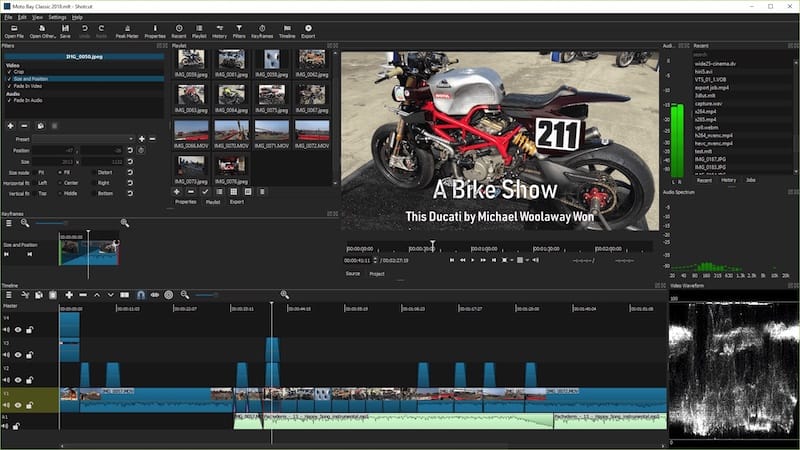
The first launch may take a few extra seconds while the Flatpak sandbox initializes. After that, Shotcut opens to its clean, dark-themed multi-panel interface — fully ready for editing.
Method 2: Install Shotcut via AppImage
The AppImage format is a portable, self-contained application bundle. No root access is needed, no system files are modified, and you can copy the AppImage to a USB drive and run Shotcut on any compatible Linux machine. This method is ideal in restricted corporate environments or when you simply prefer to keep your installation completely isolated from the OS.
Step 1: Download the Shotcut AppImage
Open a browser and navigate to the official Shotcut download page at shotcut.org/download. Under the Linux section, select the AppImage (x86_64) file. The filename will follow a format like:
shotcut-linux-x86_64-XXXXXX.AppImageYou can also download it directly in the terminal using wget with the full URL copied from the download page. Confirm the file downloaded completely before moving forward.
Step 2: Make the AppImage Executable
Downloaded files on Linux are not executable by default. Open a terminal, navigate to your Downloads folder, and grant execute permission:
cd ~/Downloads/
chmod +x shotcut-linux-*.AppImage
The wildcard * handles any version suffix automatically. Prefer a GUI? Right-click the AppImage in Nautilus, select Properties → Permissions, and enable “Allow executing file as program.”
Step 3: Run Shotcut
Launch Shotcut by double-clicking the AppImage in your file manager, or run it from the terminal:
./shotcut-linux-*.AppImageThe AppImage bundles all dependencies internally. It extracts and launches Shotcut without installing anything on your Rocky Linux system. Nothing changes on your OS — no RPM packages, no shared libraries modified.
Step 4: Create a Desktop Shortcut (Optional)
AppImages don’t automatically appear in the GNOME application menu. To add a launcher, create a .desktop entry file:
nano ~/.local/share/applications/shotcut.desktopAdd the following content, adjusting the Exec path to match your actual AppImage location:
[Desktop Entry]
Name=Shotcut
Exec=/home/yourusername/Downloads/shotcut-linux-x86_64.AppImage
Icon=shotcut
Type=Application
Categories=AudioVideo;Video;
Save the file, then register it:
update-desktop-database ~/.local/share/applications/Alternatively, install AppImagePool — a graphical AppImage manager available on Flathub — to handle launcher creation automatically:
flatpak install flathub io.github.prateekmedia.appimagepoolMethod 3: Install Shotcut via Snap
Snap is a universal package format developed by Canonical. It’s not installed on Rocky Linux 10 by default but can be added quickly. If you already manage other Snap packages on your system, this is a perfectly valid installation route.
Step 1: Install and Enable snapd
Install snapd and enable its socket service:
sudo dnf install snapd -y
sudo systemctl enable --now snapd.socket
Create the symlink required for classic Snap support:
sudo ln -s /var/lib/snapd/snap /snapLog out and log back in — or restart — so that Snap’s binary paths are fully registered in your shell environment. Verify everything is working:
snap versionStep 2: Install Shotcut
Install Shotcut using the --classic confinement flag. This gives Shotcut the system-level access it needs to function correctly as a multimedia editor:
sudo snap install shotcut --classicWait for the download and installation to complete. Confirm success:
snap listShotcut will appear with its version number. Launch it from the GNOME Applications menu or by typing shotcut in the terminal.
Note: The Snap version of Shotcut may occasionally trail the Flatpak release in update frequency. For the most current Shotcut build, Flatpak via Flathub remains the preferred method.
How to Update Shotcut on Rocky Linux 10
Staying current with Shotcut updates ensures you have the latest bug fixes, performance improvements, and new features. The update command varies by installation method:
- Flatpak:
sudo flatpak update org.shotcut.Shotcut
Update all Flatpak apps at once:sudo flatpak update - AppImage: Download the latest AppImage from shotcut.org/download and replace the old file. No built-in auto-update exists for AppImages.
- Snap:
sudo snap refresh shotcut
Snaps auto-refresh automatically up to four times daily by default.
To check your current installed version at any time, open Shotcut and navigate to Help → About Shotcut.
How to Uninstall Shotcut
Removing Shotcut is clean and simple regardless of which installation method you used.
- Flatpak:
sudo flatpak uninstall org.shotcut.Shotcut
To also wipe saved settings and user data, add the--delete-dataflag:
sudo flatpak uninstall --delete-data org.shotcut.Shotcut
Clean up unused runtimes afterward:sudo flatpak uninstall --unused - AppImage: Delete the file directly —
rm ~/Downloads/shotcut-linux-*.AppImage— and remove the.desktoplauncher if you created one. - Snap:
sudo snap remove shotcut
To verify the Flatpak removal was complete, run: flatpak list | grep -i shotcut
Getting Started with Shotcut After Installation
Installation complete — now what? Here’s a quick-start walkthrough to get your first edit underway.
- Open a video file. Go to File → Open File, or drag a clip directly onto the timeline panel at the bottom of the screen. Shotcut accepts practically any format FFmpeg supports.
- Trim or cut a clip. Select a clip in the timeline. Drag either edge inward to trim its start or end point. To split a clip at the current playhead position, press
S. - Add a filter or visual effect. With a clip selected on the timeline, open the Filters panel in the left sidebar. Click the
+icon and browse the full library — blur, color grading, brightness, slow motion, glitch, vignette, and hundreds more. All changes are non-destructive. - Generate automatic subtitles. Go to Timeline → Speech to Text to auto-generate subtitles from your video’s audio. This 2025 feature processes locally — no internet needed and no third-party service involved.
- Export your video. Click File → Export Video, choose a preset such as “YouTube” or “H.264 High Profile,” set your output folder, and click Export File. Shotcut encodes in the background while you keep working.
Essential keyboard shortcuts to learn first:
Space— Play/Pause the previewCtrl+Z— Undo last actionI/O— Set In/Out points on a clipS— Split clip at playhead position
Troubleshooting Common Issues
Even with clean setup steps, you may run into a bump or two. Here are the most common problems Rocky Linux 10 users encounter and exactly how to fix them.
flatpak: command not found
Flatpak is not installed. Runsudo dnf install flatpak -yand retry.- Flathub remote not found during install
The repository wasn’t added correctly. Re-run theflatpak remote-addcommand from Method 1, Step 2, restart your system, and then try installing Shotcut again. - AppImage won’t launch after download
The file is missing execute permission. Runchmod +x shotcut-linux-*.AppImagein the terminal and try again. - Shotcut doesn’t appear in the GNOME app menu after Flatpak install
Flatpak app icons sometimes require a session refresh to appear. Log out and back in, or do a full system restart. - Shotcut crashes immediately on startup
This is most commonly a RAM issue. Ensure at least 4 GB of memory is available. Close other heavy processes before launching Shotcut. - No audio output in Shotcut (AppImage only)
The AppImage may require the JACK audio library on some Rocky Linux 10 configurations. Install it:sudo dnf install jack-audio-connection-kit -y - Snap install fails with a permission or path error
Ensuresnapdis active:sudo systemctl status snapd.socket. If it shows inactive, runsudo systemctl enable --now snapd.socket, then log out and back in before retrying.
Pro tip: Always run sudo dnf update -y before starting any installation process. Keeping system packages current prevents dependency conflicts that can disrupt Flatpak, Snap, or manual installs.
Congratulations! You have successfully installed Shotcut. Thanks for using this tutorial for installing Shotcut video editor on your Rocky Linux 10 system. For additional or useful information, we recommend you check the official Shotcut website.
