How To Install SMPlayer on AlmaLinux 10

AlmaLinux 10 continues to establish itself as a robust, enterprise-grade Linux distribution that serves as an excellent alternative to RHEL. If you’re looking for a powerful media player to handle your multimedia needs on this platform, SMPlayer stands out as an exceptional choice. This comprehensive guide walks you through multiple installation methods, configuration steps, and troubleshooting techniques to get SMPlayer running smoothly on your AlmaLinux 10 system.
SMPlayer is more than just another media player. It’s a feature-rich application built on top of the renowned MPlayer and MPV engines, offering built-in codec support that eliminates the frustration of hunting down missing codecs. Whether you’re watching high-definition movies, listening to your favorite music, or streaming content from YouTube, SMPlayer handles it all with remarkable ease.
This tutorial covers three distinct installation approaches: using the DNF package manager with RPM Fusion repositories, leveraging Flatpak for containerized deployment, and utilizing Snap packages for the latest upstream releases. Each method has its advantages, and you’ll learn which one best fits your specific requirements.
What Makes SMPlayer Special?
Before diving into installation procedures, understanding what sets SMPlayer apart helps justify why it’s worth installing. SMPlayer comes bundled with comprehensive codec support out of the box. You won’t encounter those annoying “codec not found” errors that plague many other media players.
The application remembers your settings for individual files. Stop a movie halfway through? SMPlayer picks up exactly where you left off, maintaining your volume level, subtitle track, and even audio delay settings. This intelligent memory feature transforms your viewing experience.
SMPlayer supports virtually every video and audio format imaginable, including MP4, AVI, MKV, FLV, OGG, MP3, FLAC, and dozens more. The interface remains clean and intuitive while packing advanced features like playback speed control, audio and video filters, screenshot capabilities, and integrated YouTube playback. Cross-platform compatibility means your skills transfer seamlessly between Linux, Windows, and macOS environments.
Understanding Your AlmaLinux 10 Environment
AlmaLinux 10 represents the latest evolution in community-driven enterprise Linux distributions. Released in 2025, it maintains binary compatibility with RHEL while remaining completely free and open-source. The distribution supports multiple architectures including x86-64, ARM64, PowerPC, and IBM Z systems.
This version brings significant improvements: Python 3.12, Ruby 3.3, Node.js 22, and PHP 8.3 provide modern development environments. Security enhancements and performance optimizations make AlmaLinux 10 ideal for both desktop and server deployments.
Your system should meet basic requirements: a 64-bit processor, at least 2 GB RAM for comfortable operation, and 20 GB of free disk space. A stable internet connection is essential for downloading packages and updates.
Preparing Your System for Installation
Proper preparation prevents installation headaches. Start by updating your system to ensure all existing packages use their latest versions. Open your terminal and execute:
sudo dnf update -yThis command refreshes your package database and upgrades installed software. The -y flag automatically confirms prompts, streamlining the process. If kernel updates install, reboot your system to activate them:
sudo rebootCheck whether you have sufficient privileges. Most installation commands require root or sudo access. Verify your sudo permissions by running:
sudo whoamiIf it returns “root,” you’re ready to proceed. Ensure your system has the necessary development tools and libraries. The package manager handles most dependencies automatically, but verifying your base system’s health prevents complications down the line.
Method 1: Installing SMPlayer via RPM Fusion Repository
RPM Fusion provides the most integrated experience for AlmaLinux users. This method installs SMPlayer as a native system package with excellent desktop environment integration.
Step 1: Enable EPEL Repository
EPEL (Extra Packages for Enterprise Linux) serves as a prerequisite for RPM Fusion. This repository extends AlmaLinux’s package selection beyond the base distribution. First, enable the CRB (CodeReady Builder) repository:
sudo dnf config-manager --set-enabled crbNow install EPEL:
sudo dnf install epel-releaseThe system downloads and configures EPEL automatically. Verify the installation succeeded:
dnf repolist | grep epelYou should see EPEL repositories listed in the output.
Step 2: Configure RPM Fusion Repository
RPM Fusion fills the gap for multimedia packages that enterprise distributions often exclude due to licensing complexities. Two branches exist: free (open-source software) and nonfree (proprietary or restricted software).
Install the free repository with this command:
sudo dnf install --nogpgcheck https://mirrors.rpmfusion.org/free/el/rpmfusion-free-release-$(rpm -E %rhel).noarch.rpmThe $(rpm -E %rhel) portion automatically detects your RHEL-compatible version number. The --nogpgcheck flag bypasses GPG verification during initial setup.
Optionally, add the nonfree repository for additional codec support:
sudo dnf install --nogpgcheck https://mirrors.rpmfusion.org/nonfree/el/rpmfusion-nonfree-release-$(rpm -E %rhel).noarch.rpmRefresh your package cache to incorporate the new repositories:
sudo dnf updateStep 3: Install SMPlayer Package
With repositories configured, installing SMPlayer becomes straightforward. Execute the installation command:
sudo dnf install smplayerFor a complete experience including additional themes and skins, use:
sudo dnf install smplayer smplayer-themes smplayer-skinsThe package manager resolves dependencies automatically, displaying a list of packages to install. Type y and press Enter to confirm. Installation typically completes within minutes depending on your connection speed.
Step 4: Verify Successful Installation
Confirm SMPlayer installed correctly by checking the package version:
rpm -q smplayerThis displays the installed version number. Query the package location:
rpm -ql smplayer | grep binYou should see the executable path, typically /usr/bin/smplayer.
The RPM Fusion method offers several advantages: seamless system integration, automatic updates through your regular DNF update cycle, and packages tested specifically for RHEL-compatible distributions. Your desktop environment automatically recognizes SMPlayer, adding it to application menus.
Method 2: Installing SMPlayer via Flatpak
Flatpak provides application sandboxing and distribution-agnostic packaging. This approach suits users prioritizing security isolation or requiring newer versions than repositories offer.
Understanding Flatpak Benefits
Flatpak applications run in containerized environments, isolating them from your core system. This sandboxing enhances security by restricting application access to system resources. Applications bundle their dependencies, eliminating version conflicts with system libraries.
Cross-distribution compatibility means Flatpaks work identically across different Linux distributions. Developers maintain single packages supporting multiple distros simultaneously.
Step 1: Install Flatpak Runtime
AlmaLinux 10 includes Flatpak in its default repositories. Install it with:
sudo dnf install flatpakFlatpak requires the Flathub repository, which hosts thousands of applications. Add Flathub as a remote source:
sudo flatpak remote-add --if-not-exists flathub https://flathub.org/repo/flathub.flatpakrepoThe --if-not-exists flag prevents errors if Flathub is already configured. Some desktop environments benefit from a logout/login cycle or reboot to fully integrate Flatpak support.
Step 2: Install SMPlayer from Flathub
Search for SMPlayer on Flathub to verify availability:
flatpak search smplayerInstall SMPlayer using its Flathub application ID:
flatpak install flathub org.smplayer.SMPlayerFlatpak downloads the application along with required runtime libraries. First-time installations may require several hundred megabytes as base runtimes download. The system prompts for confirmation before installing. Type y to proceed.
Step 3: Launch and Use Flatpak SMPlayer
Launch SMPlayer from your application menu or via command line:
flatpak run org.smplayer.SMPlayerFlatpak applications integrate with most desktop environments, appearing alongside native applications in menus and launchers. Update Flatpak applications independently from system packages:
flatpak updateThe sandboxed nature provides enhanced security, though file access may require explicit permissions. Flatpak’s larger footprint is offset by better isolation and version flexibility.
Method 3: Installing SMPlayer via Snap
Snap packages offer another universal packaging format with automatic update capabilities and simple rollback features.
Step 1: Install Snapd Daemon
AlmaLinux requires the snapd daemon for Snap support. Install it through DNF:
sudo dnf install snapdEnable and start the snapd service:
sudo systemctl enable --now snapd.socketCreate the classic snap support symbolic link:
sudo ln -s /var/lib/snapd/snap /snapReboot your system or log out and back in for path updates to take effect. This ensures snap applications integrate properly with your desktop environment.
Step 2: Install SMPlayer Snap Package
Install SMPlayer from the Snap Store with a single command:
sudo snap install smplayerSnaps install in classic or strict confinement modes. Classic confinement provides broader system access, while strict confinement offers better security isolation. The Snap Store hosts packages in multiple channels: stable (recommended for most users), candidate (release candidates), and edge (bleeding-edge development versions).
Verify the installation:
snap list smplayerStep 3: Launch Snap SMPlayer
Run SMPlayer from the command line:
smplayerOr locate it in your desktop environment’s application menu. Snap packages update automatically in the background, keeping your software current without manual intervention. Snaps offer easy rollback if updates cause problems:
sudo snap revert smplayerThis convenient feature provides insurance against problematic updates.
Configuring SMPlayer for Optimal Performance
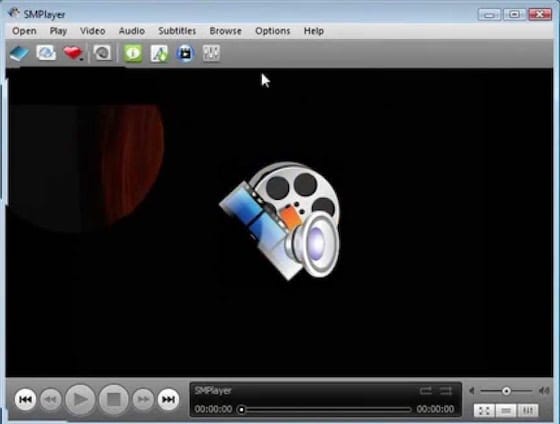
Launch SMPlayer for the first time through your application menu or by typing smplayer in the terminal. The interface welcomes you with a clean, intuitive layout.
Customize Preferences
Access preferences through the Options menu or press Ctrl+P. The preferences dialog organizes settings into logical categories.
- Video Settings: Select your preferred video output driver. The “auto” option works well for most systems, automatically choosing optimal settings. Hardware acceleration options appear under Advanced settings if your graphics card supports them.
- Audio Configuration: Choose your audio output device. This matters if you have multiple audio devices like HDMI audio, USB speakers, or headphones. Set your preferred audio track language for multilingual content.
- Subtitle Preferences: Configure automatic subtitle loading from the same directory as your video files. Adjust subtitle encoding, font size, and positioning. SMPlayer can automatically search for and download subtitles online through integration with subtitle databases.
- Interface Customization: Select icon sets, themes, and toolbar layouts. Adjust the compactness of controls based on your screen size and preferences.
Set Default Media Player
Make SMPlayer your default application for media files. Right-click a video or audio file, select “Properties,” navigate to the “Open With” tab, and choose SMPlayer. Click “Set as default” to apply this to all files of that type.
Alternatively, many desktop environments offer a “Default Applications” settings panel where you can configure SMPlayer as the system-wide media player.
Exploring Advanced Features
SMPlayer shines through its advanced capabilities. Play YouTube videos by selecting “Open URL” from the File menu and pasting video links. SMPlayer streams content directly without requiring browser extensions.
Control playback speed from 0.25x to 4x without affecting audio pitch. This feature proves invaluable for educational content or when you’re short on time. Frame-by-frame advancement (accessible via the period key) helps analyze specific video moments.
The equalizer and audio filters let you customize sound output. Apply video filters for brightness, contrast, saturation, and specialized effects. Take screenshots at any moment using the designated screenshot button or keyboard shortcut.
Create and manage playlists for organizing your media library. SMPlayer remembers playback position not just within sessions but persistently across program restarts.
Troubleshooting Common Installation Issues
Repository Connection Problems
If repository commands fail with network errors, verify your internet connection. Check DNS resolution:
ping -c 4 google.comFirewall rules sometimes block repository access. Temporarily disable your firewall for testing:
sudo systemctl stop firewalldRemember to restart it afterward:
sudo systemctl start firewalldGPG Key Verification Failures
RPM Fusion installation might fail on GPG key verification. Import keys manually:
sudo rpm --import https://rpmfusion.org/keysThen retry the installation command.
Dependency Conflicts
Conflicting packages occasionally prevent installation. Remove conflicting software:
sudo dnf remove <conflicting-package>Then attempt the SMPlayer installation again.
Audio or Video Playback Issues
No audio? Check PulseAudio or PipeWire status:
systemctl --user status pulseaudioVideo artifacts or corruption often indicate driver problems. Update graphics drivers:
sudo dnf update mesa-*Enable hardware acceleration in SMPlayer’s preferences if your GPU supports it. This offloads processing from your CPU, improving performance and reducing resource usage.
Maintaining and Updating SMPlayer
Keep SMPlayer current with regular updates. The update method depends on your installation approach.
DNF/RPM Fusion installations update through the standard system update process:
sudo dnf update smplayerFlatpak installations update separately:
flatpak update org.smplayer.SMPlayerSnap installations update automatically, but you can trigger manual updates:
sudo snap refresh smplayerCheck your installed version at any time:
smplayer --versionRegular updates ensure you have the latest features, bug fixes, and security patches.
Uninstalling SMPlayer
Circumstances change, and you might need to remove SMPlayer. Each installation method has its removal procedure.
Remove via DNF:
sudo dnf remove smplayer smplayer-themes smplayer-skinsClean up orphaned dependencies:
sudo dnf autoremoveRemove Flatpak version:
flatpak uninstall org.smplayer.SMPlayerRemove unused runtimes to reclaim space:
flatpak uninstall --unusedRemove Snap version:
sudo snap remove smplayerConfiguration files typically remain in your home directory (~/.config/smplayer) for easy reinstallation. Delete them manually if desired.
Congratulations! You have successfully installed SMPlayer. Thanks for using this tutorial for installing the SMPlayer music player on your AlmaLinux OS 10 system. For additional help or useful information, we recommend you check the official SMPlayer website.
